Users with the Manage Student Supports right can assign student supports manually, which is most useful when only a few changes are needed, such as when a new student joins the class.
To learn how to mass-assign supports to students, visit Managing Student Supports for Online Testing.
Quick Guide
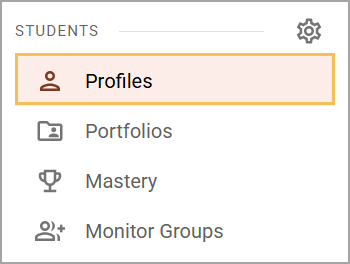
Select Profiles () under Students.
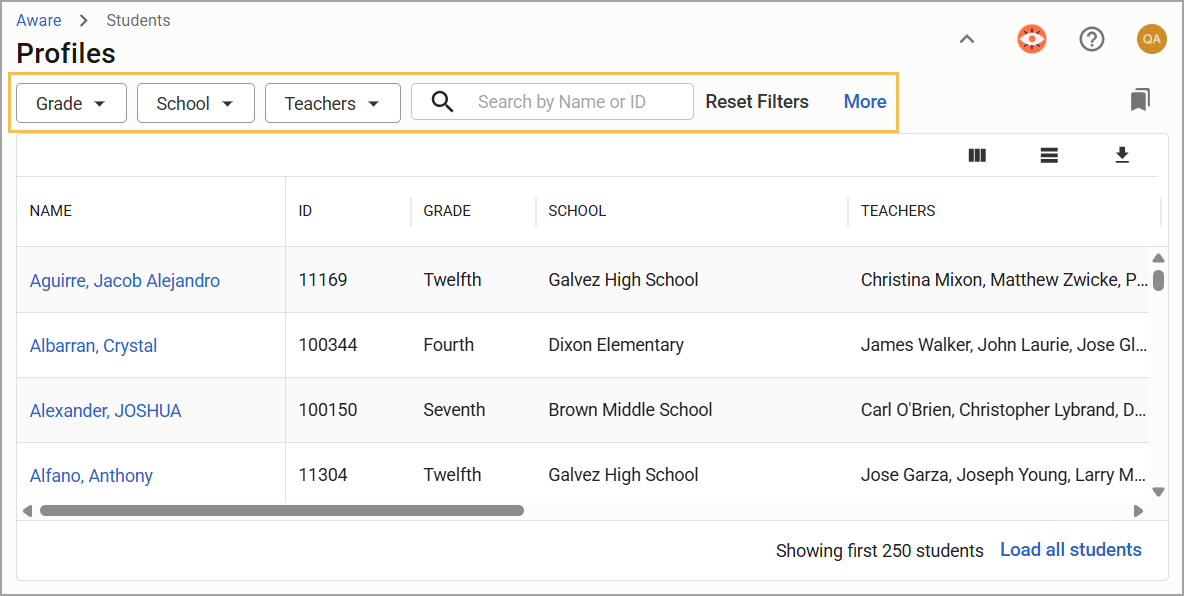
Locate a student by using the table filters or search for them by name or student ID. Click on their name to open their profile.
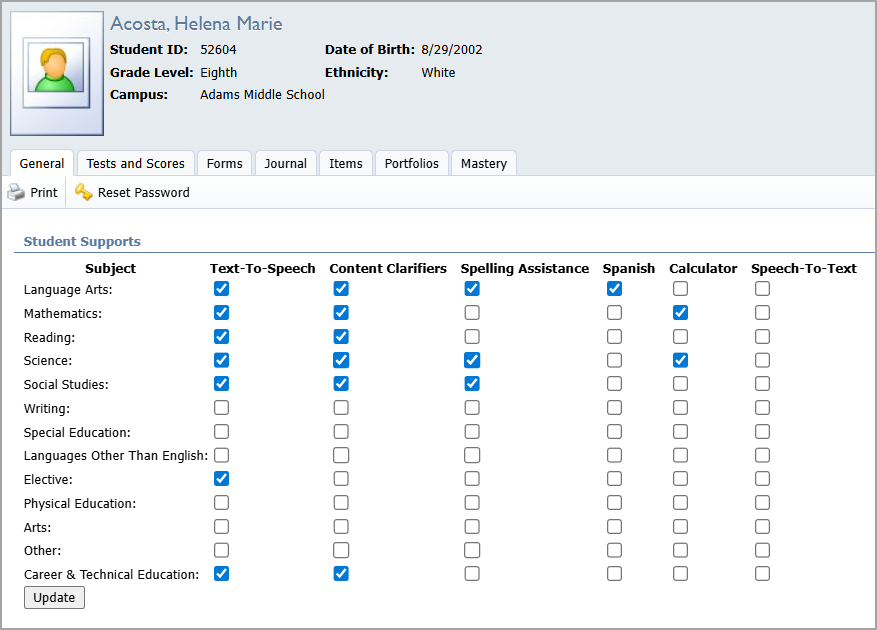
Under the General tab on the student profile, select the appropriate checkboxes for each subject under Student Supports. When complete, select Update.
Illustrated Guide
Step 1: Select Profiles () under Students.
Step 2: Locate a student by using the table filters or search for them by name or student ID. Click on their name to open their profile.
Step 3: Under the General tab on the student profile, select the appropriate checkboxes for each subject under Student Supports. When complete, select Update.
For Spanish-Speaking Students
You may wish to enable additional supports and settings for students who will take their assessments in Spanish.
Enabling the Spanish support for each subject will populate the assessment’s built-in directions in Spanish. Be sure to also add items that are written in Spanish, as the support will not translate English items. Turning on the Spanish support also assists with translation while using Speech-to-Text.
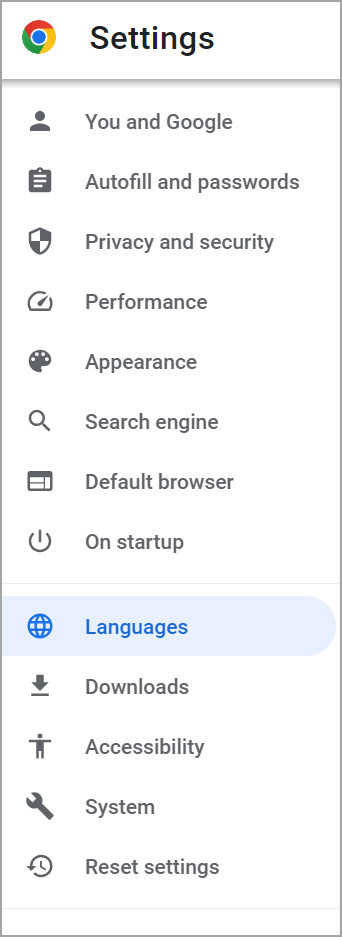
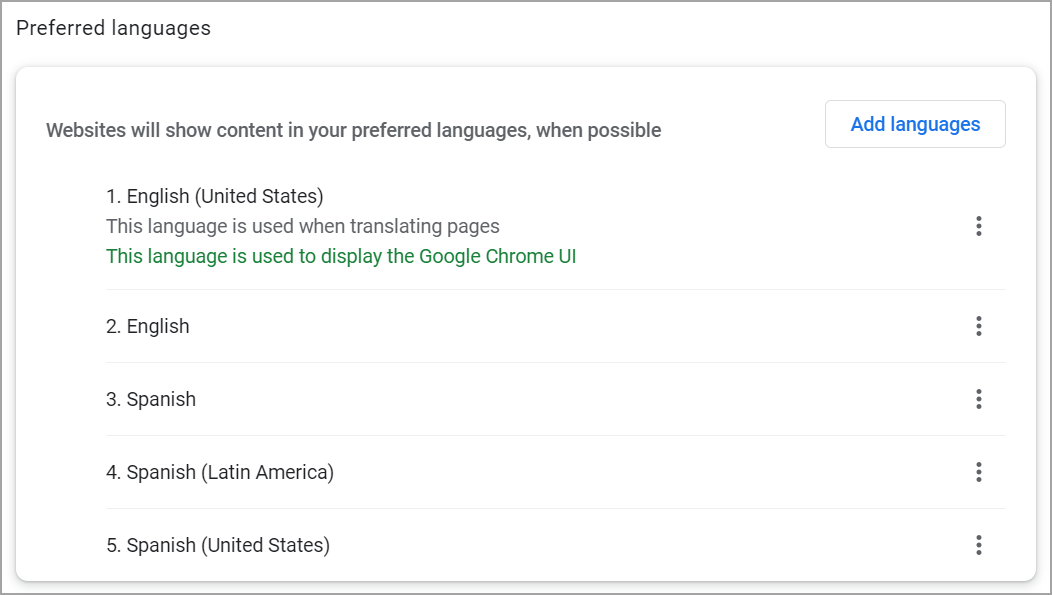
As students use the Google Chrome browser, navigate to Languages in Settings to set the default language to Spanish. Doing so will ensure every word written in Spanish is marked correctly.
If English is the default, then select the three vertical dots () next to Spanish. Check the box for Display Google Chrome in this language and relaunch Chrome. Spanish will now be the first preferred language, and you will be allowed to delete English as a preferred language if necessary.
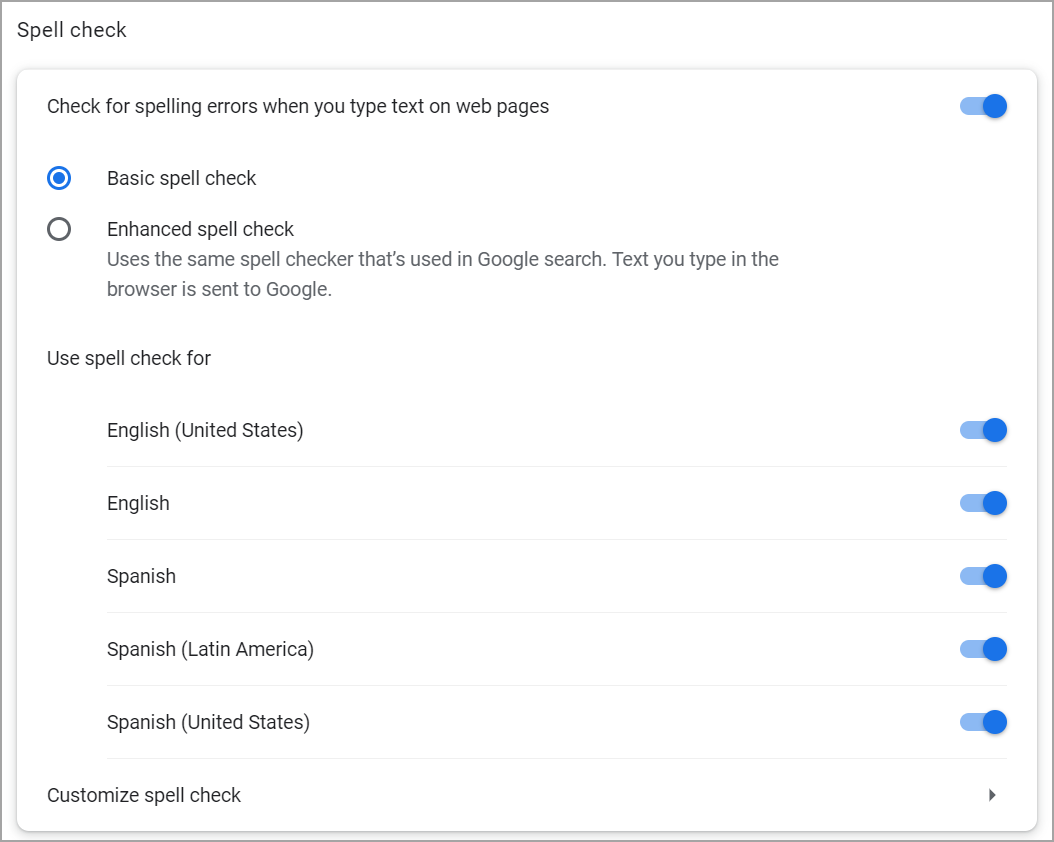
Ensure spell check is also enabled for Spanish in Chrome.
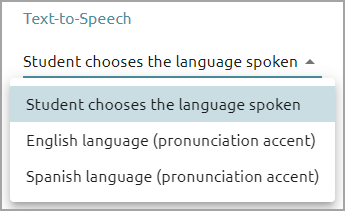
Finally, you can enable Spanish pronunciations while using Text-to-Speech. Navigate to an assessment and click on the Online tab.
Toggle on Text-to-Speech and select Spanish language (pronunciation accent) to have questions in Spanish read aloud to students by a native Spanish speaker. Enabling this single pronunciation option will not allow students to hear questions read aloud in a native English accent unless you give students the option to choose between them.