Districts participating in Teacher Incentive Allotment (TIA) can use pre- and post-tests as a measure of student growth. A pre-test establishes each student's starting point, while a post-test measures what the student has learned over the course of instruction.
Comparing results from both tests allows districts to determine whether students met their expected growth targets and provides student growth data that can be used as part of the criteria for TIA. To support a valid and reliable TIA system, assessments should align to the standards and content of the course, use appropriate levels of rigor, and follow consistent administration, security, and scoring procedures.
To achieve this goal, districts can create standards-aligned assessments, administer them as pre- and post-tests, and use the resulting data to measure student growth, all from within Aware.
Quick Guide
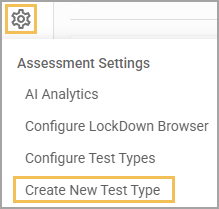
In Aware, select Create New Test Type under Assessments Settings ().
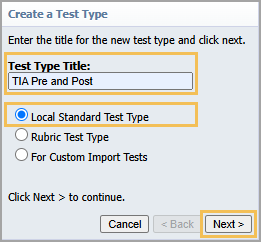
On the Create New Test Type screen, enter a Test Type Title for the test type and choose Local Standard Test Type. Then, select Next to continue.
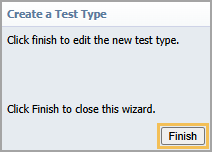
Select Finish to edit the test type.
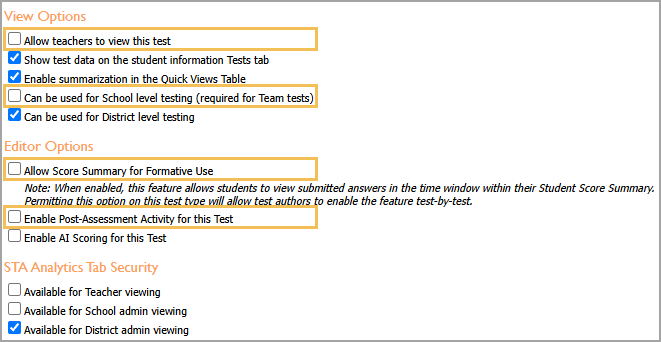
Clear the checkmark from the following checkboxes:
Allow teachers to view this test
Can be used for School level testing (required for Team tests)
Allow Score Summary for Formative Use
Enable Post-Assessment Activity for this Test
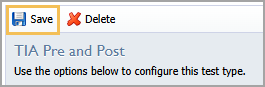
Save these settings.
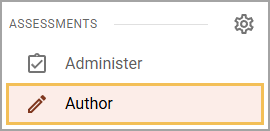
Select Author () from the main menu.
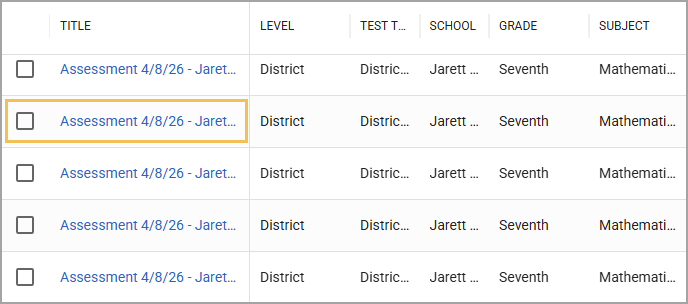
Open a TIA pre- or post-test from the Author Assessments list.
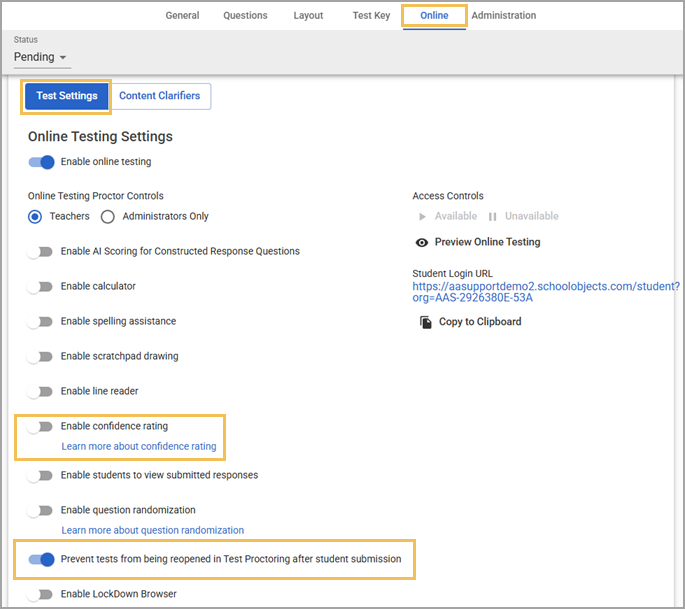
On the Online tab for the assessment, in Test Settings, turn off Enable confidence rating and turn on Prevent tests from being reopened in Test Proctoring after student submission.
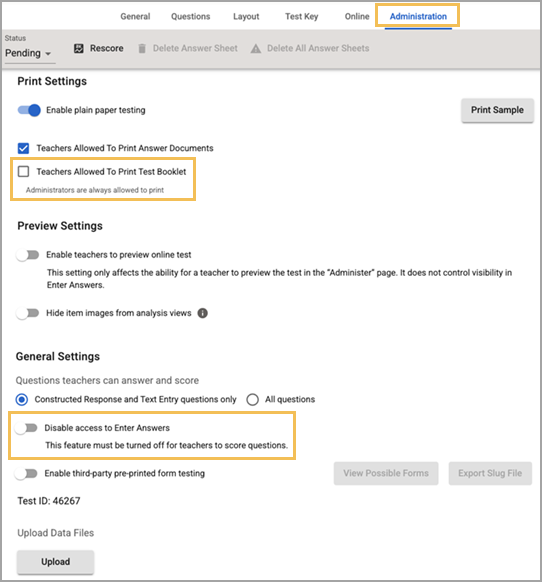
On the Administration tab for the assessment, in Collection, clear the checkmark from the Teachers Allowed to Print Test Booklet checkbox. Then, if the assessment does not include constructed response questions, turn off Disable access to Enter Answers.
Assessment settings save automatically. The TIA pre- or post- assessment is now ready for use.
Illustrated Guide
Step 1: In Aware, select Create New Test Type under Assessments Settings ().
Step 2: On the Create New Test Type screen, enter a Test Type Title for the test type and choose Local Standard Test Type. Then, select Next to continue.
Step 3: Select Finish to edit the test type.
Step 4: Clear the checkmark from the following checkboxes:
Allow teachers to view this test
Can be used for School level testing (required for Team tests)
Allow Score Summary for Formative Use
Enable Post-Assessment Activity for this Test
Step 5: Save these settings.
Step 6: Select Author () from the main menu.
Step 7: Open a TIA pre- or post-test from the Author Assessments list.
Step 8: On the Online tab for the assessment, in Test Settings, turn off Enable confidence rating and turn on Prevent tests from being reopened in Test Proctoring after student submission.
Step 9: On the Administration tab for the assessment, in Collection, clear the checkmark from the Teachers Allowed to Print Test Booklet checkbox. Then, if the assessment does not include constructed response questions, turn off Disable access to Enter Answers.
Assessment settings save automatically. The TIA pre- or post- assessment is now ready for use.