.png)
District Aware managers can customize the labels attached to each Student Growth Rating.
Note: For districts that manage student growth ratings with only two labels, Aware managers can customize labels such as Did Not Meet Growth, Met Growth, and N/A. Percentages can be entered in two increments of 100%. In these districts, Student Growth Rating may appear as 20% Does Not Meet Growth, 80% Met Growth, N/A 0%.
Quick Guide
Log in to Aware, then select Configuration Options from the Analysis Settings ().
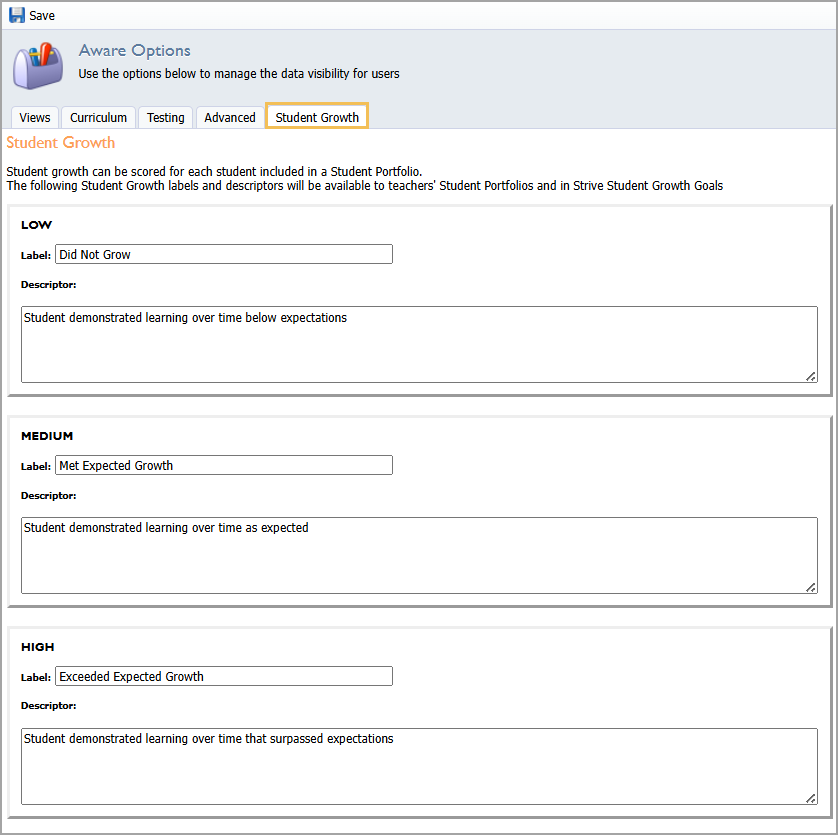
Select the Student Growth tab, and edit the Low, Medium, and High labels as needed.
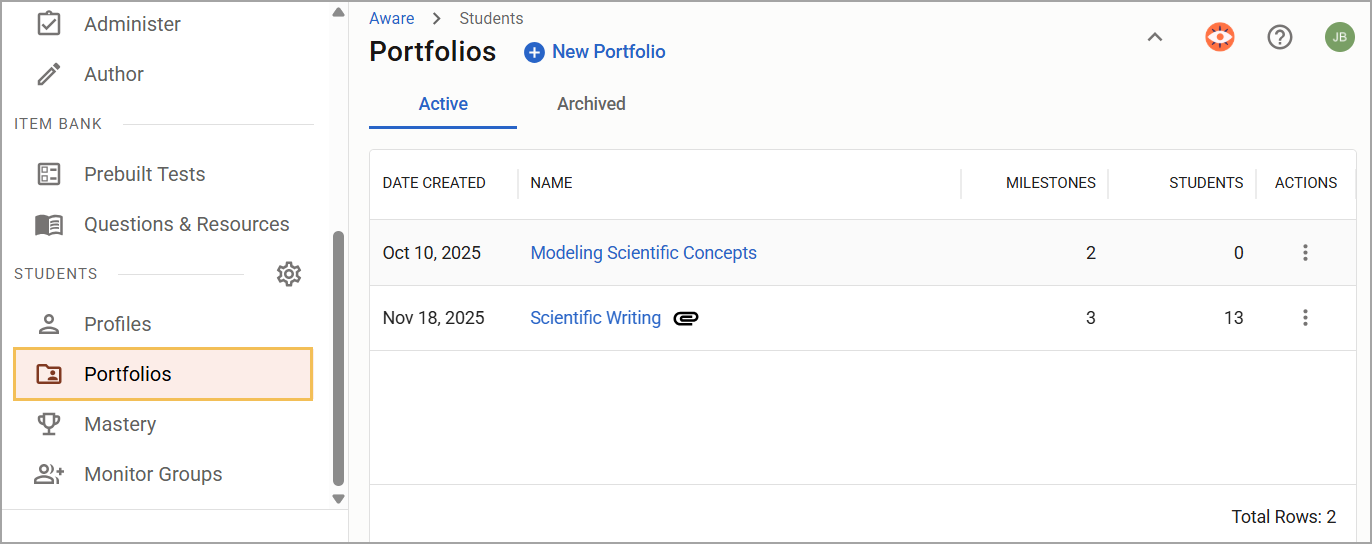
Under Portfolios (), select the portfolio containing the students you wish to view.
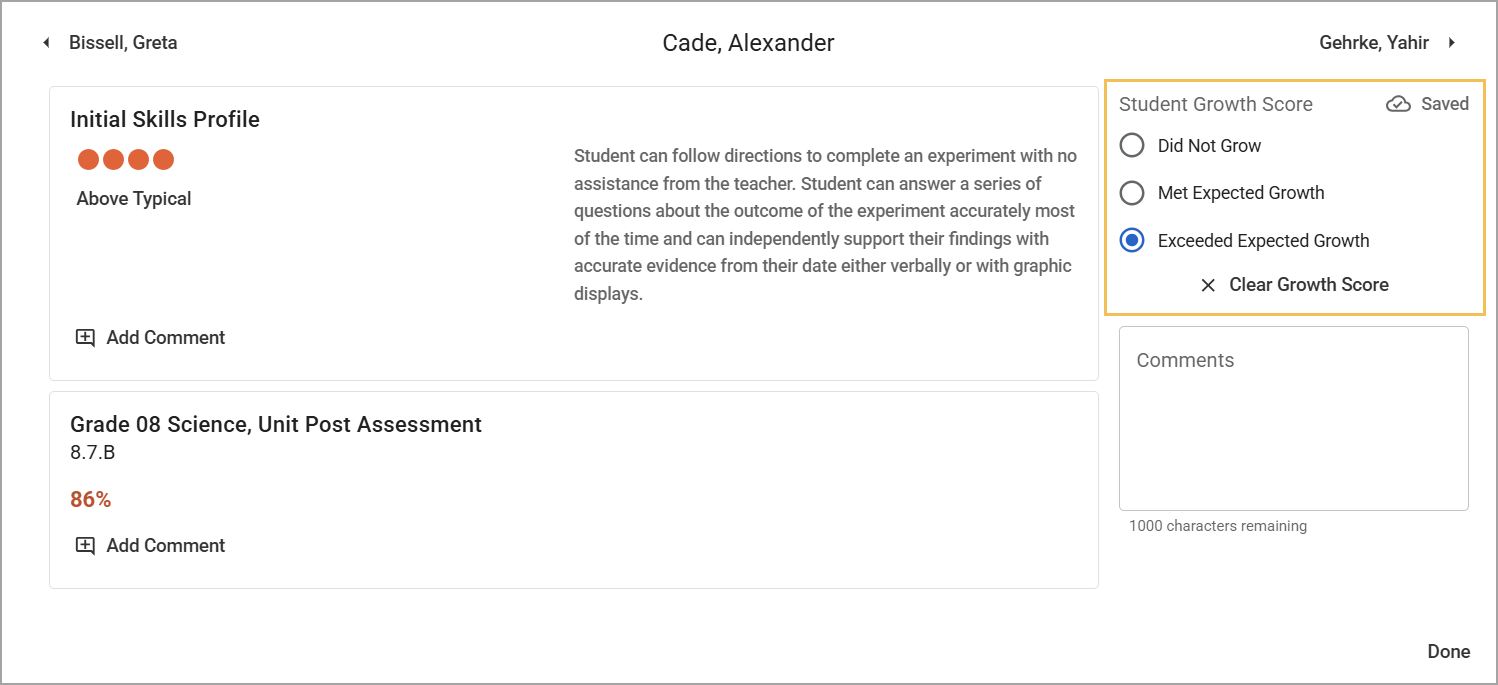
Click on a student’s name to open a grading window showing the added labels for Student Growth Scores.
Illustrated Guide
Step 1: Log in to Aware, then select Configuration Options from the Analysis Settings ().
.png)
Step 2: Select the Student Growth tab, and edit the Low, Medium, and High labels as needed. Once removed, the default text won't reappear, so ensure you are ready to move forward before deleting. The labels will appear left to right, low to high.
Step 3: Under Portfolios (), select the portfolio containing the students you wish to view.
Step 4: Click on a student’s name to open a grading window showing the added labels for Student Growth Scores.