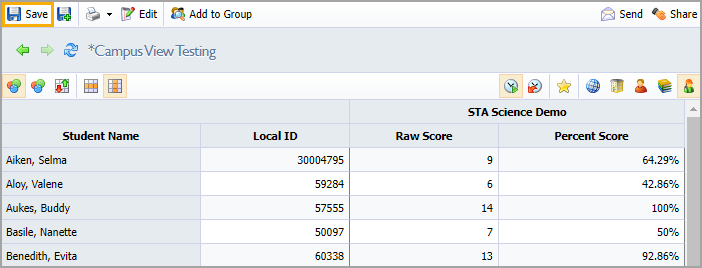
Data administrators can customize data views and save them to use them again. Once you have saved a data view, you can share the data view as a campus or district view depending on how the view’s creator set up share access.
Note: Teachers can create Personal Saved Views.
Saving a New View
You can save a Quick View or a Saved View as a new view. Saving a Quick View as a new view will make the new view a Saved View with viewable data.
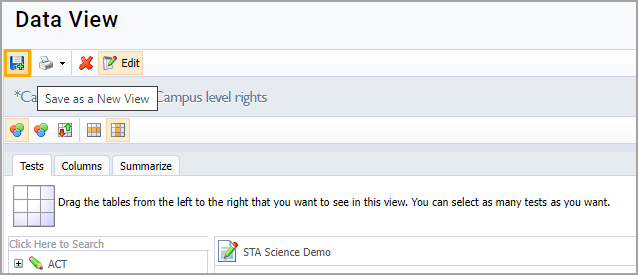
Step 1: On the Edit screen, click the Save as a New View button. You will receive a message that the system has saved the view and be redirected to the new personal saved view.
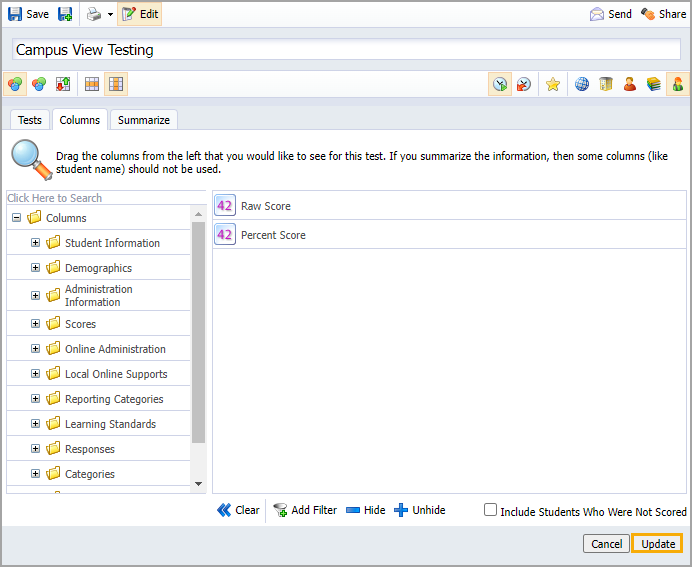
Step 2: Select the Edit button to update the view title and add any additional tests or columns to the view.
Step 3: Select Update to make your changes and view the data table.
Step 4: Click the Save button to finalize your changes.