Under Professional Learning Setup, Instructors and Guests allow you to control the various settings for local and guest instructors.
Managing Instructors
The Instructors screen displays a list of all instructors for your district. You can add an instructor by selecting Add Instructor.
Select either a Staff Member or a Guest Instructor to add and then select Next. Continue following the prompts to add the instructor. When you are done, select Finish.
If choosing a Guest Instructor, that guest account must already exist in the Guests section.
Once an instructor is added, you can select their name from the list to edit their information.
The Instructor tab allows you to enter their phone number and a short biography.
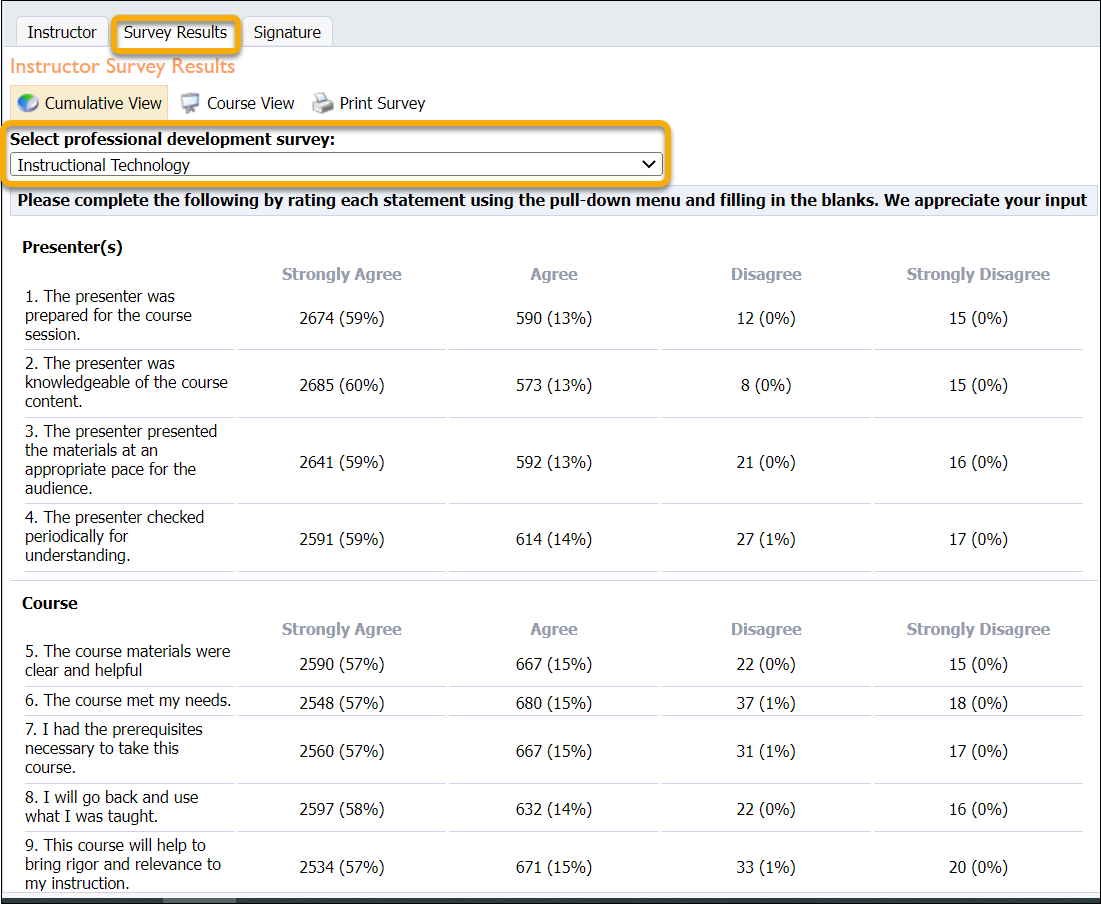
The Survey Results tab allows you to view the information gathered from surveys completed for courses that this instructor has taught.
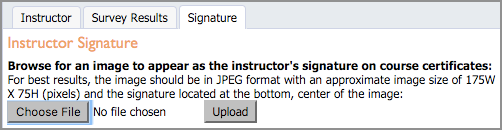
The Signature tab allows you to upload an image of the instructor's signature. This signature is used on all certificates printed for courses that this instructor has taught. Review the resolution requirements before uploading.
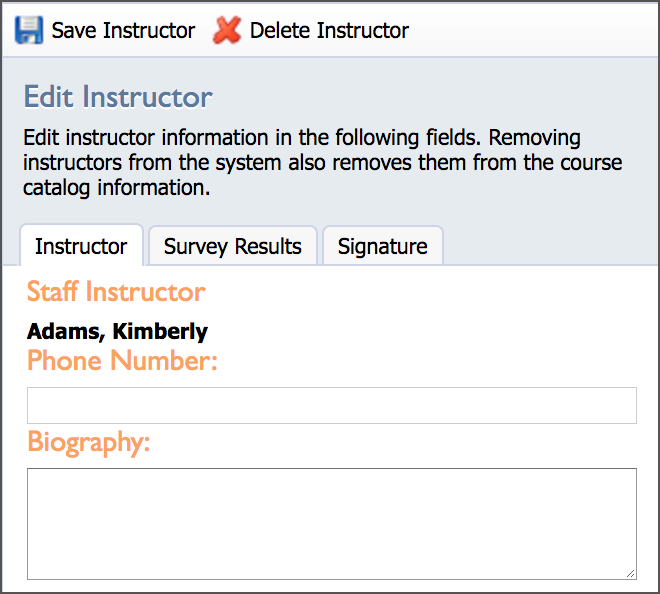
Once all information has been entered, remember to Save Instructor.
Warning: Do not delete instructors. The instructor is tied to the credit for the course, and removing an instructor from the list might delete credits from user portfolios.
Managing Guests
Guests displays a list of all the guests that have been added to the district. Guest accounts can be used for instructors or attendees of courses as defined by the district. You can add a new guest by selecting Add Guest.

Enter a First Name, Last Name, Email Address, and the Guest Password that they will use to log in. Select Save when finished.
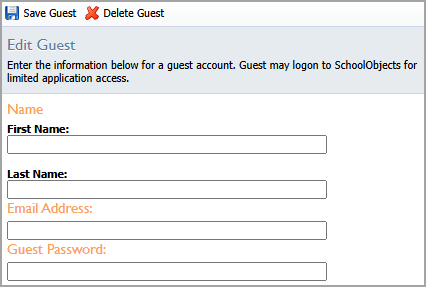
Once added, you can select the guest user's account from the list on the Guest screen to make changes to their account.
Note: You cannot view a guest’s password after the account is created. If a guest forgot their password, they can reset it using the Forgot Password? link on the login screen.
Warning: Do not delete a guest who has been added as an instructor. The instructor is tied to the course credit, and removing an instructor from the list might delete credits from user portfolios.