An Asset Manager can be assigned to any room or asset in Facilities&Events. The user set as the Asset Manager can be added to a workflow process to be responsible for approving reservations for that room or asset.
Assign an Asset Manager
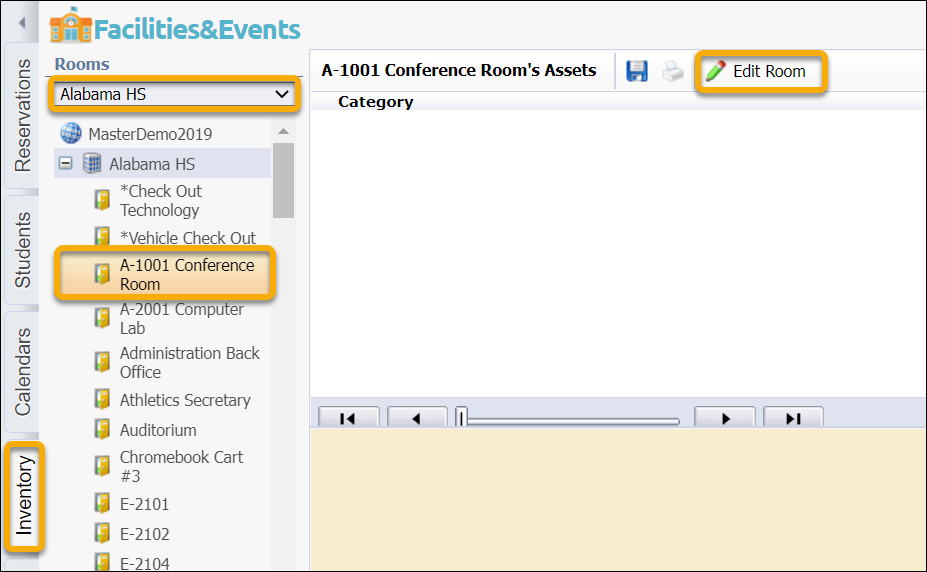
Step 1: Go to the Inventory tab.
Step 2: Select the campus or building from the Rooms drop-down menu.
Step 3: Select the room you want to assign to an asset manager.
Step 4: Click Edit Room.
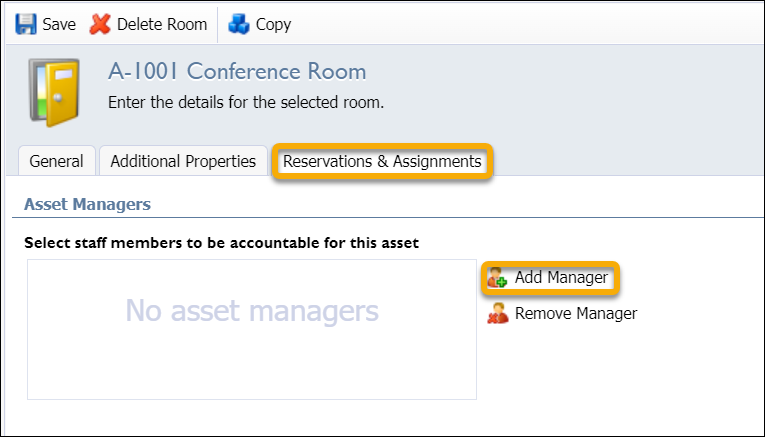
Step 5: Select the Reservations & Assignments tab.
Step 6: Click Add Manager.
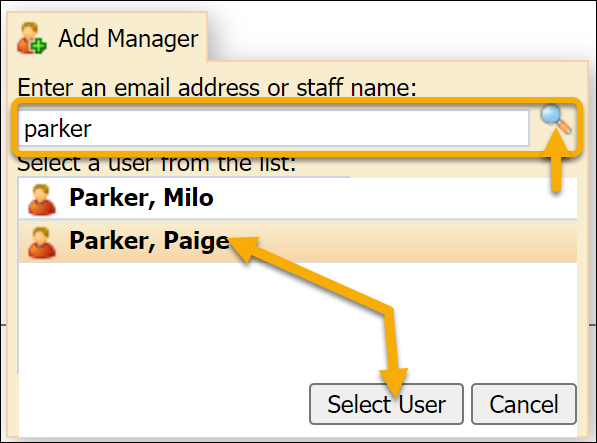
Step 7: Enter the name of the user to assign as Asset Manager, then click the magnifying glass to initiate a search.
Step 8: Click on a name in the list, then click Select User.
Step 9: Click Save.
Users assigned to a room as Asset Manager will automatically be the approver in the built-in Eduphoria workflow. In custom workflows, the Asset Manager can be added at the approval or notification step.