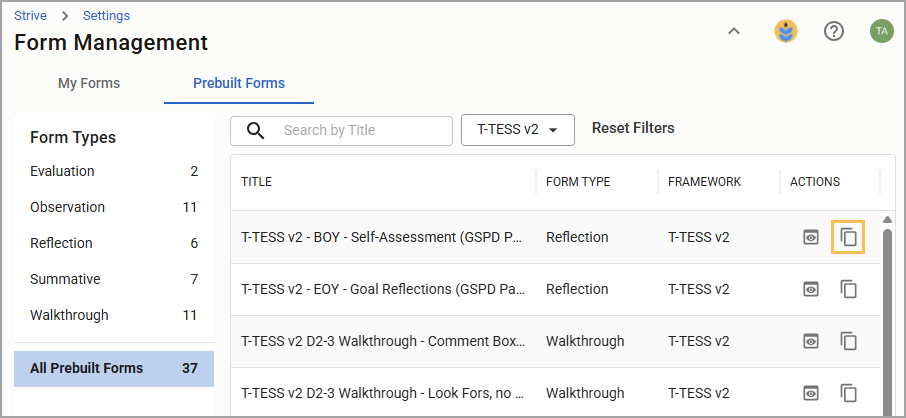
Eduphoria provides prebuilt forms for use in various Texas-based evaluation processes, such as T-TESS, T-PESS, LIFT, Bluebonnet Learning, and more. The Form Management table lists available prebuilt forms under the Prebuilt Forms tab, where users can preview them and copy any they need to the My Forms tab. Users can then edit and use the form for their respective process.
Quick Guide
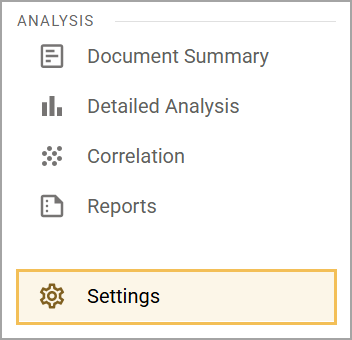
Select Settings () on the main menu.
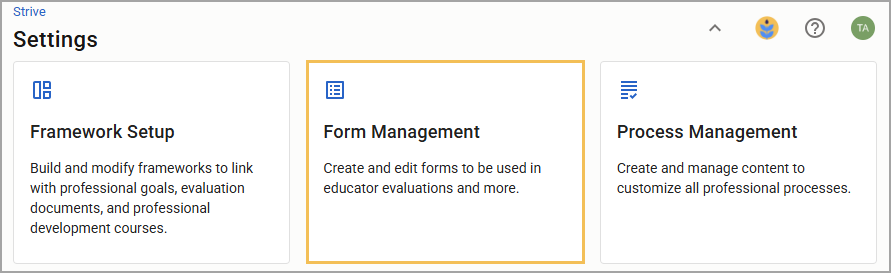
Select Form Management.
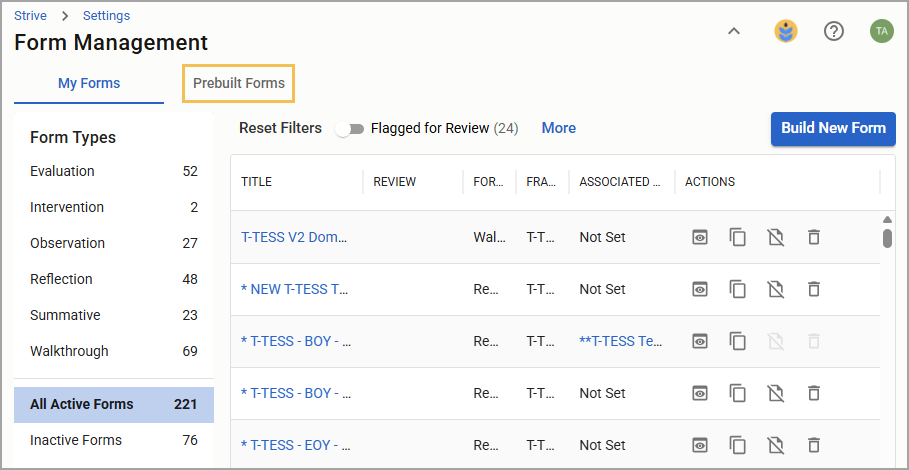
Select the Prebuilt Forms tab to see the available Eduphoria-provided forms in a table.
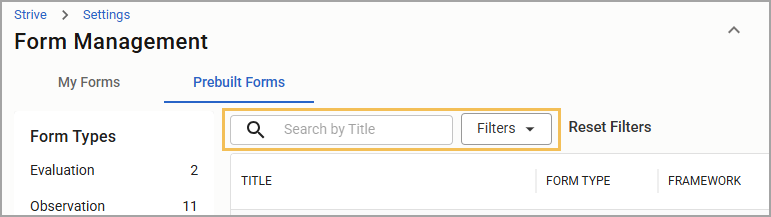
Locate the prebuilt form you want by using the Framework and Form Type filters or searching by title.
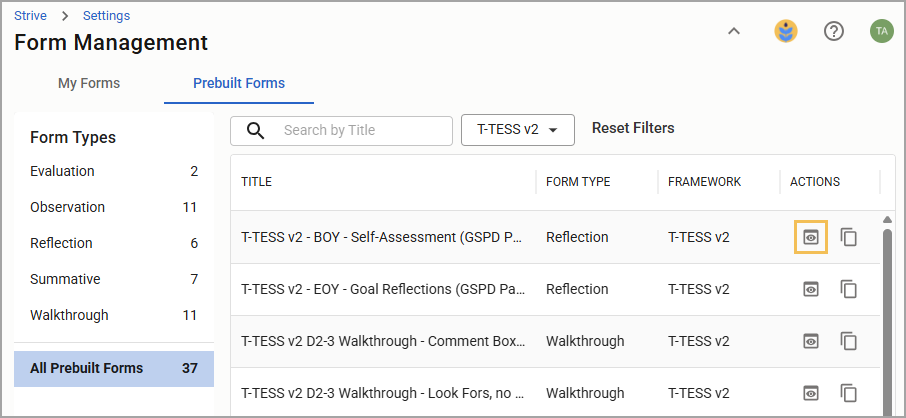
Under the Actions column, select the Preview icon () to preview the contents of the prebuilt form.
Select the Copy icon () under the Actions column or Copy to My Templates () on the Preview Form screen to send a copy to the My Forms table.
Illustrated Guide
Step 1: Select Settings () on the main menu.
Step 2: Select Form Management.
Step 3: Select the Prebuilt Forms tab to see the available Eduphoria-provided forms in a table.
Step 4: Locate the prebuilt form you want by using the Framework and Form Type filters or searching by title.
Step 5: Under the Actions column, select the Preview icon () to preview the contents of the prebuilt form.
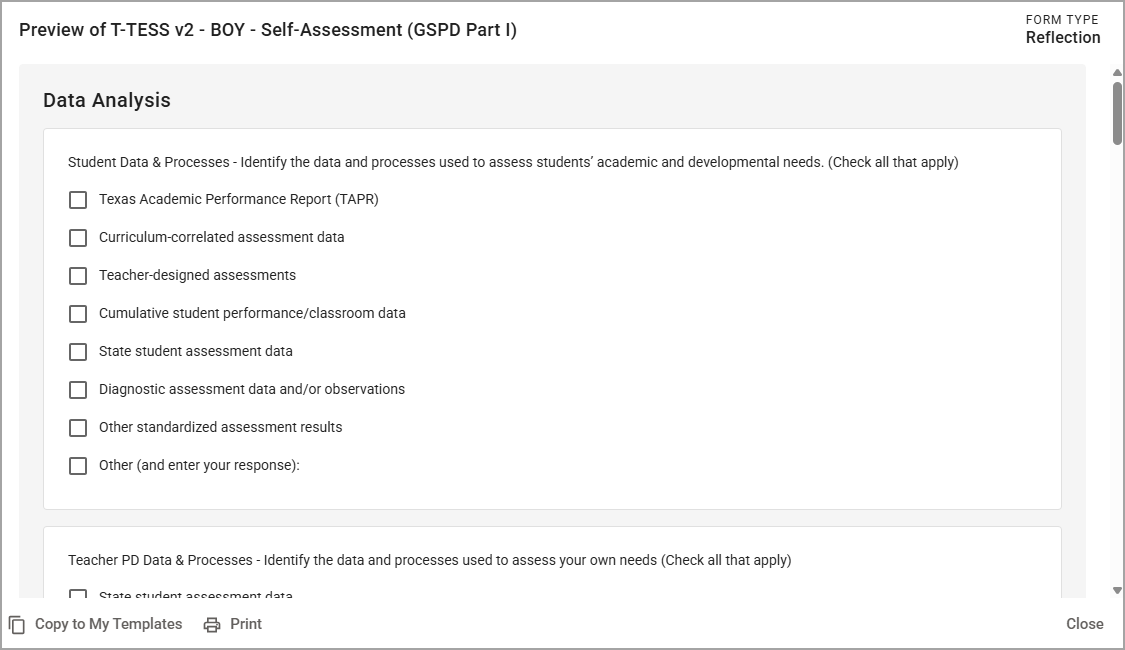
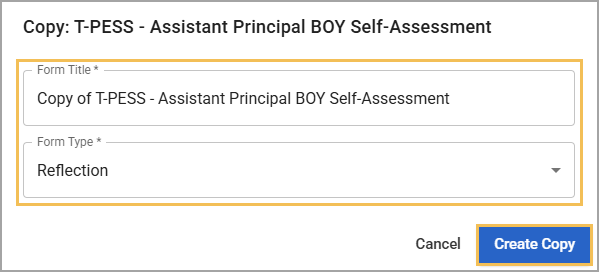
Step 6: Select the Copy icon () under the Actions column or Copy to My Templates () on the Preview Form screen to open a modal, where you can retitle the prebuilt form and set its form type. Select Create Copy to finalize sending a copy to the My Forms table. Users can then edit and use the form within their evaluation processes.