Appraisal administrators can copy existing forms, especially if they want to use the original form as a template or make significant changes to a form currently being used in an evaluation process.
Quick Guide
Select Settings () in Strive.
Select Form Management.
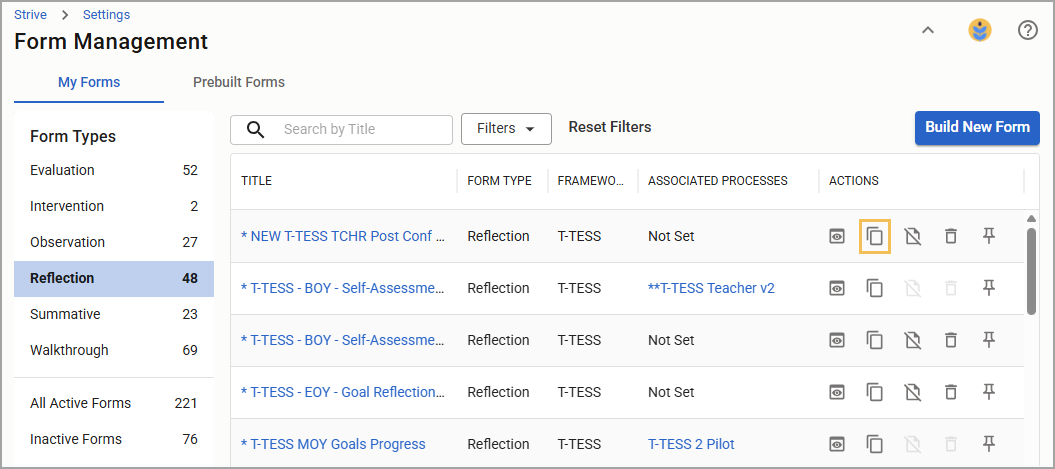
Select the My Forms tab.
Use the filters or search by title to locate the form you want to copy in the appropriate form type table.
Under the Actions column, select the Copy icon ().
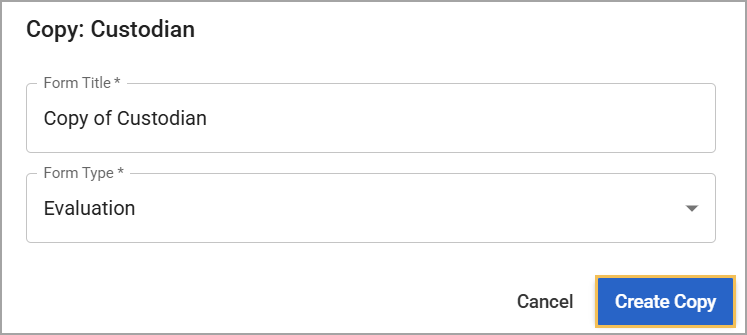
Update the form title and type as needed, then select Create Copy.
Illustrated Guide
Step 1: Select Settings () in Strive.
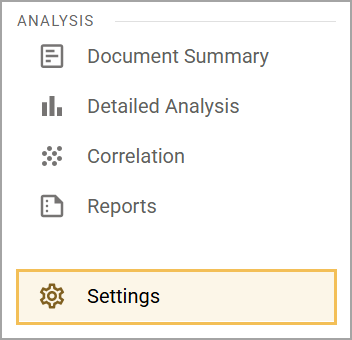
Step 2: Select Form Management.
.png)
Step 3: Select the My Forms tab.
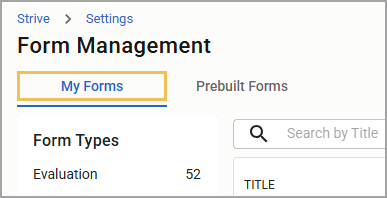
Step 4: Use the filters or search by title to locate the form you want to copy in the appropriate form type table.
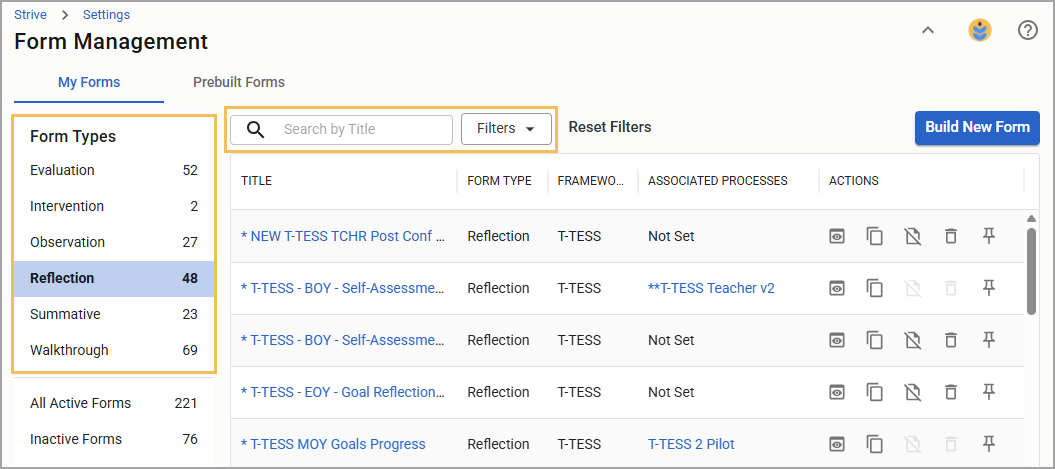
Step 5: Under the Actions column, select the Copy icon ().
Step 6: Update the form title and type as needed, then select Create Copy. The copied form retains all settings and items from the original form, which you can retitle and fully edit at any time.