The Day at a Glance tab of My Planners provides an expanded view of your plans for today or tomorrow. Designed to give teachers a focused view of their daily instruction, Day at a Glance makes it easier to review the details of each lesson without navigating through the full planner. From this view, you can read through your planned activities, review the content and resources included in each lesson, and open linked curriculum components in a larger preview window for easy viewing. Use Day at a Glance to quickly review your plans and access the materials you need as you prepare for or teach each day's lessons.
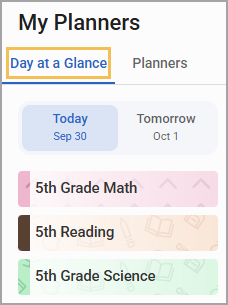
To access Day at a Glance, select My Planners from the main menu and choose the Day at a Glance tab.
Viewing Plans
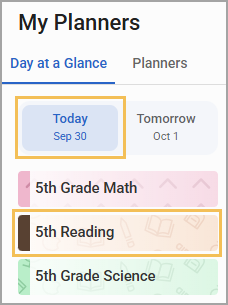
From the Day at a Glance tab, you can choose to view plans for Today or Tomorrow by selecting the date above the prep options. Then, select the prep you want to view.
The right side of the screen displays your plans for the selected day and prep. From here, you can click on the unit, assessment window, or any linked curriculum components, such as lessons and resources, to open them in the preview window.
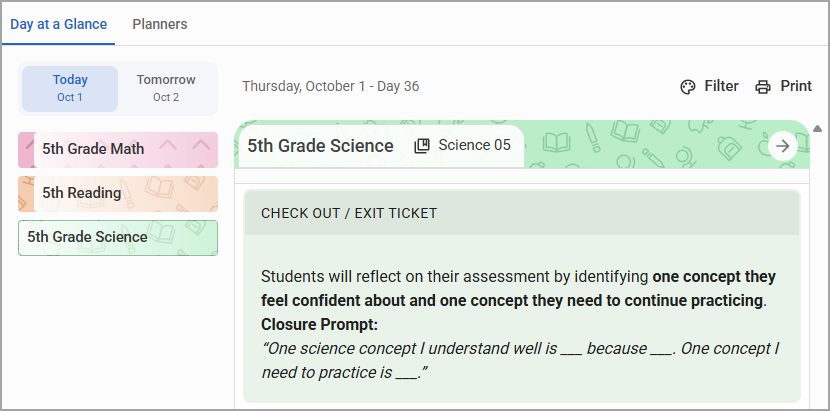
Note: You cannot edit plans from Day at a Glance. Select the arrow at the top right of the plan or switch to the Planners tab to add to, delete, or edit your plans as desired.
Accessing the Planner
If you want to edit your plans or switch to a weekly view, you can access the full planner by selecting the arrow () at the top right of your plan.

Filtering Plans
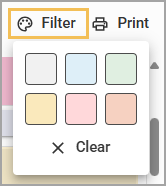
You can filter the type of plans that appear in Day at a Glance by the color you assigned to the content blocks. To filter your content blocks, select Filter () and then choose the color of the content blocks you want to view.
For example, if you assigned the color green to all content blocks containing information about group activities, when the time comes to start today’s group activity, you can select the green filter to quickly reference your notes about the activity.
Printing Plans
Quickly generate and print a physical copy of the day’s plans by selecting the Print button () in the top right.
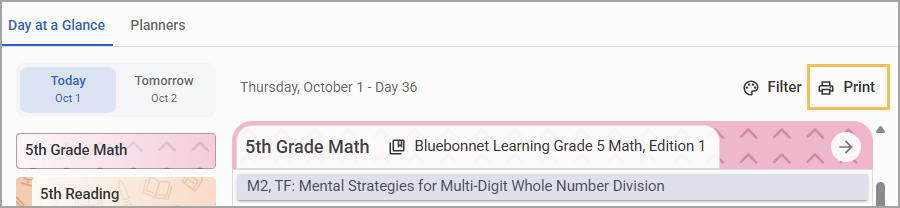
The print settings window appears with a preview of your plan for the selected day and prep. You can then configure how you want the file to print and send it to the appropriate printer.