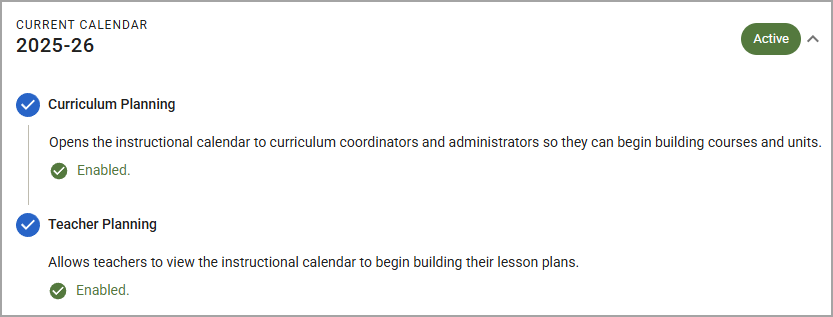
Users with the Create District Curriculum Courses right can enable planning for the next school year on the Instructional Calendar Management screen. When you are ready to begin planning, follow the steps below to allow other users to access the new instructional calendar.
Note: To start planning for next school year, the instructional calendar must be set up in Management. To learn how to set up the instructional calendar, see Creating the Instructional Calendar. If you do not have access to creating instructional calendars, contact your Eduphoria System Administrator to get this set up.
Caution: Once planning is enabled, the action cannot be undone. Please confirm with your team, administrators, or any other necessary parties before you enable Curriculum Planning or Teacher Planning.
Quick Guide
Select Instructional Calendars from the Management section of the main menu.
Expand the row for the calendar that you want to manage.
Select Enable Curriculum Planning to allow curriculum coordinators and administrators to begin creating courses and units for the selected school year.
Once the scaffold is created and you are ready for teachers to begin planning their daily lessons, return to the calendar and select Enable Teacher Planning.
Illustrated Guide
Step 1: Select Instructional Calendars from the Management section of the main menu.
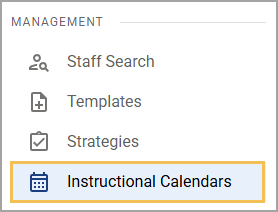
Note: The Create District Curriculum Courses right is required to access Instructional Calendars.
Step 2: Expand the row for the calendar that you want to manage.
Note: If you do not see the calendar you are looking for, contact your system administrator to ensure that the calendar has been created in the Eduphoria Management platform.
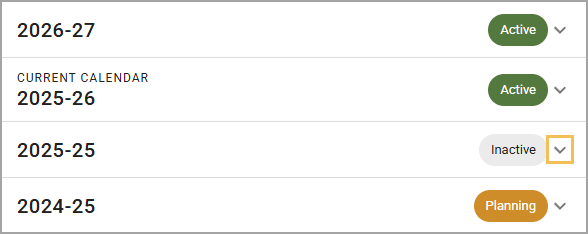
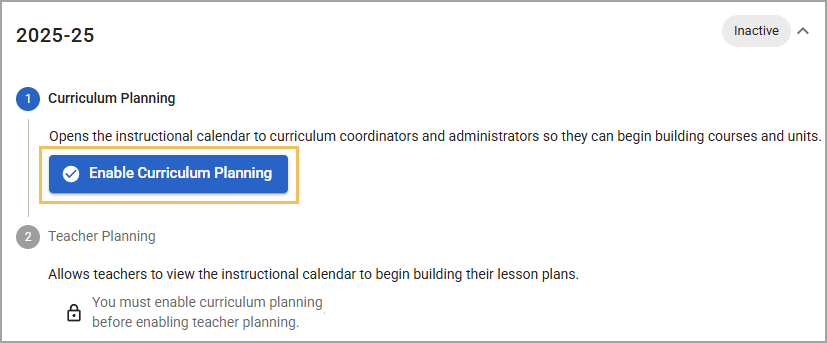
Step 3: Select Enable Curriculum Planning to allow curriculum coordinators and administrators to begin creating courses and units for the selected school year.
The status changes from Inactive to Planning, Curriculum Planning is marked as Enabled, and the Enable Teacher Planning button appears.
Step 4: Once the scaffold is created and you are ready for teachers to begin planning their daily lessons, return to the calendar and select Enable Teacher Planning.
The status changes from Planning to Active, and both Curriculum Planning and Teacher Planning are marked as Enabled.
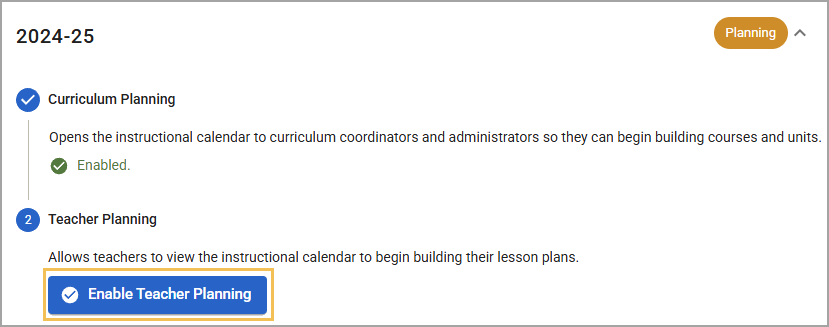
The image below demonstrates how the expanded calendar looks when planning is fully enabled.