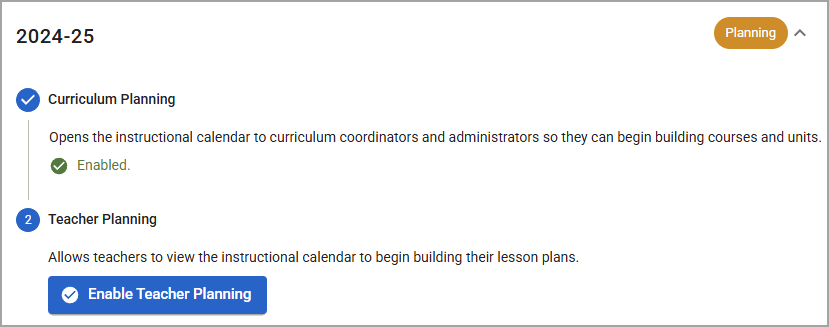
Users with the Create District Curriculum Courses right can enable planning for the next school year on the Instructional Calendar Management screen. There are two steps to enabling future planning:
Curriculum Planning - First, you enable open the instructional calendar to curriculum coordinators and administrators. This allows users with the Create District Curriculum Courses right to create the scaffolding of next year’s curriculum by building out courses and units.
Teacher Planning - Next, you open the instructional calendar to all users so that teachers can begin building lesson plans for the next school year.
Note: To start planning for next school year, the instructional calendar must be set up in Management. To learn how to set up the instructional calendar, see Creating the Instructional Calendar. If you do not have access to creating instructional calendars, contact your Eduphoria System Administrator to get this set up.
Note: The Create District Curriculum Courses right is required to access Staff Search.
Statuses in Instructional Calendar Management
Each instructional calendar listed on the Instructional Calendar Management screen includes the school year, a status bubble, and an expand/collapse arrow. The status bubble provides an at-a-glace view of the calendar’s current stage in the planning process.
Inactive - The calendar has been created in Management, but neither Curriculum Planning nor Teacher Planning are enabled.
Planning - Curriculum Planning is enabled. Teacher Planning is not enabled.
Active - Both Curriculum Planning and Teacher Planning are enabled.
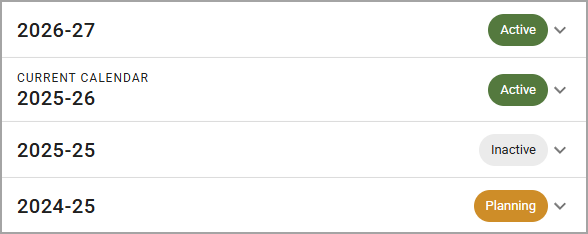
Expand a row to view the current stage in more detail and to manage the calendar.