After the scheduled date and time for a course has passed, you can begin granting credits to those who were in attendance.
Quick Guide
Select Catalog () from the main menu.
Select Manage Courses.
Under Course Management, select Courses.
Search by Keyword or click the drop-down arrow to filter courses by date. Then, select your course.
Select the Attendees tab to display the list of attendees.
Grant credits:
To grant credit to all attendees, select the Wrench icon and then select Grant All Credit.
To grant credit to an individual, choose the attendee and then select Credit Options > Grant Attendee Credit.
Illustrated Guide
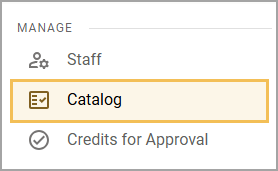
Step 1: Select Catalog () from the Manage section of the main menu.
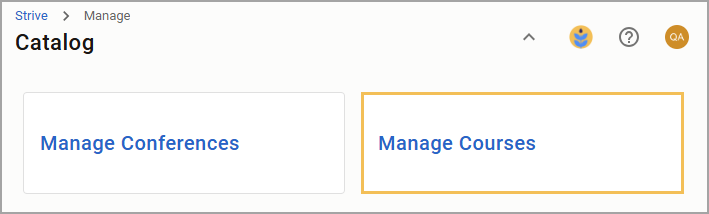
Step 2: Select Manage Courses.
Step 3: Under Course Management, select Courses.
.png)
Step 4: Search by Keyword or click the drop-down arrow to filter courses by date. Then, select your course from the filtered list to open the course details on the right side of the screen.
.png)
Step 5: Select the Attendees tab to display the list of attendees.
.png)
Step 6: From the Attendees tab, you can grant credit to attendees individually or grant credit to all attendees at once.
To grant credit to all attendees, select the Wrench icon and then select Grant All Credit.
.png)
.png)
To grant credit to an individual, choose the attendee to whom you want to grant credits for the course. Then, select Credit Options and then choose Grant Attendee Credit.
You can also select Remove Credit From Attendee if credit was granted by mistake or select Custom Credit to give partial credit based on a percentage or credit type.
.png)