The My Forms tab is accessible to all Formspace users and serves as a centralized workspace for forms that have been shared with or assigned to you. This tab is designed for participation and tracking, allowing you to quickly locate, open, and complete forms such as evaluations, surveys, or data submissions. From this view, you can search for active or past forms, fill out and submit responses, revisit previously completed entries, and monitor each form’s progress within its workflow. Whether you are responding to a time-sensitive task or reviewing historical submissions, the My Forms tab keeps all assigned forms organized and easily accessible in one place.
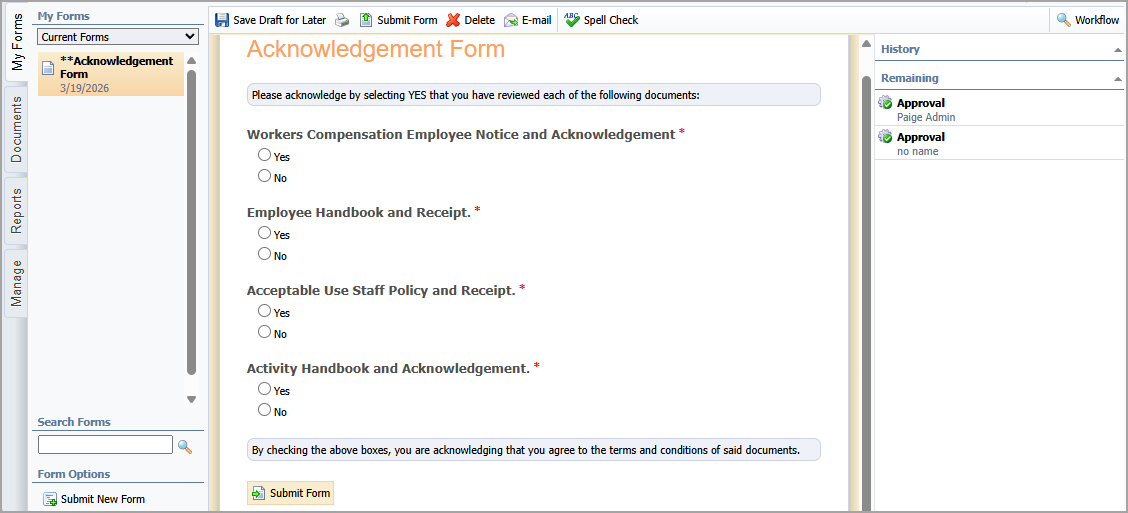
My Forms Menu
To begin, you use the left panel of the My Forms tab to locate the form you want to view or submit.
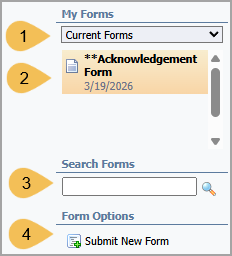
# | Field | Description |
|---|---|---|
1 | Current Forms / Past Forms drop-down menu | Choose whether to display active or inactive forms in the My Forms list. |
2 | My Forms list | Select a form from the list to open it on the right. The list displays active or inactive forms based on your selection in the Current Forms / Past Forms drop-down menu. |
3 | Search Forms | Type the complete or partial name of a form in the field. The My Forms list updates to show forms that match your search criteria. When viewing Past Forms, you can also select a Start and End date to search within the specified date range. |
4 | Submit New Form | View forms by category and select a form to add it to the My Forms list. |
Forms Toolbar
When you select a form from the list, the form appears on the right along with a toolbar. This toolbar allows you to save, print, submit, delete, email, check spelling, and view the form’s workflow.

# | Field | Description |
|---|---|---|
1 | Save Draft for Later | Saves your entries so that you can exit the screen and finish filling out the form at a later time. |
2 | Downloads the form to your device. The form saves as a PDF file so that it can be printed. | |
3 | Submit Form | Prompts you to enter your credentials to securely sign and submit your responses. |
4 | Delete | Clears your responses and removes the form from the My Forms list. To restore the form to your list, select Submit New Form, select the form category, and then select the form. The form reappears in the list but does not restore your responses. |
5 | Allows you to email the form to another user. To email the form, search for a user by name or email address, select the user from the list, and then select E-mail. | |
6 | Spell Check | Runs spell check on your form. |
7 | Workflow | Opens the Workflow panel. |
Workflow Panel
The Workflow panel displays completed and pending actions in the form’s workflow.
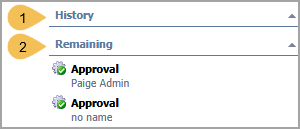
# | Field | Description |
|---|---|---|
1 | History | Expand this section to view completed actions in the workflow. |
2 | Remaining | Expand this section to view pending actions in the workflow. |