The Staff screen in Strive provides a centralized hub for managing your staff members’ evaluation processes. This screen allows campus and district administrators, evaluators, and other authorized users to search for staff, assign evaluation methods, and review professional learning records.
Accessing Staff
To view staff members or start an evaluation, select Staff () from the Manage section of the main menu.
.png)
Sorting and Filtering the Staff Screen
Use the sort and filter options at the top of the screen to more easily locate a specific staff member or groups of staff members.

Type all or part of a staff member’s name into the Search by Name field. The screen automatically updates as you type to show only staff members matching the search criteria.
Use the drop-down menus to view staff by School/Department, Evaluator, Process, Grade Levels, and/or Subjects Taught.
Show only Goals Pending Approval, Staff With Unsubmitted Goals, or Walkthroughs by selecting the buttons. The number in the blue bubble shows how many of each type exist in your staff list. Select the button again to clear the filter.
Sort allows you to change the order in which the staff members appear on the screen. Options include:
A/Z Staff Name – Ascending alphabetical order based on last name.
Z/A Staff Name – Descending alphabetical order based on last name.
Asc. Walkthroughs – Based on the number of walkthroughs, from least to most.
Desc. Walkthroughs – Based on the number of walkthroughs, from most to least.
Reset Filters clears all applied filters. The screen updates to show all staff members whose data you are permitted to view based on your user rights and staff assignments.
Exporting Staff Member Data
The Staff screen also allows you to download a spreadsheet of staff member data, including the Staff Member Name, Process, Evaluator Name, Subjects, and Grade Levels. When you select the Download Filtered Staff icon (), the file is automatically downloaded and saved to the default location in your device’s file manager.
Note: The spreadsheet includes only the staff members who match the filters selected on the Staff screen. If you applied any filters to the screen but want to include all staff members, be sure to select Reset Filters before exporting data.

About the Staff Card
A card appears for each staff member whose data you are permitted to view based on your user rights and staff assignments. For administrators with the necessary rights, this might include all staff members at your school or district. For most evaluators, only their assigned staff members appear.
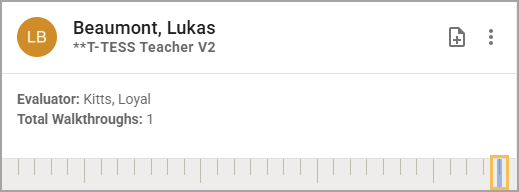
The card displays information about the staff member, including their name, assigned evaluation method, their evaluator’s name, subject, grade level, and the total number of walkthroughs completed.
Click on a staff card to access more detailed information about the staff member’s goals, evaluations, and professional learning courses.
.png)
For staff members with an assigned evaluation method, the card includes a visual timeline of walkthroughs completed in the last 30 days. A blue line indicates that a walkthrough occurred inside the 30-day window. Hover over the blue line to see the exact date when the walkthrough occurred.
Assigning a Process
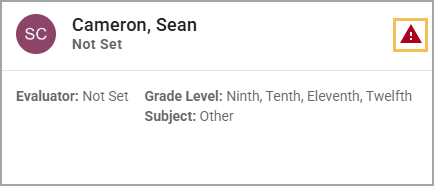
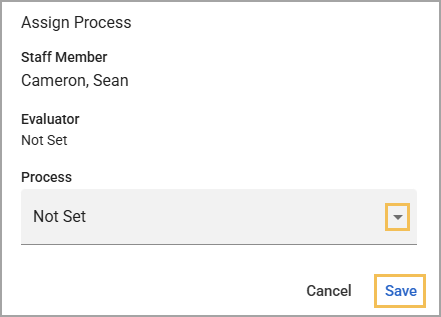
For staff members who don’t have an evaluator or process set, you can select the Process Not Set icon () to choose from a list of available processes based on their role. The evaluator who assigns the staff member’s process also becomes that staff member's assigned evaluator.
Changing the Process
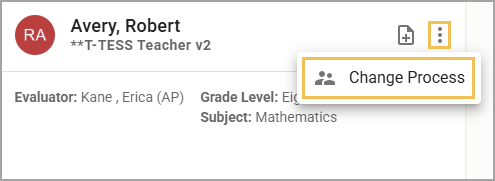
If a staff member is already assigned a process but it was assigned incorrectly, or the staff member changed roles, you can change the evaluation method by selecting the Staff Member Options icon () and then choosing Change Process.
Starting an Evaluation
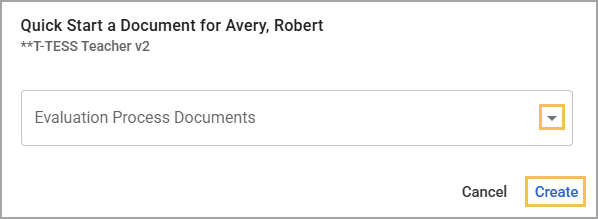
To start a new evaluation, select the Quick Start a Document icon (). Choose from a list of available evaluation process documents, and then select Create.