
.png)
In Beta: Please note, AI Scoring is in a beta-testing phase.
AI Scoring is an Aware Premium feature that district-level administrators with the Create Local Assessment Tests right can grant to their teachers. Once an administrator turns on the feature, they can monitor AI Scoring usage across schools and test types.
General AI Scoring Guidelines
As you use AI Scoring, keep the following guidelines in mind:
AI Scoring attempts to remove human judgment from the scoring experience and is not an exact science.
A series of permissions at the district, test type, test, and question levels controls access to AI Scoring.
AI Scoring is only available for constructed response questions.
AI Scoring currently uses TEA’s STAAR rubrics:
AI Scoring is limited to scoring against the Organization of Ideas (0-3 points) and Conventions (0-2 points) for a total of 5 possible points for the Informational and Argumentative writing rubrics.
Currently, AI Scoring supports Grades 3 through English II for STAAR Informational Text rubrics only.
Eduphoria controls AI Scoring rubrics at the system level.
Controlling Access to AI Scoring
District administrators with district-level access to create local assessment tests can control access permissions for AI Scoring on the AI Analytics dashboard and the Configure Test Types screen. Once they have allowed AI Scoring at those levels, the test author can turn on AI Scoring for individual tests on the Online tab and for individual constructed response questions.
Explore how to turn on AI Scoring at the following levels:
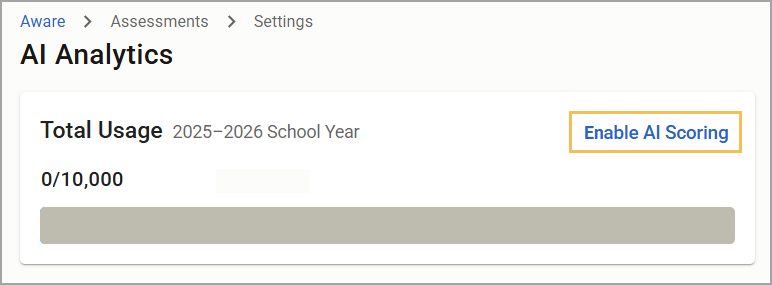
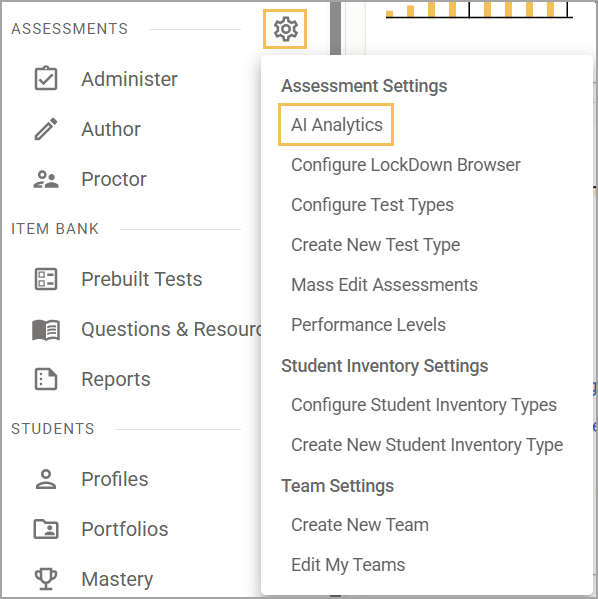
Locate the AI Analytics dashboard under Assessment Settings () > AI Analytics, then select Enable AI Scoring to make it available for any test type and any test.
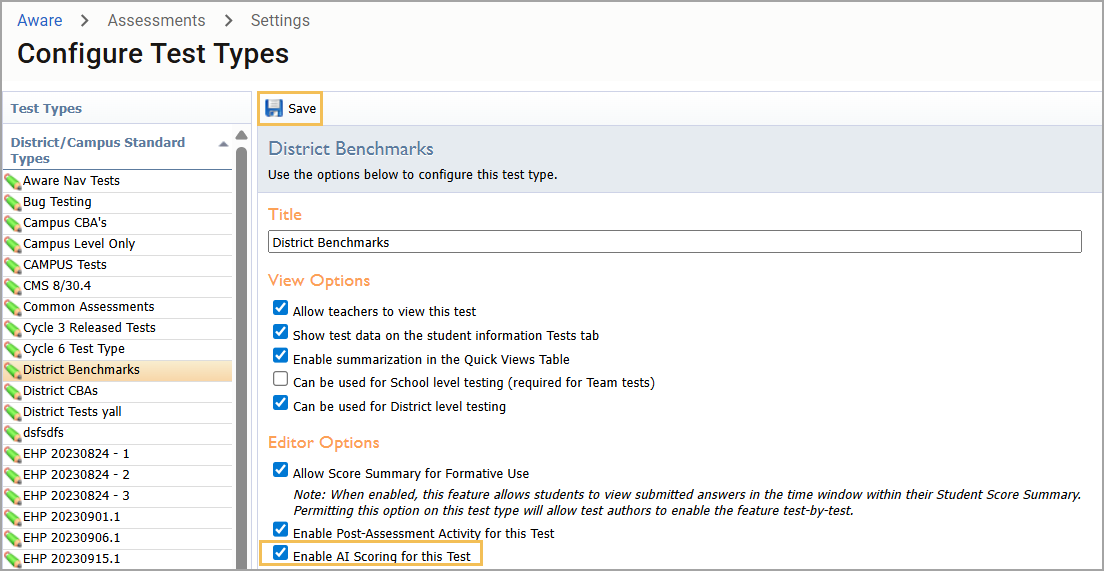
Select Configure Test Types under Assessment Settings () to locate individual test types and their configuration settings. Check the box for Enable AI Scoring for this Test, then select Save to make AI Scoring available for the test type. If AI Scoring is available for the district, the test type-level setting allows it for some test types but not others.
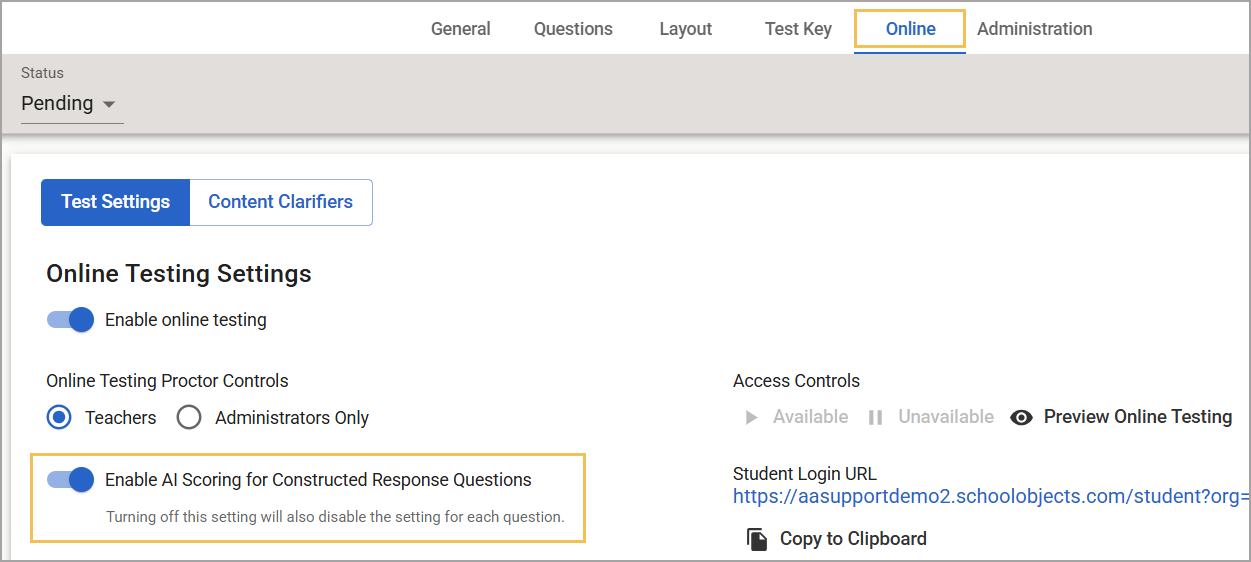
Test settings in the Online tab under Author () can make AI Scoring available for individual assessments. If AI Scoring is available for the test type, this setting allows it on some tests but not others. Toggle on Enable AI Scoring for Constructed Response Questions to apply AI Scoring at the test level.
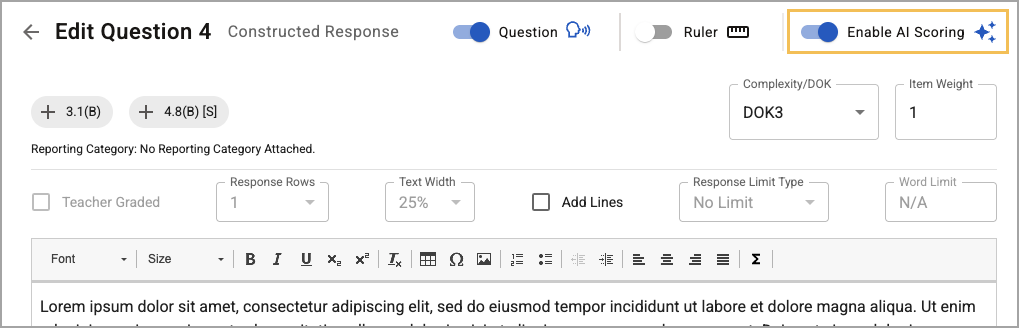
When a test has AI Scoring available, each individual question has a setting that allows AI Scoring for that question. This setting allows AI Scoring to be available for some questions but not others when it is critical for a person to grade constructed response entries. Toggle on Enable AI Scoring to apply it to an individual constructed response question.
Note: Selecting Disable AI Scoring at the district level does not hide the AI Scoring configuration settings for the test type, test, or question level. The action also does not stop any AI Scores that are currently being processed at the time that disabling occurs. However, the Score All AI CRs button in Enter Answers becomes grayed out, preventing new requests for AI Scores.
AI Analytics
District administrators with the district-level version of the Create Local Assessment Tests right have access to the AI Analytics dashboard under Assessment Settings.
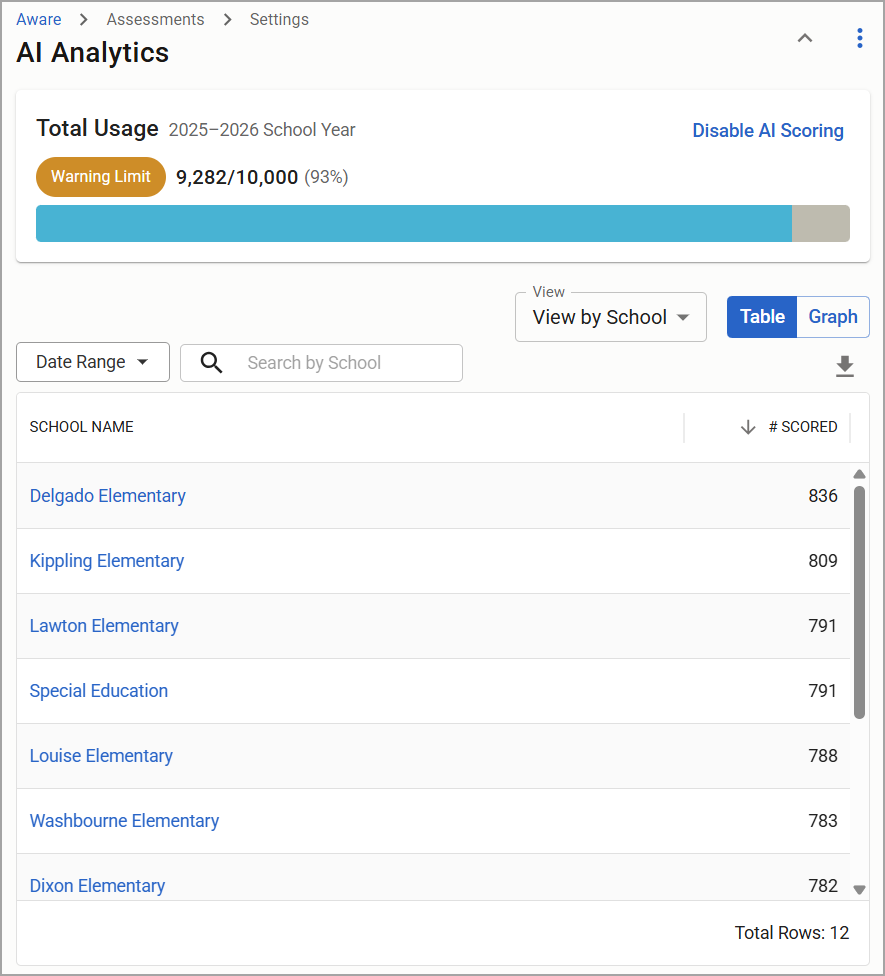
The AI Analytics dashboard allows users to monitor AI Scoring usage across the entire district. The dashboard’s default page shows the total usage for the current school year and a table that breaks down usage by school or by test type within a defined date range.
Note: AI Scoring analysis is limited to the current school year.
Total Usage
Start by looking at the Total Usage section at the top. This section provides a ratio of the number of constructed responses scored by AI versus the number your district has for the school year. The amount remaining is your district’s usage limit, or cap. Seeing the total usage is helpful for making decisions on controlling access to AI Scoring while ensuring enough is left for end-of-year testing, benchmarks, semester exams, and other high-impact testing scenarios. Usage limits are based on a district’s size and needs. The Total Usage widget does not update based on any selected date ranges; it remains constant. There is currently no way to restrict AI usage by an individual school or individual user.
Note: AI Scoring usage limits reset on July 1 every year.
Table View
The AI Analytics dashboard provides a data table that lets users view the distribution of AI Scoring usage by school or test type.
View by School
The default table view is by school, where you can see the number of constructed responses scored by AI. This table can be refined by:
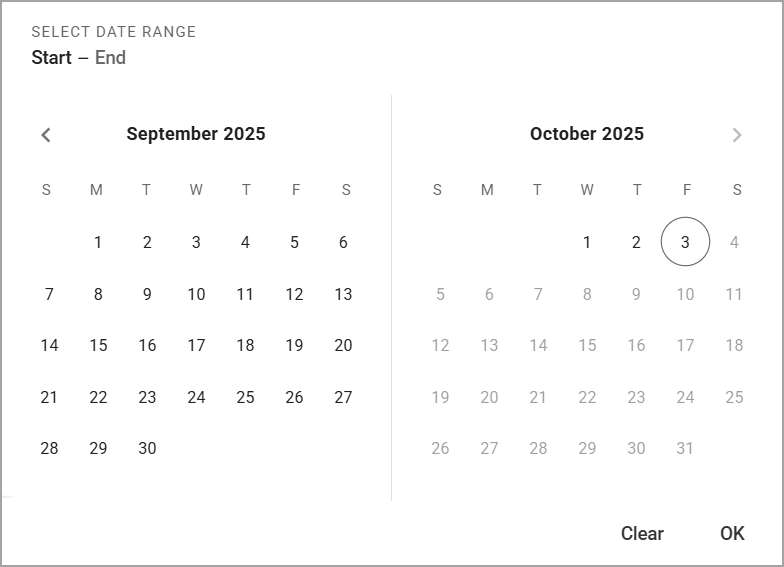
Selecting a date range
Searching for a specific school
Select a start date and an end date. Limit your search to the current school year, since the data is also limited to that year.
Searching for a school limits results to those containing the keyword(s) used.
.png)
If desired, you can click on the name of a school and see the AI Scoring usage by test type for that school. Use the Back button () to the left of the school name to return to the full table.
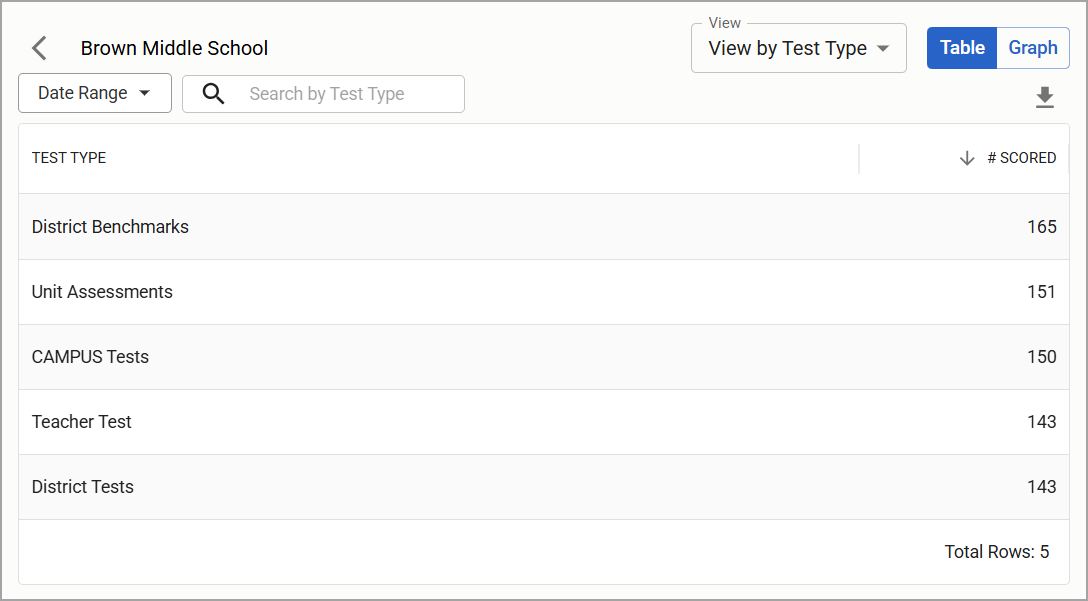
View by Test Type
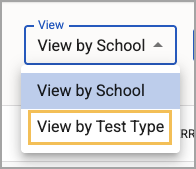
You can choose to start with test type data rather than school data. Select the View drop-down menu, then select View by Test Type.
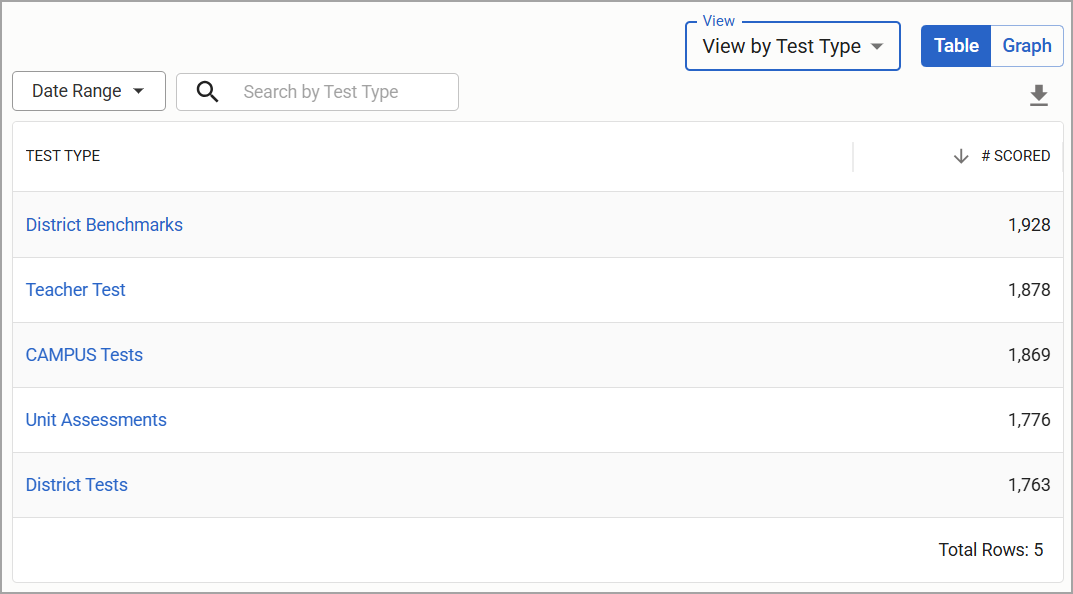
The table then shows the test types and the AI Scoring usage for each test type.
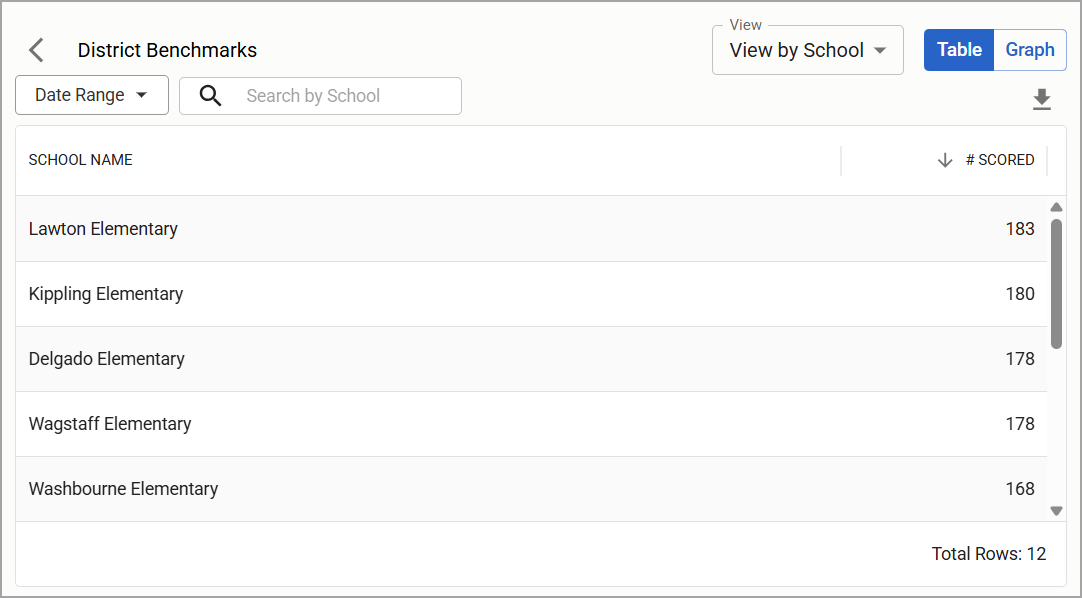
Click on a test type to see only that test type and the usage across each school. You can go back using the Back button () to the left of the test type title.
Download Usage Data
From the table, you can download usage data based on the search and selected date range. Use the Download icon () at the top right to download the table as a spreadsheet.
.png)
Graph View
Click the Graph button at the top right to switch to the analytics dashboard’s graph view. Users can also switch between the graph and table views at any time.
Note: As you switch between views, your selections are retained from view to view.
.png)
View by School
The graph view displays the top 30 schools based on the selected filter options. If your district has more than 30 schools, some schools might not be visible in the graph, but their data is still available.
Like the table view, you can use the date range to review a specific set of data.
You can sort the view using various filters. Click on the filter button on the top right and select from the following options:
Most to least usage
Least to most usage
A-Z
Z-A
Use the search bar to search for specific schools.
Tip: Want to see slices of school types? Depending on how your district names its schools, use keywords such as “middle” to see only middle schools in the graph.
Hover over each bar in the graph to see the exact number of AI-scored constructed responses.
You can click on a bar and see how AI Scores are distributed across test types for that single school. Click the Back button () next to the school name to return to the school graph.
View by Test Type
To view the graph by test type, click on the View drop-down menu towards the top right and select View by Test Type.
.png)
Hovering over each bar in the graph shows the exact number of AI-scored constructed responses. You can click on the bar and see how AI Scores are distributed across schools for that single test type. Click the Back button () next to the test type name to return to the test type graph.
.png)
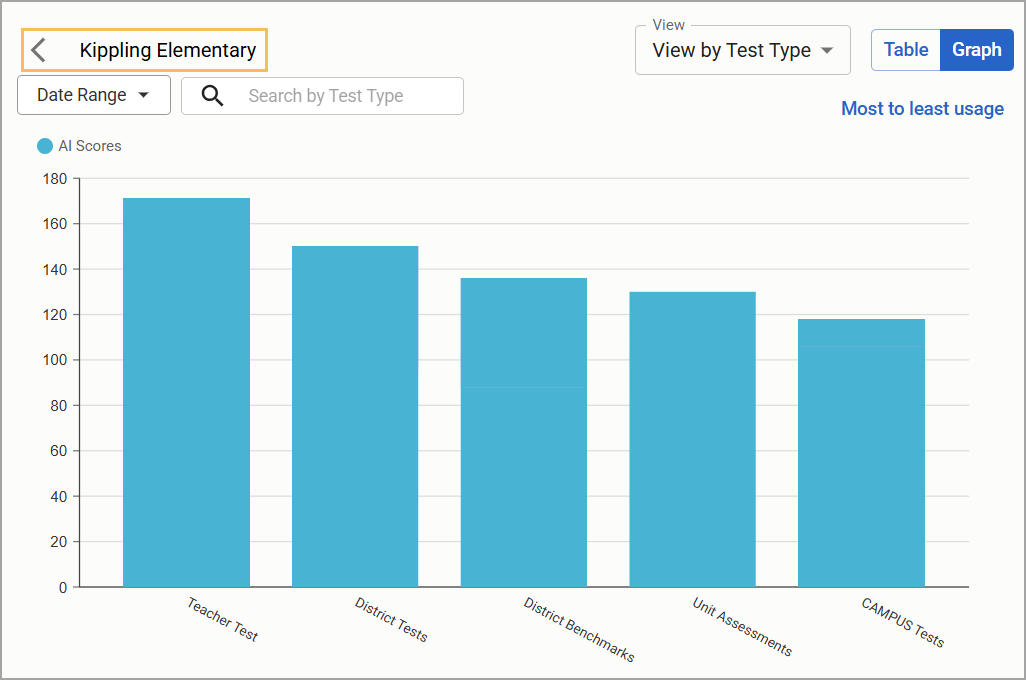
Another way to view test type data is to start in the school view and click a specific school, which shows you all AI Scoring usage for that school, broken down by test type.
AI Scoring, Ethics, Considerations, and Eduphoria
Eduphoria has implemented AI Scoring with careful consideration about how it is used, can be exploited, and concerns that are sometimes associated with its use:
Personally Identifiable Information
Eduphoria does not send information to LLMs that could be used to identify a student. For AI Scoring, only the student’s response is sent and does not include student names, student IDs, teacher names, subject or class names, district or school numbers, or other identifiable information.
Self-Harm
As with any constructed response question or any student interaction, it is highly recommended that teachers review student responses for instances of self-harm.
Bad Actors and Prompt Injecting
One way to exploit AI Scoring is to provide instructions to an LLM in a student’s response. Students can attempt this by writing explicit instructions in their responses to prompt the LLM to do something it shouldn’t, such as provide an automatic full score. We’ve built in logic to mitigate this, but as with all things, the landscape of AI and AI prompting is constantly evolving. It is highly recommended that student responses be reviewed to ensure accuracy.
Monitoring Accuracy
We periodically test and monitor performance and scoring accuracy. Whenever we encounter inconsistencies that exceed an acceptable margin of error, we strive to correct them. Be sure to report any issues you find to Support.
Other Ethical Concerns
Eduphoria stands firm that AI cannot and will not ever replace teachers in the classroom. Our goal is to provide tools that help educators save time so they can spend more time on what really matters to their students. AI Scoring offers greater efficiency, allowing educators to connect with students, provide enrichment, or conduct remediation based on the information gleaned from scores.