Aware can accommodate up to six performance levels on local assessments. A district administrator with the Create Local Assessment Tests right can set the names of the district's performance levels.
The administrator can then manage performance level defaults for each test type. When creating a new assessment, the test inherits the default percent score cut points for its test type; however, individual assessment authors can change the percentages for a specific test.
Note: Rubric tests do not currently use performance levels.
Naming District Performance Levels
A district administrator will set up the six performance level names for the district to use across all local assessment test types.
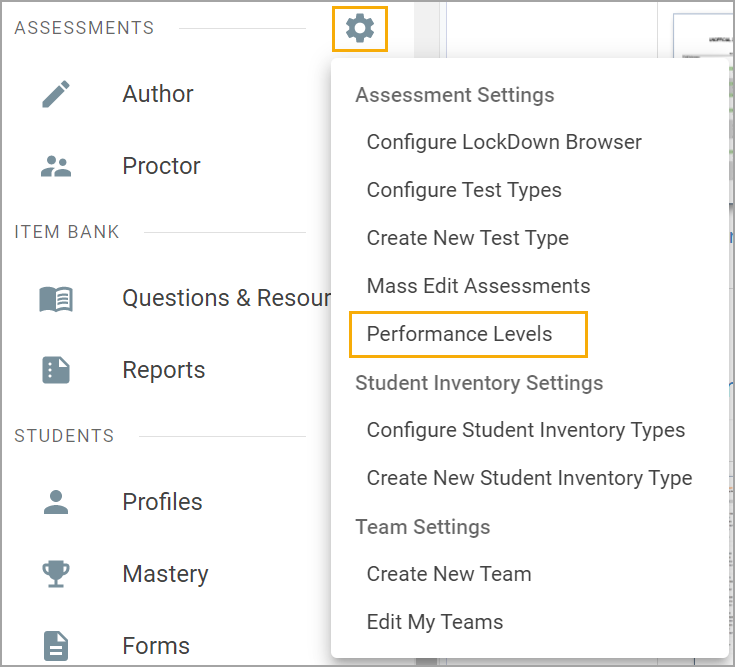
Step 1: Select Performance Levels under Assessments Settings ().
Step 2: Type the names of the performance levels to be used across the district, then click Save.
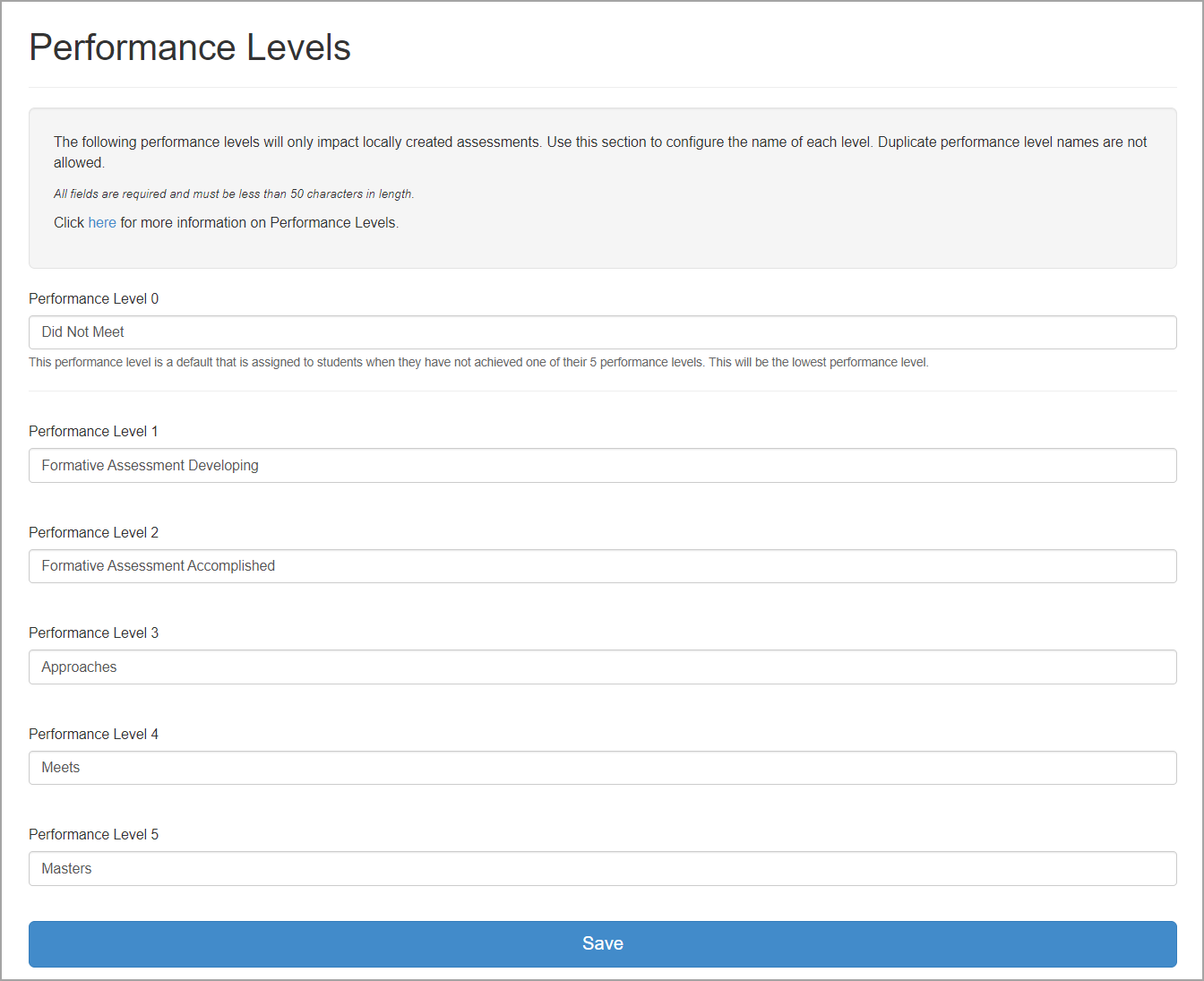
Because assessment authors can see and use any and all of these possible performance levels, we recommend that districts name all of them in ascending order and develop logistics for their use across different test types.
The system includes Performance Level Zero (PL0) as the default for students who have not achieved any of the possible performance levels. PL0 is set as “Did Not Meet” but can be renamed to meet local needs.
In cases where separate sets of performance levels are desired—for example, having Formative Assessment Developing and Formative Assessment Accomplished as one set and Approaches, Meets, and Masters as another set—an administrator should list these sets as follows:
Did Not Meet
Formative Assessment Developing
Formative Assessment Accomplished
Approaches
Meets
Masters
In this scenario, a district may want the following example cut points for a District Unit Test test type:
Did Not Meet: < 70
Formative Assessment Developing: 70
Formative Assessment Accomplished: 90
Approaches: 54
Meets: 73
Masters: 87
Because the numerical values are not in ascending order, only one set of performance levels should be enabled at a time (Formative Assessment Developing and Formative Assessment Accomplished OR Approaches, Meets, and Masters). Having both sets enabled impacts how the Highest Performance Level Achieved column in Quick Views is intended to operate.
If Texas districts want to compare and summarize local tests with STAAR, Approaches Grade Level, Meets Grade Level, and Masters Grade Level must be assigned to performance levels 3, 4, and 5, respectively. If you have questions, feel free to contact support@eduphoria.net or training@eduphoria.net.
Applying District Performance Levels to Test Types
Once a district administrator has named the performance levels, they can apply them and establish their cut points for specific test types.
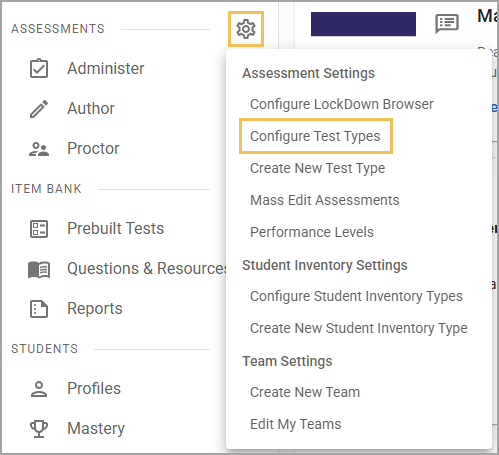
Step 1: Select Configure Test Types under Assessments Settings ().
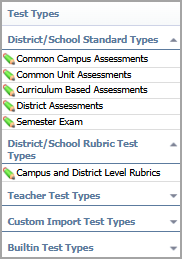
Step 2: Select a test type under District/School Standard Types.
Step 3: Click Edit Performance Levels under Performance Level Configuration to open a configuration modal.
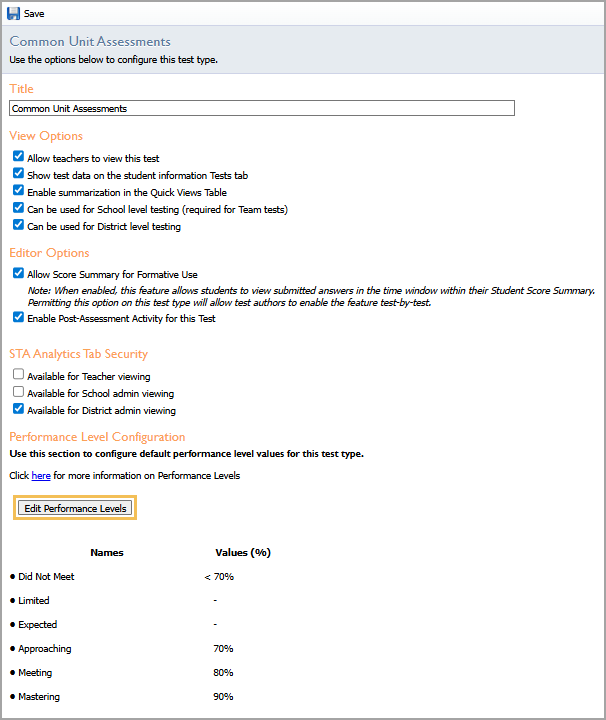
By default, historical test types maintain any cut points they had before. You can update the cut points by inputting new ones in the Percentage box. However, for the new performance levels to apply to any historical tests, the test author must rescore the test.
Step 4: Check the boxes beside each performance level to include the levels you want, and uncheck the ones you don’t want. All unchecked performance levels are turned off and show as blank fields if pulled into a data view.
The modal automatically updates to reflect your selections and percentages.
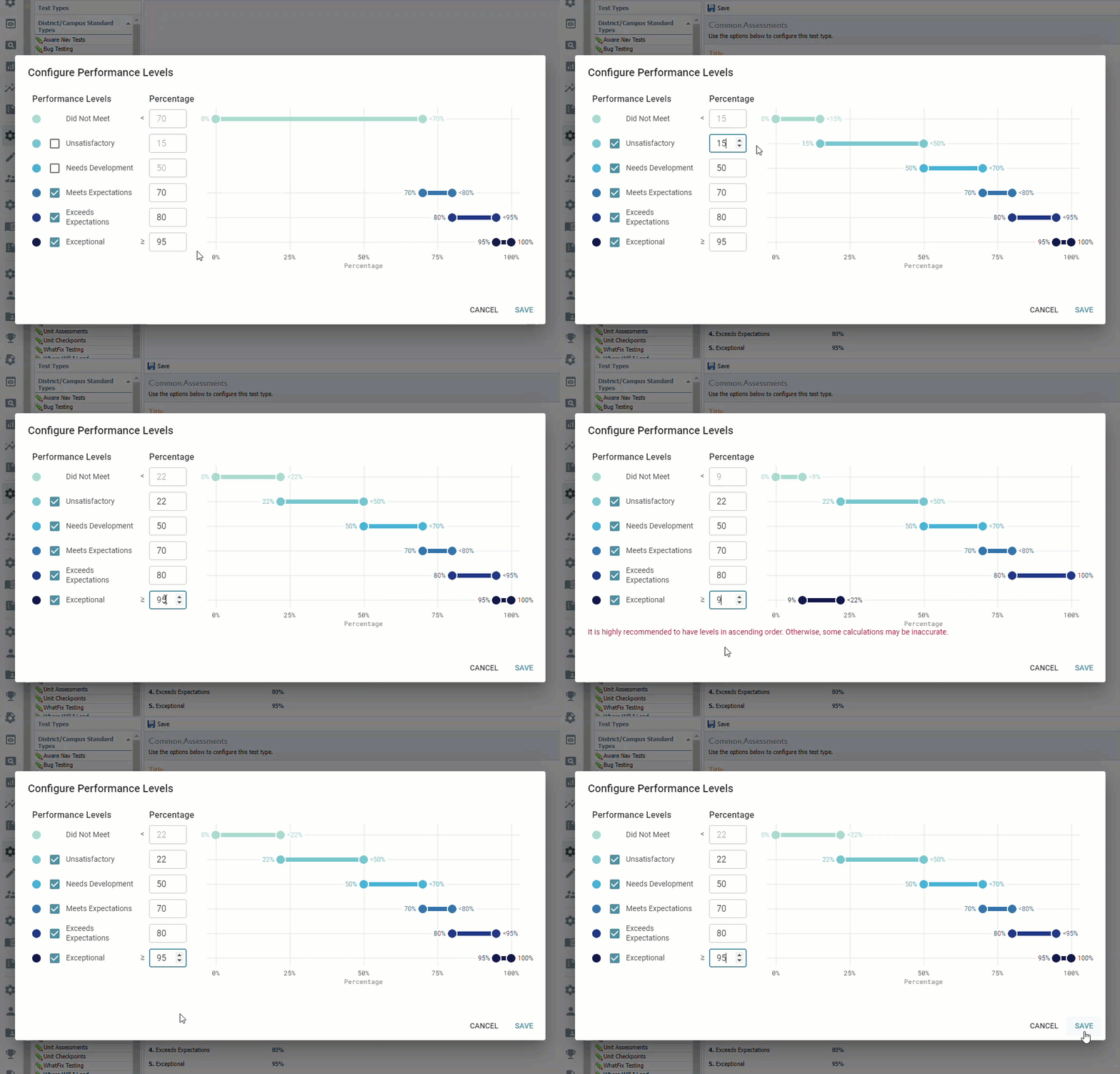
A warning appears if your levels are not listed in ascending order by percentage. Though not recommended, you can confirm whether that is your intention.
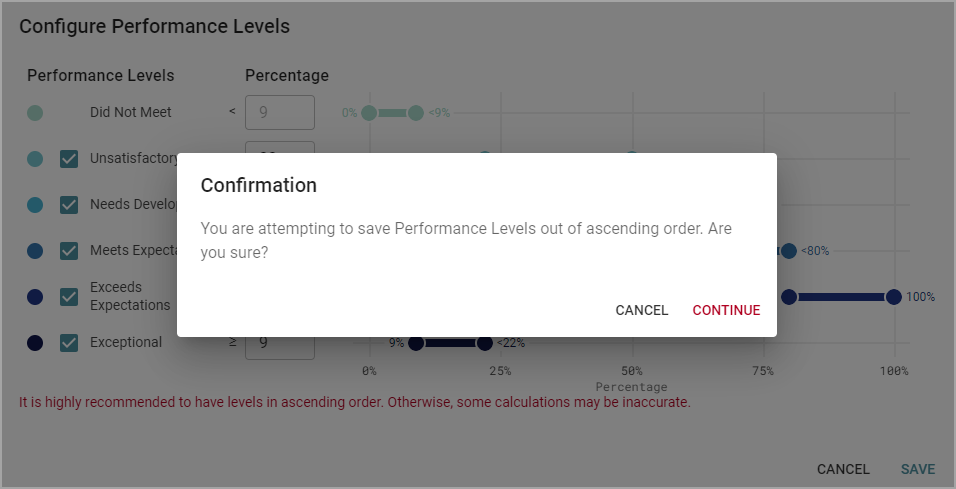
Caution: Saving performance levels out of ascending order does not allow the Highest Level Achieved column in Quick Views to function as intended. Functionality can be restored if a user turns off the performance levels at the assessment level or edits their percentage cut points.
Step 5: When finished, click Save in the configuration modal, then Save () again in the test type window.
Be sure to check the appropriate boxes under View Options, so the test type can be used for district-level testing or both district- and school-level testing.