Districts that have access to the TEKS Resource System (TRS) item bank can create unit assessments that reflect TRS curriculum. For example, a teacher who has completed TRS’s Unit 1 in Biology may want to give a matching assessment to students. A test author can build such an assessment by searching keywords and adding items from the TRS item bank.
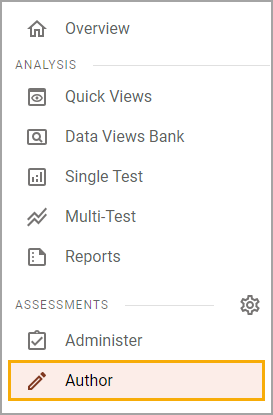
Step 1: Select Author from the Assessments section of the main menu.
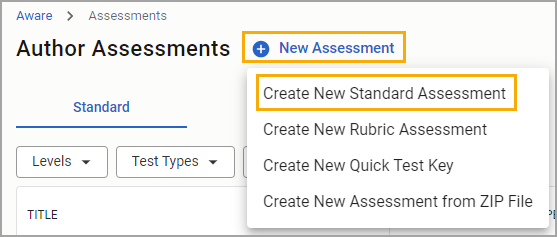
Step 2: Select New Assessment, then choose Create New Standard Assessment.
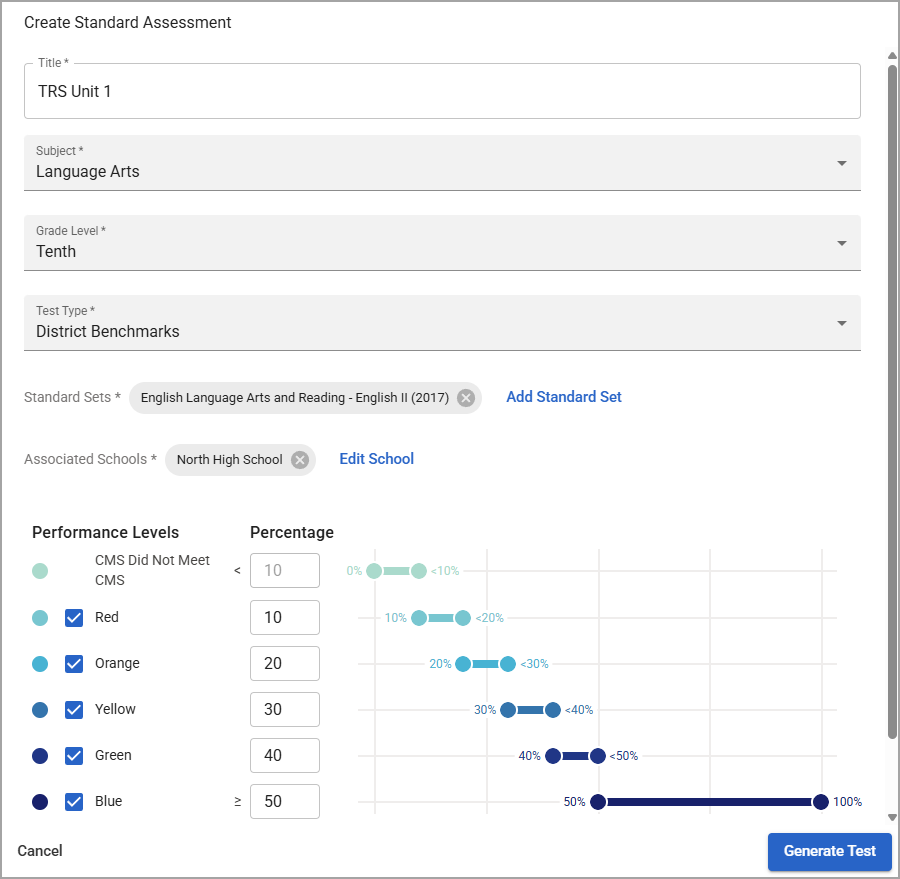
Step 3: Enter the appropriate information for your assessment. Associated campuses are available for school and district assessments. Required fields include the following:
Title
Subject
Grade Level
Test Type
Standard Sets
Then, select Generate Test.
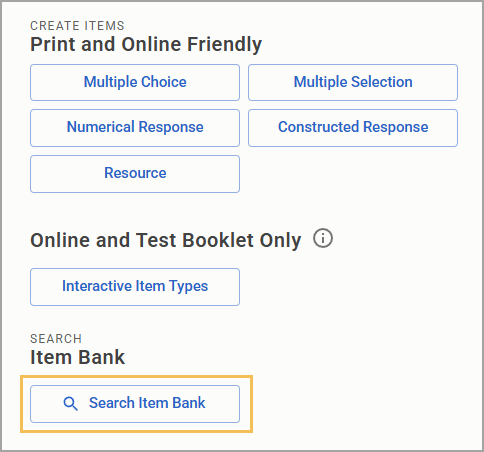
Step 4: Select Search Item Bank.
Step 5: Select All Standards.

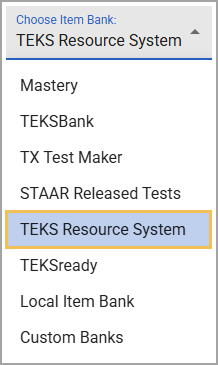
Step 6: From the Choose Item Bank drop-down menu, select TEKS Resource System.
Step 7: Enter the keyword for the unit in the search bar.
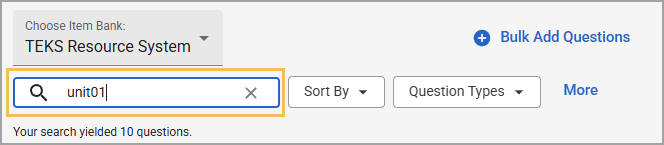
The keyword format is unit0# (# being the unit number). For example, input “unit01Mi” to yield results for Unit 1 in Biology, with items starting at the micro level.
TRS has assigned the following keyword format to these subjects:
Subject | Keyword Format |
|---|---|
Biology | unit0#S unit0#MA (Macro to Micro) unit0#Mi (Micro to Macro) |
IPC | unit0#C (Chemistry) unit0#P (Physics) |
U.S. History | unit0#C (Conceptual) unit0#S (Sequential) |
World Geography | unit##C (Conceptual) unti##R (Regional) |
ELAR¹ | unit0# (May have A, B, or C after unit number, e.g. unit02B) |
Spanish Items | unidad0# (May have A, B, or C after unit number, e.g. unidad03A) |
¹TRS recommends ELAR Unit 01 as a Rubric-based assessment.
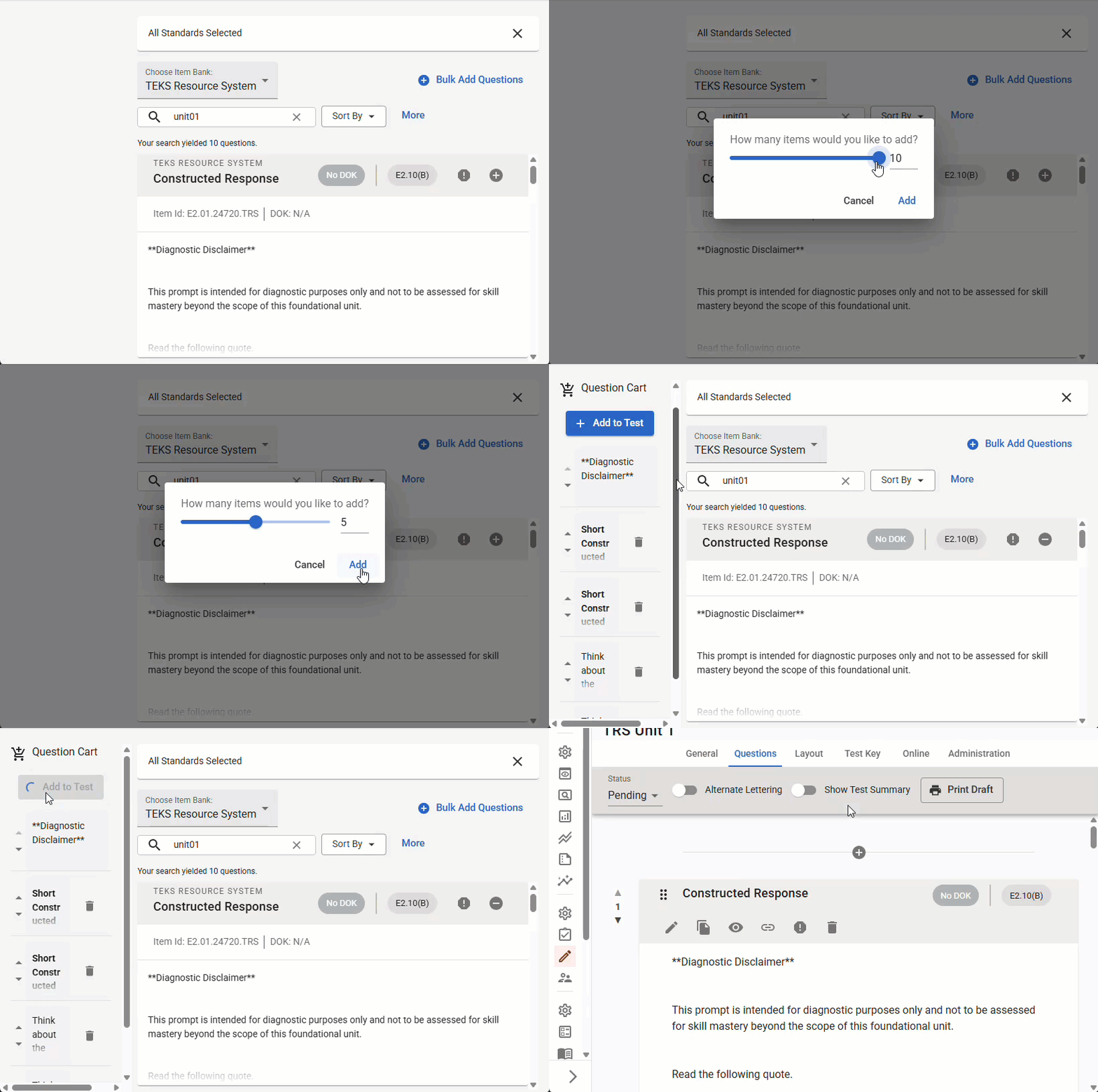
Step 8: When you have the unit you want, select Bulk Add Questions then Add. All of the unit items will appear in your Question Cart. Select Add to Test to place them on your assessment.
Note: ELAR items are located under Resources, and Social Studies items appear under both Questions and Resources. Use the keyword and filter to locate them.