Aware has a native custom math editing tool that allows test authors to create and edit mathematical text in line with questions and answer choices.
Simply click the Add Math button while editing an item, and the math editing tool will create a special text box with a floating math toolbar full of symbols for a variety of needs.
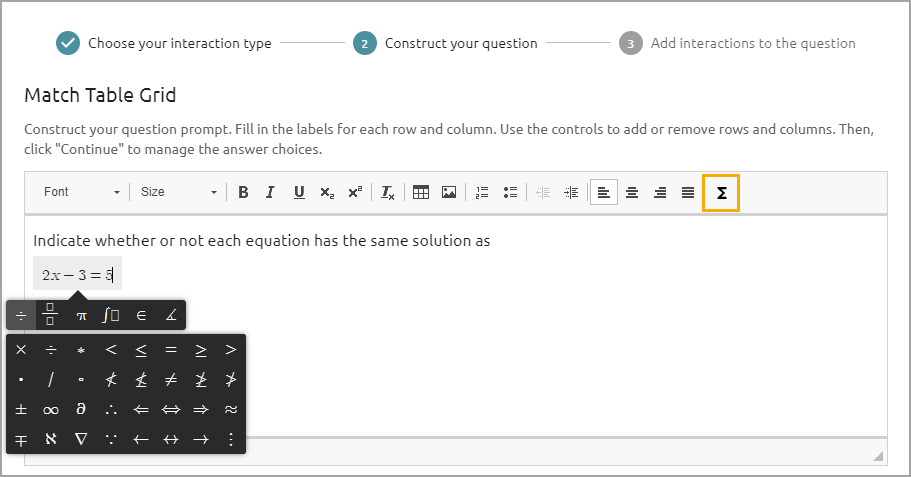
Test authors can use their keyboards and the special math toolbar to format their text in all test types and answer types.
Pro Tip: The Add Math feature accepts additional commands that do not appear in the built-in menu but work when manually typed into the field:
\space - Adds an extra space at the start or end of an equation or between elements in an equation. This command is helpful if spaces surrounding the Add Math text box are not showing up in the question.
\overleftarrow - Adds a left-facing arrow above the text.
\overrightarrow - Adds a right-facing arrow above the text.
\subscript - Allows the creation of subscripts.
\choose - Creates binomial coefficients.
Moreover, test authors can add alternative text to refine math language for students who use Text-to-Speech. The alternative text feature applies any time Latex is used for math on questions, answer choices, and resources.
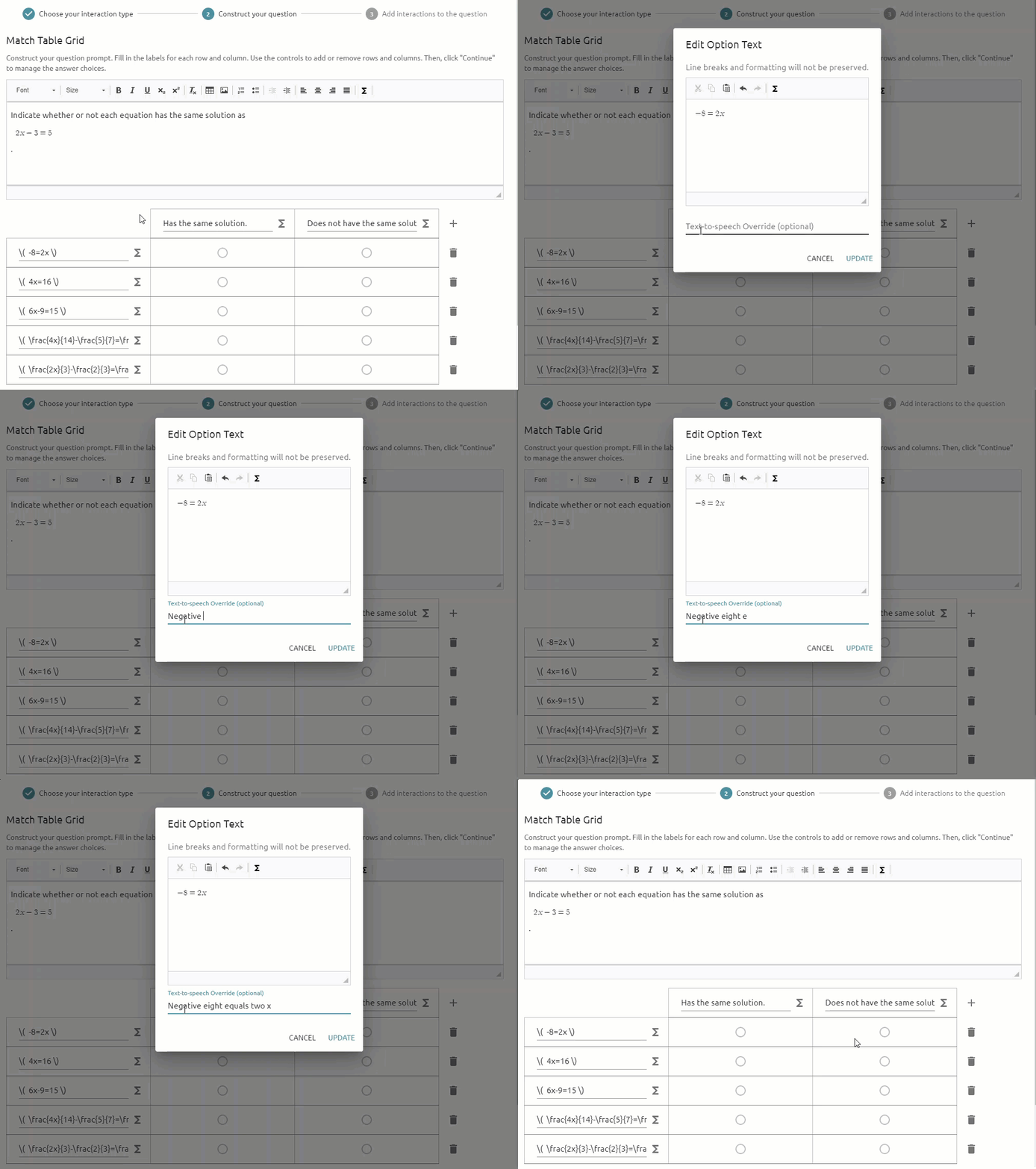
Select the Add Math button next to the answer choice, and type out the alternative text students will hear under Text-to-speech Override. For example, the answer -8=2x could be read aloud as “negative eight equals two x” instead of “‘minus eight equals two x.”
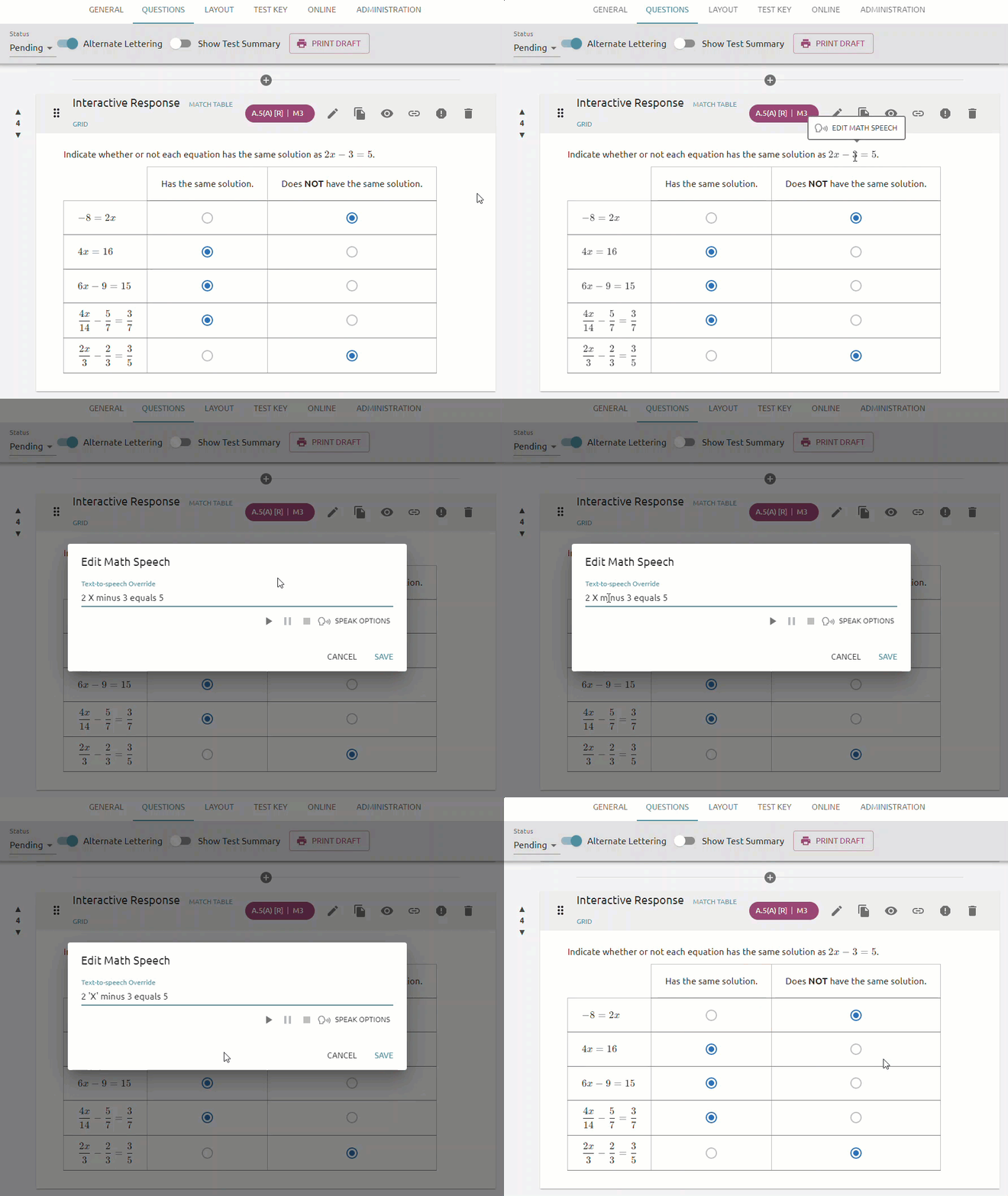
You can also edit alternative text from the Questions tab on an assessment. Hover your mouse over the math language and select Edit Math Speech to change or add alternative text.
Visit the interactive item types section for more information about using the equation editor.