In multiple selection questions, students can select multiple answers from a list of possible choices. TEA suggests using the multiple selection question type in mathematics, reading, language arts, and science assessments, but multiple selection is available for any assessment. Multiple selection follows TEA’s examples and may be used with text, images, and tables.
Note: An assessment with a multiple selection question will remain print and online-friendly with multiple choice, numerical response, constructed response, and resource items.
Creating a Multiple Selection Question
To create a multiple selection question, begin by creating a new assessment or navigating to an existing one in Aware.
Quick Guide
When working on an assessment, go to the Questions tab and do the following:
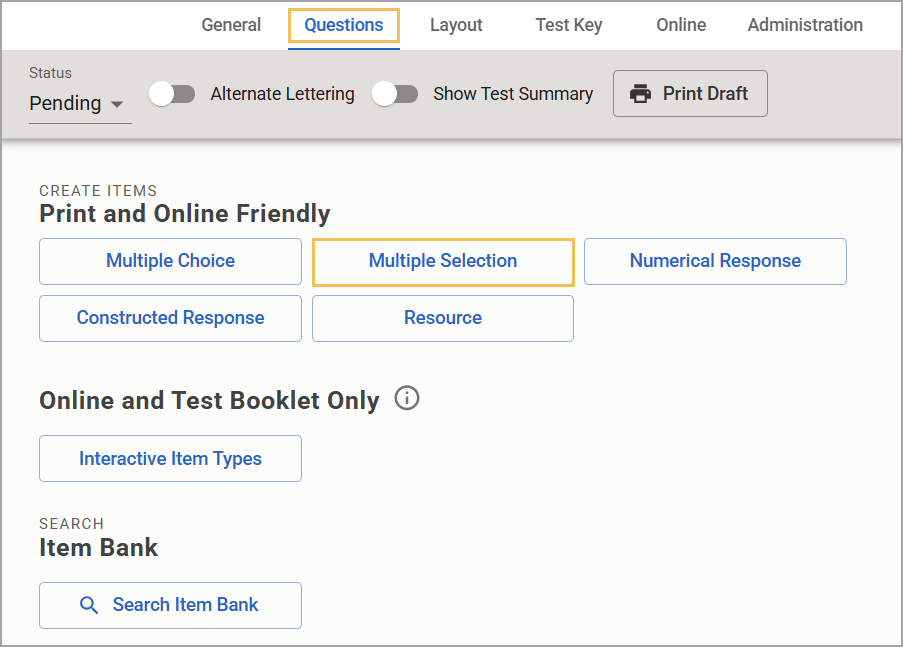
If this is the first time adding a question, select the Multiple Selection button.
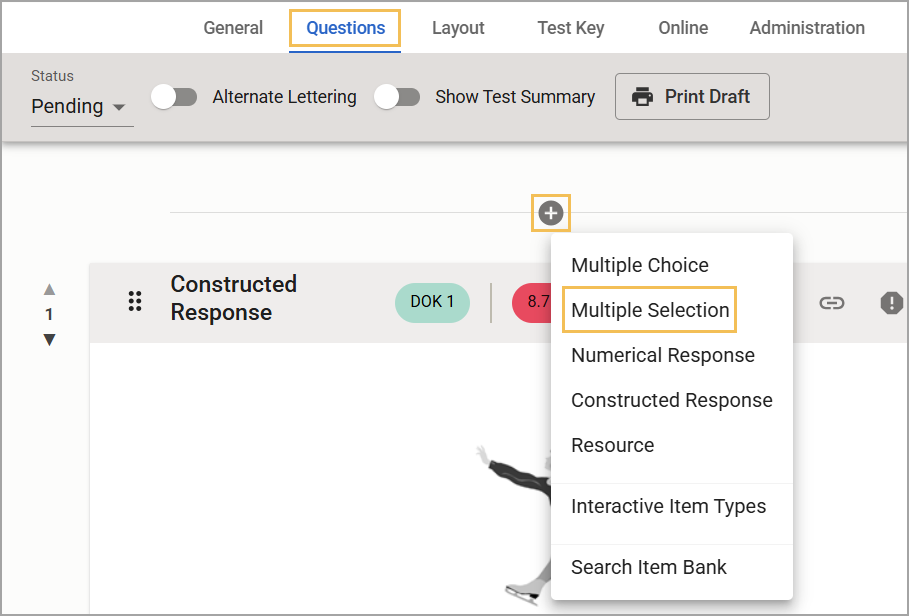
If adding more questions, select the Plus sign () and choose Multiple Selection from the drop-down menu.
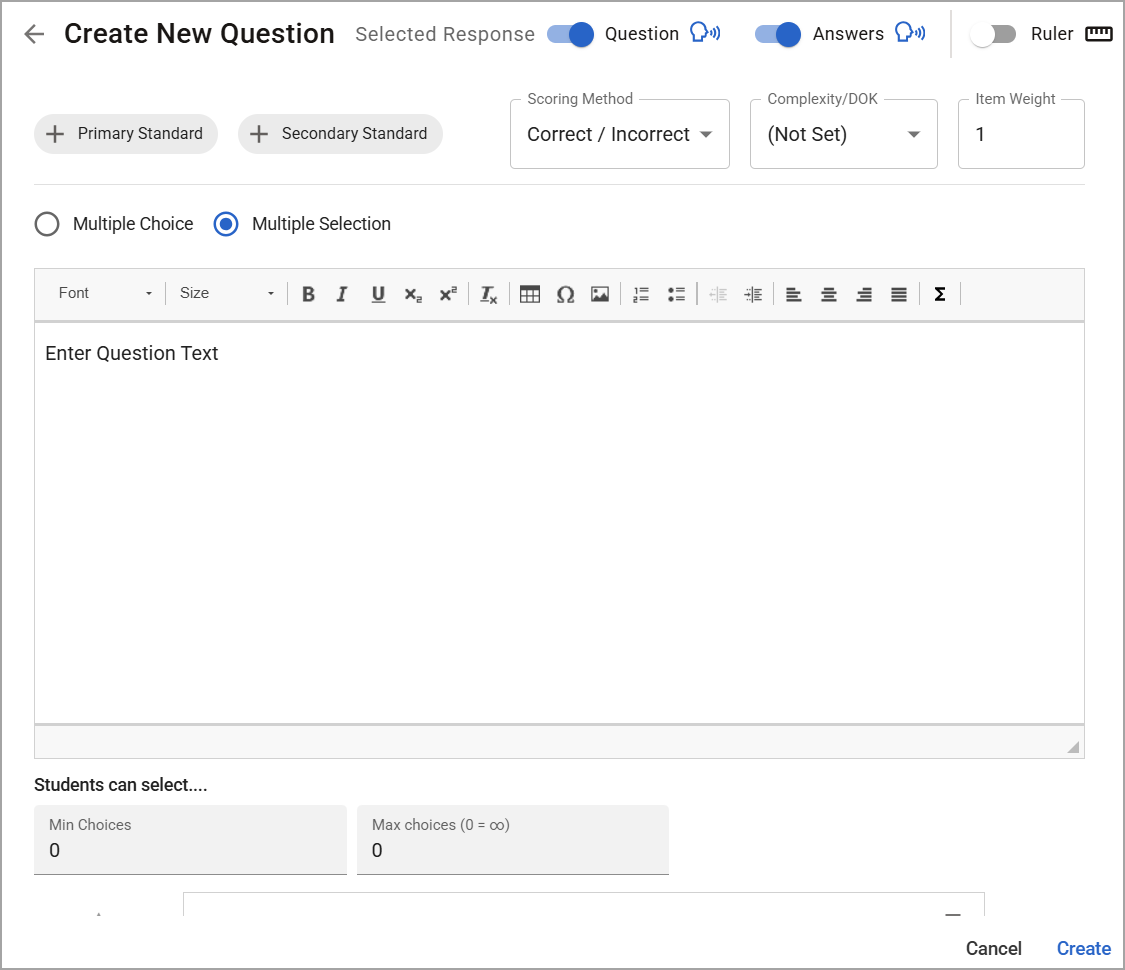
Use the text box and formatting options to enter the question text.
Select Add Response until you have included all the responses you want students to choose from. Then, in the Response text boxes, enter possible answer choices and select the checkboxes to indicate correct answers.
If desired, set the Min choices and Max choices fields to limit the number of answer choices students can select.
Select Primary Standard and Secondary Standard to add up to two learning standards.
Set the Scoring Method, Complexity/Depth of Knowledge, and Item Weight as needed.
When complete, select Create or Update.
Illustrated Guide
Step 1: When creating or editing an assessment in Aware, navigate to the Questions tab and do the following:
If this is the first time adding a question to the assessment, select the Multiple Selection button.
If you want to add more questions to an existing assessment, select the Plus sign () above or below an existing question and choose Multiple Selection from the drop-down menu.
Note: Adding multiple selection to a multipart question must be done under the Interactive Item Types menu. Visit the Multipart article to learn more about creating a multipart question using multiple choice, multiple selection, and constructed response item types.
Step 2: On the Construct your question step, use the text box and formatting options to enter the question text.
Step 3: Select Add Response until you have included all the responses you want students to choose from. In the Response text boxes, enter possible answer choices and select the checkboxes to indicate correct answers. Multiple selection allows a maximum of 25 answer choices.
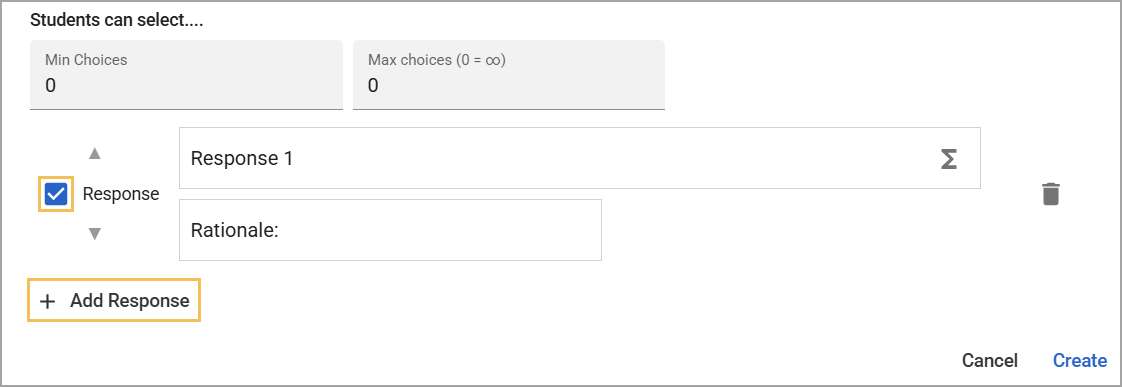
If needed, select the Delete icon () next to a response to remove it.
Step 4: If desired, set the Min choices and Max choices fields to limit the number of answer choices students can select.
If the number of selected answers does not fall within the set range, a message appears to notify the student that they have selected too few or too many answers. The student can choose to change their answers or move on to the next question without making changes.
If you set Max choices to 0, there is no limit to the number of answers students can select.

Step 5: Select Primary Standard and Secondary Standard to add up to two learning standards.

Step 6: Set the Scoring Method, Complexity/Depth of Knowledge, and Item Weight as needed. Multiple selection offers the following scoring methods:
Correct / Incorrect
Point per Task
Partial Credit (0-1-2)
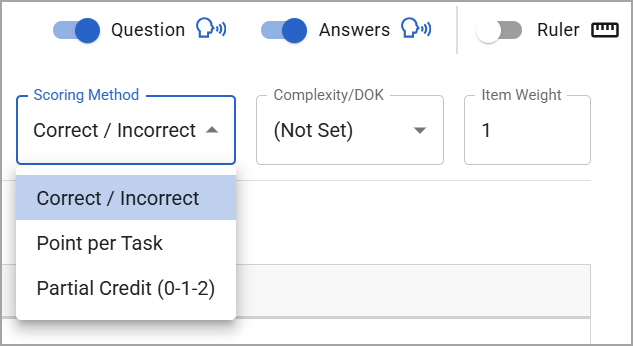
You can also toggle on and off Text-to-Speech for questions and answers as well as a ruler for student use as needed.
Step 7: Select Create or Update to save the assessment question.
Creating and Editing Equations
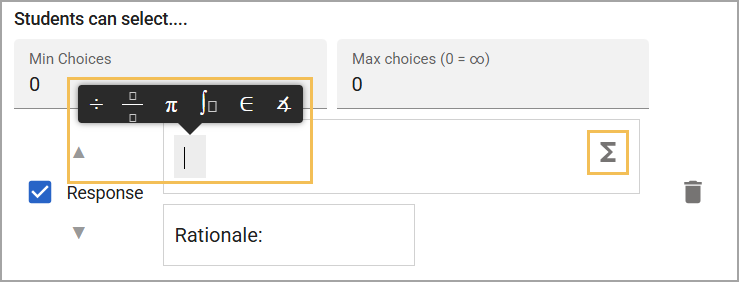
Math equations can be included in the responses. To write out an equation using math symbols, select the Add Math (Σ) button. Use the tabs on the Add Math control pane to view and select different types of mathematical symbols.
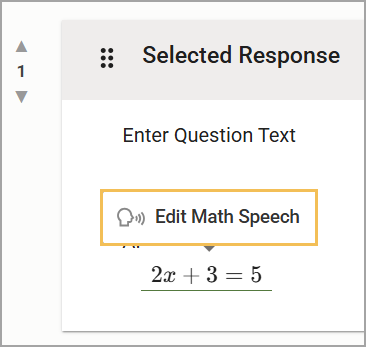
You can edit alternative text for equations from the Questions tab on an assessment. Hover your mouse over the equation and select Edit Math Speech to change or add alternative text. Students with Text-to-Speech support hear the math read aloud.
This override is intended for use with math language. If general language is also included with a math answer, be sure to type out the full line.
Student Experience
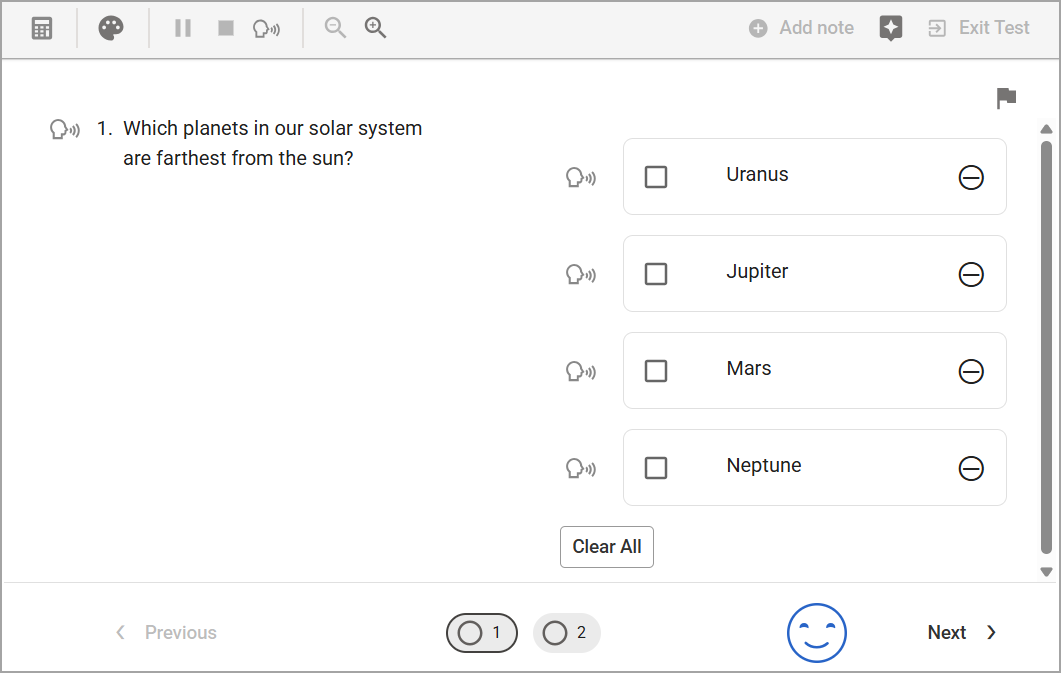
Students see multiple selection questions during online testing.
If an answer minimum or maximum is set, students who have not selected the appropriate number of answers receive a warning message, giving them a chance to correct their answers before moving to the next question.
Data Analysis
Viewing Responses in Quick Views
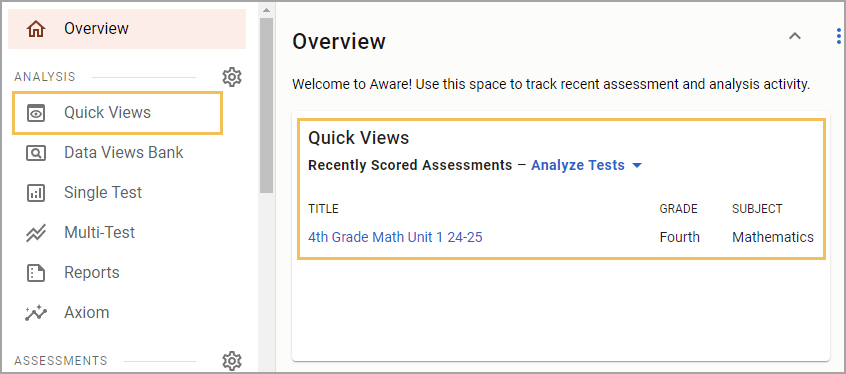
Question Type is available in Quick Views. Access Quick Views through the navigation bar or through the Quick Views card.
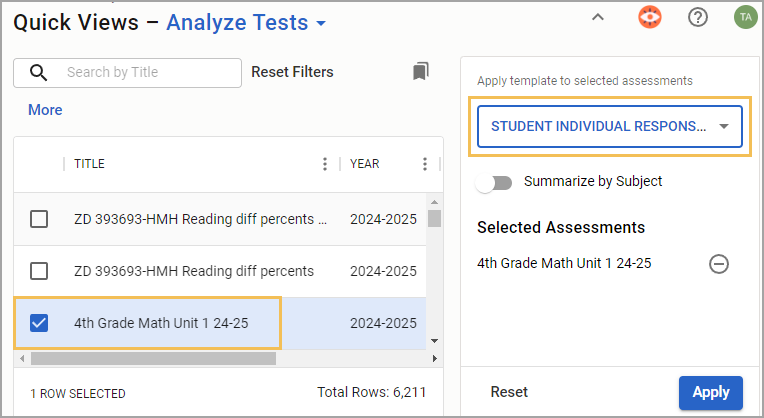
Once in Quick Views, use the search field to find and select the assessment(s) you want to analyze. Choose the Student Individual Responses template from the drop-down menu. Select Apply to continue.
Show or Hide the Question Type Column
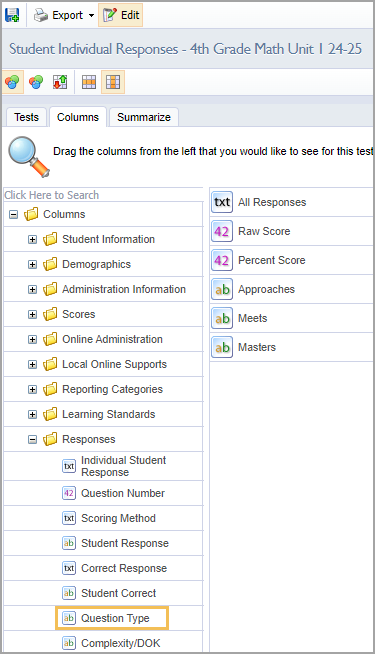
If the table does not display the type of question, you can customize which columns appear or do not appear from the Edit menu. Select the Columns tab, and then expand the Responses folder. Drag the Question Type option to the empty space on the right side of the screen. Then, select Update to apply your changes. For more information, see Editing Data Views as a Teacher.
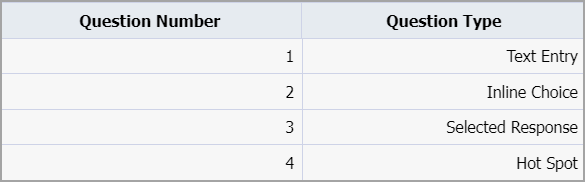
The Question Type column shows the type of question asked and the corresponding question number. Teachers may view the exact question in the Enter Answers screen and modify student answers if needed.
Allowing Teachers to Answer and Score Assessment Questions
For district- and school-level tests, the Questions teachers can answer and score option must be set to All Questions to enable editing privileges. Locate this setting in Administration > Collection > General Settings when authoring or editing an assessment in Aware.
