A user with either district- or school- level access to the Create Local Assessment Test right can enable printing for teachers. Once access is enabled, teachers can print test booklets and answer documents as well as preview an online test through Tests Available.
Enabling Printing and Previewing Tests for Teachers
A user with either district- or school- level access to the Create Local Assessment Test right can enable printing for teachers by following these steps:
Select Author from the main menu.
Select the Title of a test to open the test authoring interface.
Select the Administration tab and then select Collection.
Under Print Settings, turn on Enable plain paper testing.
Select the checkboxes one or both of the following settings:
Teachers Allowed to Print Answer Documents
Teachers Allowed to Print Test Booklet
Under Preview Settings, turn on Enable teachers to preview online test.
.png)
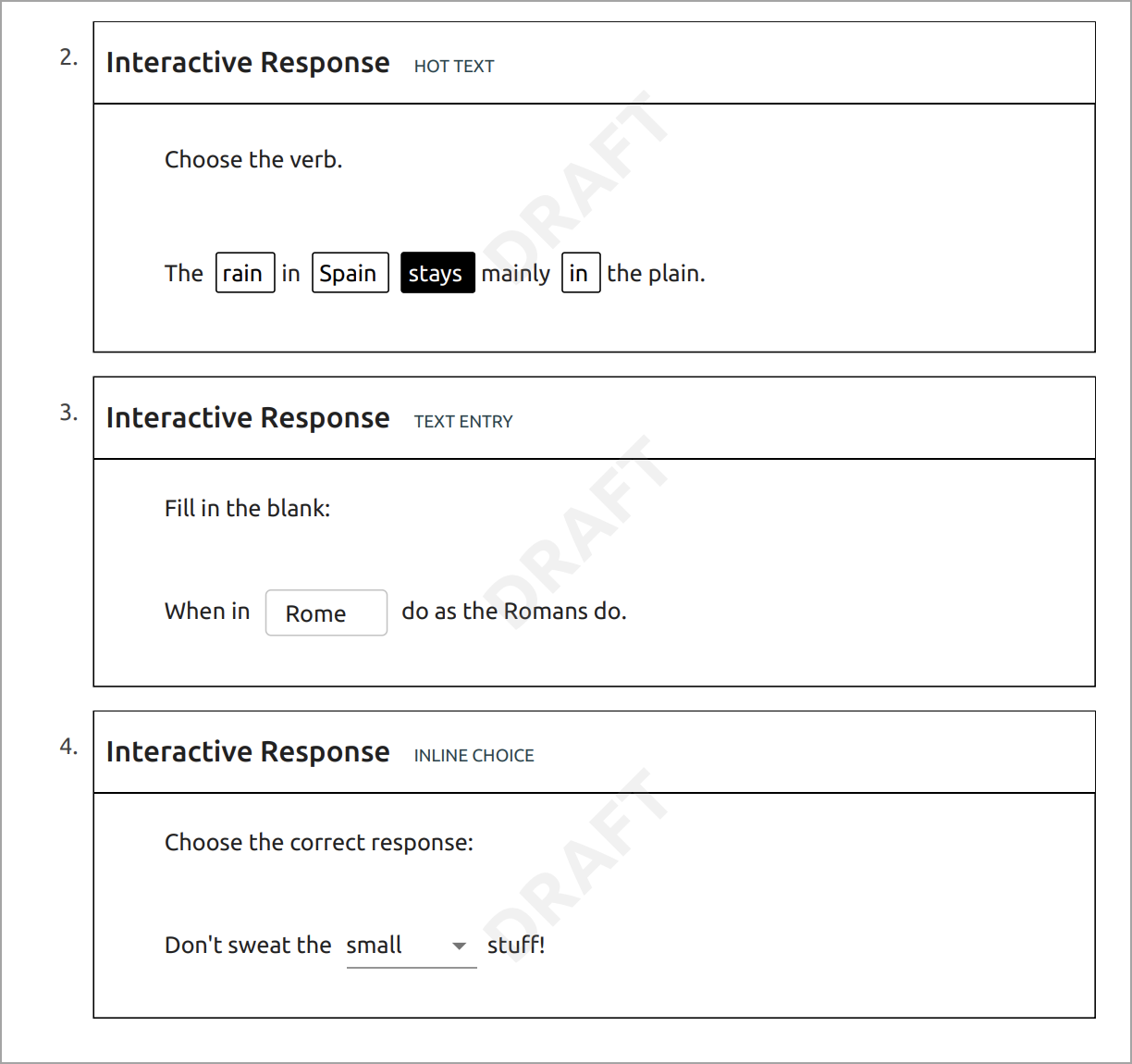
Note: The first setting allowing teachers to print answer documents will be automatically disabled if interactive items are on the test. Assessments with interactive response items may be printed as test booklets only by test authors.
Printing and Previewing Tests as a Teacher
The test will appear in the Tests Available window for teachers on the first day of the testing window.
Select Administer from the main menu.
On the Tests Available tab, locate the test you want to print or preview.
In the test row, select the three vertical dots to choose the appropriate option:
Print Test Booklet
Print Answer Documents
Preview Online Test
.png)
Note: Test authors can enable all of these options for standard assessments, not rubric assessments.
Guidelines for Test Authors
District or campus test authors should follow the standard process for creating tests but ensure the testing window gives teachers enough time to print out the required documents.
For example, if a teacher wants to give a test on Tuesday, the test author should make the start date a few days earlier to allow print time (depending on your school’s or district’s printing availability). Consider using a two-week window for test availability.
.png)
For added test security, administrators could adjust the start date the day before the testing day. For example, if the test will be given on Tuesday, administrators can set the Start Date for Monday at 4:00 PM (or whenever classes are over for your district).
Using the Print Draft Button
Select the Print Draft button to print a copy of the assessment with a cover page that shows the complexity/DOK levels, learning standards, the total number of questions, and the number of questions per type.
.png)
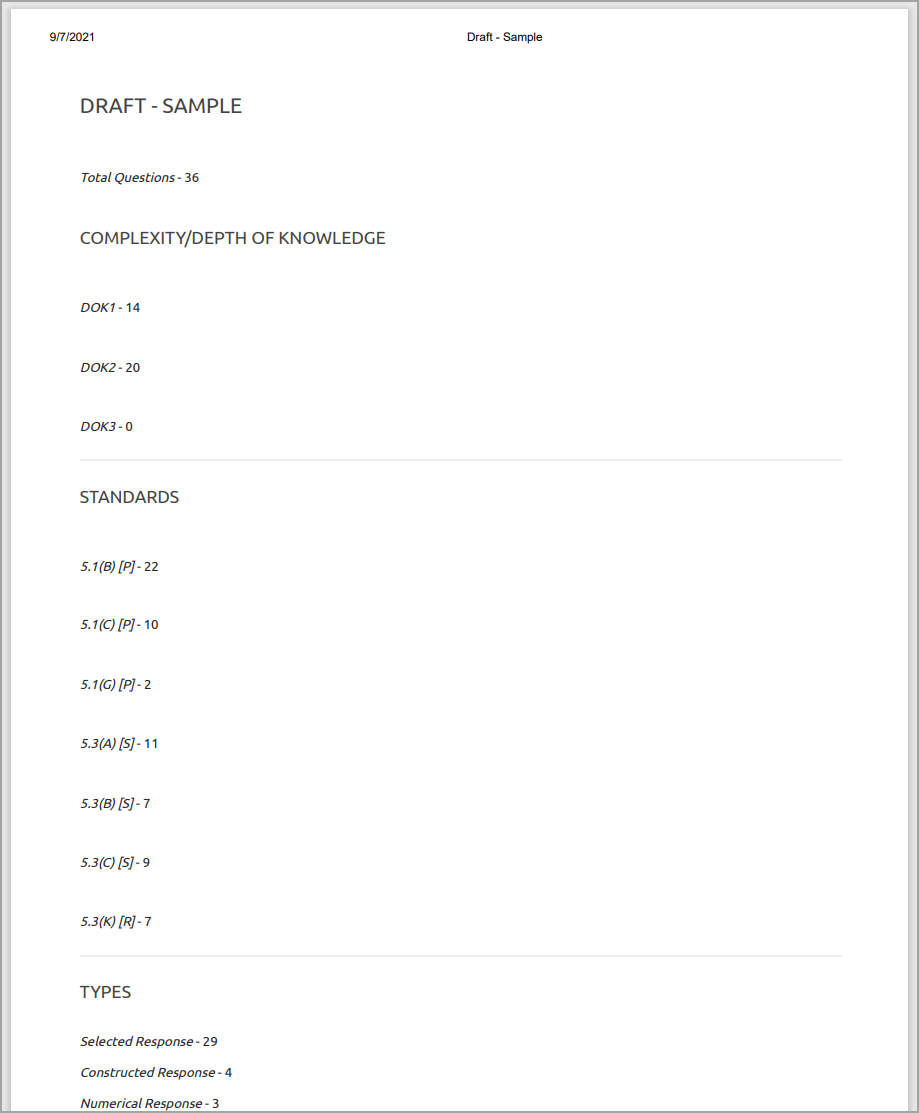
The draft will also indicate correct answers when available and show which questions are interactive item types. The draft pages will have a “Draft” watermark across the question text. The draft is intended for use as a test key or a way to assess questions before assigning them to students.