As teachers and staff create and submit goals for approval, evaluators can access the Goals Pending Approval widget bar to quickly access unapproved goals. Use the various filters to view goal status by evaluators at the selected school, by process, and more.
Quick Guide
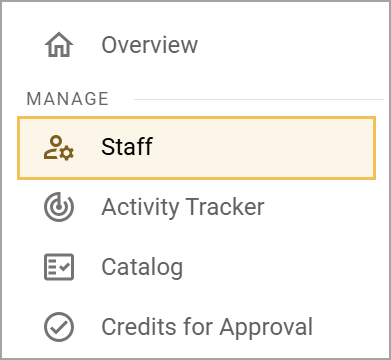
Log in to Strive, and select Staff () under Manage.
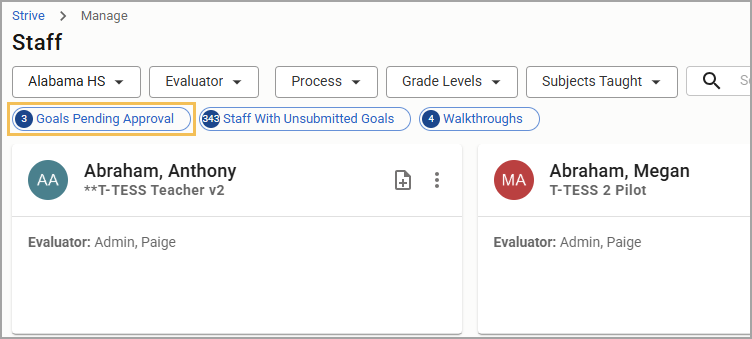
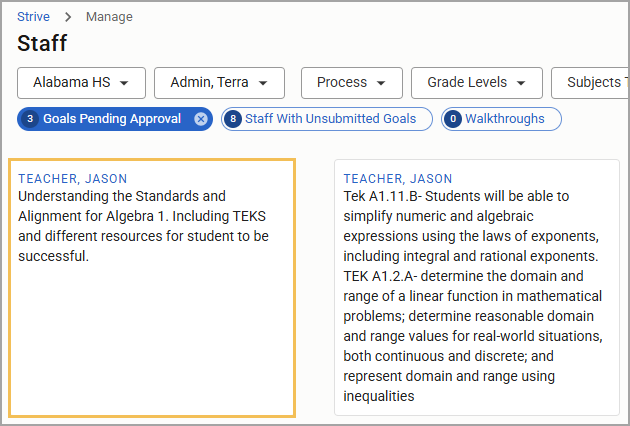
Select the widget button for Goals Pending Approval.
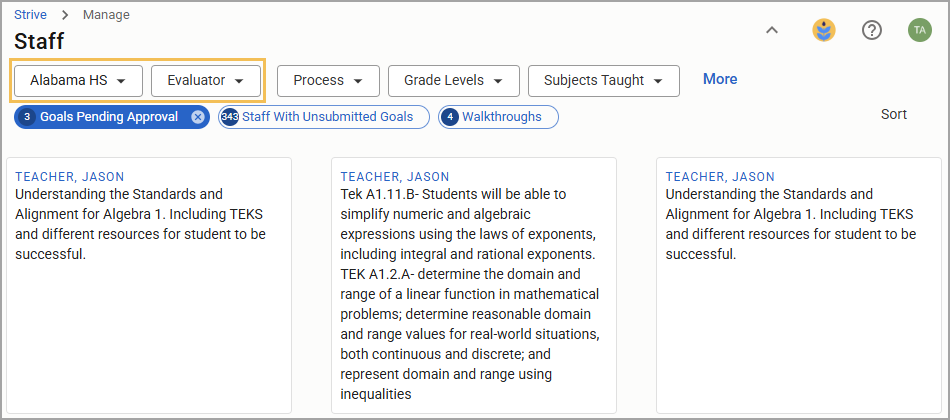
Select your name from the Evaluators drop-down menu, then select a School to show only that school’s staff members.
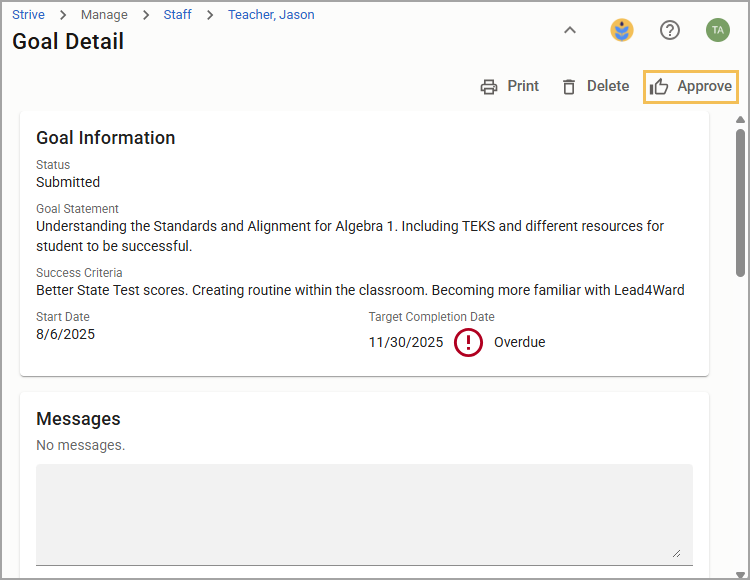
To access menu options, select an individual goal card from the list of pending goals that appear.
Use Messages in the goal if you want the staff member to change to the goal before you approve it.
Select Approve if the goal is ready.
Illustrated Guide
Step 1: Log in to Strive, and select Staff () under Manage.
Step 2: Select the widget button for Goals Pending Approval.
Step 3: Select your name from the Evaluator drop-down menu, then select a School to show only that school’s staff members.
Step 4: To access menu options, select an individual goal card from the list of pending goals that appear.
Step 5: Use Messages in the goal if you want the staff member to change the goal before you approve it.
(1).png)
Step 6: Select Approve if the goal is ready.