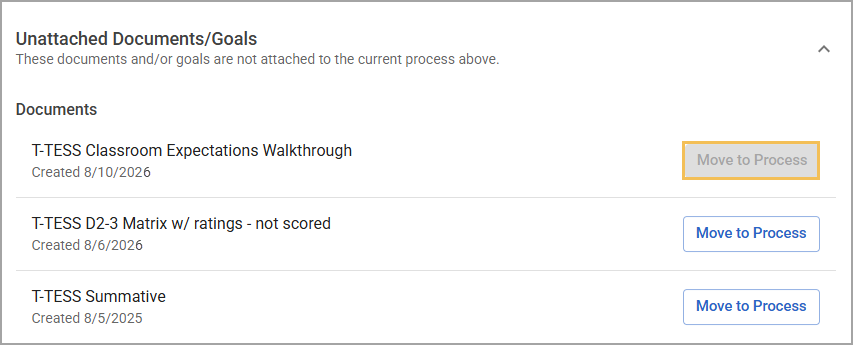
After evaluators create documents for their staff members’ evaluation processes, a process manager might change or update the process, resulting in documents and goals being removed. These documents and goals then move to the Unattached Documents/Goals section on the relevant staff member’s Evaluation Process screen.
Follow these steps to move unattached documents and goals back to the relevant process task.
Quick Guide
Select Staff () under Strive’s main menu.
Locate the staff member with unattached documents or goals.
Expand the Unattached Documents/Goals section to review which items aren’t currently attached to the staff member’s process.
Select the Move to Process button to open a modal.
Use the Move to drop-down menu to select the process task to which you want to move the document or goal.
Understand that moving the document or goal is a permanent action and cannot be undone. If you understand this, check the box and select Submit to complete the action.
Continue using the document or goal under the correct process task.
Illustrated Guide
Step 1: Select Staff () under Strive’s main menu.
.png)
Step 2: Locate the staff member with unattached documents or goals.
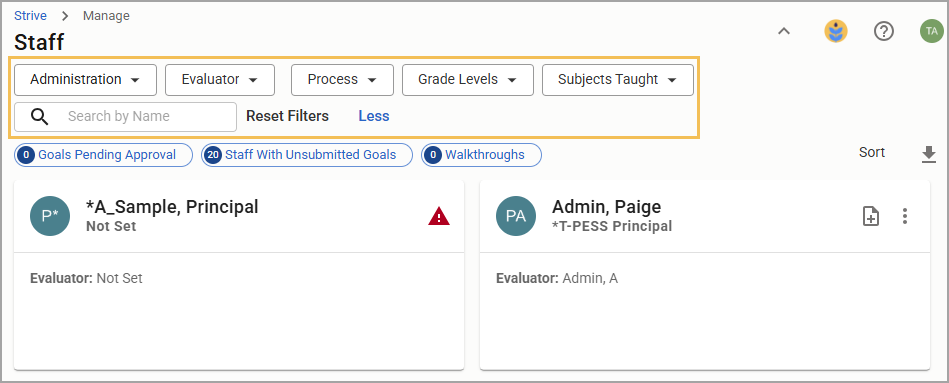
Step 3: Expand the Unattached Documents/Goals section to review which items aren’t currently attached to the staff member’s process. You can review the document or goal by selecting it.
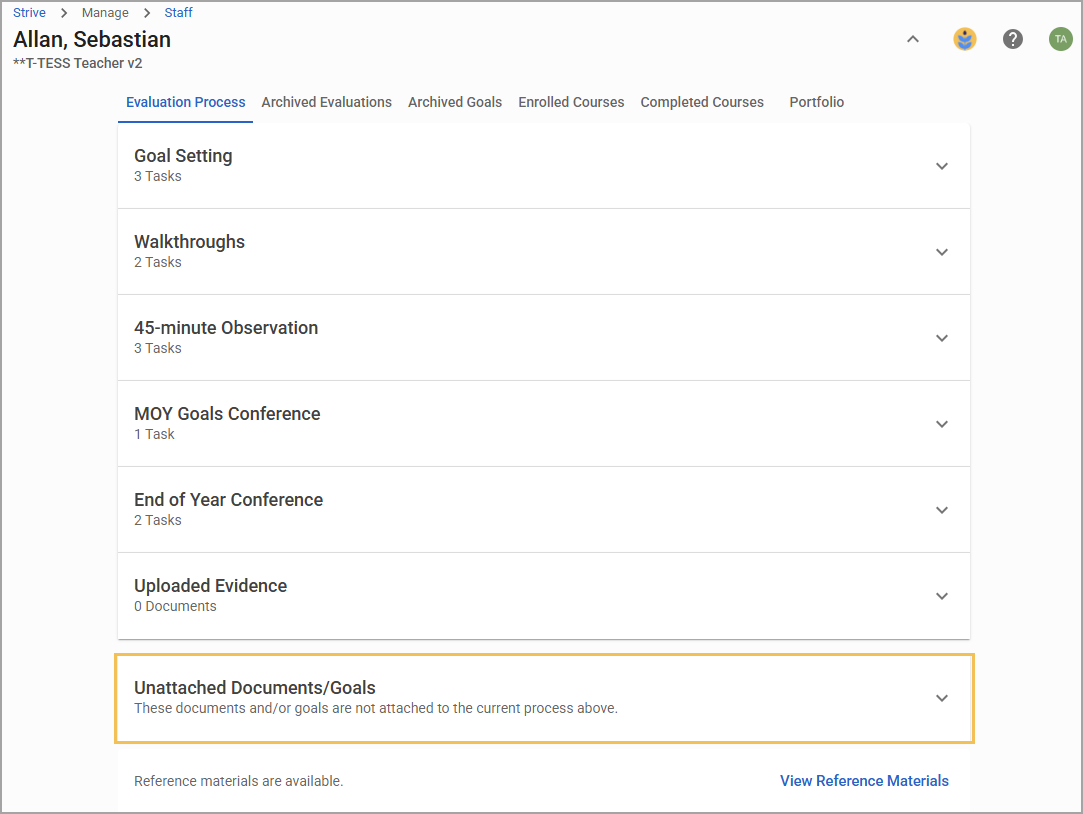
Step 4: Select the Move to Process button to open a modal.
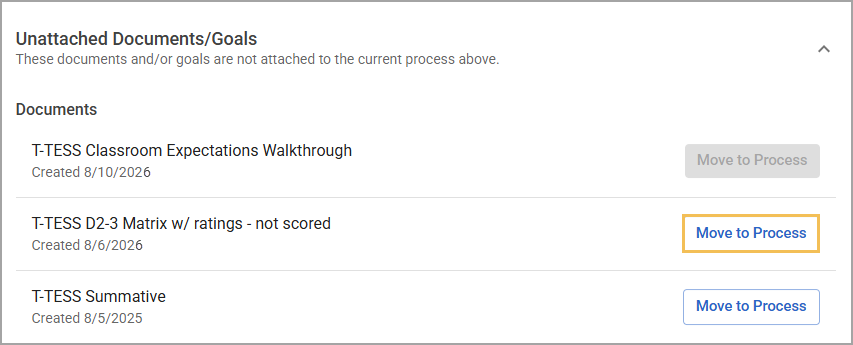
Step 5: Use the Move to drop-down menu to select the process task to which you want to move the document or goal.
.png)
Step 6: Understand that moving the document or goal is a permanent action and cannot be undone. If you understand this, check the box and select Submit to complete the action.
Caution: Ensure you are moving the correct document or goal from the current year only.
.png)
Step 7: Continue using the document or goal under the correct process task.
Additional Information
If the Move to Process button is grayed out, then you cannot move the document or goal because none of the staff member’s process tasks include the form or goal template. A process manager must edit the process first before you can move the document or goal. You also have the option to delete the document or goal or wait until the end-of-year archive. However, take care not to prematurely delete any data you need for your evaluation process.