Test authors can build a Quick Test Key to use when they already have test documents. Quick Test Keys may contain Selected Response, Constructed Response, Numerical Response, or Interactive Response item types.
Follow the steps below to create a Quick Test Key.
Step 1: Select Author from the Assessments section of the main menu.
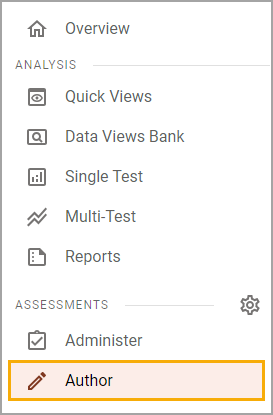
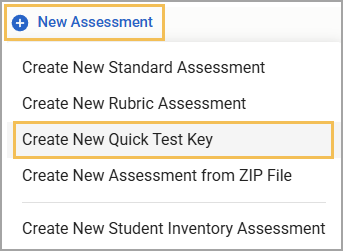
Step 2: Select New Assessment, and choose Create New Quick Test Key.
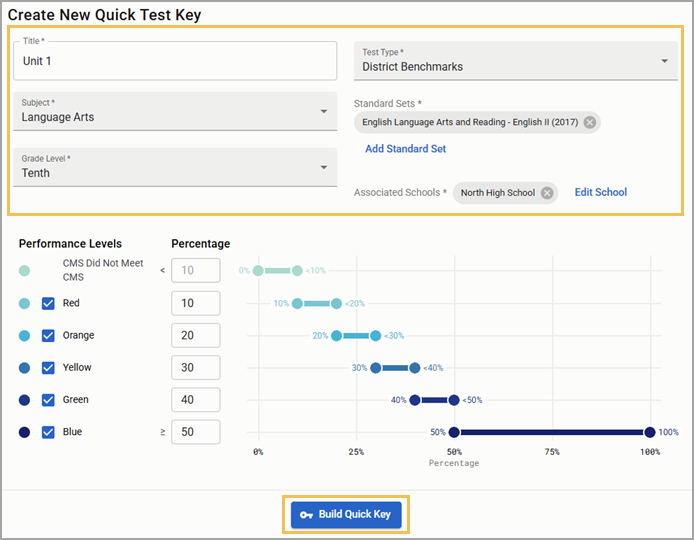
Step 3: Complete the required fields marked with an asterisk (*):
Enter a Title.
Use the drop-down menus to select a Subject, Grade Level, and Test Type.
Select Add Standard Set. The Subjects and Grade Levels drop-down menus automatically populate to filter the list. You can also search for a specific standard set by typing in the Search bar (). Select the checkbox for each standard set you want to apply, then click Select Standard Sets.
Select Add School. The Grade drop-down menu automatically populates to filter the list. Select the appropriate school and then click Close.
(Optional) Adjust Performance Levels and Percentages as needed.
Select Build Quick Key when finished.
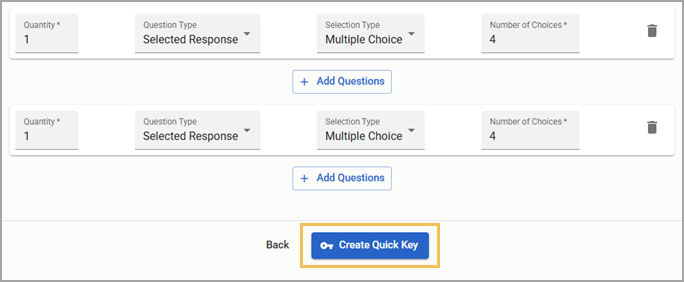
Step 4: Choose the Quantity, Question Type, Selection Type, and the number of answer choices per question for the key.
To add different question types, select Add Questions to create a new row of selections. When finished, select Create Quick Key. You will select correct responses on the next screen.
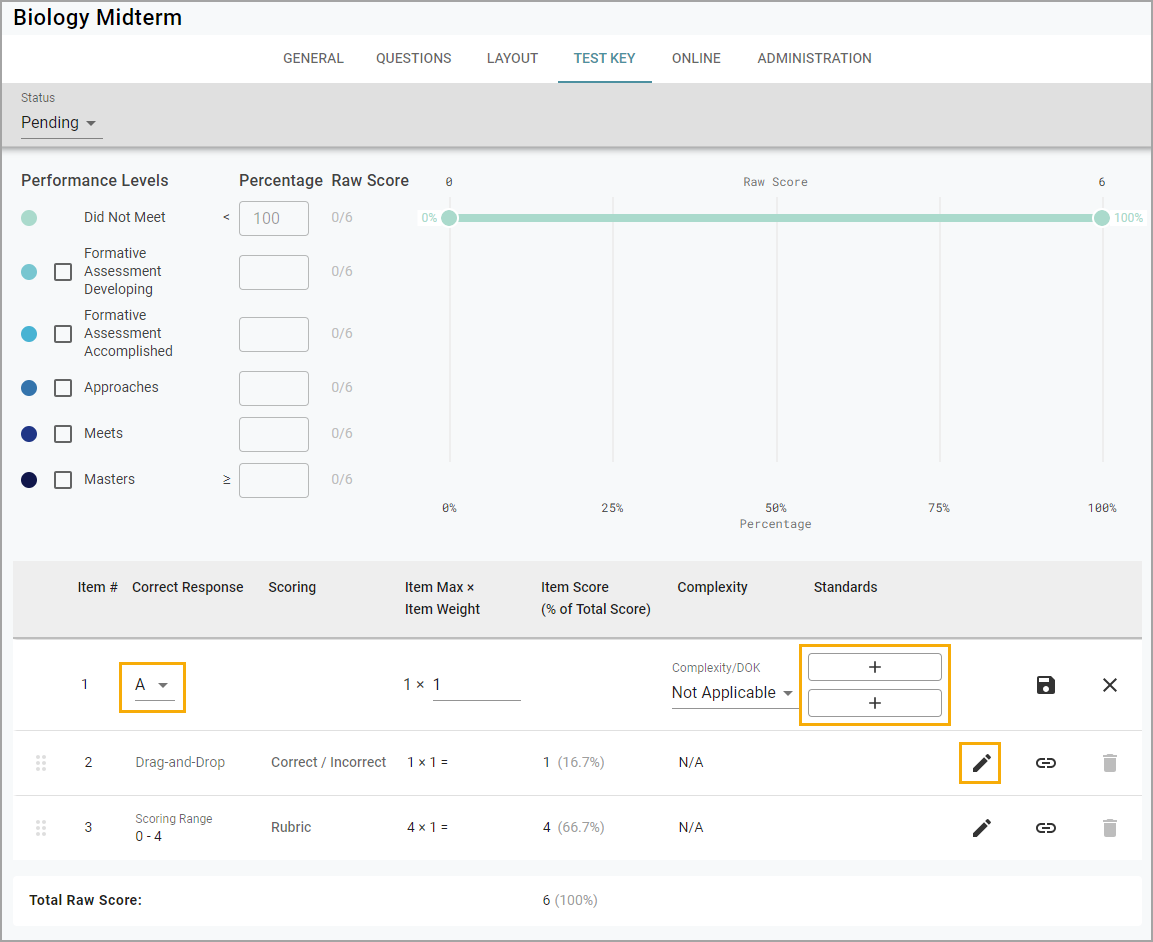
Step 5: Click the Pencil icon to edit each item under the Test Key tab.
Here, you may select the Correct Response, adjust the Item Weight, set the Complexity/Depth of Knowledge (DOK), and add Learning Standards for each question. For interactive response questions, you can also edit the Scoring Method.
Modifications will be saved automatically when you click to the next answer.
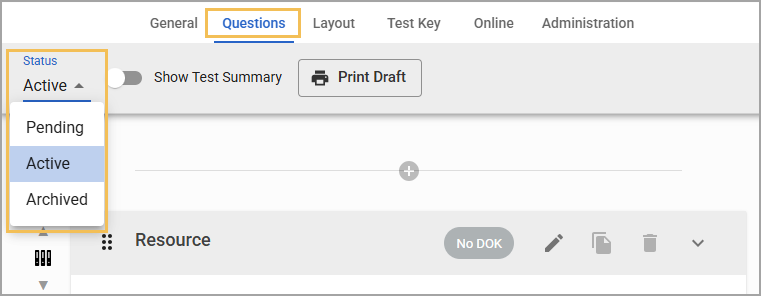
Step 6: Set the quick key status as Active to complete the creation process and allow your key to be accessible for use.
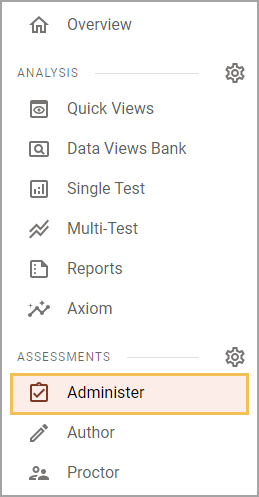
Step 7: To access your new test key, select Administer under Assessments.
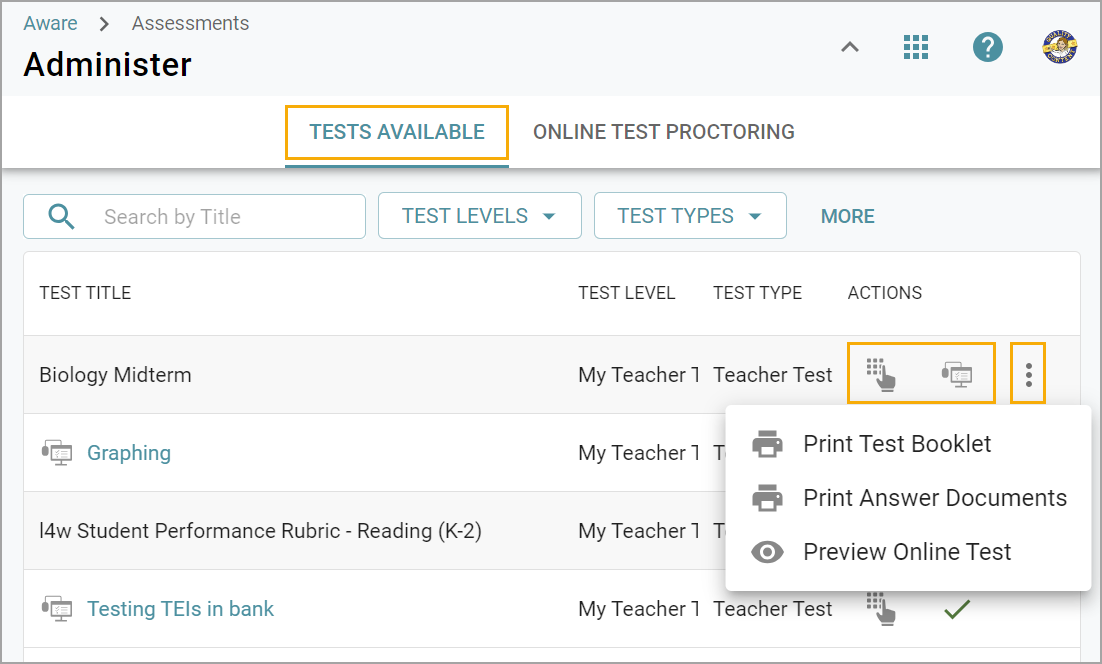
Step 8: Locate the quick test key under Tests Available. You may choose to print answer sheets for your students, enter answers manually, or use this key for online testing.
For more information about online testing, check out these additional resources: