Appraisal administrators can edit and update evaluation process forms. The best time to edit significant content of evaluation forms is between the end of an evaluation year and the beginning of the next.
Caution: Throughout the year, users can edit small changes, such as fixing typos, on evaluation process forms. If a form is already tied to an evaluation process, it displays many grayed-out areas that prevent users from updating those fields and potentially compromising the evaluation data. As a result, it is best practice to make a copy of in-use forms, which retains all settings and items of the original.
Quick Guide
Select Settings () from the main menu.
Select Form Management.
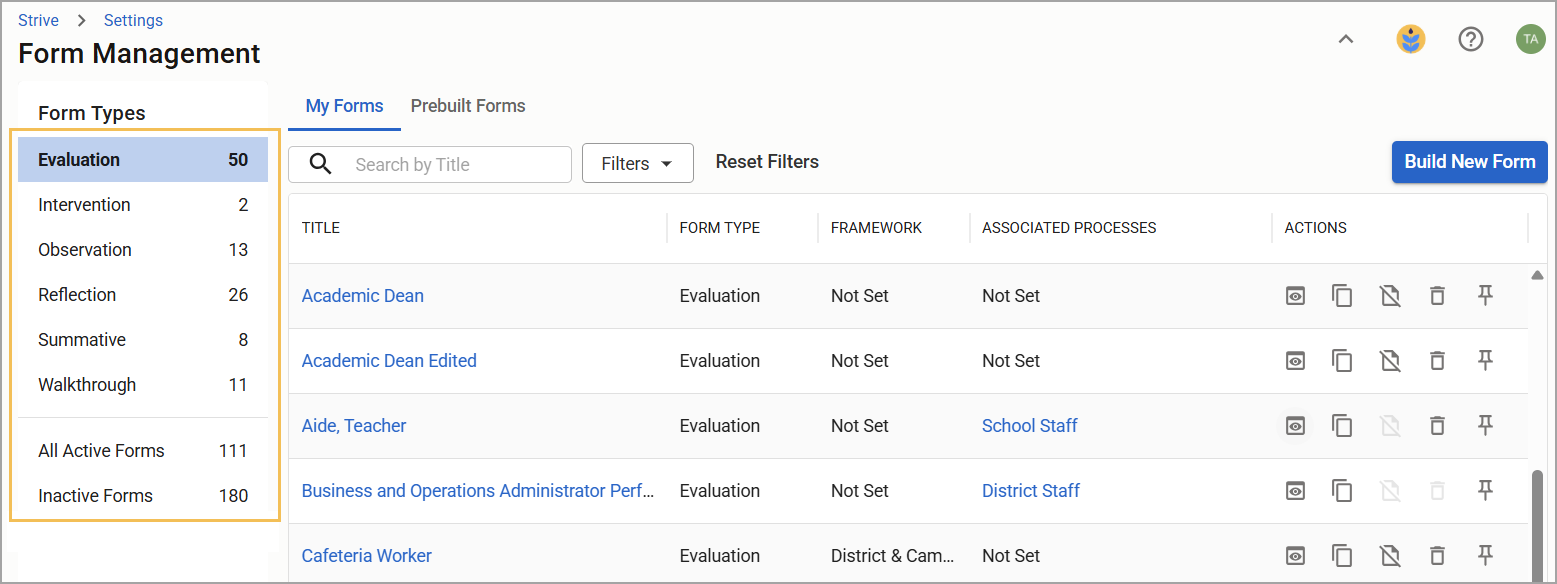
On the My Forms tab, locate the form you want to edit by exploring the Form Types on the Form Management table.
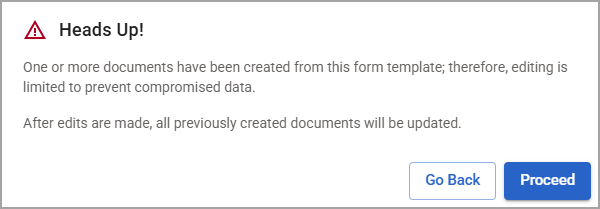
Click on the form title to open it. A form that has no documents created is fully editable. If a warning appears because users have created one or more documents from the form, select Go Back to return to the Form Management table or Proceed to continue editing the form.
You can make minor changes to a form, such as fixing a typo. You can also add, edit, and remove informational items, but not response items. To make more significant changes, you can select the Copy icon () to create a copy of that form to maintain the data integrity of the original form.
Illustrated Guide
Step 1: Select Settings () from the main menu.
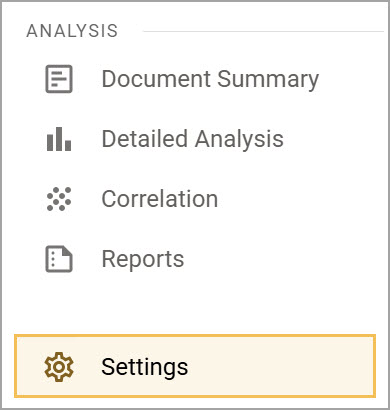
Step 2: Select Form Management.
.png)
Step 3: On the My Forms tab, locate the form you want to edit by exploring the Form Types on the Form Management table. Once you’ve selected the form type, you can search for a form by title to narrow down your options. You can also explore Active and Inactive Forms.
Step 4: Click on the form title to open it. A form that does not have documents created from its template is fully editable. However, if users have created one or more documents from the form template, a warning appears, stating that editing is limited to prevent compromised data.
Caution: Any edits that you make also apply to all previously created documents.
Select Go Back to return to the Form Management table, where you can make a copy of the form to edit instead, or select Proceed to continue editing the form template and all created documents.
Step 5: After selecting Proceed, you can make minor changes to the form, such as correcting typos. If a user has created documents from the form, you can add, edit, and delete informational items, but not response items.
.png)
If you need to make more significant changes, you can select the Copy icon () to create a copy of the form to maintain the original form's data integrity. This is especially recommended if the form is currently tied to an active evaluation process.