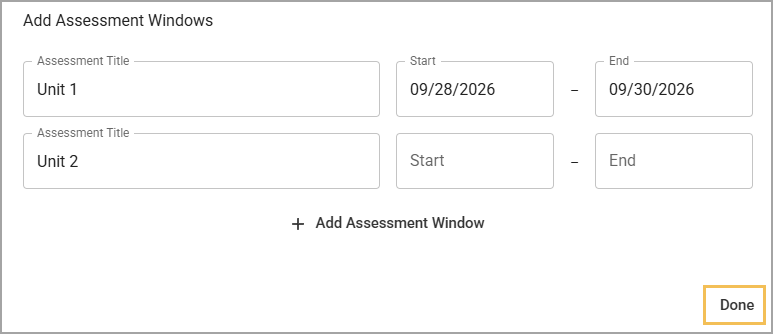
An assessment window marks the date range in which teachers are expected to administer specific tests. For example, you have already scheduled units within a course, and you want teachers to check for understanding at the end of each unit. You can create an assessment window that spans the last three days of the unit to allow for flexibility in administering the test. You can also use assessment windows to set aside time for state tests, benchmarks, or any other type of assessment.
Quick Guide
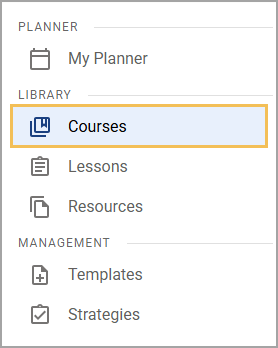
Select Courses.
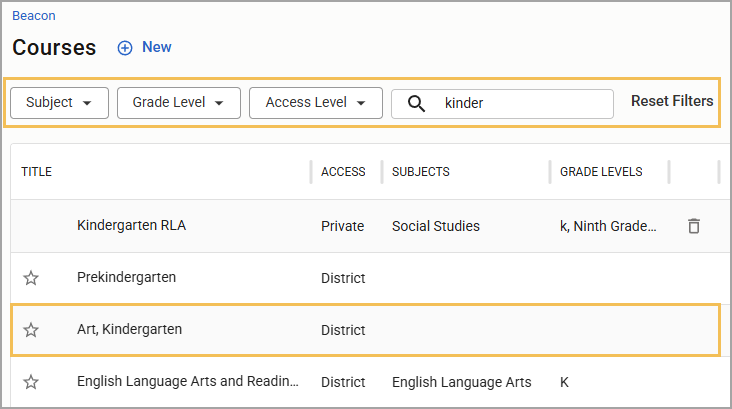
From the Courses list, select the course to which you want to add the assessment window.
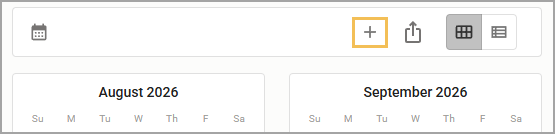
In the toolbar above the calendar or list view, select Add ().
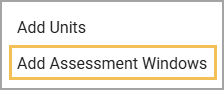
From the resulting drop-down menu, choose Add Assessment Windows.
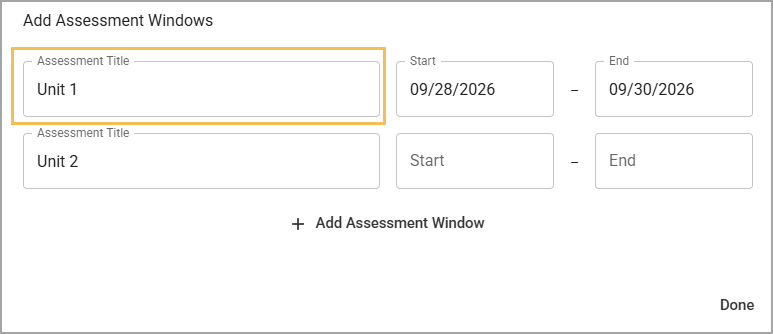
Enter the Assessment Title.
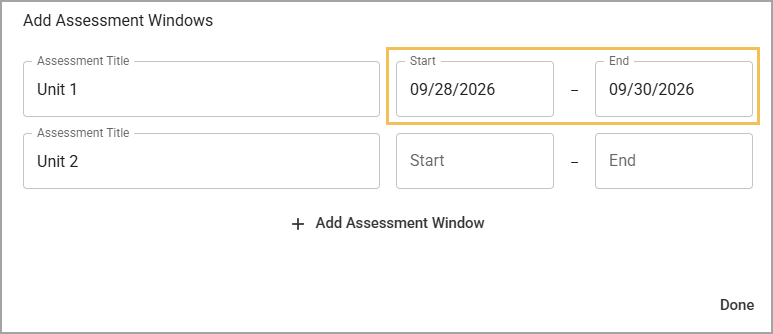
Select a Start and End date using the calendar selector.
To add more assessments, select Add Assessment Window. Complete the fields and repeat as needed.
Select Done.
Illustrated Guide
Step 1: Select Courses from the main menu.
Step 2: From the Courses list, select the course to which you want to add the assessment window. Use the search and filter options to narrow down your search.
Step 3: In the toolbar above the calendar or list view, select Add ().
Step 4: From the resulting drop-down menu, choose Add Assessment Windows.
Step 5: Enter the Assessment Title.
Step 6: Select the Start or End field to open the calendar selector and set the date range for the window.
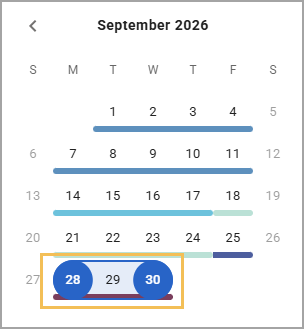
Step 7: (Optional) To add more assessment windows, select Add Assessment Window. Enter the Assessment Title and Start and End dates. Repeat until you have added all of the assessment windows that you want to create.
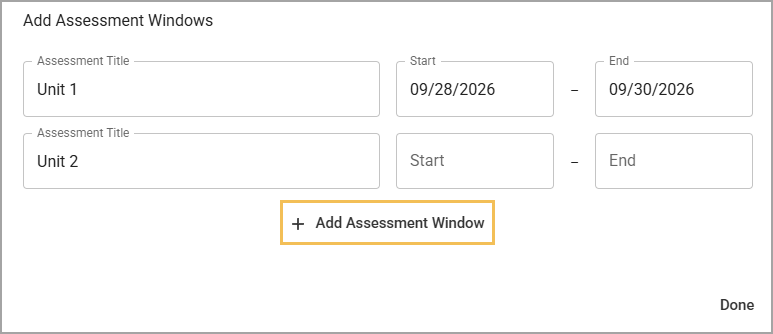
Step 8: Select Done to add the assessment windows to the course.