Before you can create an evaluation document, the following must be assigned to the staff member:
An evaluator
A process
Quick Guide
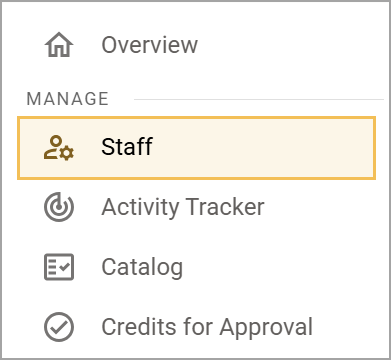
Select Staff () from the navigation menu.
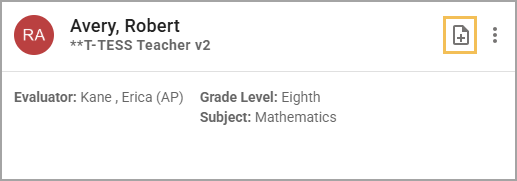
Click the Quick Start a Document icon () on the desired staff member’s card.
Select the drop-down menu and choose from the list of evaluation process documents.
Select Create when ready.
Illustrated Guide
Step 1: Select Staff () from the navigation menu.
Step 2: Select the Quick Start a Document icon () on the desired staff member’s card.
Tip: The timeline at the bottom of the staff member’s card displays the number of walkthroughs completed in the last 30 days. A blue line indicates that a walkthrough occurred inside the 30-day window. You can hover over the blue line to see the exact date when the walkthrough occurred.
Step 3: Select the drop-down menu and choose from the list of evaluation process documents. You can also set the grade level, subject, start time, and end time, depending on the document selected. Type additional information in the text box as needed.
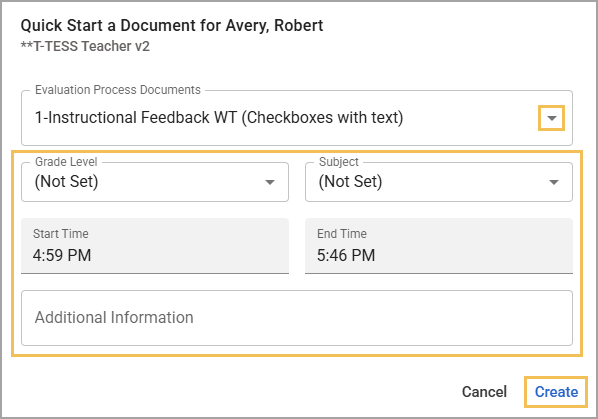
Step 4: Select Create when ready.
Document Features
Once you create an evaluation document for a staff member, you can edit its evaluation information, message the staff member, score domains and dimensions, summarize observations, and explore the following document features:
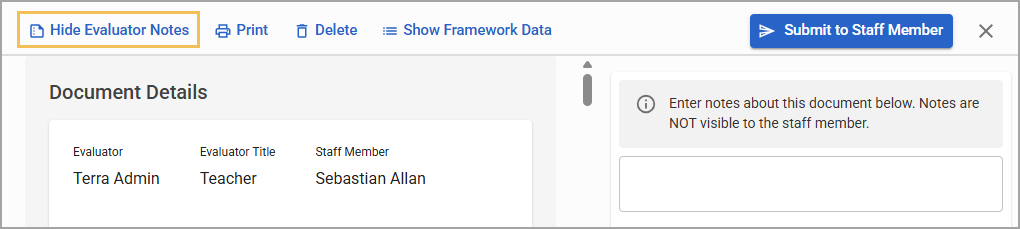
Show Evaluator Notes ()
Print ()
Delete ()
Show/Hide Framework Data ()
Sign/View Signatures ()
Submit to Staff Member/Submitted ()/()
.png)
The Show/Hide Evaluator Notes icon () provides a secure space for an evaluator’s notes. Notes are viewable only by the evaluator and not by staff members.
The Print icon () creates a PDF version of the evaluation document.
.png)
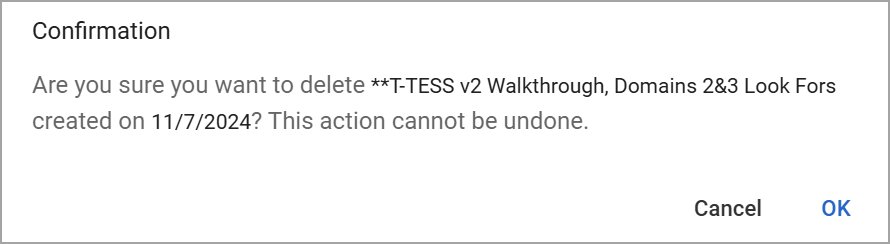
The Delete icon () opens a pop-up window requiring you to confirm that you want to delete the document. You cannot undo deleting a document.
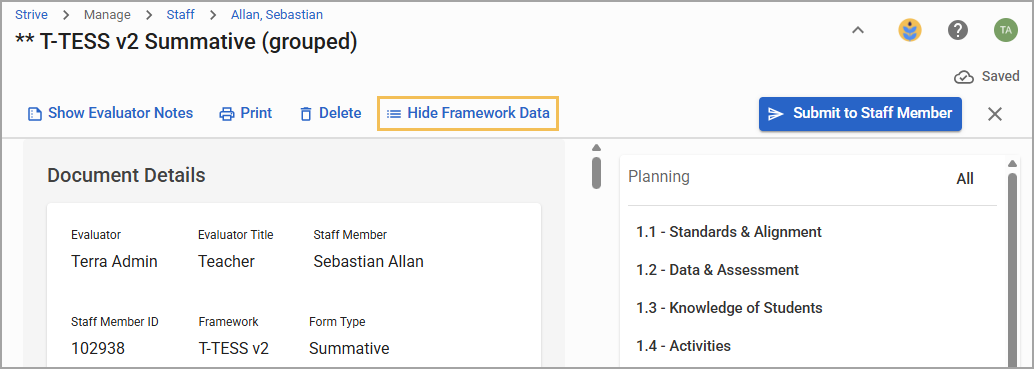
The Show/Hide Framework Data icon () is only available in a Summative document and allows you to show or hide the Summative Panel that appears on the right side of the screen. The Summative Panel displays the evaluation history for the year. Selecting a dimension allows you to view any recorded evidence or comments for the selected dimension. You can also copy and paste or drag and drop items into the summative document to support the summative rating. Select the button to show or hide the Summative Panel.
The Sign button () remains grayed out until the evalutor submits the document to the staff member. The staff member can then sign, followed by the evaluator once the evaluation is complete. Afterward, the button changes to View Signatures.
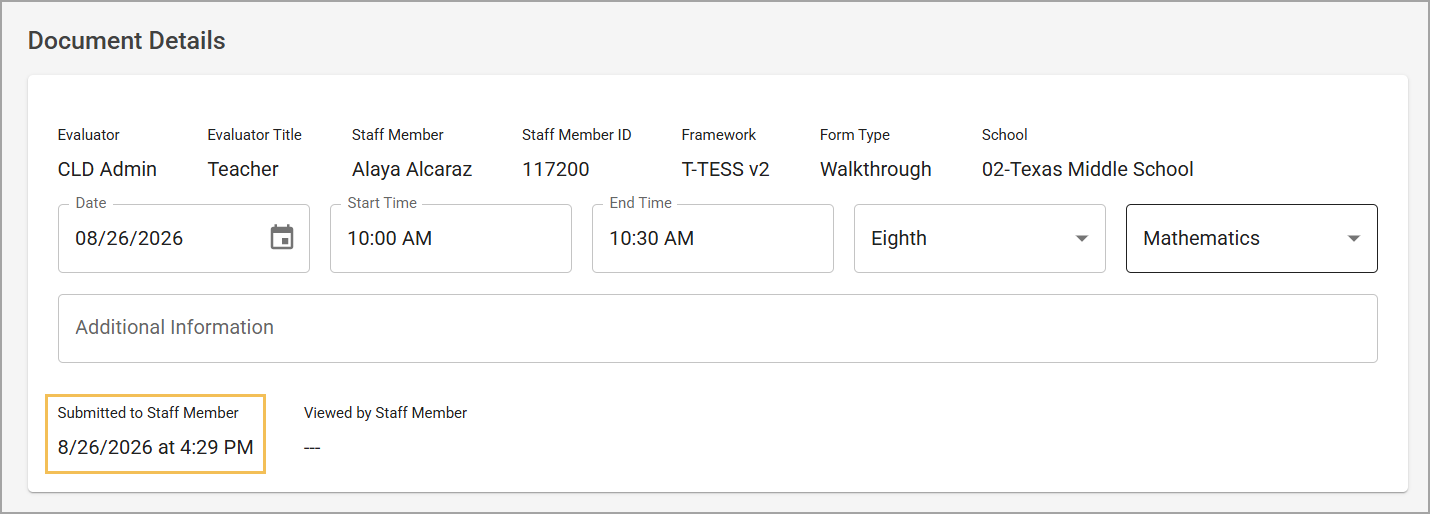
The Submit to Staff Member button () submits the evaluation document for the staff member to view and activates the electronic signature option. Afterwards, the button shows as Submitted () and remains grayed out, indicating the process is complete and cannot be undone.
All evaluation forms have a Messages area for communication between staff members and evaluators. Messages are tracked with a time and date stamp within the evaluation form.
.png)