Eduphoria recommends that educators and their evaluators sign their evaluation documents after both have completed their reviews and discussed them during the end-of-year conference. Your staff member signs the document first, locking it so it cannot be edited further. Afterward, you, the evaluator, can sign the document to finalize the evaluation.
Caution: Because the staff member is the first to sign the evaluation, only the staff member being evaluated can clear their signature to reopen the evaluation if necessary. Once the evaluator signs the document, the document is locked and cannot be reopened.
System administrators can enable electronic signatures for the district, allowing other administrators to set them up for Strive.
Quick Guide
Select Staff () after logging into Strive.
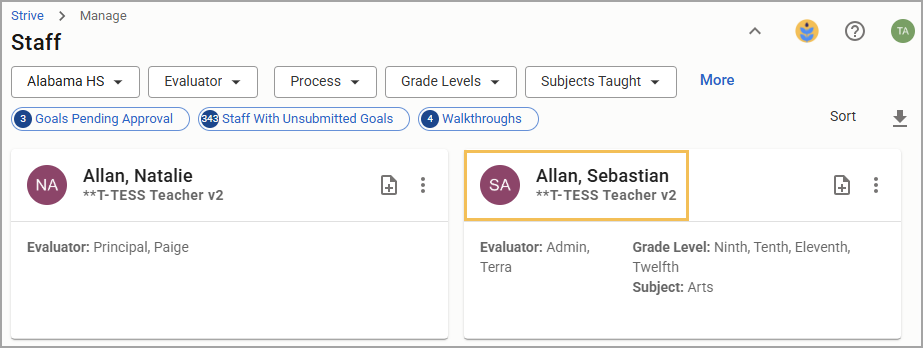
Use the filters and search bar to locate the educator whose documents you want to sign.
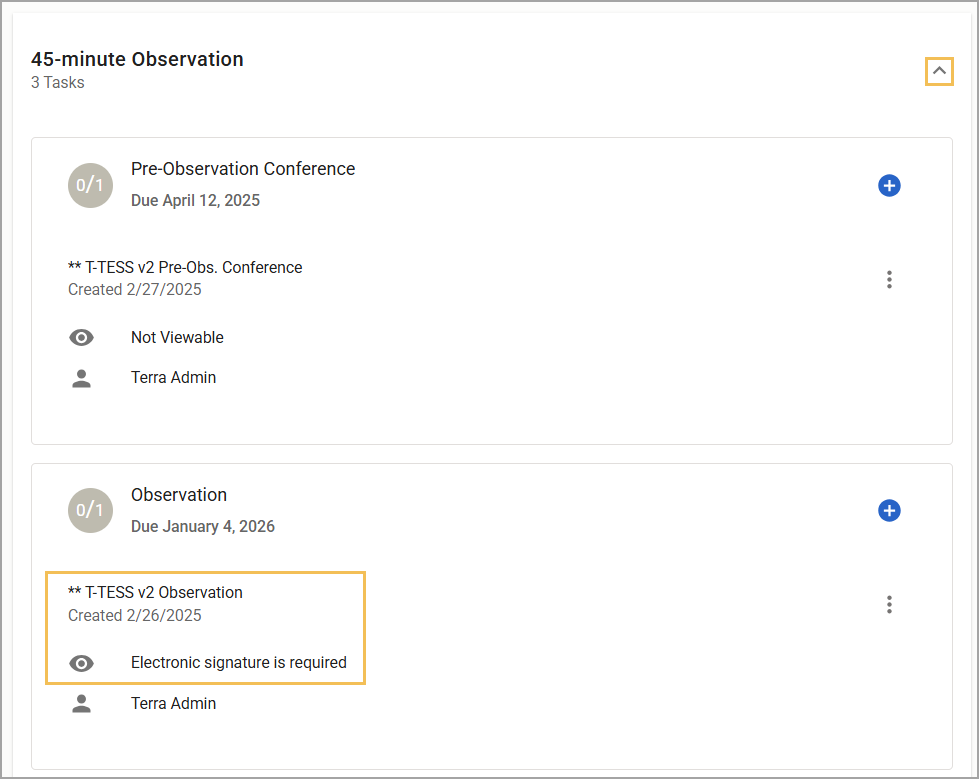
Select the document from the task drop-down menu if it states Electronic signature is required.
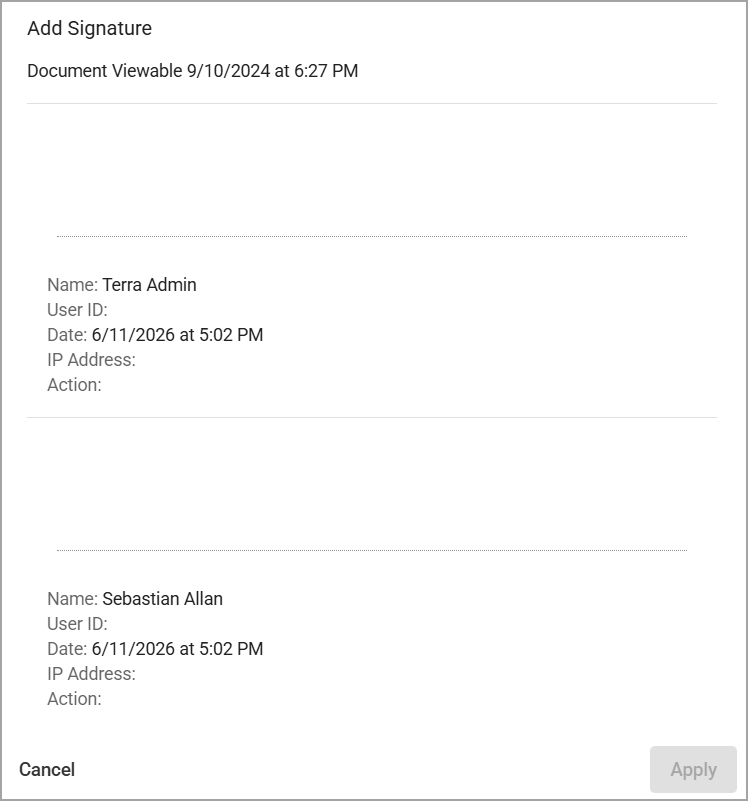
Select Sign () to open the signature display.
Alert the staff member to complete their signature if the signature display is blank.
If the staff member has signed, type your full name on the signature line.
Select Apply to finalize signing. This action permanently locks the document.
Illustrated Guide
Step 1: Select Staff () after logging into Strive.
.png)
Step 2: Use the filters and search bar to locate the educator whose documents you want to sign.
Step 3: Select the document from the task drop-down menu if it states Electronic signature is required.
Step 4: Select Sign () to open the signature display.
.png)
Alert the staff member to complete their signature if the signature display is blank.
If the staff member has signed, type your full name on the signature line.
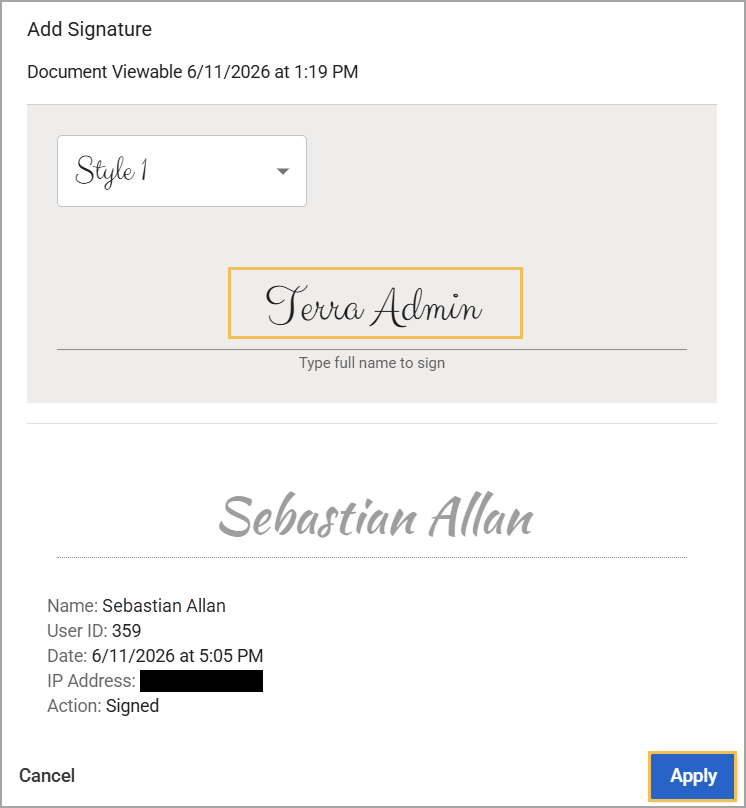
Step 5: Select Apply to finalize signing. This action permanently locks the document.