After Eduphoria completes migrating your district’s forms to the updated form builder, we highly recommend that appraisal administrators review their forms for content accuracy, formatting, and item sequencing before the start of the new year.
While you might want to check every form in the Form Management table, our system has marked those that require user review.
Quick Guide
Select Settings () from the navigation menu.
Select Form Management.
Select the My Forms tab.
Select All Active Forms to view all your district forms in a single table. You might also need to review your Inactive Forms.
Toggle on Flagged for Review to filter the forms to only those that need a user review.
Select a form to open it.
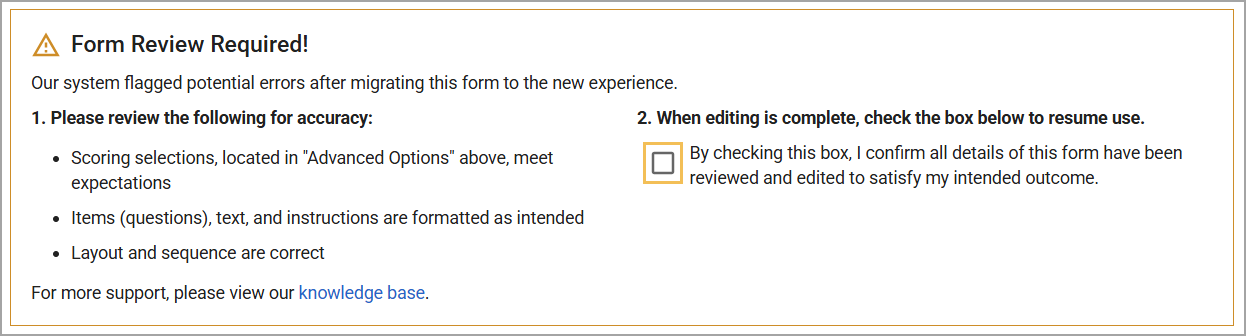
Carefully read over the Form Review Required box at the top of the form. In general, you should review the following parts of the form for accuracy:
Scoring selections within Advanced Options
Informational and response item content, such as text, instructions, and format
Layout and sequence of form items
Scroll down the form to find any items that are flagged for review. Hover your mouse over the Information icon () to see details about each issue.
Select the Preview icon () to view the form as it appears from the educator’s perspective. Here, you can review the general layout and format of the form items.
Return to the Form Review Required box after reviewing and correcting all issues. Check the box that reads, By checking this box, I confirm all details of this form have been reviewed and edited to satisfy my intended outcome.
Illustrated Guide
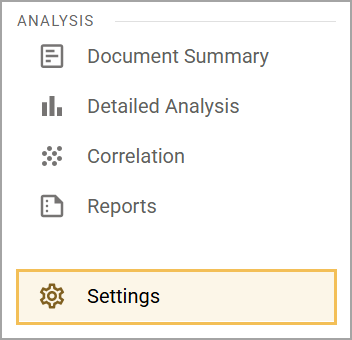
Step 1: Select Settings () from the navigation menu.
Step 2: Select Form Management.
.png)
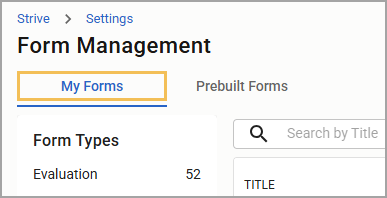
Step 3: Select the My Forms tab.
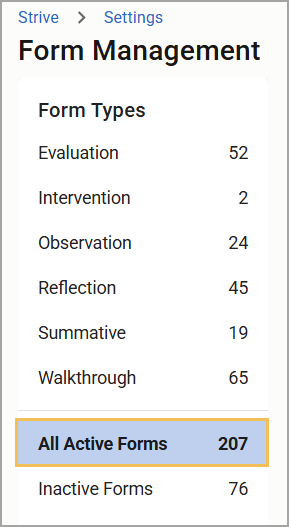
Step 4: Select All Active Forms to view all your district forms in a single table. You might also need to review your Inactive Forms.
Step 5: Toggle on Flagged for Review to filter the forms to only those that need a user review. You can see the number of forms you need to review beside the toggle. Flagged forms are also marked with a Warning icon () under the Review column.
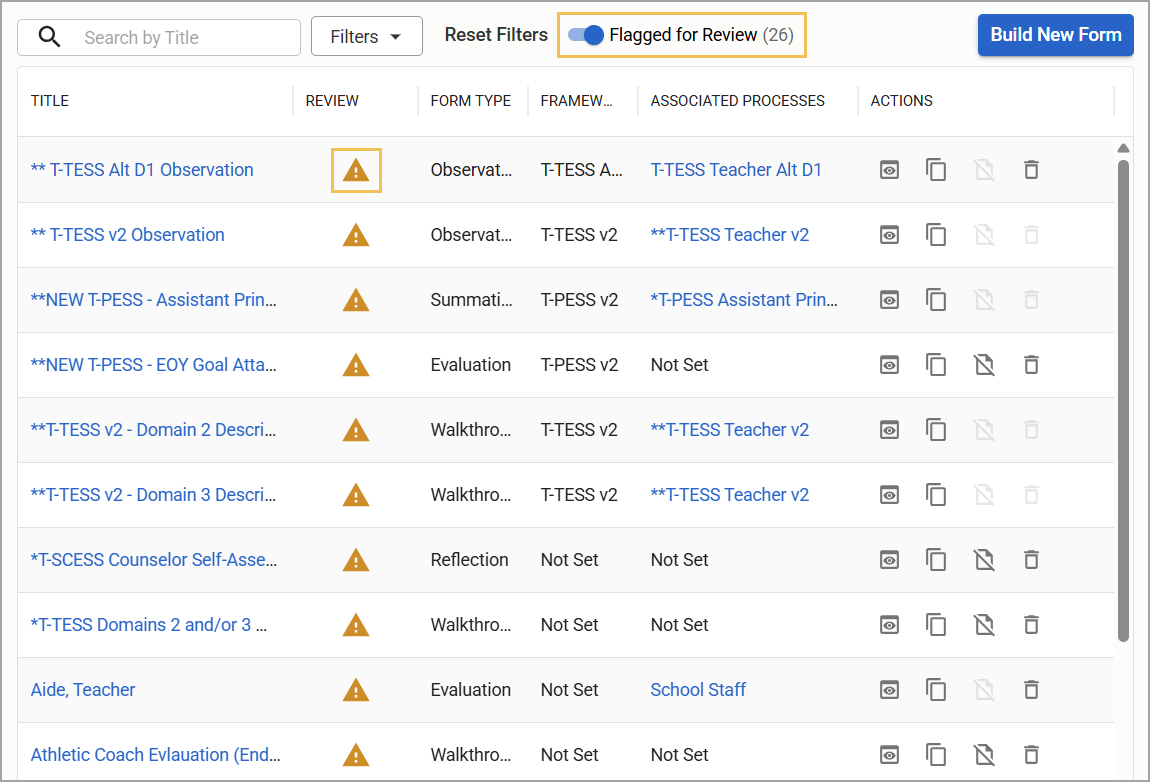
Step 6: Select a form to open it.
Step 7: Carefully read over the Form Review Required box at the top of the form. In general, you should review the following parts of the form for accuracy:
Scoring selections within Advanced Options ()
Informational and response item content, such as text, instructions, and format
Layout and sequence of form items
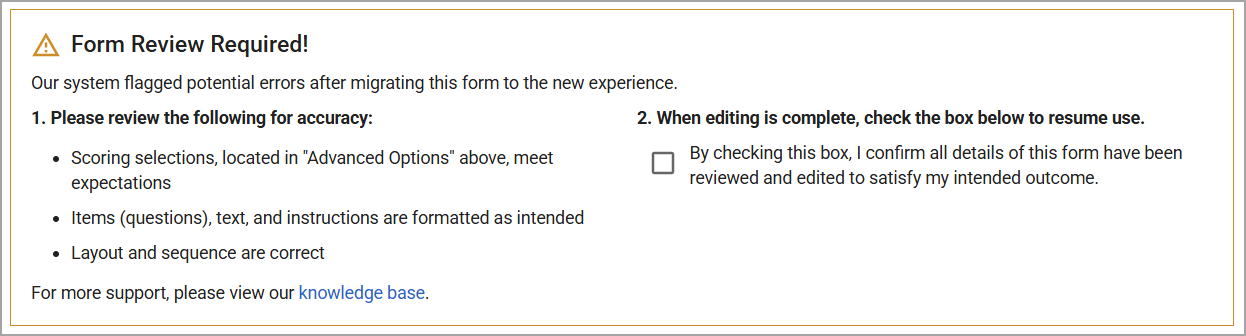
Step 8: Scroll down the form to find any items that are flagged for review. Hover your mouse over the Information icon () to see details about each issue. You might need to make many changes or none at all.
.png)
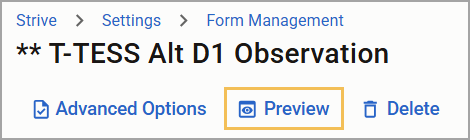
Step 9: Select the Preview icon () to view the form as it appears from the educator’s perspective. Here, you can review the general layout and format of the form items. Close out of the preview to make any changes, such as dragging and dropping items into a different order or changing the content formatting.
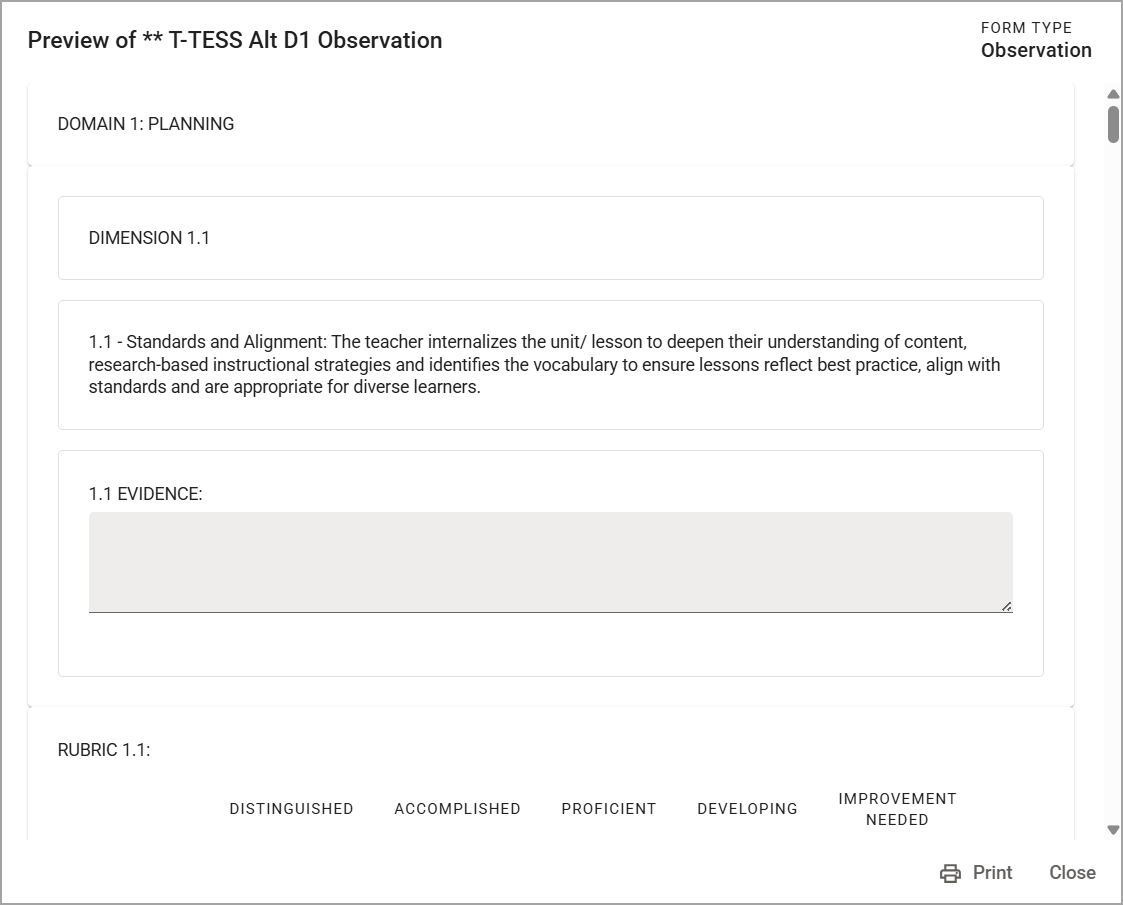
Step 10: Return to the Form Review Required box after reviewing and correcting all issues. Check the box that states, By checking this box, I confirm all details of this form have been reviewed and edited to satisfy my intended outcome.
Checking this box removes the form from being flagged and allows you to use it for future evaluation processes. Once you have reviewed all flagged forms, the Review column and Flagged for Review toggle will disappear. You can then proceed to build new forms, edit existing ones, and make them inactive as needed.