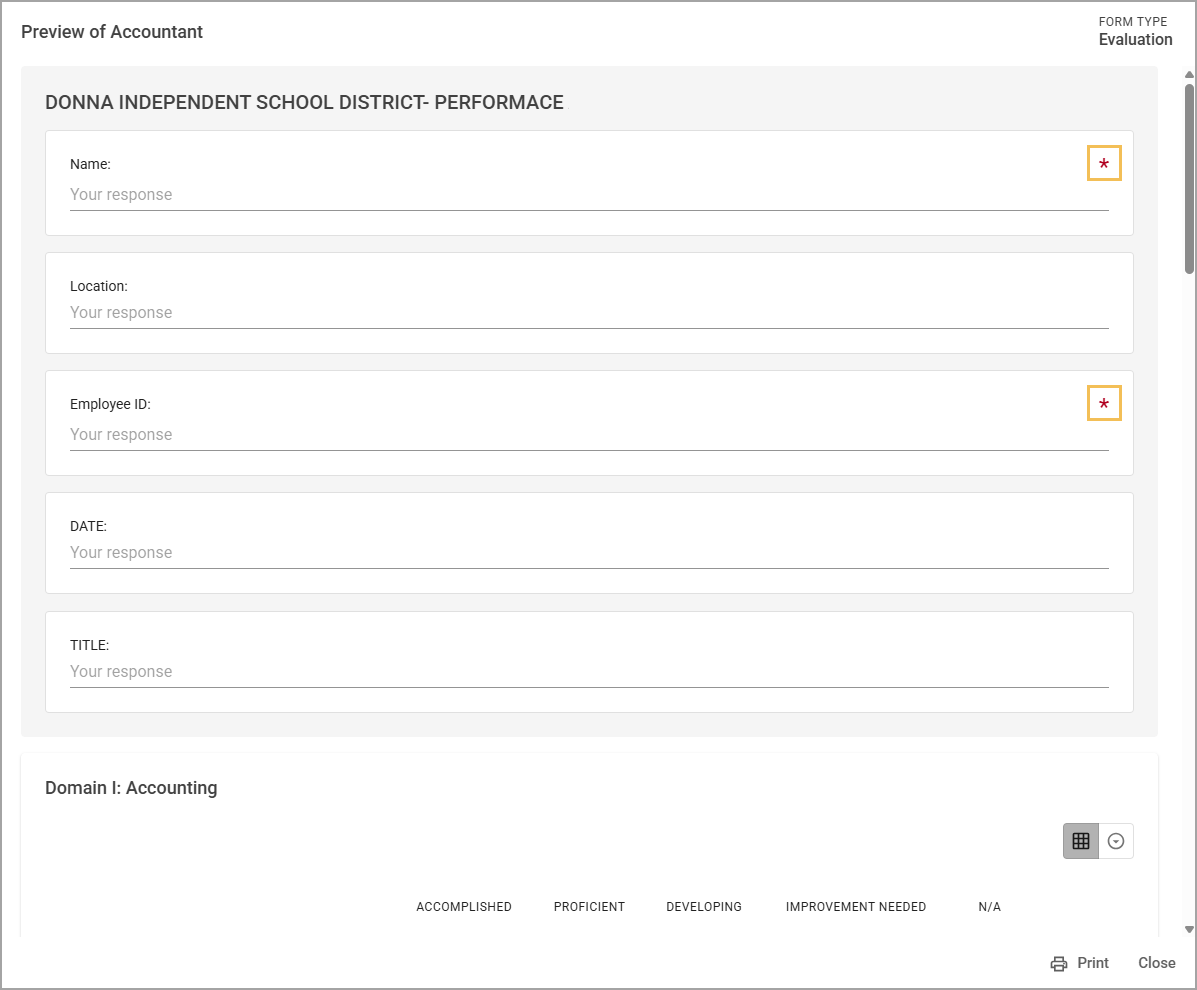
Form builders can mark items as required for evaluators to complete on the documents they create. The Let Staff View button remains grayed out until the document creator completes the required responses.
Any items marked as required on existing forms only apply to new documents that evaluators create. Document creators will not have any required responses applied retroactively to documents they have already assigned to staff.
Quick Guide
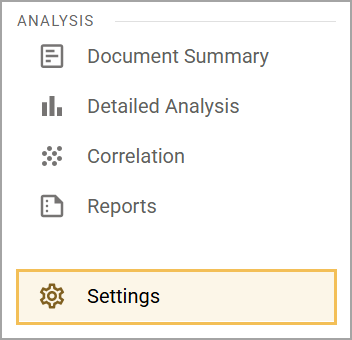
Select Settings () in Strive’s main menu.
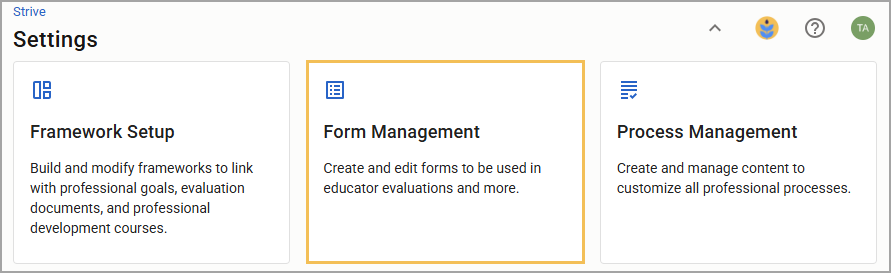
Select Form Management.
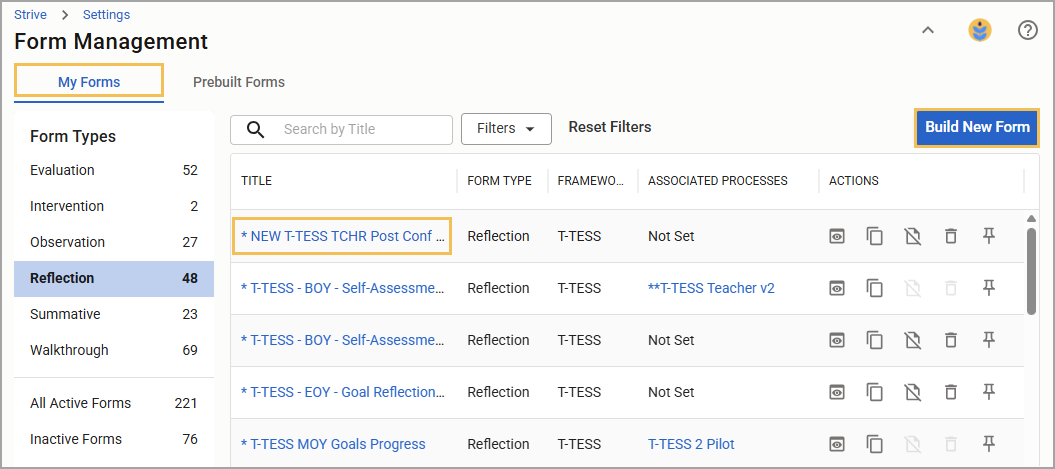
Under My Forms, build a new form or select an existing form.
Add items to the form or review existing items to edit.
Toggle on Required for any of the following items:
Goal
Text Response
Matrix Response
Selected Response
Dropdown Selected Response
Illustrated Guide
Step 1: Select Settings () in Strive’s main menu.
Step 2: Select Form Management.
Step 3: Under My Forms, build a new form or select an existing form.
Step 4: Add items to the form or review existing items to edit.
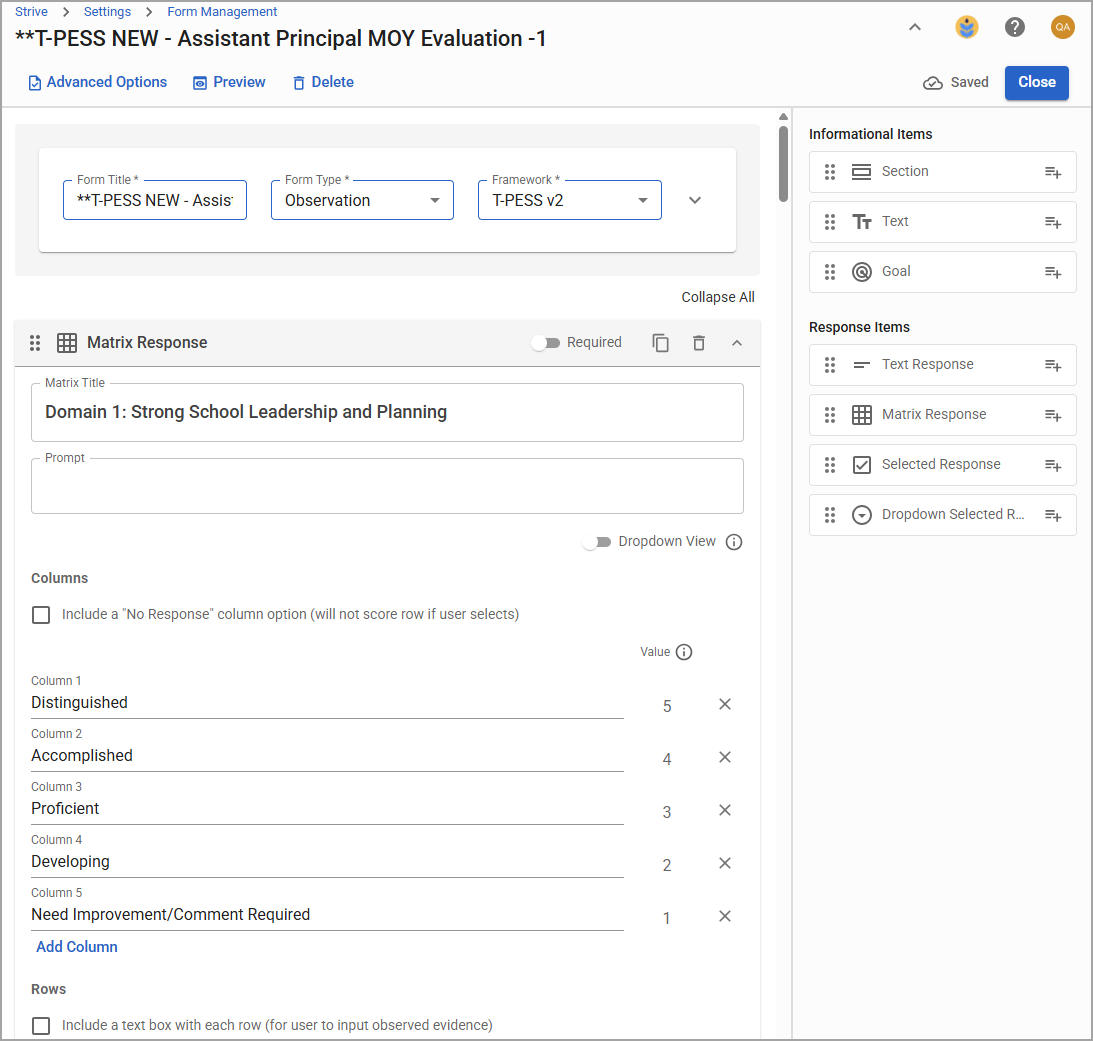
Step 5: Toggle on Required for any of the following items:
Goal
Text Response
Matrix Response
Selected Response
Dropdown Selected Response
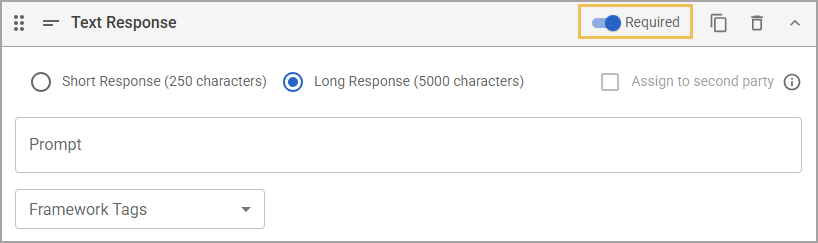
Note: Marking a Text Response item as required prevents the form builder from assigning it to a second party, namely the staff member. Conversely, assigning the Text Response to a second party prevents the form builder from making the item required.
As the document creator fills out the document, they can see any required items marked with a red asterisk (*).