Depending on the evaluation system your district uses, different scoring options might be available. For example, in Texas, the T-TESS system focuses on teacher growth and professional advancement, and it does not require scoring.
However, if you use a different evaluation system, you might need to customize the scoring options to allow for more advanced calculations. In that case, enable scoring for the form you use and choose the appropriate scoring options.
Best Practice: Use the form a few times to test the math and make sure that your scores and scales are working as intended.
Quick Guide
Select Settings () from the main menu.
Select Form Management.
Select the My Forms tab.
Under the appropriate form type, select the desired template you want to enable scoring on.
Select Advanced Options ().
Under Scoring & Data, check the box for Score the document with advanced calculations.
Under To create a score for each response item, select Average the scores in each response item. Under To create a score for the entire document, select Average all scores in the document if you also want to average all response items into one overall score.
Illustrated Guide
Step 1: Select Settings () from the main menu.
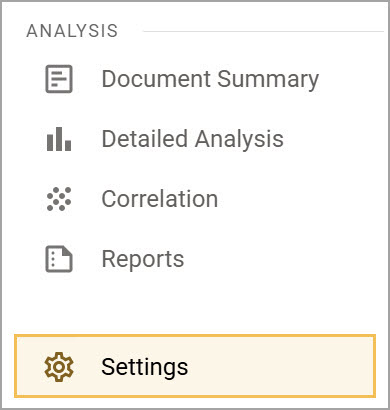
Step 2: Select Form Management.
.png)
Step 3: Select the My Forms tab.
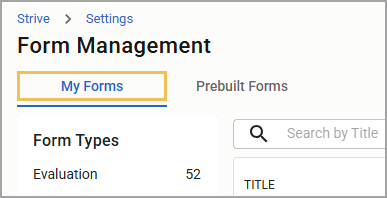
Step 4: Under the appropriate form type, select the desired template you want to enable scoring on.
.png)
Step 5: Select Advanced Options ().
.png)
Step 6: Under Scoring & Data, check the box for Score the document with advanced calculations.
.png)
Step 7: Under To create a score for each response item, select Average the scores in each response item. This averages all response items to provide an overall score. For example, if you have four items in Domain I, they are averaged and rounded up.
Under To create a score for the entire document, select Average all scores in the document if you also want to average all response items into one overall score.
Tip: When you set scoring to Total the scores in each response item and Total all response item scores, a summary score appears on the document, showing the denominator and the overall percentage.
.png)