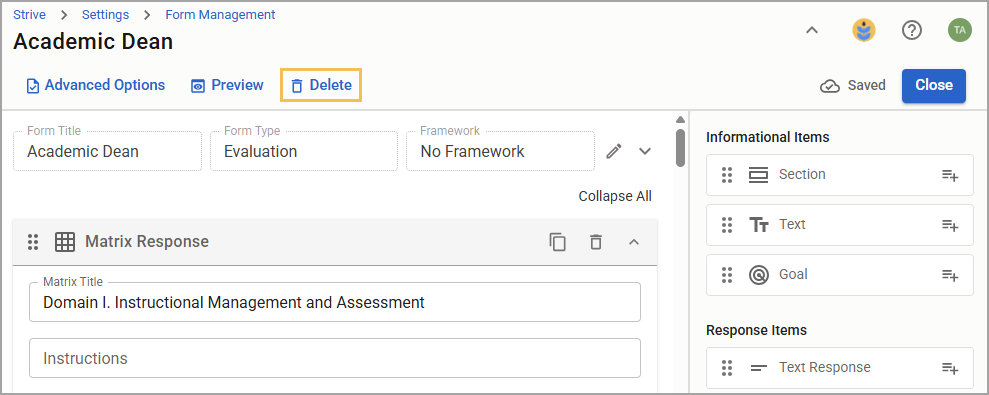
Appraisal administrators and form builders can delete any form that currently has no documents created. Eduphoria recommends periodically cleaning up your forms and deleting old ones after completing the archive process. Alternatively, you can make forms inactive if you suspect they may be used in the future, and then make them active again.
Quick Guide
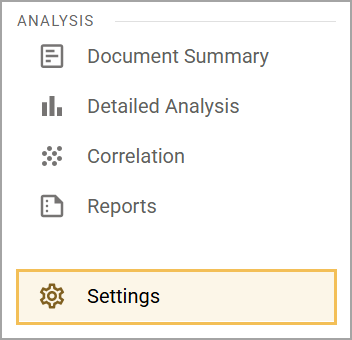
Select Settings () in the navigation menu.
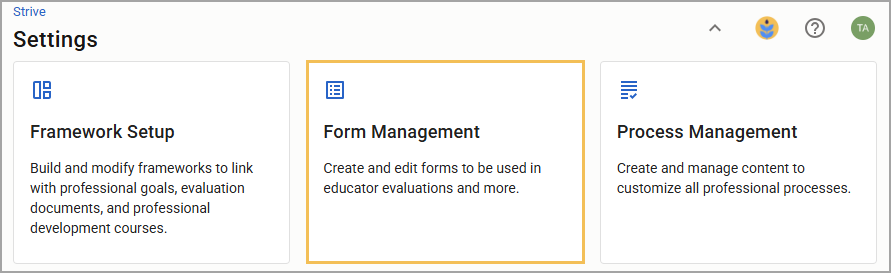
Select Form Management.
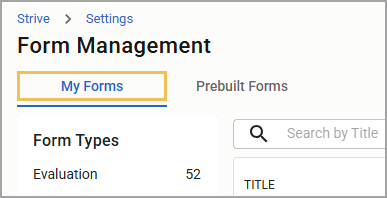
Select the My Forms tab.
Locate the form you want to delete by Form Type or by searching its title.
Select the Delete icon ().
Confirm that you want to permanently remove the form by selecting Delete. This action cannot be undone.
Illustrated Guide
Step 1: Select Settings () in the navigation menu.
Step 2: Select Form Management.
Step 3: Select the My Forms tab.
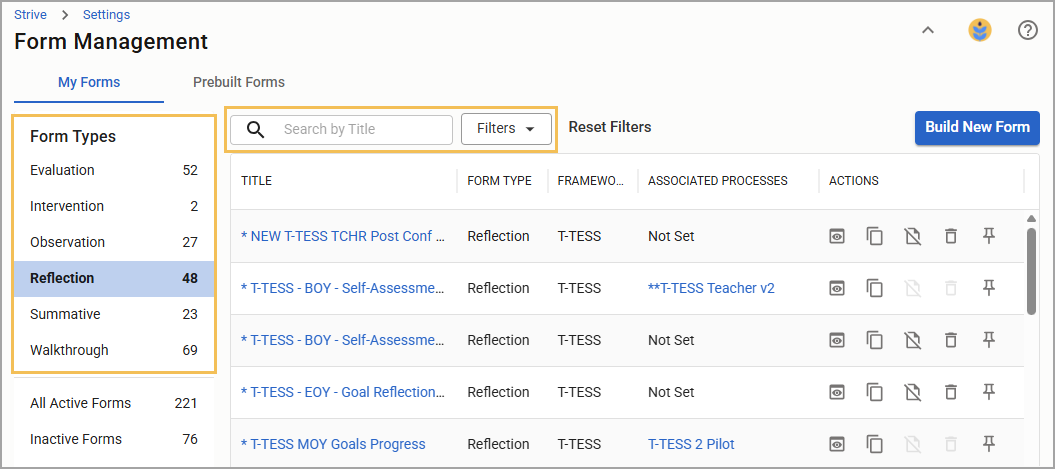
Step 4: Locate the form you want to delete by Form Type or by searching its title. You can delete active and inactive forms.
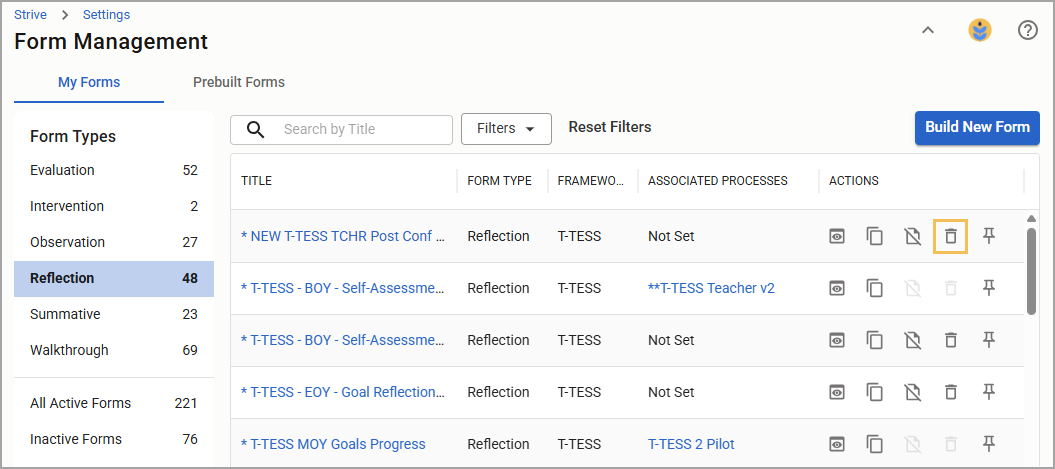
Step 5: Select the Delete icon ().
Note: If the Delete option is grayed out, it means that documents have already been created from the form. You can delete the form by either removing all documents or after completing the evaluation archive at the end of the year.
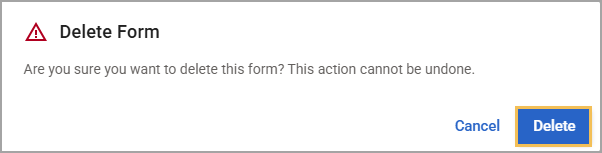
Step 6: Confirm that you want to permanently remove the form by selecting Delete. This action cannot be undone.
You can also select the form title to review it and then select Delete () at the top of the form.