Appraisal administrators build evaluation forms using a variety of informational and response items to enter evaluation details and content. Each of these items can have dimensions and standards tagged for reporting.
Note: Framework tags are invisible to evaluators and staff members. They are only visible to Appraisal Administrators who set them up to help with reporting, data analysis, and the Summative Panel.
Frameworks connect data from multiple steps in the process or different forms based on the dimensions to which the elements are tagged. Learn more about building and modifying frameworks.
Quick Guides
Go to Settings () from the navigation menu.
Select Form Management.
Select the My Forms tab.
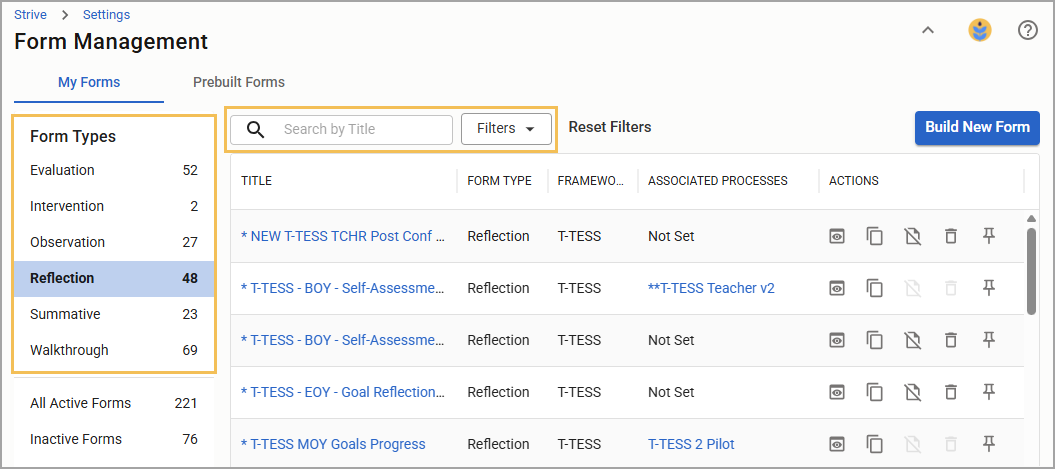
Select a form that matches your framework from the appropriate form type.
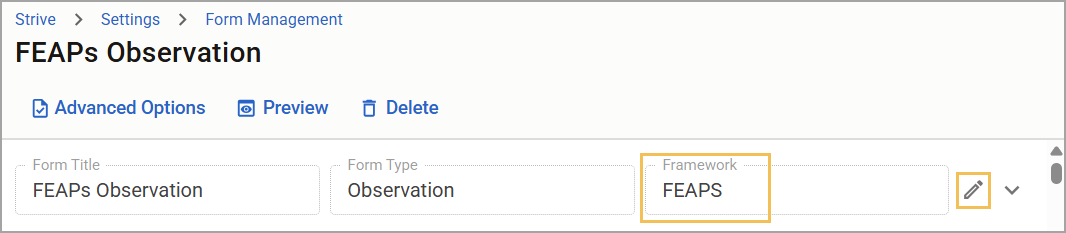
Ensure the form has an assigned framework. If it has no framework, you can select the Edit icon () to add one.
Locate the response items in the form you want to tag.
Select Framework Tags to open a drop-down menu.
Assign framework tags to the response item by checking boxes for one or more tags, as appropriate.
Continue adding framework tags to each response item as needed.
Illustrated Guides
Step 1: Select Settings () from the navigation menu.
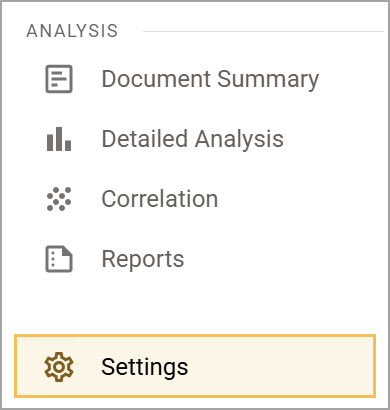
Step 2: Select Form Management.
.png)
Step 3: Select the My Forms tab.
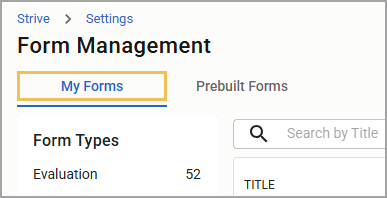
Step 4: Select a form that matches your framework from the appropriate form type. You can search by title or use filters to find a form.
Step 5: Ensure the form has an assigned framework. If it has no framework, you can select the Edit icon () to add one. Your changes automatically save.
Step 6: Locate the response items in the form you want to tag. You can assign framework tags to text response, matrix response, and selection response items.
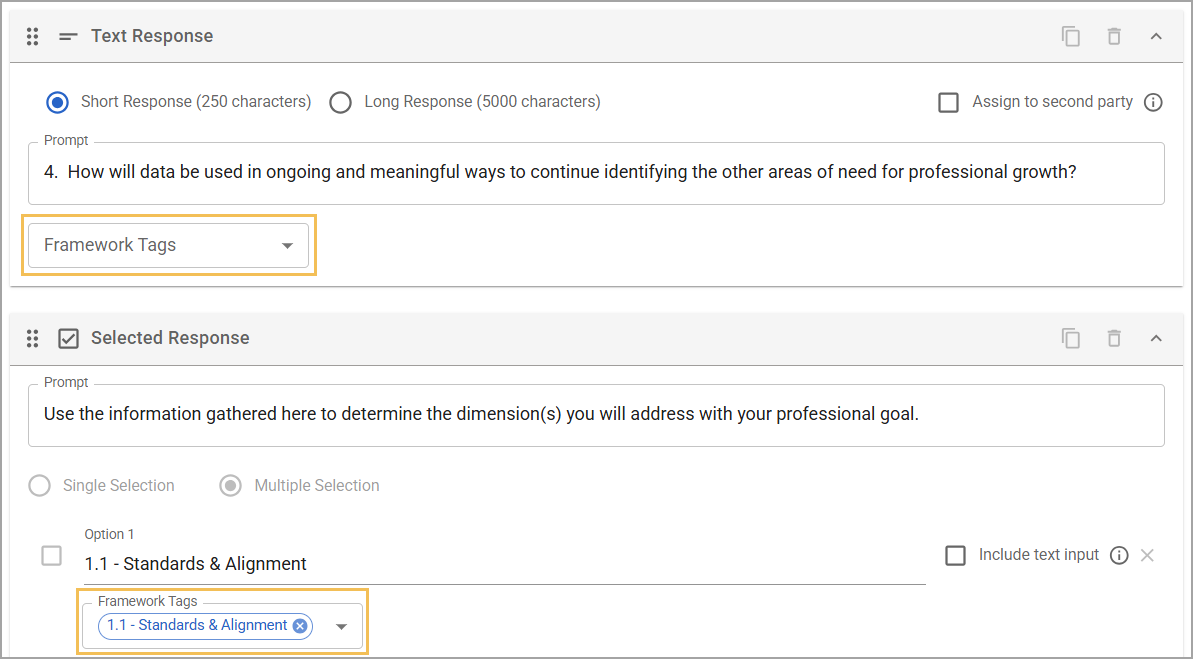
Step 7: Select Framework Tags to open a drop-down menu.
.png)
Step 8: Assign framework tags to the response item by checking boxes for one or more tags, as appropriate. Scroll down to review all available framework tags. Select Close when ready. Your selections save automatically.
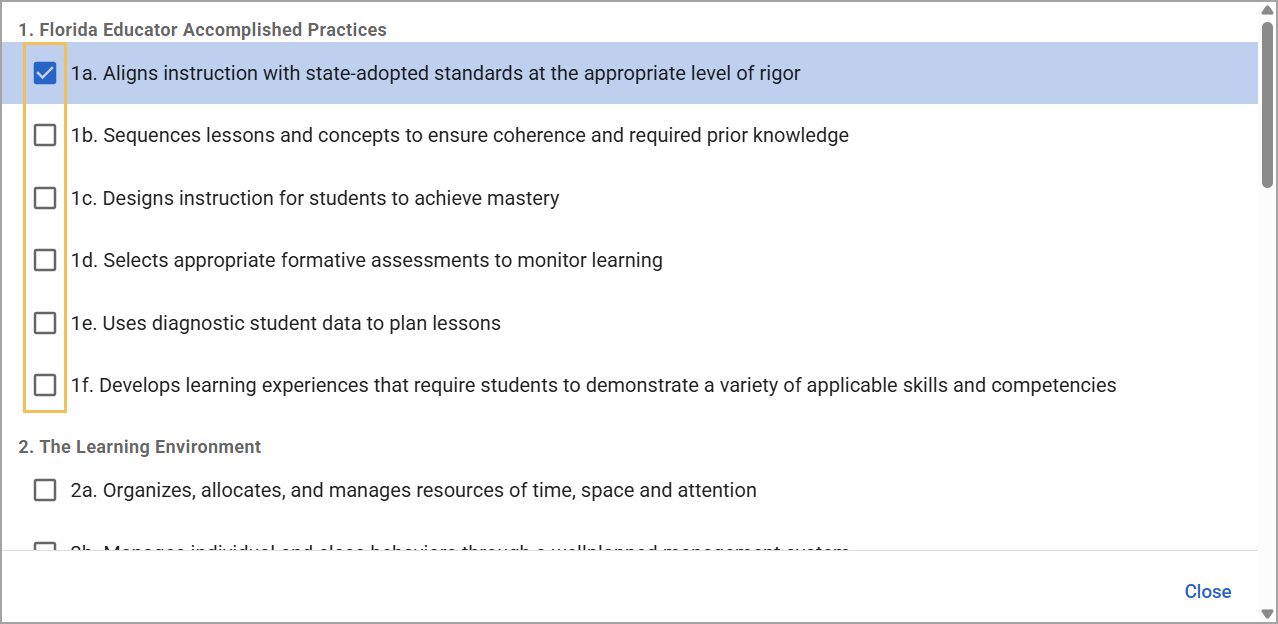
Step 9: Continue adding framework tags to each response item as needed.