The Lone Star State School Counselor Association has published a framework for evaluating school counselors. This article contains information regarding the T-SCESS framework and evaluation forms and describes the steps to create a T-SCESS evaluation process in Strive.
Download the PDF from the Lone Star State School Counselor Association. Within Strive, locate the T-SCESS framework by accessing Settings > Framework Setup.
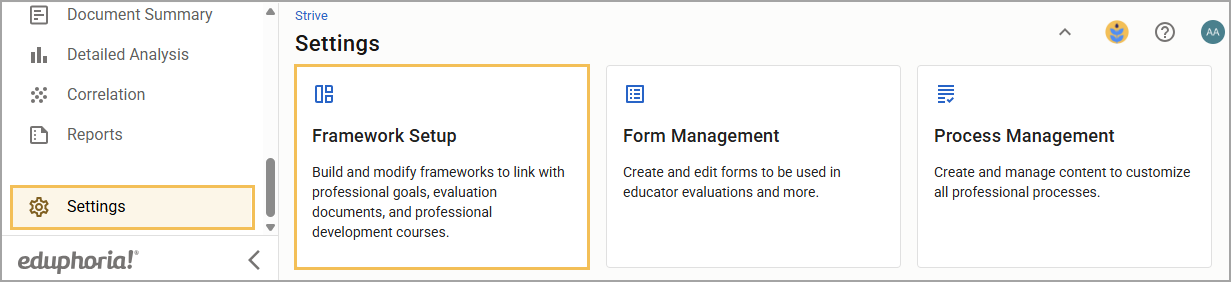
.png)
Note: This article walks you through setting up a T-SCESS evaluation process. When you are ready to conduct an evaluation, see Creating an Evaluation Document for staff.
Building the Evaluation Process With the T-SCESS Framework
If your district uses the locked T-SCESS framework, you must build a new evaluation process.
Retiring Your Existing T-SCESS Process
The first series of steps requires you to retire your existing T-SCESS process.
Quick Guide
Select Settings (), and then select Process Management.
Locate the existing T-SCESS Counselor process you no longer want to use.
Select the Delete icon () to permanently remove the process.
Note: Completing the end-of-year archive preserves all evaluation data for the year, making it safe to delete old processes. If a process is assigned at least one staff member, it cannot be deleted. We will soon offer users a way to make processes inactive to help organize the Process Management table.
Illustrated Guide
Step 1: Select Settings (), and then select Process Management.
.png)
Step 2: Locate the existing T-SCESS Counselor process you no longer want to use.
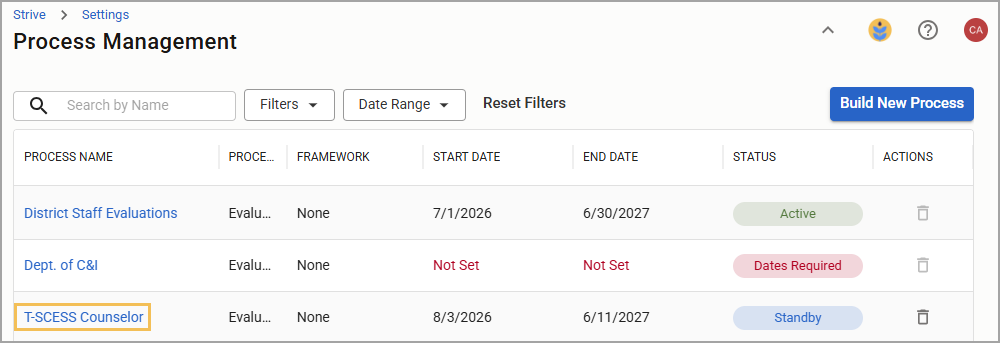
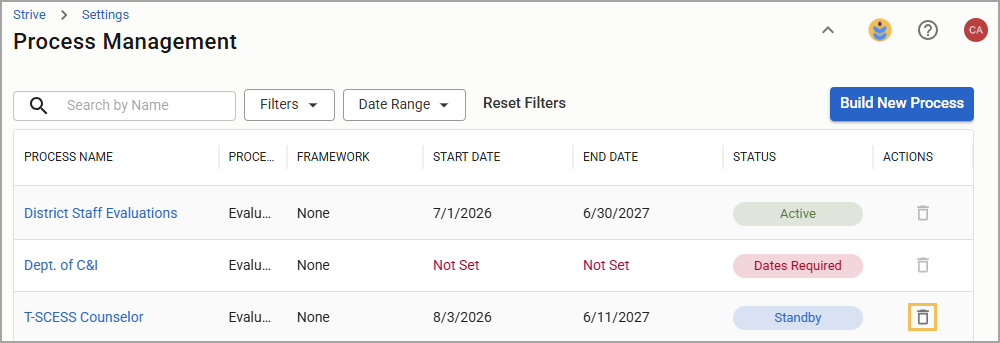
Step 3: Select the Delete icon () to permanently remove the process.
Note: Completing the end-of-year archive preserves all evaluation data for the year, making it safe to delete old processes. If a process is assigned at least one staff member, it cannot be deleted. We will soon offer users a way to make processes inactive to help organize the Process Management table.
Removing Counselor Forms From Different Processes
If your district previously evaluated counselors under a different process that included other employee groups, such as a School Staff process, perform the following steps to remove the counselor evaluation forms from the process.
Quick Guide
Select Settings (), and then select Process Management.
Locate and select the process you want to edit.
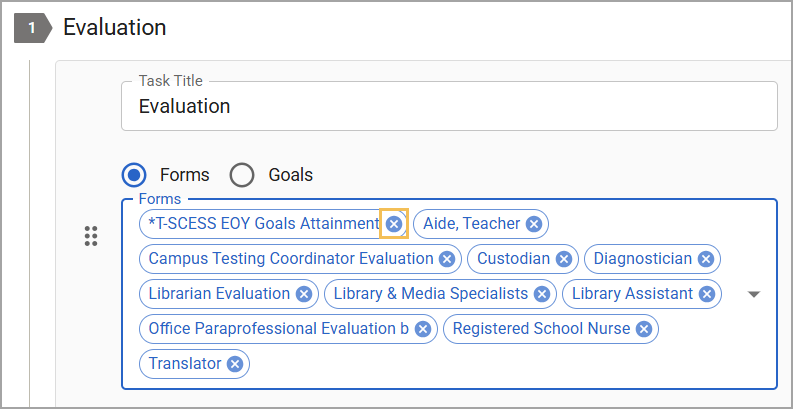
Locate the Evaluation step of the process, and select the X beside any T-SCESS or Counselor forms to remove them.
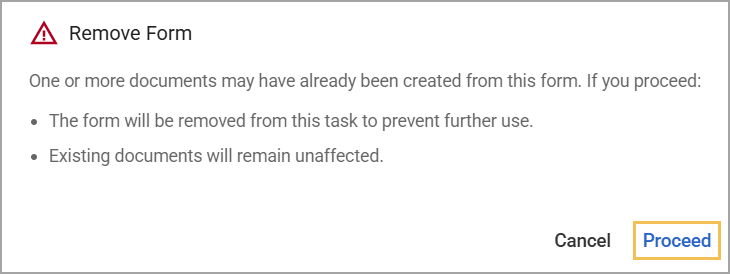
Confirm that you want to remove the evaluation form from the process by selecting Proceed.
Illustrated Guide
Step 1: Select Settings (), and then select Process Management.
Step 2: Locate and select the process you want to edit.
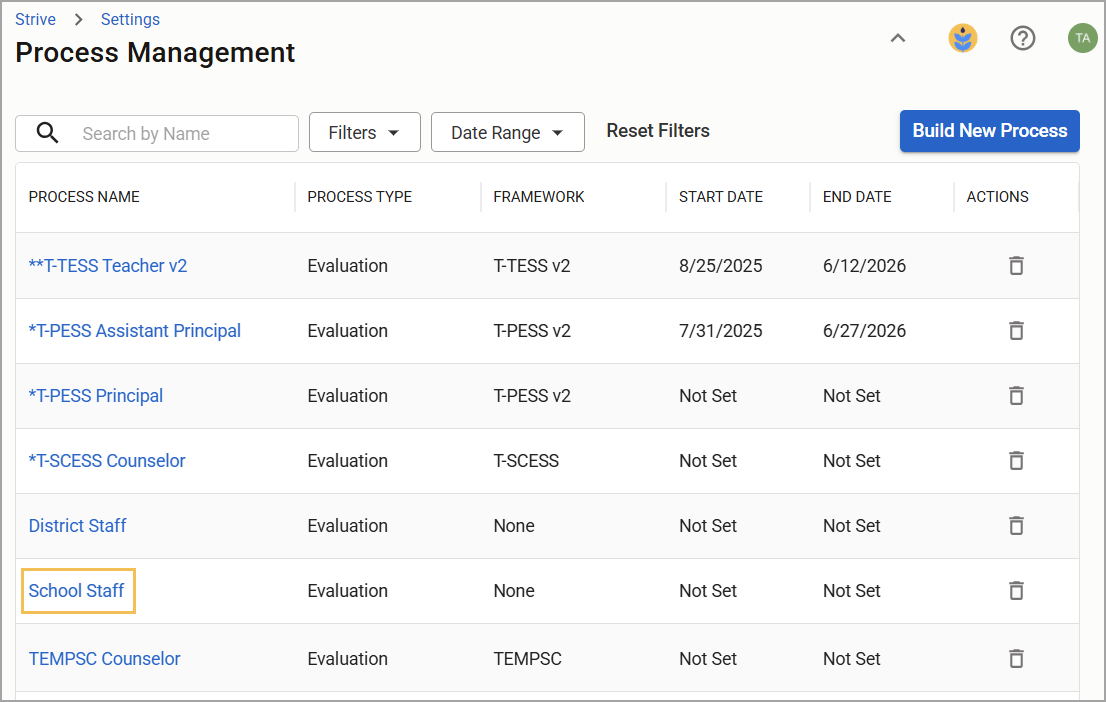
Step 3: Locate the Evaluation step of the process, and select the X beside any T-SCESS or Counselor forms to remove them.
Step 4: Confirm that you want to remove the evaluation form from the process by selecting Proceed.
Verifying Prebuilt Forms
Next, you must locate and verify that you have prebuilt forms from Eduphoria.
Quick Guide
Select Settings (), and then select Form Management.
Select the Prebuilt Forms tab.
Select each form type and verify that you have each of the following forms in the table:
Reflections
T-SCESS Annual Administrative Conference
T-SCESS Annual Student Outcome Goal Plan
T-SCESS Counselor Self-Assessment
T-SCESS Mid-Year Goal Progress Self-Check
Observations
T-SCESS MOY Evaluation
Evaluations
T-SCESS Goals Attainment
Summative
T-SCESS EOY Evaluation
If any are missing or don’t appear properly tagged, contact Support.
Illustrated Guide
Step 1: Select Settings (), and then select Form Management.
.png)
Step 2: Select the Prebuilt Forms tab.
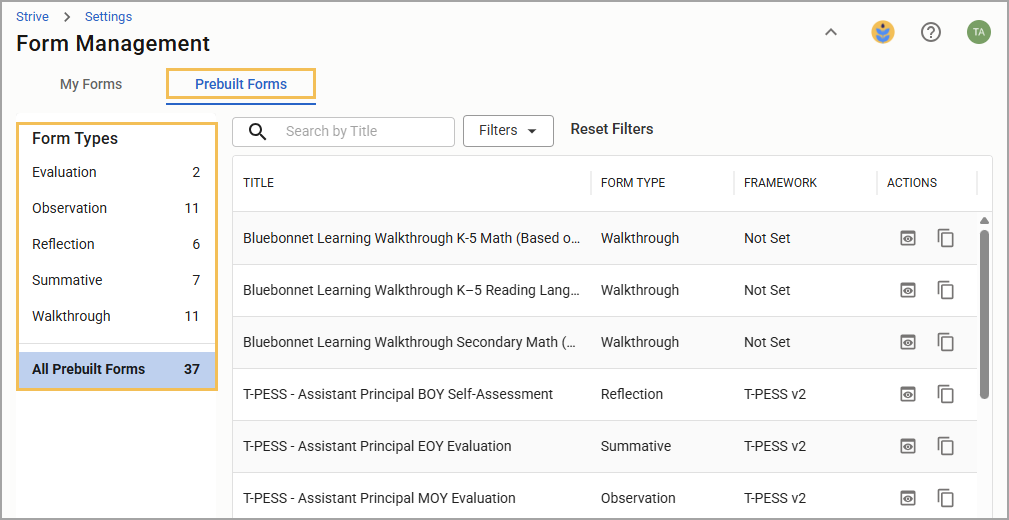
Step 3: Select each form type and verify that you have each of the following forms in the table:
Form Type | Form Title |
|---|---|
Reflections | T-SCESS Annual Administrative Conference |
Reflections | T-SCESS Annual Student Outcome Goal Plan |
Reflections | T-SCESS Counselor Self-Assessment |
Reflections | T-SCESS Mid-Year Goal Progress Self-Check |
Observation | T-SCESS MOY Evaluation |
Evaluation | T-SCESS Goals Attainment |
Summative | T-SCESS EOY Evaluation |
Note: Framework settings and tags are already set for prebuilt forms.
Step 4: If any are missing or don’t appear properly tagged, contact Support.
Building a New T-SCESS Process
Next, you’ll build a new T-SCESS process.
Quick Guide
Select Settings (), and then select Process Management.
Select Build New Process.
Type “T-SCESS Counselor” in the Process Name box.
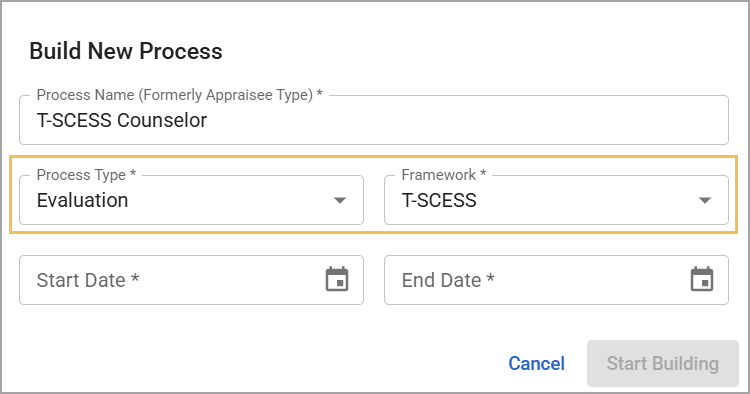
Set your Process Type as Evaluation and your Framework as T-SCESS.
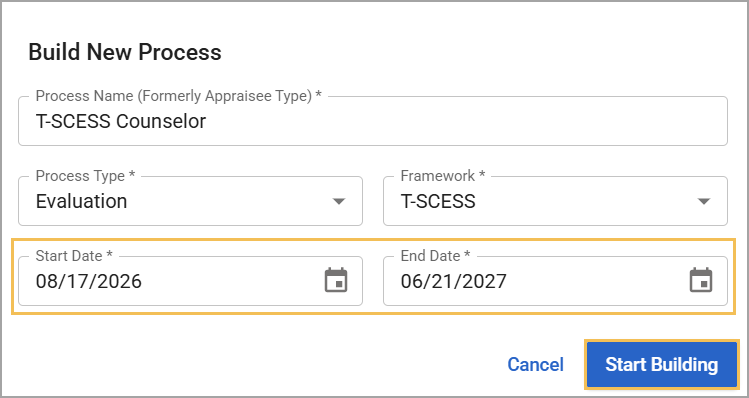
Set the Start and End Dates of the process, then select Start Building.
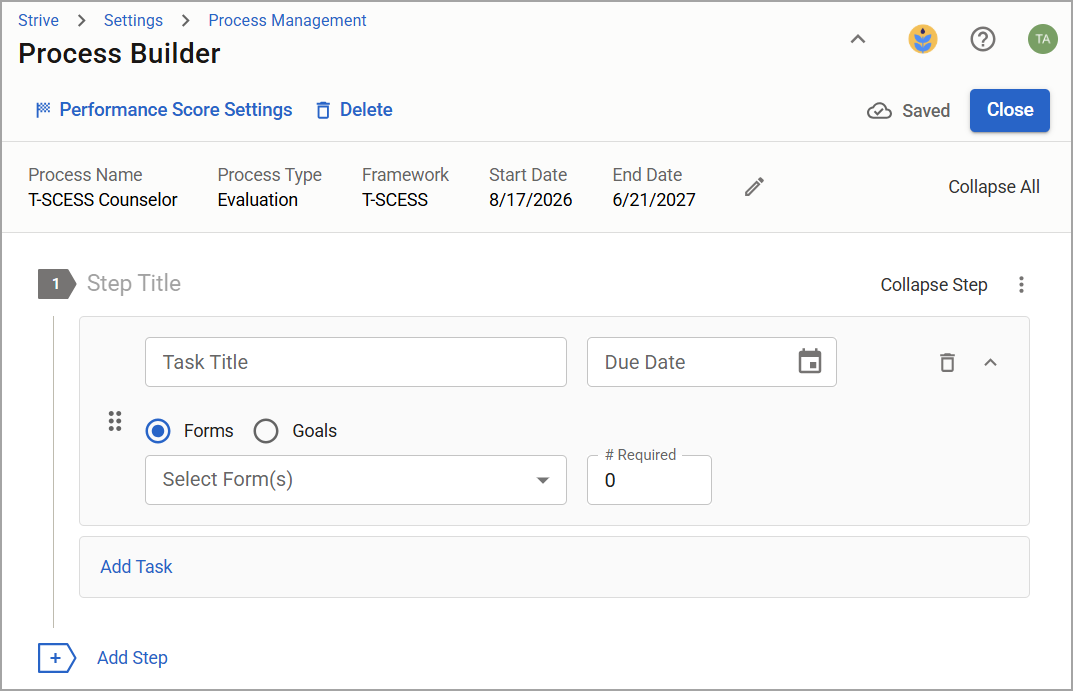
Set up the evaluation process by creating and modifying steps and tasks.
Assign Forms or Goals to each task as you create them (see a sample process in Step 7 of this section’s Illustrated Guide). Only use Professional Growth Goals, not Student Growth Goals, for T-PESS.
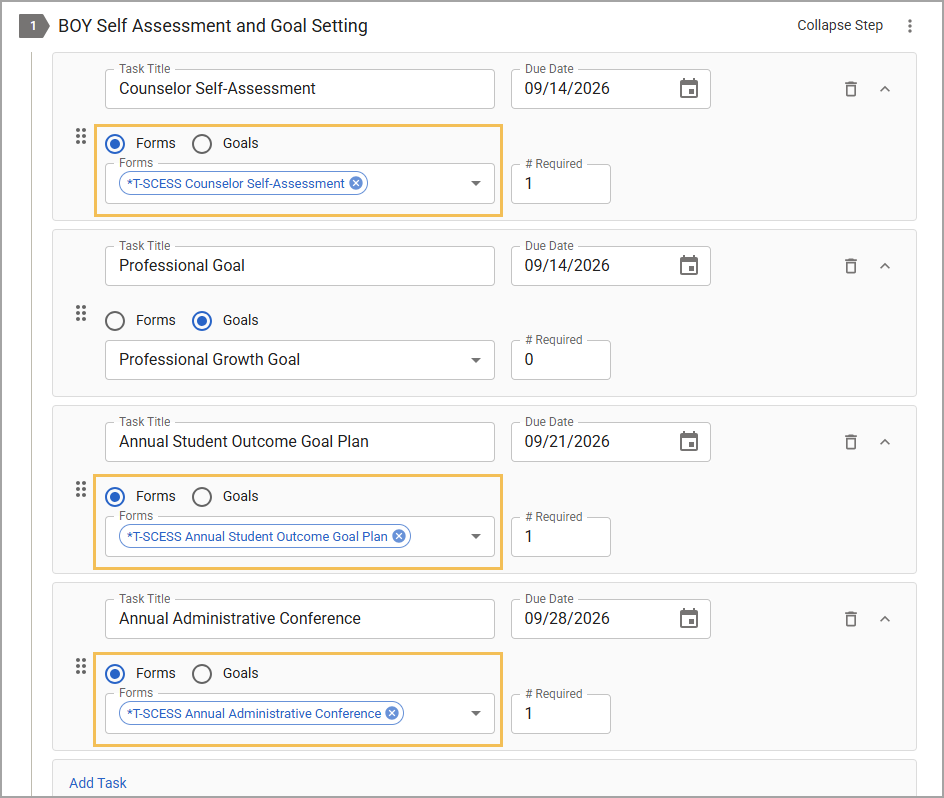
For Forms tasks, attach the appropriate form (see a list of recommended forms in Step 8 of this section’s Illustrated Guide). Set the number required to complete and a due date for completion to help evaluators monitor their staff’s progress in the Overview and Activity Tracker.
Illustrated Guide
Step 1: Select Settings (), and then select Process Management.
Step 2: Select Build New Process.
.png)
Step 3: Type “T-SCESS Counselor” in the Process Name box.
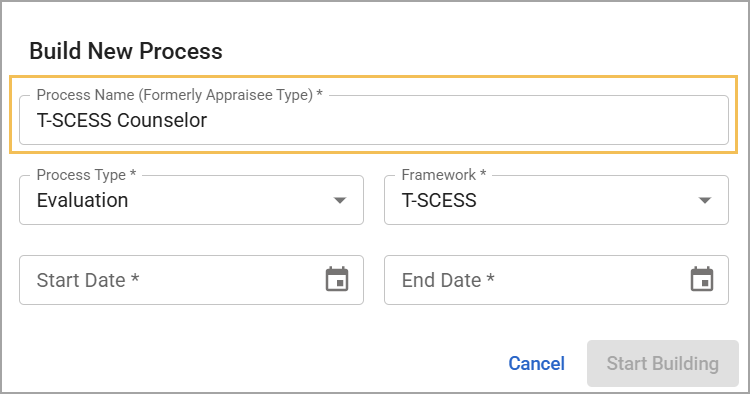
Step 4: Set your Process Type as Evaluation and your Framework as T-SCESS.
Step 5: Set the Start and End Dates of the process, then select Start Building.
Step 6: Set up the evaluation process by creating and modifying steps and tasks.
Step 7: Assign Forms or Goals to each task as you create them. Only use Professional Growth Goals, not Student Growth Goals, for T-PESS.
Sample Process
Step Title | Task Title | Task |
|---|---|---|
BOY Self Assessment and Goal Setting | Counselor Self-Assessment | Form |
Professional Goal | Professional Growth Goal | |
Annual Student Outcome Goal Plan | Form | |
Annual Administrative Conference | Form | |
MOY Conference | MOY Counselor Self-Evaluation | Form |
MOY Counselor Evaluation | Form | |
MOY Goals Progress Self-Check | Form | |
EOY Conference | EOY Goals Attainment | Form |
EOY Counselor Evaluation | Form |
Step 8: For Forms tasks, attach the appropriate form. Set the number required to complete and a due date for completion to help evaluators monitor their staff’s progress in the Overview and Activity Tracker.
Recommended Forms
Step Title | Task Title | Form Type | Form Title |
|---|---|---|---|
BOY Self Assessment and Goal Setting | Counselor Self-Assessment | Reflections | T-SCESS Counselor Self-Assessment |
Annual Student Outcome Goal Plan | Reflections | T-SCESS Annual Student Outcome Goal Plan | |
Annual Administrative Conference | Reflections | T-SCESS Annual Administrative Conference | |
MOY Conference | MOY Counselor Self-Evaluation | Reflections | T-SCESS Counselor Self-Assessment |
MOY Counselor Evaluation | Observation | T-SCESS MOY Evaluation | |
MOY Goals Progress Self-Check | Reflections | T-SCESS Mid-Year Goal Progress Self-Check | |
EOY Conference | EOY Goals Attainment | Evaluation | T-SCESS Goals Attainment |
EOY Counselor Evaluation | Summative | T-SCESS EOY Evaluation |
Your new T-SCESS Counselor process is now ready to use. Evaluators must select the T-SCESS Counselors process for the counselors they evaluate with this framework.
Note: After setting up the evaluation process, assign the T-SCESS framework to the appropriate staff members. For more information about this process, see Selecting Your Staff.
Making Old Forms Inactive
Form Management contains all active forms and allows appraisal administrators to make them inactive. Making a form inactive moves it to the Inactive Forms section, removes it from processes and report selections, and maintains historical data for analysis. In addition, you can reactivate inactive forms.
Locate the old form under the appropriate form type, then select the Make Inactive icon.
.png)
If the Make Inactive icon is grayed out, that means the form is currently associated with a process and cannot be made inactive.