The Score Summary feature allows students to review their answers immediately after submitting an online test or within the Score Summary dates set by the test author.
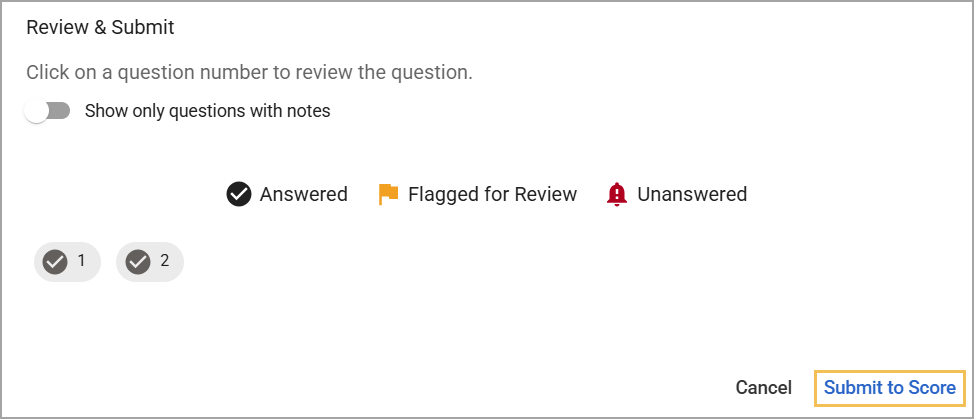
Submit to Score
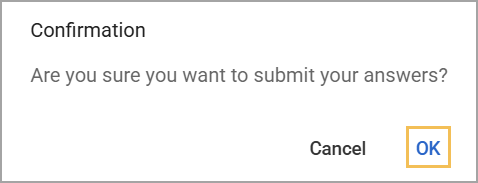
Students can review and submit their answers when completing an online assessment. After students click Submit to Score, they must confirm submission one more time.
My Test Scores
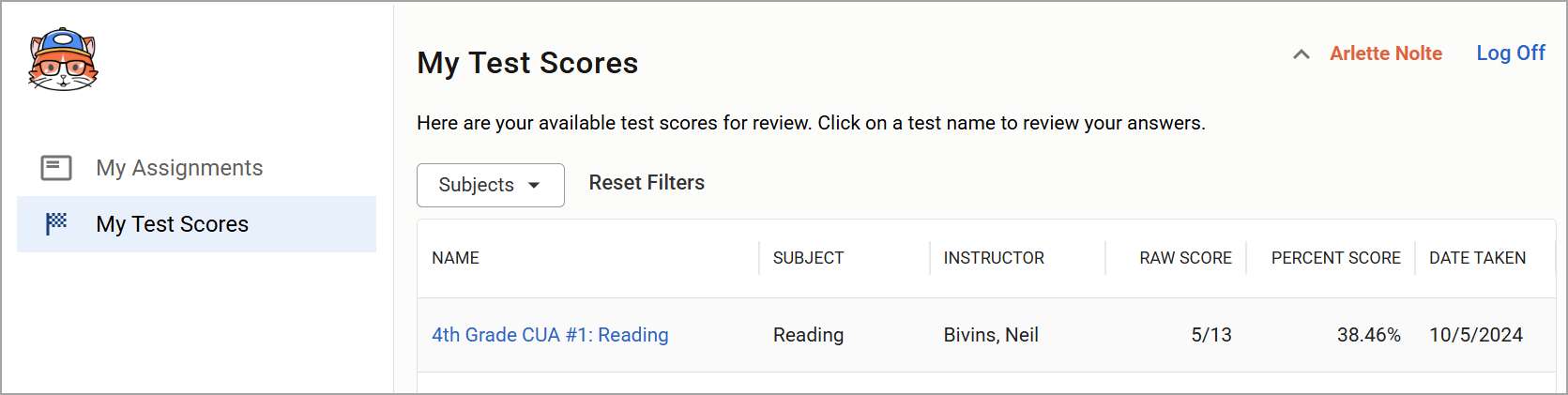
Students can access their Score Summary from My Test Scores within the Student Testing Portal. Along with the name of the assessment, students can see the subject, test instructor, raw score, percent score, and the date they took the assessment.
Assessments that require manual grading have a dash (-) in the score columns until the test author completes the grading process.
An assessment becomes available to students under these conditions:
The test author has enabled the Score Summary option.
The Score Summary window is active when the student accesses the page.
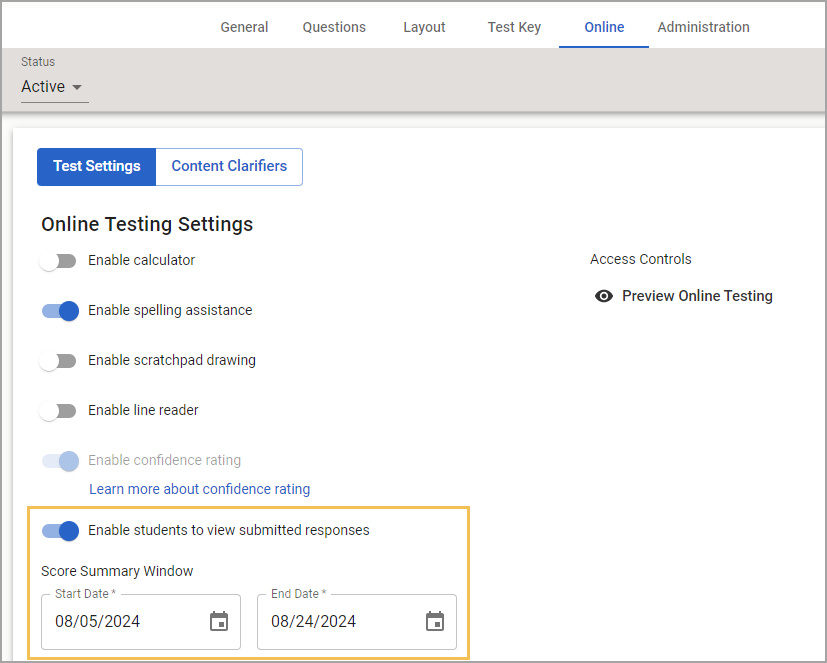
Test authors set a Score Summary Window within the Online tab. Toggling on the option Enable students to view submitted responses allows the test author to set a start and end date for the Score Summary window. The Score Summary window can only be set within the current instructional calendar year.
Score Summary
After submitting the assessment, students can see which questions are correct or incorrect and which ones they have received partial credit for. Getting a question partially correct does not count towards the overall number of questions answered correctly on the Score Summary.
In addition, there are two other categories: Teacher Graded and Ungraded. When a student answers an open-ended question, it is automatically assigned to the Ungraded category until the teacher grades it. Once graded, the question moves to the Teacher Graded category.
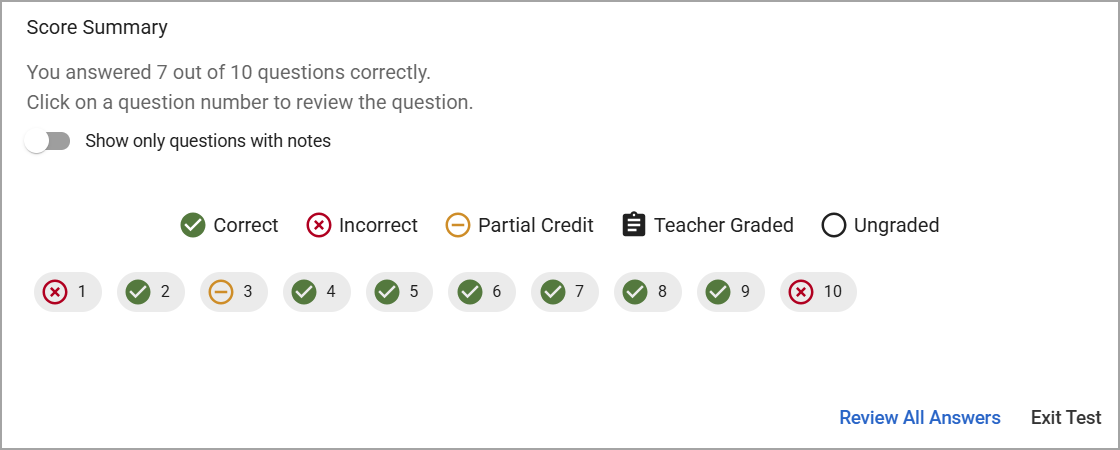
After selecting an assessment, students can now review their scores per question. For instance, they can click on an Incorrect icon to view the question and their answer choices. Their choices display neutrally and do not indicate whether they are correct or incorrect.
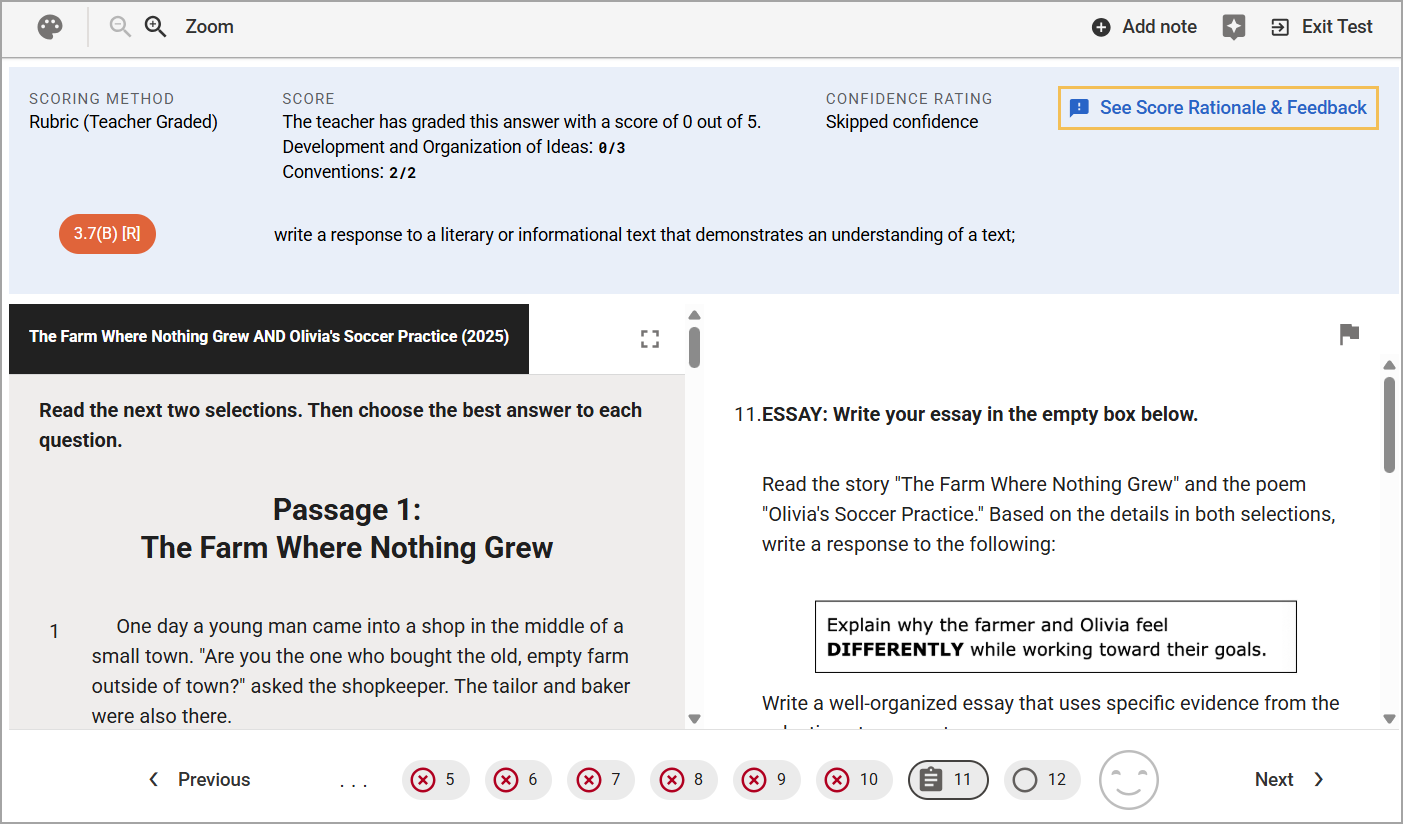
Students can also see a question’s scoring method in English as well as in Spanish if they have the Spanish Interface enabled. These methods include Rubric (for teacher graded/constructed response questions), Point per Task, Partial Credit, Dependency, and Correct/Incorrect (Standard). Each question displays a raw score for the student to view, showing the number of points they earned out of the total possible points, and the learning standard.

Students can navigate the pop-out question guide to review their answer choices. If the pop-out window closes, students can select Question Guide () to reopen the pop-out window and locate a specific question.

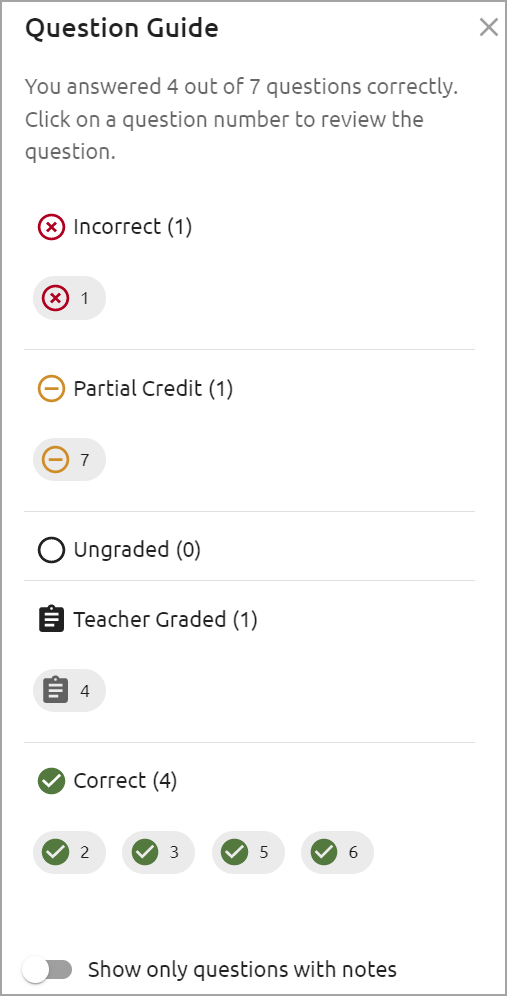
If Question Randomization is enabled, the subsequent question ordering is no longer random but instead matches the order of the original test.
Rationale and Feedback
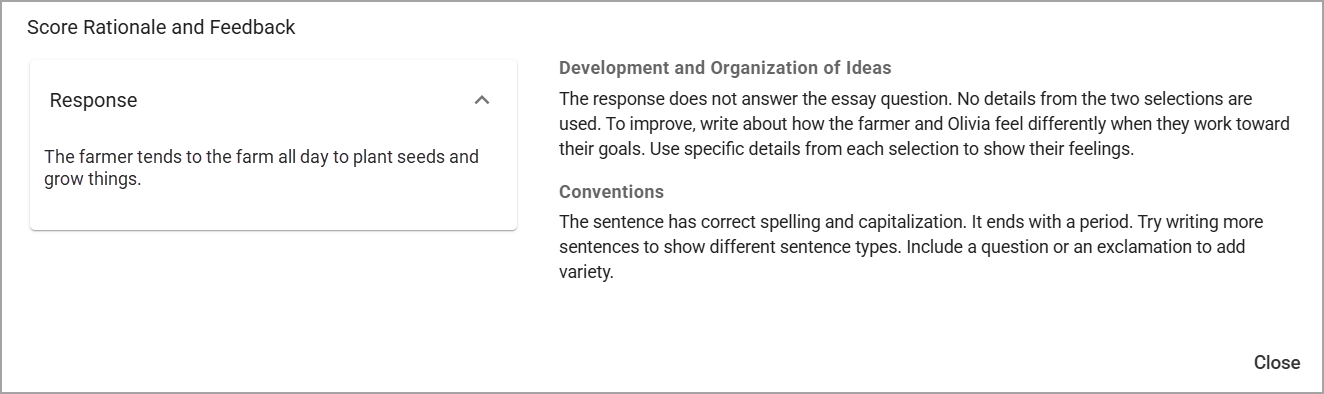
Teachers in districts with Aware Premium can turn on AI Scoring for constructed response questions. After the teacher initiates AI Scoring, the Large Language Model (LLM) provides a rationale for the score and feedback for how the student can improve. Teachers can review and edit the rationale and feedback before submitting the final scores, and students can view them by selecting See Score Rationale & Feedback within the Score Summary.
Student Confidence Rating
Another Aware Premium feature, the Student Confidence Rating allows students to rate how confident they feel about their answer choices as they take an online assessment. Students can see and compare their confidence rating alongside their score.

Reopen an Assessment
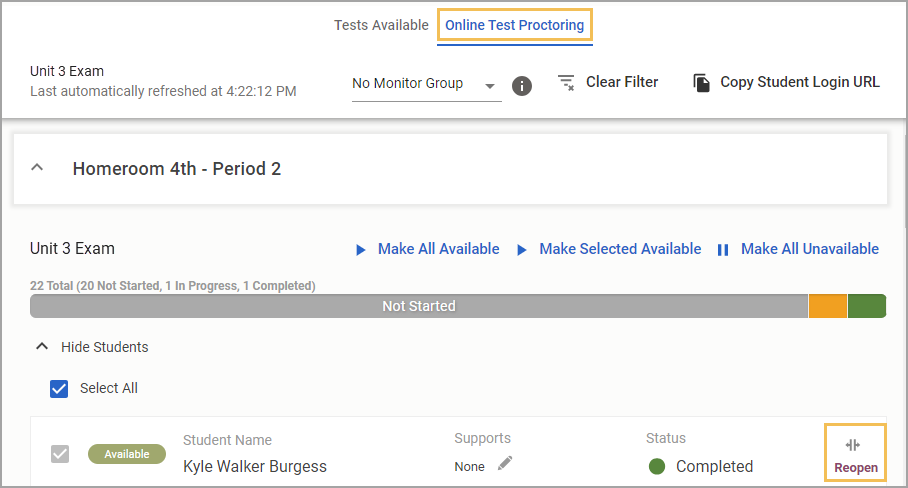
If the teacher is allowing students to review prior teaching resources and retry the problem, the teacher can reopen the assessment for one student at a time.
To do this, navigate to the Tests Available menu, then choose the Online Test Proctoring tab. After selecting a class, select Reopen next to the student’s name. After doing so, the student’s answers are populated, allowing them to adjust them.
For more information about online testing, check out these resources: