
.png)
In Beta: Please note AI Scoring is in a beta-testing phase.
AI Scoring is an Aware Premium feature that supplements a teacher’s test-scoring practices by using a Large Language Model (LLM) to score constructed response answers against a pre-set rubric. Eduphoria strongly recommends that teachers and others who use AI Scoring review all student responses and scores before finalizing them. While LLMs attempt to mimic human behavior, AI Scoring sometimes produces scores that don’t make sense. Therefore, we also allow teachers to override all AI Scores in Enter Answers.
After reviewing the information in this article, be sure to also visit the AI Scoring FAQ.
General AI Scoring Guidelines
As you use AI Scoring, keep the following guidelines in mind:
AI Scoring attempts to remove human judgment from the scoring experience and is not an exact science.
A series of permissions at the district, test type, test, and question levels controls access to AI Scoring.
AI Scoring is only available for constructed response questions.
AI Scoring currently uses TEA’s STAAR rubrics:
AI Scoring is limited to scoring against the Organization of Ideas (0-3 points) and Conventions (0-2 points) for a total of 5 possible points for the Informational and Argumentative writing rubrics.
Currently, AI Scoring supports Grades 3 through English II for STAAR Informational Text rubrics only.
Eduphoria controls AI Scoring rubrics at the system level.
AI Scoring in Author
Once an administrator has granted access to AI Scoring, teachers can turn on the setting and select a grading rubric for the assessment.
Quick Guide
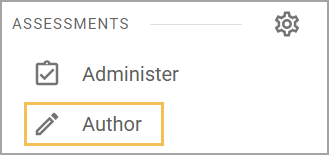
Select Author () from the navigation menu.
Locate a test or create one with constructed response questions linked to a resource with a reading passage.
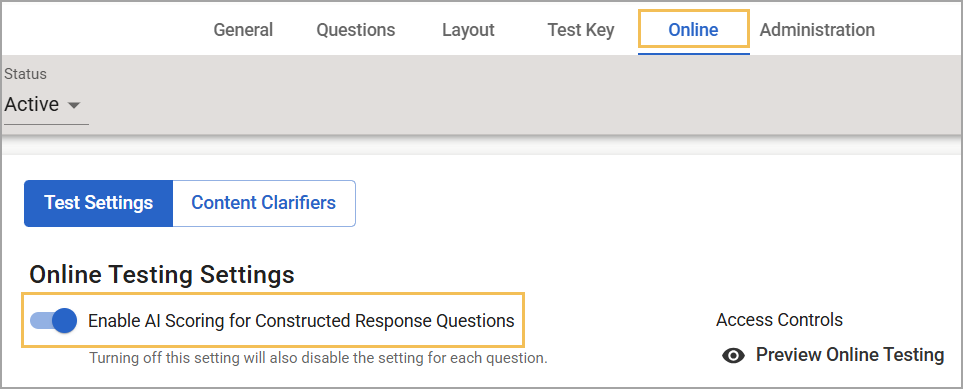
Access the Online tab to toggle on Enable AI Scoring for Constructed Response Questions for the assessment.
Ensure the reading passage contains valid content and the constructed response item asks a valid question in reference to the reading passage.
Toggle on Enable AI Scoring ().
Select a Rubric Type. Rubrics are currently limited to TEA-provided STAAR rubrics and rubric scores.
Review the rubric in the question UI if desired.
Select Create or Update.
Illustrated Guide
Step 1: Select Author () from the navigation menu.
Step 2: Locate a test or create one with constructed response questions linked to a resource with a reading passage.
Step 3: Access the Online tab to toggle on Enable AI Scoring for Constructed Response Questions for the assessment.
Step 4: Ensure the reading passage contains valid content and the constructed response item asks a valid question in reference to the reading passage. For additional information on authoring constructed response questions, visit Constructed Response.
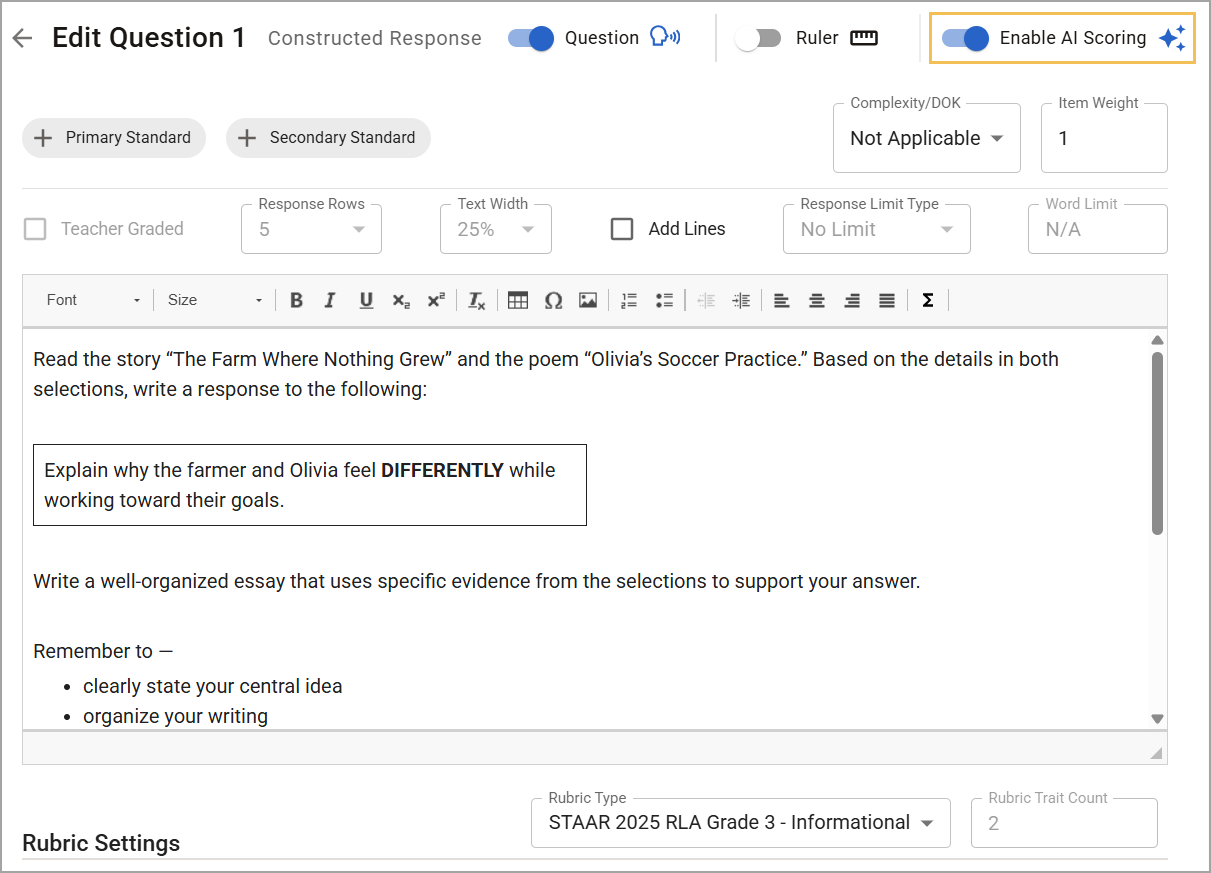
Step 5: Toggle on Enable AI Scoring ().
Note: If the AI Scoring option is not available, it is likely because the permission is not set at the district, test type, or test levels.
Step 6: Select a Rubric Type. Rubrics are currently limited to TEA-provided STAAR rubrics and rubric scores.
The STAAR Rubrics created by TEA evaluate two main traits of student writing: Development and Organization of Ideas and Conventions. Each trait is a component, or sub-rubric, of the total rubric with its own score range. The rubric as a whole has a total score comprised of both trait scores. For instance, Development and Organization of Ideas has a score range of 0-3, while Conventions has a score range of 0-2. A student might receive a score of 3 for one trait (Development and Organization of Ideas) and a score of 1 for the other trait (Conventions). When added together, the student’s total and final score is 4 out of a potential 5 points. The final score is the score that appears in Analysis.
Users cannot edit score ranges, trait scores, or rubric descriptors, as each is set by Eduphoria in accordance with STAAR.
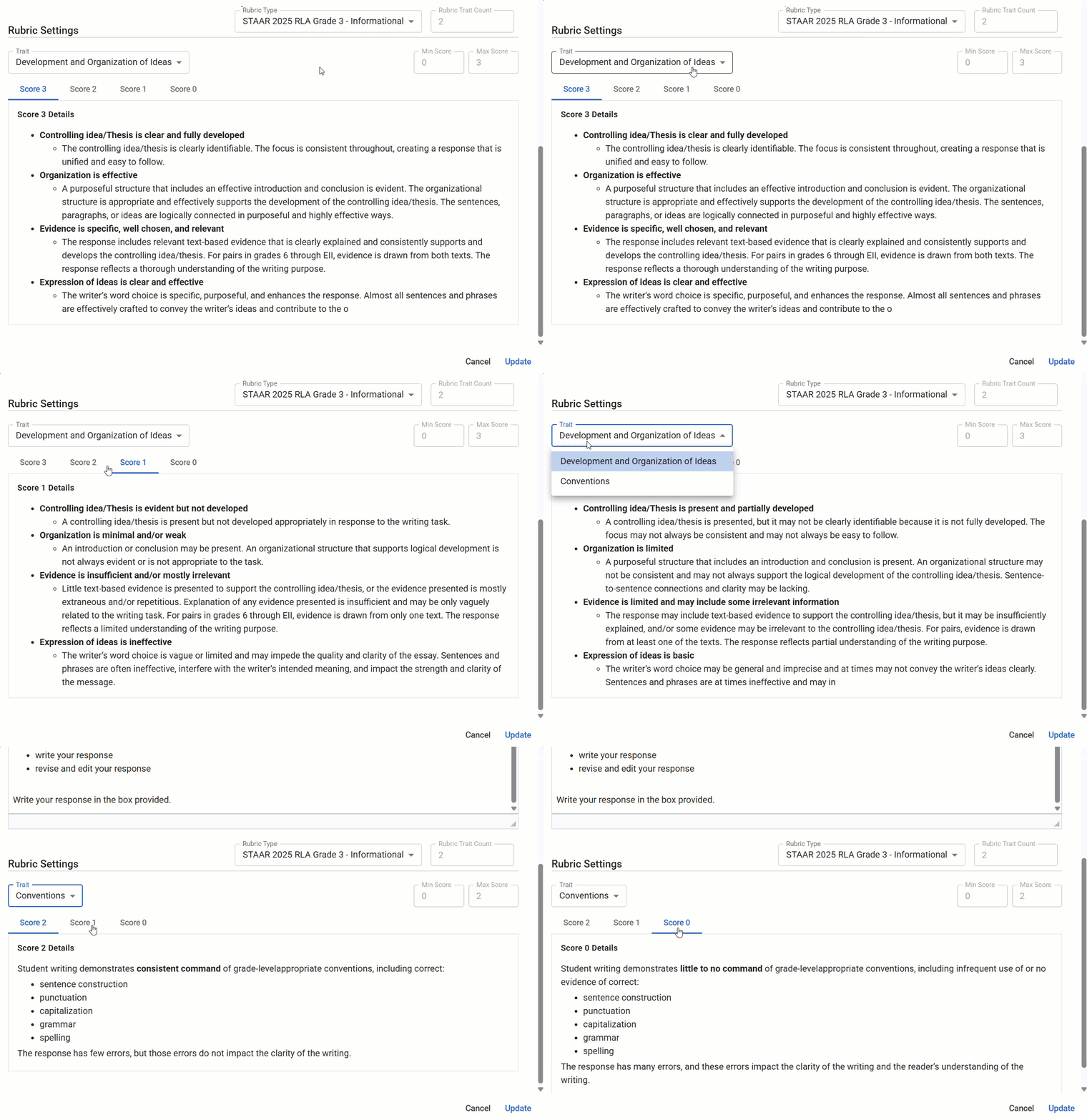
Step 7: Review the rubric in the question UI if desired.
Step 8: Select Create or Update.
Caution: AI Scoring grades student responses using the chosen rubric and the embedded passage and question from the test in Author. Requesting AI Scores for constructed response questions that are not associated with passages will result in highly unreliable and inaccurate scores.
AI Scoring in Enter Answers
When a teacher administers an assessment with AI Scoring activated, they can submit and score their students’ constructed response questions using the Score All AI CRs button () in Enter Answers. The Score All AI CRs button queues all student-submitted responses for scoring, meaning you don’t have to send a request to score individual student responses, except for certain scenarios, such as a student taking a make-up test after being absent.
.png)
Note: AI Scoring might take several minutes to populate suggested scores, during which time the Score All AI CRs button remains grayed out. Therefore, we recommend that you send score requests with batches of student responses once per day rather than multiple times in one class period. After completing scoring, teachers must still submit the scores to finalize grading the assessment and have the final scores appear within Analysis. If scores do not return after one hour, there may be an issue that needs additional support.
Teachers can override scores for each individual trait as needed. Overridden scores have a Person icon () and a different background color than the AI Score.
.png)
.png)
Since AI Scoring is not an exact science, we recommend that teachers review student responses to confirm that the given score is accurate. If a teacher overrides a student’s score, they can recover the AI Score by selecting Revert if desired. The score is finalized after teachers submit it.
Rationale and Feedback
We offer a score rationale and feedback for AI-scored items. The LLM provides a brief statement about why the student received the score provided and feedback to improve. The rationale and feedback statements are available for the teacher to review and edit prior to submitting scores.
.png)
To edit the feedback, click the Edit button (). A new modal appears, showing the original question, student response, and AI-generated feedback. Here, you can change the AI-generated feedback by editing, deleting, and writing within the text boxes. Expand and collapse the assessment question and the student’s response to guide what feedback to give them. Entries that the teacher has manually edited display the Person icon () instead of the AI icon ().
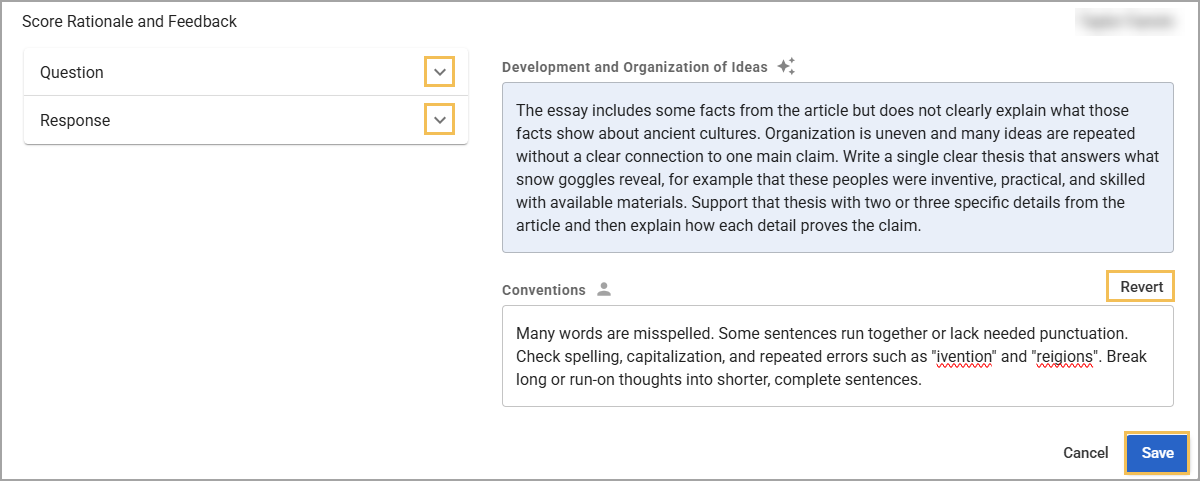
Once the teacher has finalized and submitted scores and feedback, both become available for the student to view in the Score Summary.
Note: Students can view the score rationale and feedback for up to two years if the Score Summary window allows. After two years, the rationale and feedback are deleted.
Scoring Statuses
AI Scoring provides three general scoring statuses:
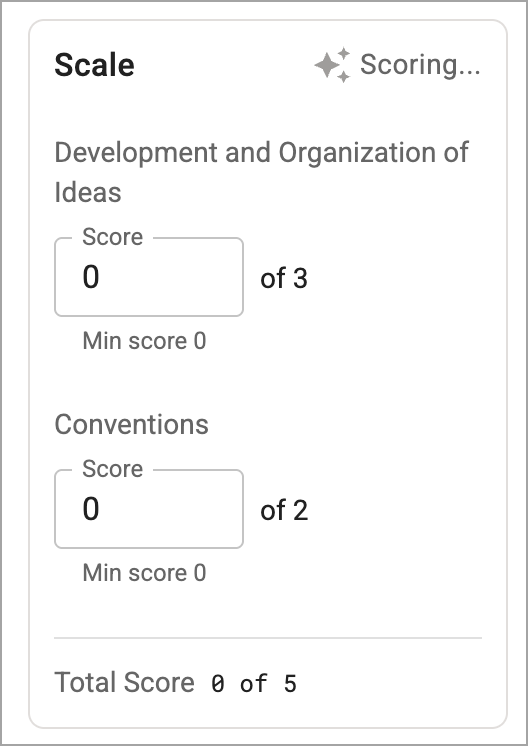
Scoring… – Indicates that scoring has been queued. The teacher can leave and come back after scoring is complete.
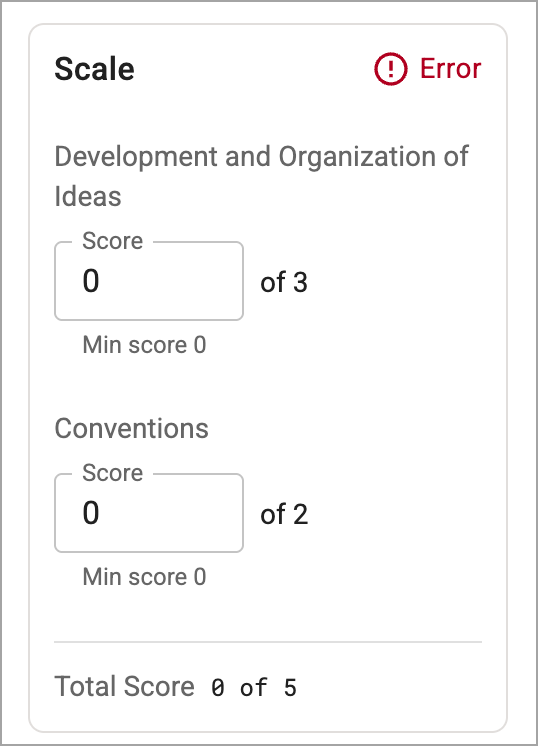
Error – Indicates that there was an error in scoring the student’s response. The teacher must take action. For more information, refer to AI Scoring Errors and How to Respond below.
Scored – Indicates that the student response has been successfully scored.
.png)
Data Analysis for AI-Scored Constructed Responses
Quick Views, Single Test Analysis (STA), and the Constructed Response report only show a constructed response question’s final score and will not report the trait scores.
Errors and Edge Cases
As you use AI Scoring, you might experience certain errors for specific edge cases, chosen rubrics, and scoring results. Review the most common issues and how you can troubleshoot them below.
Disabled AI Scoring Button
There are a few reasons the AI Scoring button might be disabled:
A score was just recently sent. It can take several minutes to process scores. If you’ve recently submitted a score request, come back later to see if the button is available again. If it’s been more than an hour, there may be an issue that you can report to Eduphoria Support.
A test author might not have fully enabled AI Scoring at the question level. Check with the test author to ensure that they have turned on all AI Scoring test and question settings and selected their rubrics.
There are no more AI Scoring requests available for the district. Each district is allocated a limited number of scores each school year. Verify with district administrators that there are scores available. Additional AI Scores are available for purchase.
AI Scoring might be disabled for the Test Type. If AI Scoring is disabled for the Test Type, the buttons do not disappear but are no longer usable.
A scoring job might have failed. When you send an AI Score request, but the job fails, the ability to hit the score button again is blocked for 15 minutes to avoid overloading the servers with score requests. Failure can occur for some of the following reasons:
The scoring service is down.
The AI model is unavailable.
There is a client-side internet outage or connection issue when the user sends the score request.
Rubric Range Issue
If a question has test entries and a user activates AI Scoring after testing has started, it is possible to have scores that do not make sense for the chosen STAAR rubric. For example, if the question was created with a rubric score of 0 to 9, then students are scored on that scale (and receive a score greater than 5). If AI Scoring is then activated, the rubric range would have a mismatch, as the STAAR rubric has a max score of 5. To resolve this, you need to manually score the response.
Rubric Change Issues
We allow users to change the rubric on an assessment to mitigate concerns with accidentally administering a test without AI Scoring active, generating student responses, and locking the ability to turn on AI Scoring. If a rubric is chosen after teachers have manually scored students, the teacher’s manual scores are maintained and must be cleared before AI Scoring can proceed. Teachers can do so without having to wipe all student responses by deleting the test entry.
If a user chose the wrong rubric when the test was made available, we also allow them to change it. If teachers have generated scores using the incorrect rubric, changing the rubric allows the AI to rescore students’ constructed responses, which the teacher must trigger. Be patient, as it will take time (usually up to an hour) for the rubric change to migrate to all tests.
Note: Manual teacher overrides are not automatically cleared and must be manually removed by the teacher if a new AI Score is desired.
Manual Score Issue
If a manual score exists for a trait while AI Scoring is on, but then you decide to turn off AI Scoring at any level (question, test, etc.), then the manual scores are lost and must be reentered.
If AI Scoring is disabled after you have initiated scoring, the total score is preserved, but the trait scores might be irrecoverable.
If you’ve entered manual scores prior to triggering AI Scoring or activating it for the test, they are preserved in all Analysis features (STA, Quick Views, etc.). However, the Enter Answers interface will show no score. Any additional scoring, whether AI or manual, will overwrite the saved score in Analysis.
AI Scoring Errors and How to Respond
There are two types of scoring errors that might occur when you use AI Scoring: recoverable errors and unrecoverable errors.
Recoverable Errors
You can resolve a recoverable error by rescoring or by overriding the AI Score with a manual score.
Temporary Error – “A temporary error has occurred. Please try scoring again.”
This can happen if there was an interruption of communication between Eduphoria and the AI Scoring LLM, or if an error was sent by the LLM to Eduphoria for the score. An interruption can happen for a variety of reasons, including but not limited to internet connectivity, unexpected downtime by the LLM, or a general error experienced by either side that isn’t specific to student content filtering (see Unrecoverable Errors). Usually, scoring again can resolve it. While these errors are infrequent, if time is critical, you might need to manually enter scores.
Unrecoverable Errors
Unrecoverable errors indicate that a detected issue requires a teacher’s review of the student response and a manual score. These errors typically indicate that the student response contains elements that require human attention. Here’s a list of possible errors:
Error: Unscorable – “Response needs to be manually scored.”
This is a generic error message that occurs when something requires a teacher to manually score but isn’t specific to filtered language.
Error: Cheating – “Cheating was detected.”
This message appears if the LLM or Eduphoria’s settings detect unusual behavior that could indicate cheating.
Error: Unprocessable – “Response is blank or consists of unprocessable input.”
If the student’s response is blank or contains a random series of symbols, we block it from being sent for scoring.
Error: Sexual Content / Self-Harm / Violence / Harassment / Illicit Activities
Keywords or phrases involving sexual themes; self-harm or suicide; violence or physical harm; discrimination, hate, or harassment; or illegal activities can trigger these errors and require a human review of the student response.