Teacher teams work together in Aware to create, co-edit, administer, and analyze the results of team tests, which function like school-level assessments. As a result, team tests must be assigned a test type. District-level managers can either create a new test type or enable school-level testing on existing test types. For more information on this topic, visit Creating and Configuring Test Types.
Districts can automatically create and manage teacher teams in Aware under Assessments Settings () or in Forethought under My Planner > Planner Options. Generally, teachers should manage their own teams whenever possible. School administrators can help clean up old, unused teams, but they should rarely have to do so.
After creating teacher teams and a teacher test, teachers can share their test with anyone on their team to turn it into a team test. Once a teacher test becomes a team test, it cannot be reverted to a teacher test, so we advise teachers to create a copy of the test before sharing. To learn more about the process, visit Creating a Team Test.
Administration Tab for Team Tests
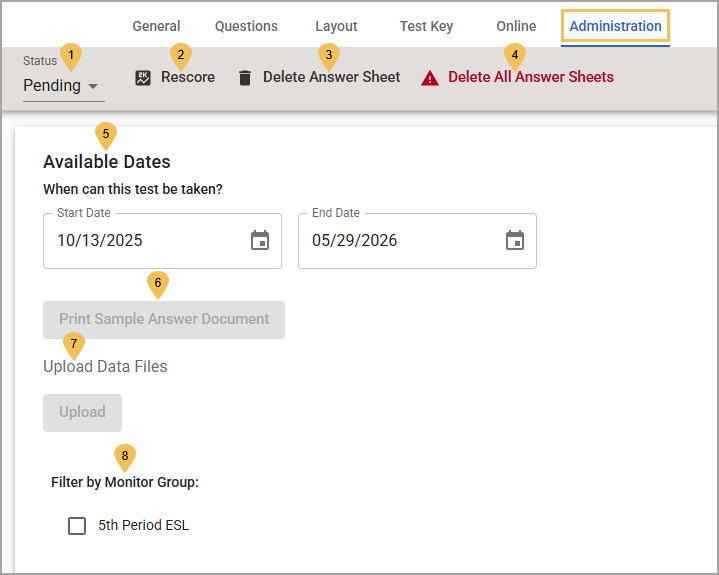
The Administration tab shows a few different options for teachers to manage for a team test.
# | Field | Description |
|---|---|---|
1 | Test Status | Shows one of three possible test statuses:
|
2 | Rescore () | Queues the test for rescoring and, upon completion, sends an email to the team member who initiated the rescore, confirming whether rescoring succeeded or failed. Any team member can initiate rescoring the test at any time, particularly if they have changed learning standards, item weight, or performance levels; corrected an error in the test key; or resubmitted scores for data collection. |
3 | Delete Answer Sheet () | Removes an answer sheet for an individual student. A team member might need to delete a student’s answer sheet if someone accidentally scans it prematurely.
|
4 | Delete All Answer Sheets () | Removes answer sheets from all students. If a team member needs to change an element of the assessment, such as adding or removing a question, then they can delete all answer sheets to do so. By deleting all answer sheets, all student scores associated with the assessment are deleted.
|
5 | Available Dates () | Allows the teacher team to set the testing window dates, where the test becomes available for teachers to administer to students. Teacher teams are required to establish Start and End Dates because they are meant to use team tests for common assessment purposes. |
6 | Print Sample Answer Document | Downloads a sample answer document for the test you can print, as long as there aren’t any interactive item types. |
7 | Upload Data Files | Allows team members to upload assessment data from an external system using a CSV file with student’s local IDs and responses to each question. Upload Data Files is available to teacher teams as long as the test in Aware does not have interactive item types. See Importing Test Scores for more information. |
8 | Filter by Monitor Group | Allows each team member to filter the team test to students in any monitor group they select. Each team member only sees students they have access to on district- and school-level monitor groups, as well as the personal monitor groups they have created. |