The Scripted Comments feature provides a dedicated space for evaluators to document their observations during evaluation visits. Visible only to the evaluator, this open text box can be used to take notes confidentially and can be accessed from within any evaluation document. Here are a few examples of how evaluators might make use of scripted comments:
During the evaluation, use this space to record your observations. Make notes of classroom organization, how the teacher engages the students, and so on.
After the evaluation, copy your notes from the text box and paste them into the evidence boxes for the relevant indicators to provide feedback specific to the dimension.
You can also reference your comments to facilitate meaningful dialogue and provide effective feedback during post-observation conversations.
By using scripted comments, evaluators can freely record thoughts and insights alongside the formal evaluation structure. They not only enhance the integrity of the evaluation but also provide actionable feedback to support ongoing professional learning.
Note: Scripted comments remain confidential throughout the life of the document and are only visible to the evaluator.
Using Scripted Comments in Strive
Evaluators can access scripted comments when creating and managing evaluation documents in Strive.
After opening the evaluation document, select Show Scripted Comments () to view scripted comments during walkthroughs and observations.

Type your comments into the text box. Your work saves automatically.
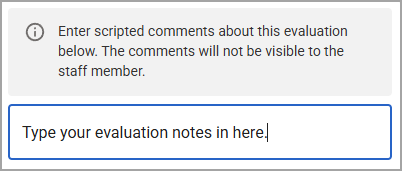
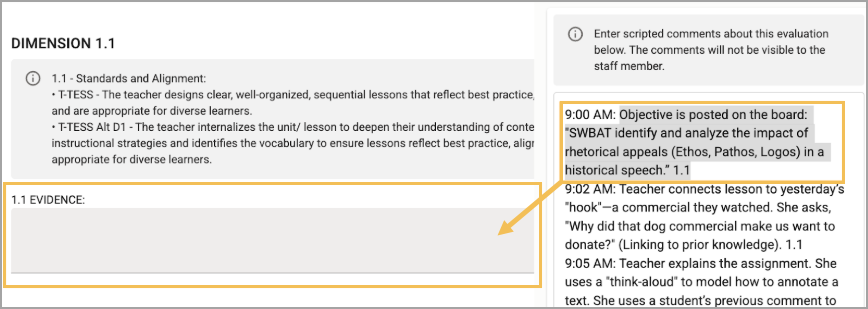
If desired, you can move your comments from this text box and paste them into the relevant sections in the evaluation document to the left of the Scripted Comments panel.
Copy and Paste – Highlight the section of text that you want to copy and right-click or use a keyboard shortcut to copy the text. Then, select the appropriate text box in the evaluation document and right-click or use a keyboard shortcut to paste. Use this method when you want to keep your Scripted Comments intact.
Cut and Paste – Highlight the section of text that you want to cut and right-click or use a keyboard shortcut to cut the text. Then, select the appropriate text box in the evaluation document and right-click or use a keyboard shortcut to paste. Use this method if you want to move text out of Scripted Comments and into the evaluation document.
Drag and Drop – Highlight the section of text that you want to move. Then, click and drag it into the evaluation document. Like Cut and Paste, use this method if you want to move text out of Scripted Comments and into the evaluation document.
When you want to close the text box, select Hide Scripted Comments ().

For more detailed instructions on completing an observation or walkthrough, see Conducting an Observation or Walkthrough.