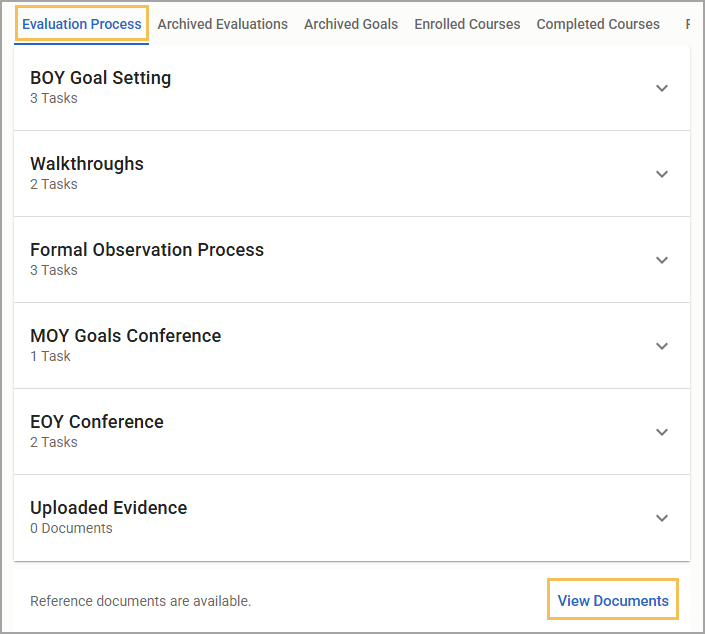
Reference documents are non-interactive, view-only materials that guide evaluators through their evaluations. Users can upload reference documents tied to specific processes.
Quick Guide
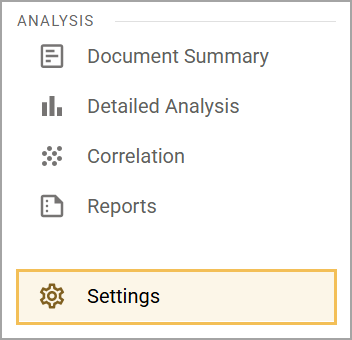
Select Settings () in Strive’s navigation menu.
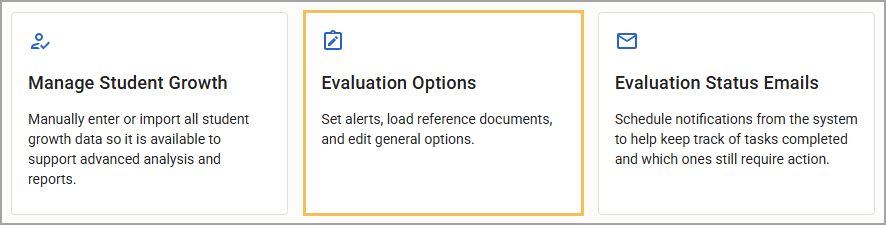
Select Evaluation Options.
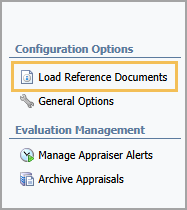
Select Load Reference Documents.
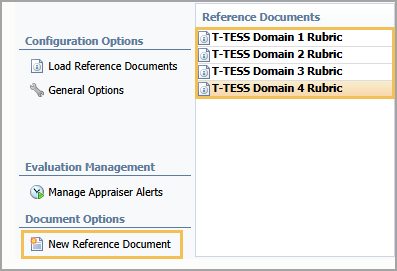
Either select New Reference Document to create and upload a new reference document or select from the list of available reference documents to edit it.
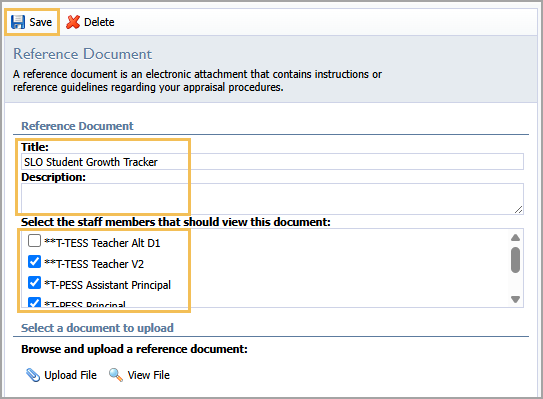
Enter a Title and optional Description.
In the Select the staff members that should view this document: section, select one or more processes that should view the reference document and click Save ().
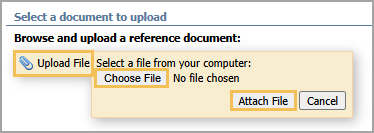
Select Upload File and browse for the document.
Select the file, then click Attach File.
Click Save () to finalize your changes.
Illustrated Guide
Step 1: Select Settings () in Strive’s navigation menu.
Step 2: Select Evaluation Options.
Step 3: Select Load Reference Documents.
Step 4: Either select New Reference Document to create and upload a new reference document or select from the list of available reference documents to edit it.
Step 5: Enter a Title and optional Description.
Step 6: In the Select the staff members that should view this document: section, select one or more processes that should view the reference document and click Save ().
Step 7: Select Upload File and browse for the document.
Step 8: Select the file, then click Attach File.
Step 9: Click Save () to finalize your changes.
The Reference Documents appear at the bottom of a staff member’s evaluation process.