When set to viewing Instructional Strategies, Scope and Sequence provides an overview of strategies coverage across preps for the selected course and date range. Once you select the Date Range and Course, the chart updates to show strategies coverage by date. This article details the parts of the Scope and Sequence analysis tool and explains how to understand and apply your findings.
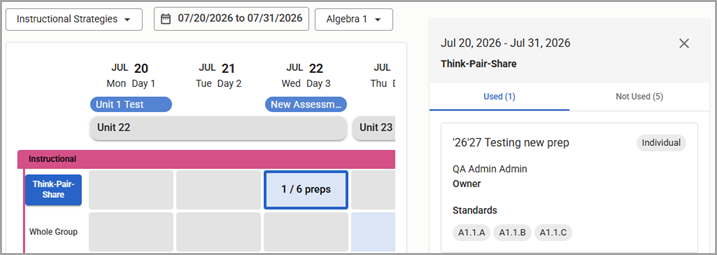
Columns
Each column displays the month and numerical date, abbreviated day of the week, and day of the instructional calendar. Today’s date is highlighted in blue.
If an assessment window has been set, a blue bar with the assessment title appears below the date(s).
Units span multiple columns and are based on the Unit Duration and start date.
.png)
Rows
Strategies are grouped by category. Each row represents an instructional strategy. You can select the name of a strategy to highlight all cells in the row and display the details panel.
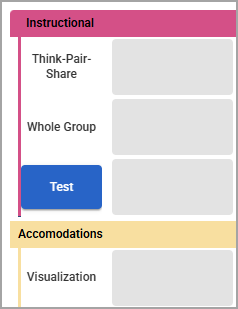
Cells
Each cell in the table appears a shade of blue or gray based on the percentage of teachers whose planner content matches the strategy for the given date.
For example, if four out of four (4/4) Algebra 1 teachers added a strategy called “Think-Pair-Share” to August 13th in their planners, then the cell appears dark blue. If only one out of four teachers (1/4) added “Think-Pair-Share”, then the cell appears light blue. Likewise, if no teachers added “Think-Pair-Share”, then the cell is gray.
Click on a cell to display the details panel for the specific strategy on the specific date.
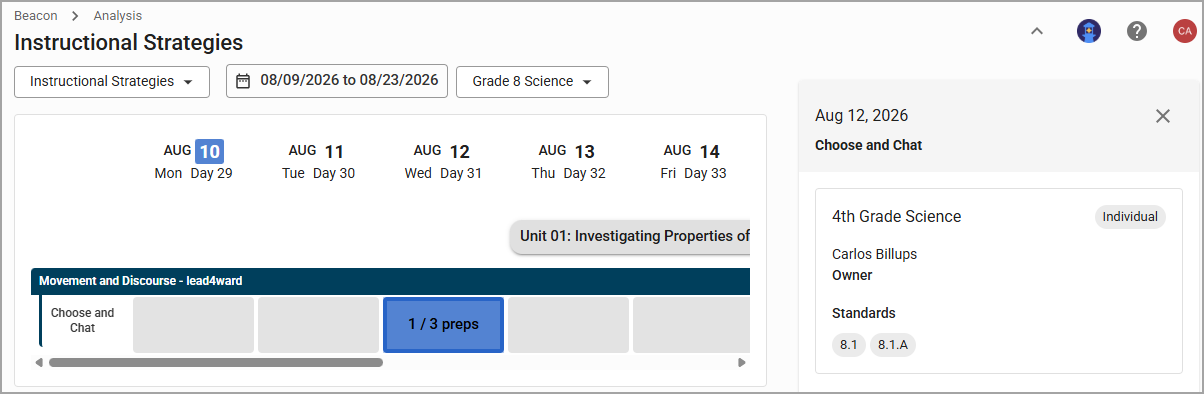
Details Panel
The details panel displays information related to strategies and preps.
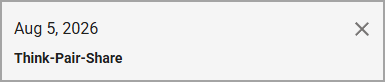
Header
The header contains the selected date or date range and the instructional strategy name.
Preps
Each prep card displays the prep name, whether it is owned by an individual or a team, and the name of the prep owner. When you highlight an individual cell, all preps for that strategy are shown for that date. When you highlight a row, preps are organized into two tabs:
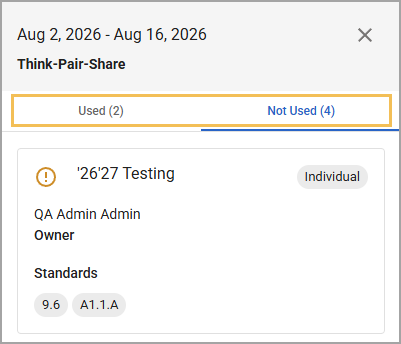
Used – Preps that cover the use inside the date range. The planner for this prep includes the strategy, and it falls within the date range you are currently viewing.
Not Used – Preps that do not use the strategy. The planner for this prep does not include the strategy within the date range. A yellow alert icon () appears beside the prep name.