Users can create a custom resource for a local item bank in a few simple steps. Find more information about creating and managing local item bank questions.
Creating a Local Item Bank Resource
Quick Guide
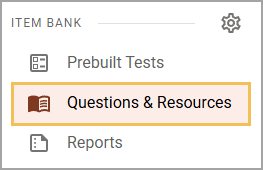
Select Questions & Resources under the Item Bank section of the main menu.
Select My Items ().
On the My Resources tab, select Add Local Item.
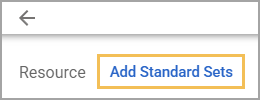
Select Add Standard Sets.
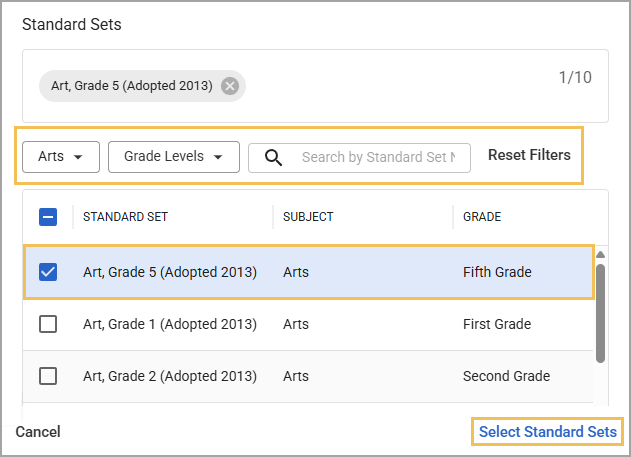
In the Standard Sets window, use the Subjects and Grade Levels drop-down menus to filter the list or search for a specific standard set by typing in the Search bar (). Select the checkbox for each standard set you want to apply, then click Select Standard Sets to apply all selected sets to the item.
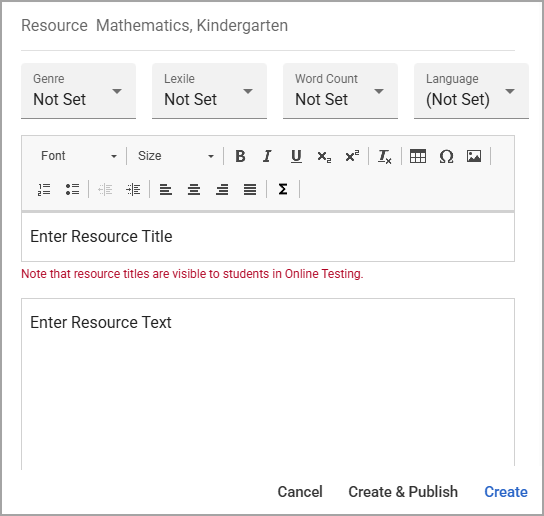
Use the resource editor to enter optional Genre, Lexile, Word Count, or Language preferences. Then, enter the Resource Title and Resource Text and select Create.
Illustrated Guide
Step 1: Select Questions & Resources under the Item Bank section of the main menu.
Step 2: Select My Items ().

Step 3: On the My Resources tab, select Add Local Item.

Step 4: Select Add Standard Sets.
Step 5: In the Standard Sets window, use the Subjects and Grade Levels drop-down menus to filter the list or search for a specific standard set by typing in the Search bar (). Selecting Reset Filters clears the Subjects, Grade Levels, and Search filters.
Select the checkbox for each standard set you want to apply, then click Select Standard Sets to apply all selected sets to the item.
Caution: The item is permanently linked to the selected standard set(s). Once the item is created, there is no way to edit the subject or grade level.
Step 6: Use the resource editor to enter optional Genre, Lexile, Word Count, or Language preferences. Then, type a title for the resource in the Enter Resource Title field. In the Enter Resource Text box, type or copy and paste the body text for the resource. Click Create when finished.
Managing Keywords and Security Settings
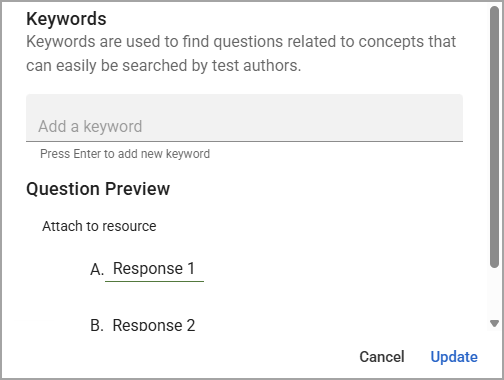
You can select the Keywords tab when editing a question or resource to add searchable keyword tags. Adding keywords helps test authors search for items related to certain topics.
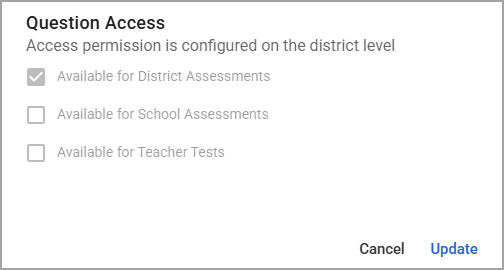
District Item Bank Managers can select the Security tab when editing a question or resource to modify security settings for question access. Learn more about item bank security.