Users can navigate to available Item Banks from the Questions & Resources screen in Aware.
Quick Guide
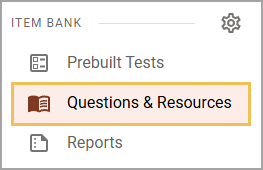
Select Questions & Resources under the Item Bank section of the main menu.
Use the Subjects and Grade Levels drop-down menus to filter the list or search for a specific standard set by typing in the Search bar.
(Optional) Click on a Star icon () to save a standard set to the Favorites list.
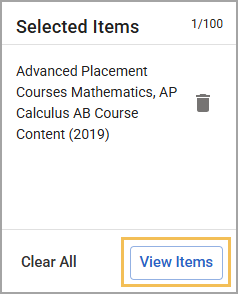
Select View Items.
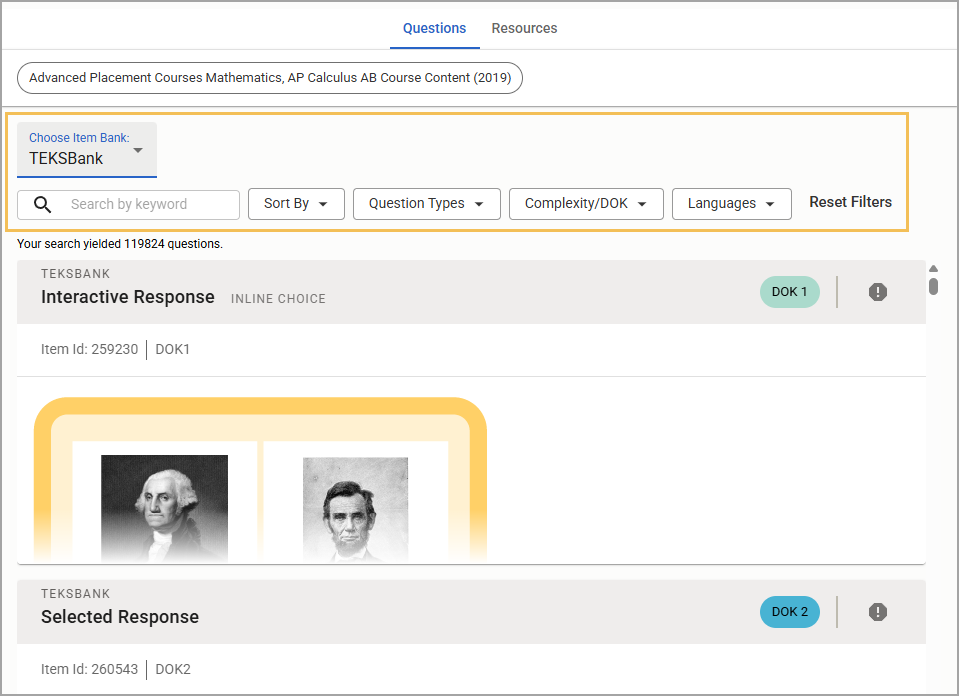
Select Choose Item Bank to access questions and resources from different item banks. Items are filtered to match your selected standards and standard sets.
Note: Users can also add their own custom items to the Local Item Bank. Learn how to create your own questions and add resources.
Illustrated Guide
Step 1: Select Questions & Resources under the Item Bank section of the main menu.
Step 2: Use the Subjects and Grade Levels drop-down menus to filter the list or search for a specific standard set by typing in the Search bar (). Selecting Reset Filters clears the Subjects, Grade Levels, and Search filters.
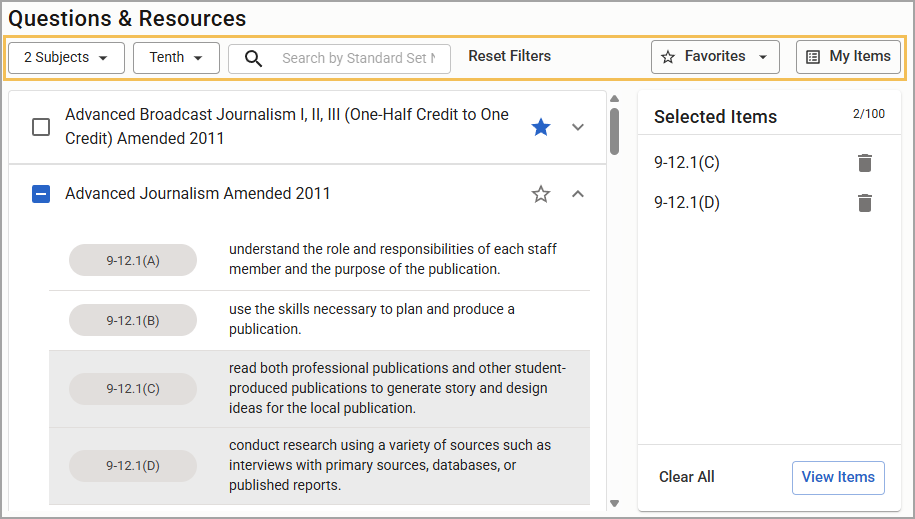
Step 3: (Optional) Click on a Star icon () to save your selection to the Favorites list.
Favoriting creates a shortcut to the selection in the Favorites drop-down menu, allowing you to quickly add a complete standard set to the Selected Items panel. You can favorite up to 20 standard sets.
Selecting the Delete icon () in the Favorites drop-down menu removes the set from your Favorites list. This does not delete the course from the course tree.

Step 4: Select View Items.
Step 5: Select an item bank from the Choose Item Bank drop-down menu to load the items from the desired bank. All items that match the selections in the chips at the top and the selected item bank appear. Use the filters to further narrow down the list as desired.
Users can also add their own custom items to the Local Item Bank. Learn how to create your own questions and add resources.