preview home settings pageview analytics stacked_line_chart summarize assignment_turned_in create supervisor_account ballot insights menu_book person folder_shared emoji_events description group_add help_outline remove_circle_outline check_box_outline_blank check_box search arrow_downward star_outline close keyboard_double_arrow_left remove add add_circle toggle_off info more_vert arrow_upward bookmark_border percent 123 data_object report_problem arrow_drop_down arrow_drop_up insert_link zoom_in zoom_out radio_button_unchecked radio_button_checked check file_copy star cloud_done add_circle_outline cloud_upload cached arrow_left arrow_right attach_file calendar_today note_add collections_bookmark attachment keyboard_arrow_right keyboard_arrow_down keyboard_arrow_left keyboard_arrow_up palette screen_rotation_alt calendar_month upload_file add_link delete drag_indicator article picture_as_pdf sell format_bold format_italic format_underlined link_off format_color_text format_color_fill format_list_bulleted format_list_numbered image table_chart tag school folder assignment assessment open_in_new menu rotate_90_degrees_ccw file_download add_comment exit_to_app today circle check_circle manage_search person_add_alt dashboard date_range manage_accounts track_changes fact_check done_all workspace_premium library_books group assessment bar_chart grain find_in_page qr_code_2 print laptop how_to_reg library_add_check event hourglass_empty reorder calendar_today border_all sort grading list_alt person_outline assignment_ind groups badge corporate_fare open_in_browser error_outline lock sync_alt push_pin playlist_add edit info toggle_on push_pin visibility_off view_column settings filter_alt check_circle groups group stars calculate school file_download upload save visibility cancel folder local_library delete print file_copy palette pause stop assistant flag play_arrow check_box score report_problem event library_books report table_rows share preview colorize insert_comment auto_awesome person build fiber_manual_record supervisor_account insert_drive_file cancel view_list location_on event_seat calendar_today view_week group_work category auto_awesome_mosaic how_to_reg assignment_ind email folder_shared restore_page manage_accounts dynamic_form developer_board push_pin push_pin forum rate_review assistant notes notifications_active notification_important mic

Documentation Index

Fetch the complete documentation index at: https://support.eduphoria.net/llms.txt

Use this file to discover all available pages before exploring further.

Archiving Documents

Prev Next

Formspace administrators can archive the documents they manage to make them non-viewable for other staff members. Archived documents are removed from the document list in the Manage tab and they cannot be edited. After a document is archived, no more reports can be run on that specific document. 

If the district has enabled Personal Surveys so that staff can create their own surveys (see General Options), then all users can archive their own personal surveys they create. 

Archiving a Document

  1. Select the Manage tab.

  2. Select the document you wish to archive.

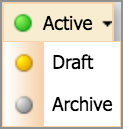
  3. Use the menu on the far right to change the document status from Active to Archive using the drop-down list.

  4. The following message will appear in a pop-up box:  â€œClick OK to archive this document. Archived documents appear at the bottom of the editor tree."

  5. Select OK.

FS8.png

Accessing an Archived Document

To access an archived document, you must be an administrator in Formspace.

  1. Select the Manage tab.

  2. Select Management.

  3. Select Archived Documents. (This option only appears if you have the ability to view archived documents. Learn more about roles and rights.)

  4. Choose which documents you want to view from the drop-down list provided. This list varies based on your Formspace roles and rights.
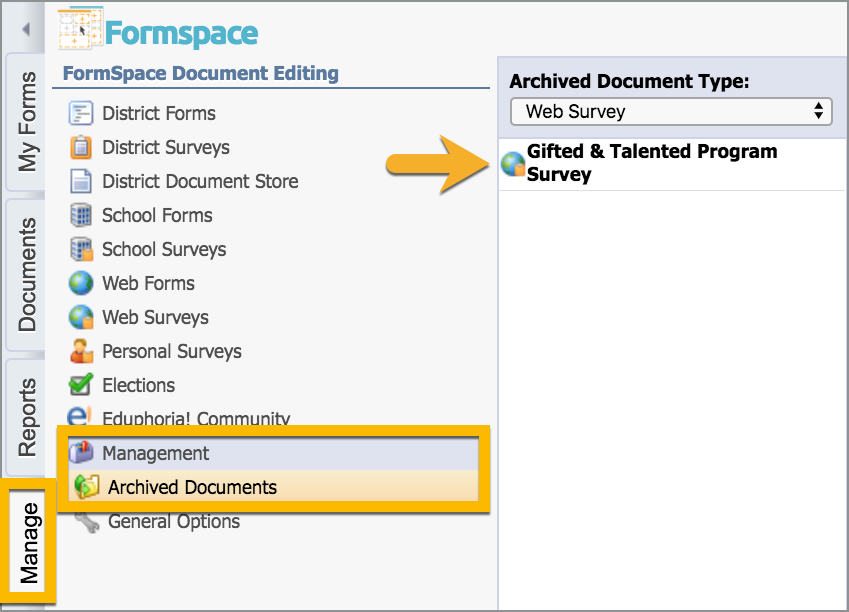
FS9.png

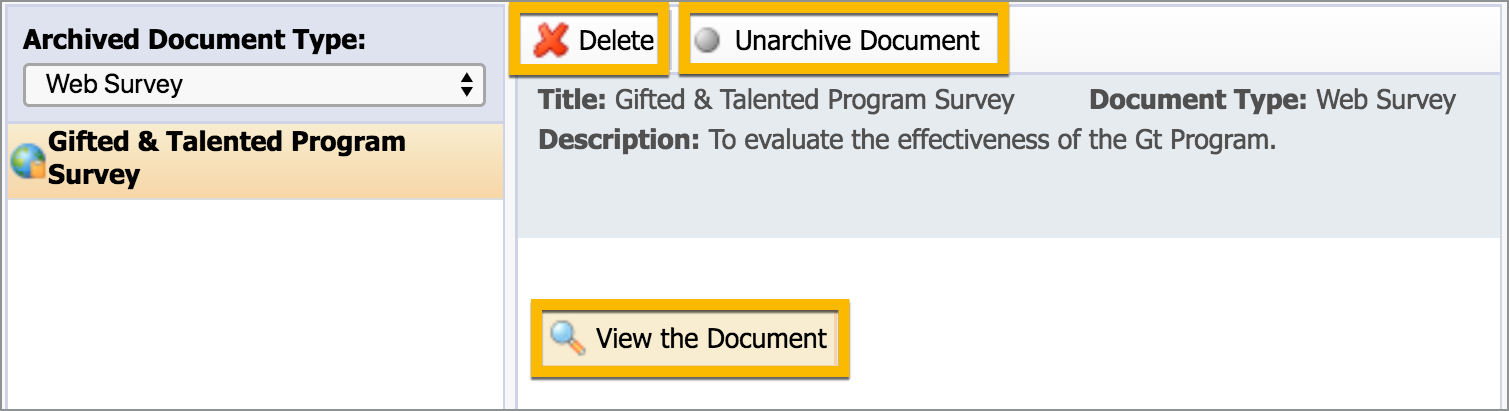
After accessing the archived document, you can do the following:

  • View and print the document by clicking in the View the Document button and then the print icon when the document opens in the new window.

  • Unarchive the document by clicking on the Unarchive Document button in the top toolbar.

  • Delete the document by clicking on the Delete icon.
FS10.png