District administrators can archive the current year’s evaluation documents and goals at the end of the instructional year. Archiving evaluation documents and goals is an important maintenance task to complete before the start of a new school year.
Performing the Archive
The date range for your archive must be wider than your school year to capture items that start early or finish late. A district appraisal administrator or system administrator must temporarily edit the instructional calendar dates. Eduphoria recommends setting the date range to begin before the week of teacher in-service at the beginning of the year and end mid-June after the deadline to complete all evaluations.
Before archiving, keep the following considerations in mind:
When you archive an evaluation document, it is converted to a static PDF that cannot be modified. The archived documents remain connected to each staff member and are available in the Archived Evaluations tab of My Process. You can view these documents alongside the current-year documents under separate headers labeled for the previous school year.
You can mass-archive goals and evaluation documents, including reflections, walkthroughs, summatives, and more.
Documents converted to PDF cannot be changed once the archive process runs.
You can archive evaluation documents and goals at the same time or set different date ranges for goals to be archived separately.
Archiving moves goals from the active goal timeline to the archived goal view using the Professional Goal feature.
Goals are archived by the creation date, not the start date.
You can archive any Professional Goal or Student Growth Goal regardless of its current status. Check the dates before archiving to ensure current goals are not archived.
Warning: Accurate dates are critical. These dates must be included in the instructional calendar created in Management. If your district creates goals in the spring, you must adjust the dates accordingly.
Quick Guide
If you are a user archiving evaluation documents or goals within the instructional calendar year, you can skip to Steps 8-12.
Note: If you are using different dates for your goals and evaluation documents, you must archive those parts separately in Step 11 and set the dates in the instructional calendar for each. For example, if your district creates goals in the spring during or after the summative conference, you must set the date range for the goals archive to include those dates. Uncheck both goal types in the goal archive section when you archive your evaluation documents. Once the evaluation archive is completed, widen the date range in the instructional calendar, uncheck the evaluation document types, check the goal types, then run the archive again.
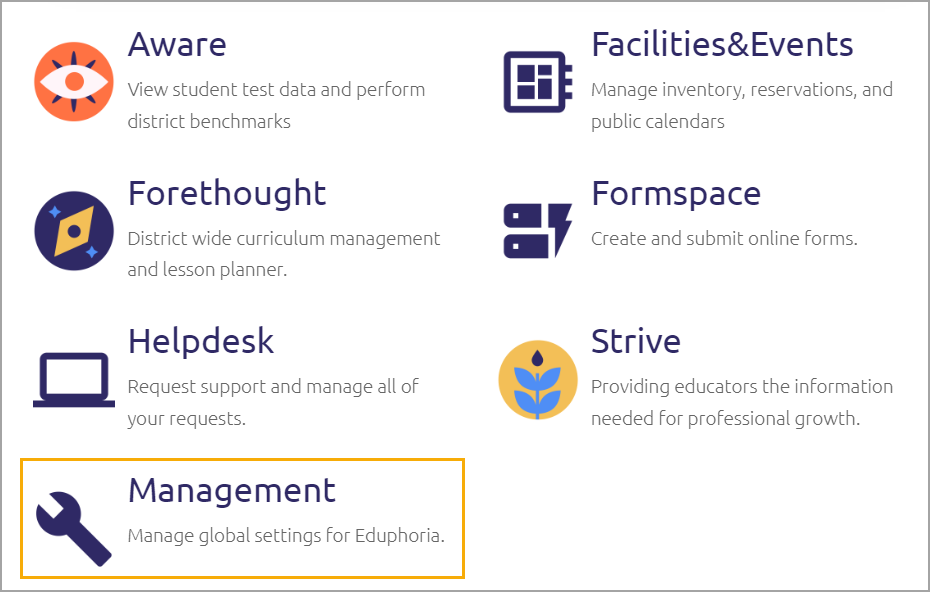
Navigate to Management.
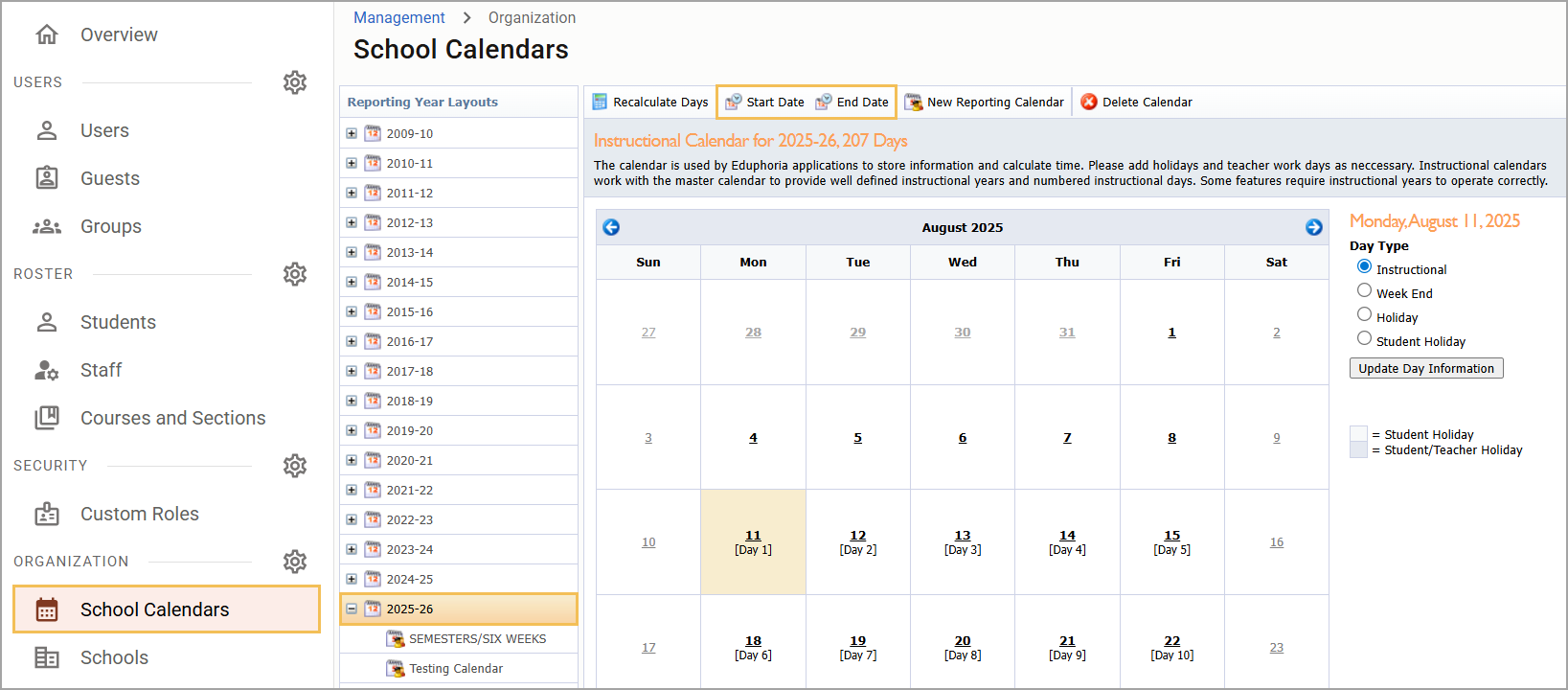
Select School Calendars () from the main menu.
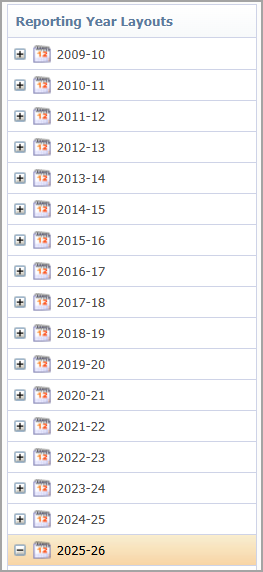
Locate and select the current school year’s calendar in the list.
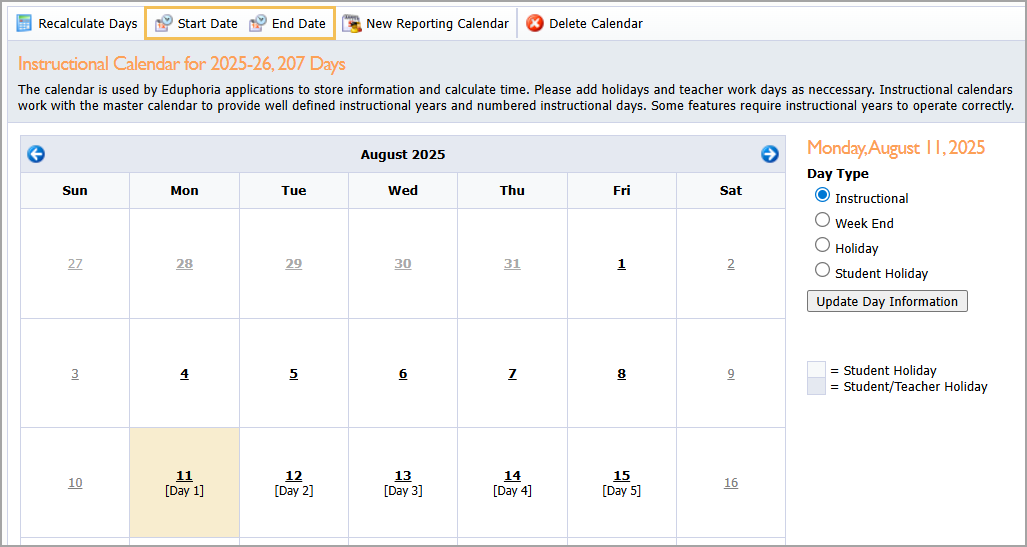
Select Start Date and End Date, and record the current dates for the school year. You will reset the Start and End Dates to the recorded dates after the archive process is complete.
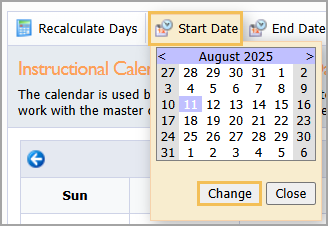
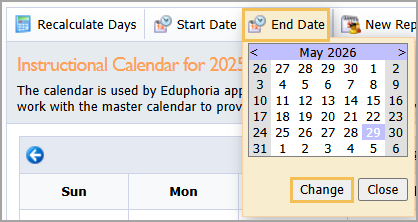
Select Start Date and choose an earlier date before the teacher in-service day begins. Select Change to confirm the date.
Select End Date and choose a later date after the deadline for administrators to complete their evaluations. Select Change to confirm the date.
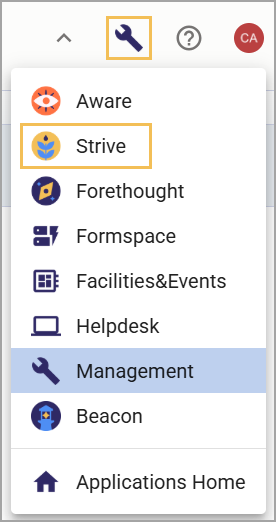
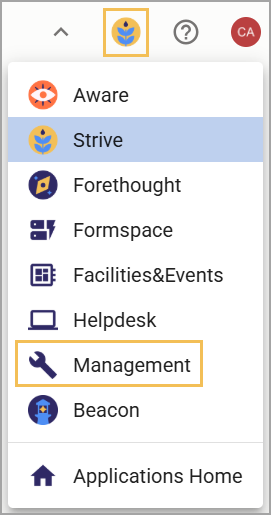
Select the Management icon () at the top-right and select Strive to switch to the application.
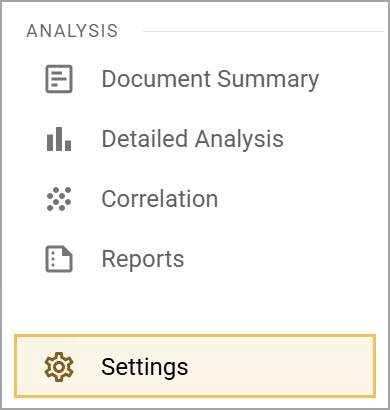
Select Settings () from Strive’s main menu.
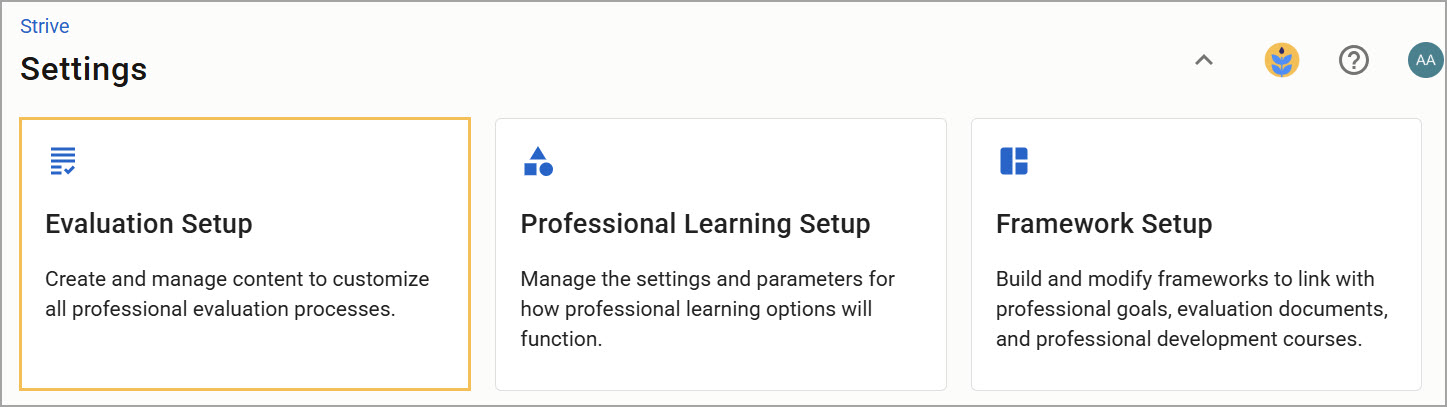
Select Evaluation Setup ().
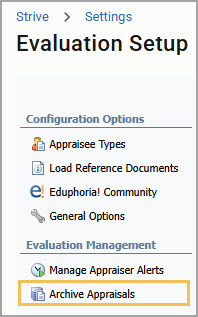
Under Evaluation Management, select Archive Appraisals.
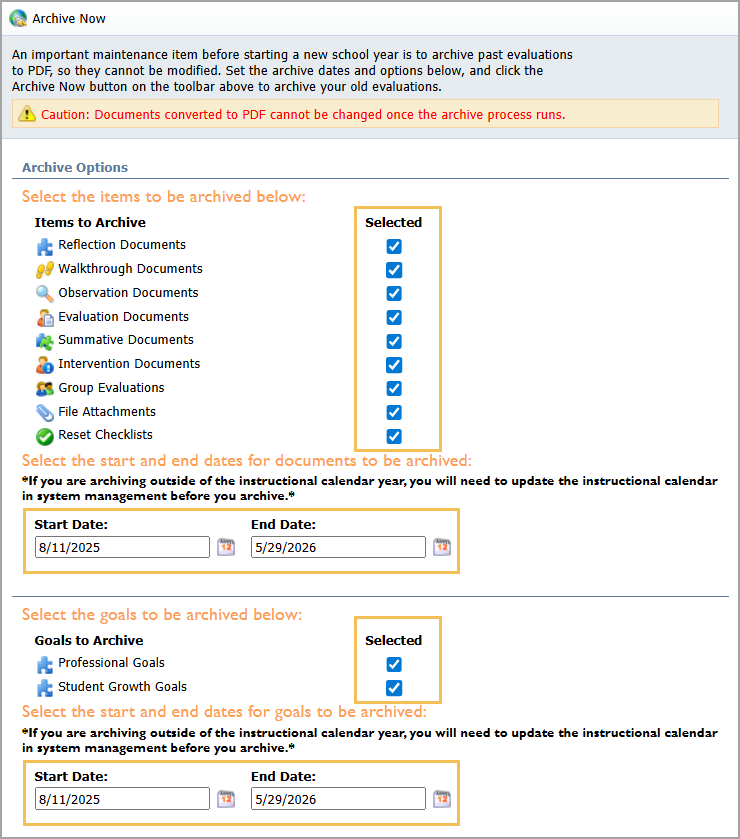
Select the checkboxes to choose which Items to Archive and which Goals to Archive. Then set the Start Date and End Date to match the instructional calendar’s date range.
Select Archive Now.
After archiving has completed, return to the Management application.
Select School Calendars to locate the current year’s instructional calendar again. Reset the Start and End Dates to the original dates you recorded, and select Change for both.
Illustrated Guide
If you are a user archiving evaluation documents or goals within the instructional calendar year, you can skip to Steps 8-12.
Step 1: Navigate to Management.
Step 2: Select School Calendars () from the main menu.
.png)
Step 3: Locate and select the current school year’s calendar in the list.
Step 4: Select Start Date and End Date, and record the current dates for the school year. You must change the instructional calendar back to these dates after the archive is complete to preserve the historical record of your current school year.
Step 5: Select Start Date and choose an earlier date before the teacher in-service day begins. For example, you could choose August 1 depending on your district’s needs. Select Change to confirm the date.
Step 6: Select End Date and choose a later date after the deadline for administrators to complete their evaluations. For example, you could choose June 15 depending on your district’s needs. Select Change to confirm the date.
Step 7: Select the Management icon () at the top-right and select Strive to switch to the application.
Step 8: Within Strive, select Settings () from the main menu.
Step 9: Select Evaluation Setup ().
Step 10: Under Evaluation Management, select Archive Appraisals.
Step 11: In the Items to Archive and Goals to Archive sections, select the checkbox for each type of document and goal you want to archive. Then set the Start Date and End Date to match the instructional calendar’s date range.
Note: If you are using different dates for your goals and evaluation documents, you must archive those parts separately and set the dates in the instructional calendar for each. For example, if your district creates goals in the spring during or after the summative conference, you must set the date range for the goals archive to include those dates. Uncheck both goal types in the goal archive section when you archive your evaluation documents. Once the evaluation archive is completed, widen the date range in the instructional calendar, uncheck the evaluation document types, check the goal types, then run the archive again.
Step 12: Select Archive Now.

The archive process might take a few minutes to archive all items into folders. Once the process is complete, you can view archived items in the Archived Evaluations tab in My Process.
Step 13: After archiving has completed, return to the Management application.
Step 14: Select School Calendars () to locate the current year’s instructional calendar again. Reset the Start and End Dates to the original dates you recorded, and select Change for both.
Optional: Exporting Archived Documents
In Strive, you can download a ZIP file containing all archived documents to save a copy to your device.
Quick Guide
Select Settings () from the main menu.
Select Evaluation Setup ().
Under Configuration Options, select General Options.
Select the Export tab.
Select the evaluation School Year.
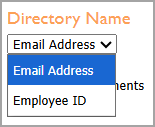
Use the Directory Name drop-down menu to choose Email Address or Employee ID as the sorting option.
Select Export Documents.
Illustrated Guide
Step 1: Select Settings () from the main menu.
Step 2: Select Evaluation Setup ().
Step 3: Under Configuration Options, select General Options.
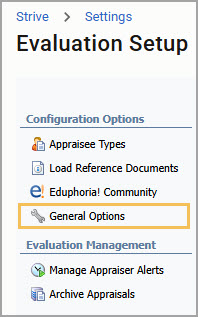
Step 4: Select the Export tab on the General Options screen.
.png)
Step 5: Select the evaluation School Year.
Step 6: Use the Directory Name drop-down menu to choose Email Address or Employee ID as the sorting option.
Note: Make sure the Employee IDs have been imported into Eduphoria before selecting that option. This can be done using either Active Directory User Syncing, Secure File Transfer Protocol (SFTP), or a manual import.
Step 7: Select Export Documents.
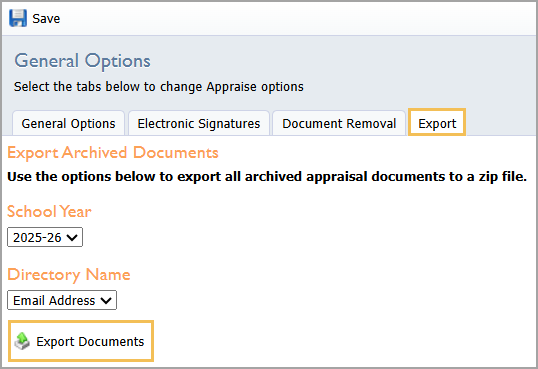
Creating the ZIP file for download might take a few minutes. When complete, the system emails you a link to access the files. This link is sent only to the person who requests the export and uses authentication to verify their identity, ensuring the file export is secure.