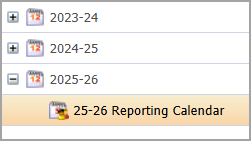
After creating the instructional calendar, a system administrator must then establish the reporting calendar for use in Aware. The reporting calendar determines when terms change to the second term, third term, and summer school.
The reporting calendar also influences the roster import process. The roster tool automatically sets the term to display if active rosters are imported outside the reporting calendar’s Start and End Dates. Teachers see incoming students once the roster data for the new school year begins importing, and they continue to see rostered students after the end of school.
Caution: Keep the following details in mind as you set up your reporting calendar:
Ensure you enter the year correctly and that all date ranges are sequential.
Establish the term dates on the correct first date and end the term the day before the next term starts, leaving no gaps for weekends or breaks.
On any day the calendar is not active (e.g., during instructional breaks or weekends), teachers cannot view student information.
Quick Guide
Select School Calendars () in Management.
Locate the instructional calendar to which you want to add a reporting calendar.
Select New Reporting Calendar in the top toolbar.
Name your reporting calendar, and then set the number of terms and cycles.
Click Finish when complete.
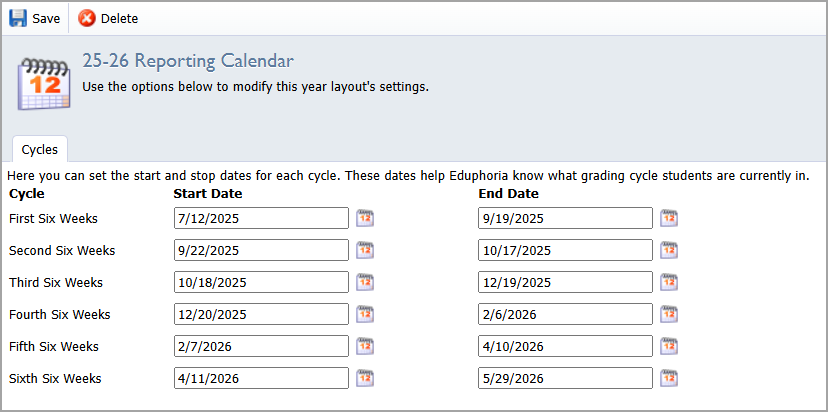
Set up the Start and End Dates for each cycle, and remember to leave no gaps for weekends or breaks.
Illustrated Guide
Step 1: Select School Calendars () in Management.
.png)
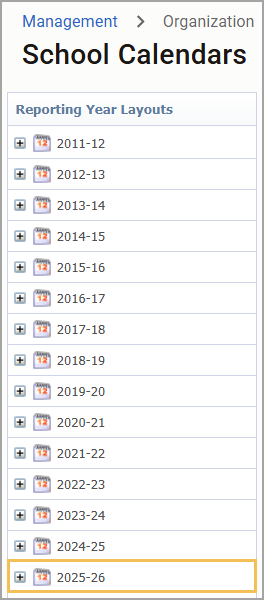
Step 2: Locate the instructional calendar to which you want to add a reporting calendar. Typically, you would select your most recent instructional calendar.
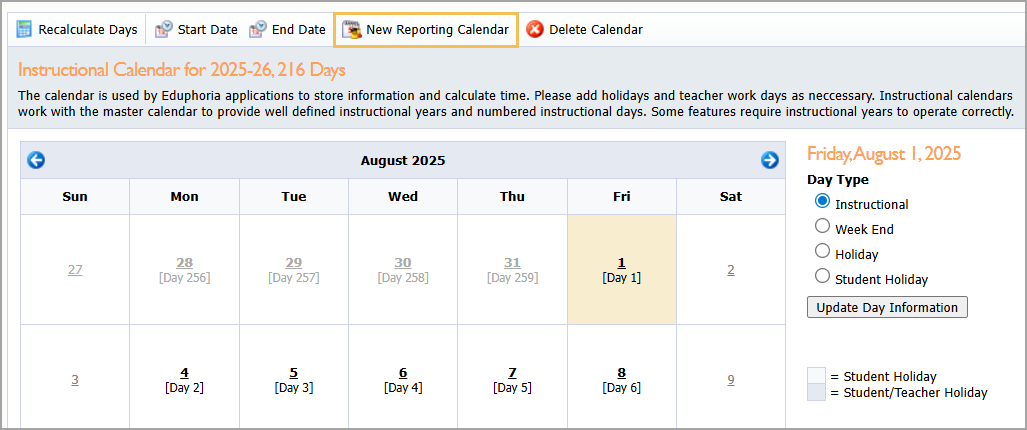
Step 3: Select New Reporting Calendar in the top toolbar.
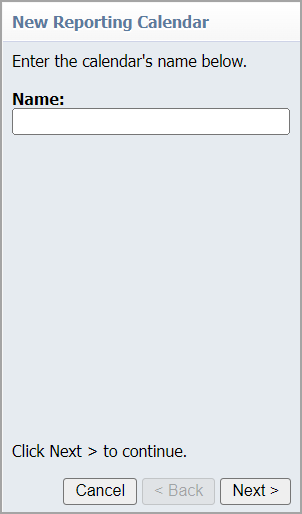
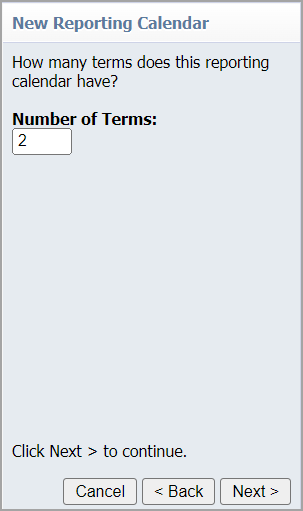
Step 4: Name your reporting calendar, and then set the number of terms and cycles.
Tip: A term is the period of time set by your district. Typically, a semester is considered as two terms but the number of terms could vary for your district. A cycle is a grading period during the term. If you set the number of terms to two and cycles to three, you're setting six total grading periods across the school year.
.png)
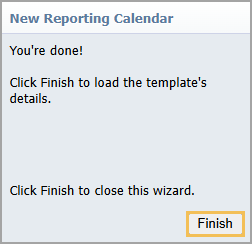
Step 5: Click Finish when complete.
Step 6: Set up the Start and End Dates for each cycle, and remember to leave no gaps for weekends or breaks.
You can locate your reporting calendar by selecting the Plus icon () next to the instructional calendar. Select the Minus icon () to hide the reporting calendar.