If you need to edit an existing unit, simply open the unit and make changes or additions as needed. Beacon automatically saves your changes.
Quick Guide
Access the unit you want to edit.
From the Year at a Glance course view (), select the bar that represents the unit. A window appears, allowing you to edit the Unit Title, Unit Date Range, or Duration. Add Attachments as needed. Select Done.
From the List course view (), select the Units tab. Then, edit the Title, Dates, or Duration by double-clicking the cell and then typing a new entry. When you are finished, click outside of the row to save your changes.
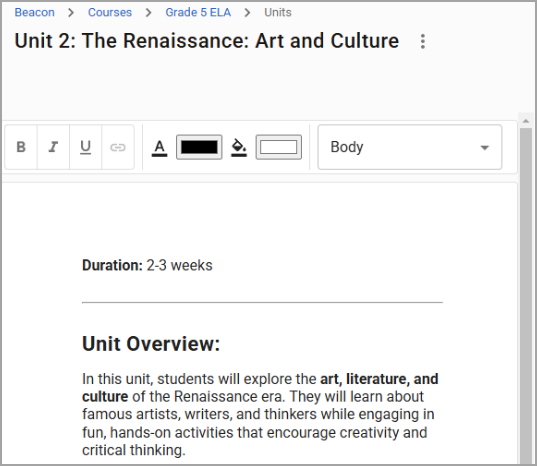
To edit unit details, select the Open Unit icon (). Make changes or additions as needed using the Editor’s word processor. Your edits save automatically.
In the Relationships panel, you can link or unlink standards, lessons, resources, and attachments.
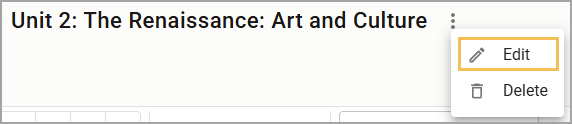
To change the title, select the three vertical dots next to the course title to open the More Actions menu and then select Edit from the drop-down menu. Make changes as needed and then select Save.
Illustrated Guide
Step 1: Access the unit you want to edit from either the Year at a Glance view or Unit List view of the course in which it resides. You can then edit the title, date range, duration, or attachments or open the unit to edit further details. Expand a section below to learn more about editing units from each view.
Note: Use the Year at a Glance view to add attachments to the unit. This option is not available from the Unit List.
Year at a Glance
From the Year at a Glance course view (), select the bar that represents the unit. 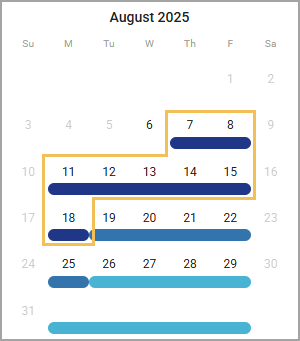
A window appears, allowing you to edit the Unit Title, Unit Date Range, or Duration. Add Attachments as needed. Select Done to save your changes.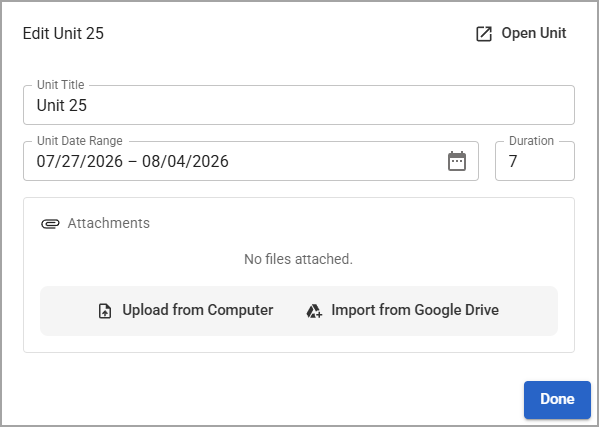
Note: Changing the dates automatically updates the duration, and vice versa, but it does not automatically updates other units. Be sure to adjust other units in the course as needed.
Unit List
From the Unit List course view (), select the Units tab. Then, edit the Title, Dates, or Duration by double-clicking the cell and then typing a new entry. When you are finished, click outside of the unit row to save your changes.
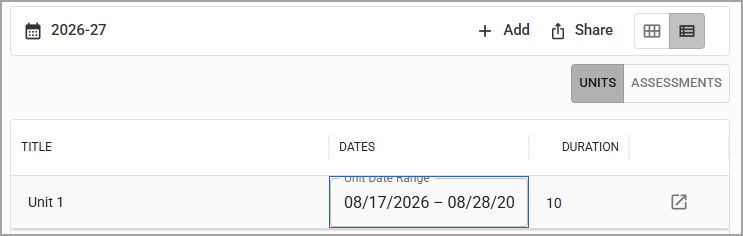
Note: Changing the dates automatically updates the duration, and vice versa, but it does not automatically updates other units. Be sure to adjust other units in the course as needed.
Step 2: To edit unit details, select the Open Unit icon () in either the Edit Unit window or the unit row. The unit Editor opens, allowing you to make changes or additions using the Editor’s word processor. Your edits save automatically. For more information, see Using the Editor.
Step 3: In the Relationships panel, you can link or unlink standards, lessons, resources, and attachments.
.png)
Step 4: To change the title, select the three vertical dots next to the course title to open the More Actions menu and then select Edit from the drop-down menu. Make changes as needed and then select Save.