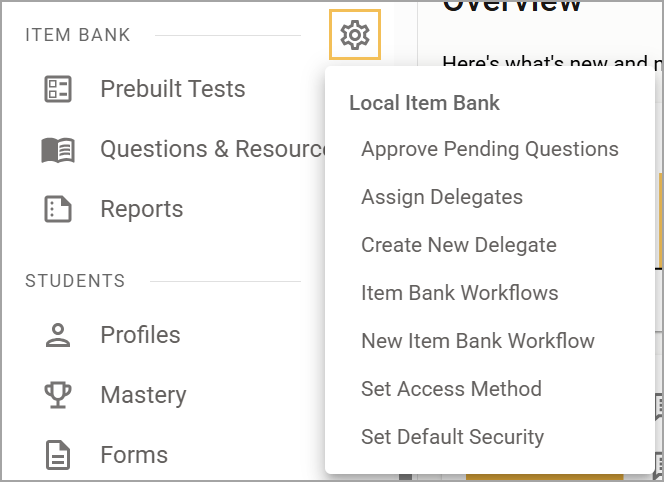
Users with the Edit Item Bank Questions right or Manage Item Bank right can access Item Bank Settings. These settings include approving pending questions, managing delegates, and more.
Log in to Aware and click the Item Bank Settings gear to access each Local Item Bank setting.
Approve Pending Questions
Users with the Manage Item Bank right or Edit Item Bank Questions right can select Approve Pending Questions, which will allow them to approve or reject submitted questions and resources. Users can also publish, edit, or delete a submitted item. In addition, they can link a question to a resource.
Narrow down the number of questions or resources by course, or use the filters to sort by item type, depth of knowledge, language, and more.
Assign Delegates
Users with the Assign Delegates right can assign delegates to approve or edit pending test items. Click on a delegate to add them to standard sets, remove them from standard sets, and set permissions. See Managing Delegates for more information.
Set Access Method
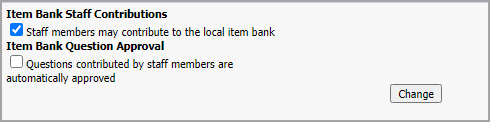
Users with the Manage Item Bank right or Edit Item Bank Questions right can select Set Access Method. You can then establish settings for Item Bank Staff Contributions and Item Bank Question Approval.
Check or uncheck the box for Staff members may contribute to the local item bank. Check or uncheck the box for Questions contributed by staff members are automatically approved. Checking this box will forgo the item bank approval process, and teacher-submitted items will be automatically added to the Local Item Bank.
Set Default Security
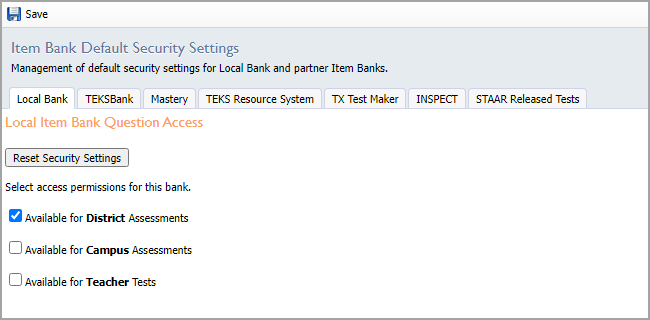
Users with the Manage Item Bank right or Edit Item Bank Questions right can select Set Default Security to open default management settings for the Local Item Bank and partner Item Banks. Such settings include access permissions for the Local Item Bank and all available partner Item Banks.