Users with the Assign Delegates right can add, edit, and remove delegates in Aware. Delegates manage new item bank questions, performing tasks such as reviewing, editing, and approving items before making them available to other users in Author.
Quick Guides
Creating a New Delegate
Select the Item Bank Settings gear icon ().
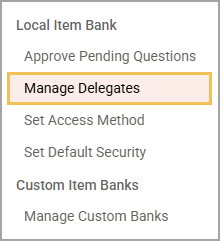
From the settings options, select Manage Delegates.
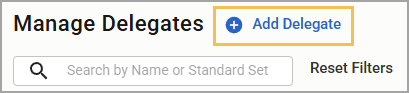
Select Add Delegate.
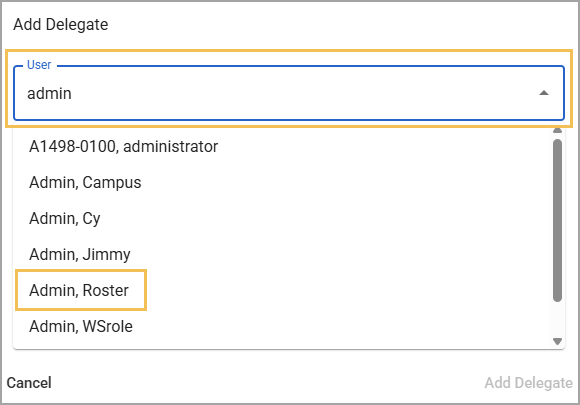
Type the name or email address of the staff member in the User search bar and then select the name of the user you want to add as a delegate.
Select the staff member from the list and then click Next.
In the Standard Sets window, select the checkbox for each standard set you want to assign to the delegate, then click Select Standard Sets.
In the Add Delegate Permissions window, select the checkbox(es) to determine which actions the delegate can take on items that match their assigned standard sets. Them, select Update Permissions.
Editing Assigned Standard Sets and Permissions
Select the Item Bank Settings gear icon ().
From the settings options, select Manage Delegates.
Type the name of the delegate in the Search by Name or Standard Set field to filter the list.
In the row for the delegate you want to edit, select the delegate’s name.
(Optional) Add new standard sets to the delegate by selecting Add Standard Set.
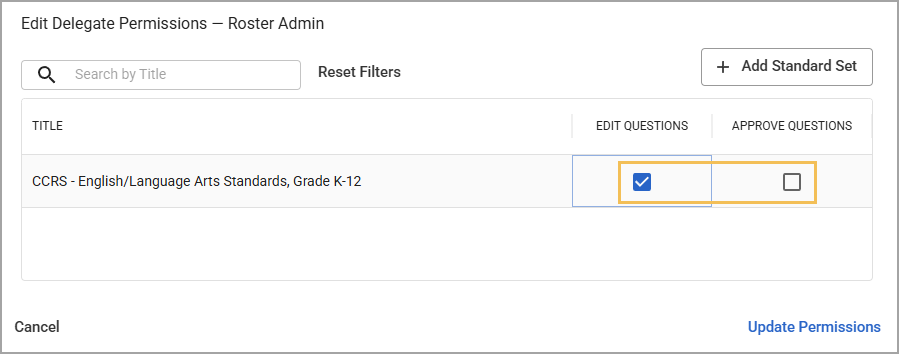
(Optional) Change the delegate’s permissions by selecting or clearing the necessary checkboxes.
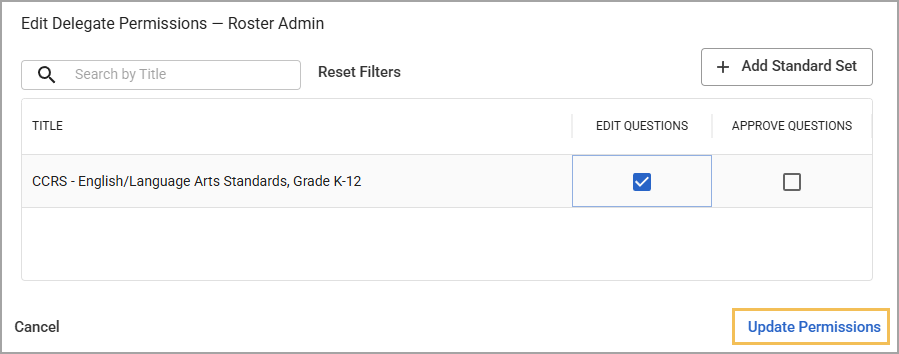
Select Update Permissions to save your changes.
Removing a Delegate
Select the Item Bank Settings gear icon ().
From the settings options, select Manage Delegates.
Type the name of the delegate in the Search by Name or Standard Set field to filter the list.
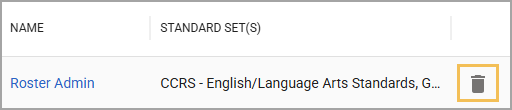
In the row for the delegate you want to remove, select the Delete Delegate icon ().
Illustrated Guides
Creating a New Delegate
Step 1: From the main menu, select the Item Bank Settings gear icon ().
.png)
Step 2: From the resulting drop-down menu, choose Manage Delegates.
Step 3: Select Add Delegate.
Step 4: Type the name or email address of the staff member in the User search bar and then select the name of the user you want to add as a delegate.
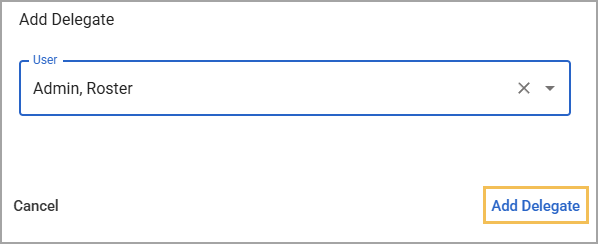
Step 5: Select Add Delegate to confirm your selection.
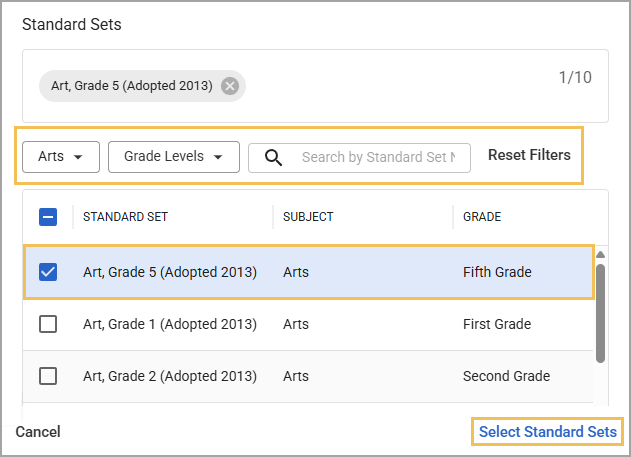
Step 6: In the Standard Sets window, assign standard sets to delegate. The delegate can then manage items matching the selected standard sets.
Use the Subjects and Grade Levels drop-down menus to filter the list or search for a specific standard set by typing in the Search bar (). Selecting Reset Filters clears the Subjects, Grade Levels, and Search filters.
Select the checkbox for each standard set you want to assign to the delegate, then click Select Standard Sets to apply all selected sets.
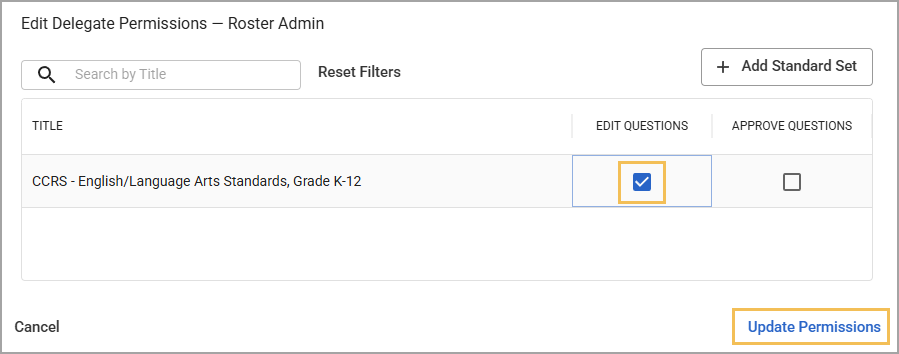
Step 7: In the Add Delegate Permissions window, determine which actions the delegate can take on items that match their assigned standard sets.
If you need to assign another standard set, you can do so here by selecting Add Standard Set.
The following permissions can be assigned to delegates:
Edit Item Bank Questions - Allows the delegate to edit items in the local bank for the assigned standard set(s).
Approve Item Bank Questions - Allows the delegate to approve pending items in the item bank. Approving an item makes it available in test authoring and in Questions and Resources.
When a new item is submitted to an item bank, the delegate is notified that an item is pending approval. If the delegate denies the approval, the user who submitted the item is automatically notified that the item was rejected.
If no delegate is assigned to the standard set, the request for approval notification is sent to Item Bank Administrators with the Manage Item Bank right.
Select the checkbox to apply the permission and then select Update Permissions.
Editing Assigned Standard Sets and Permissions
Step 1: From the main menu, select the Item Bank Settings gear icon ().
Step 2: From the resulting drop-down menu, choose Manage Delegates.
Step 3: Type the name of the delegate in the Search by Name or Standard Set field to filter the list.
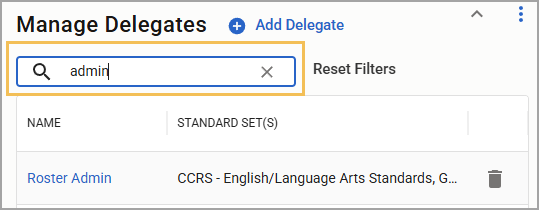
Step 4: In the row for the delegate you want to edit, select the delegate’s name.
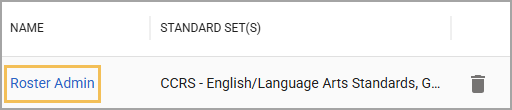
Step 5: (Optional) Add new standard sets to the delegate by selecting Add Standard Set.
Step 6: (Optional) Change the delegate’s permissions by selecting or clearing the necessary checkboxes.
Step 7: Select Update Permissions to save your changes.
Removing a Delegate
Step 1: From the main menu, select the Item Bank Settings gear icon ().
Step 2: From the resulting drop-down menu, choose Manage Delegates.
Step 3: Type the name of the delegate in the Search by Name or Standard Set field to filter the list.
Step 4: In the row for the delegate you want to remove, select the Delete Delegate icon ().