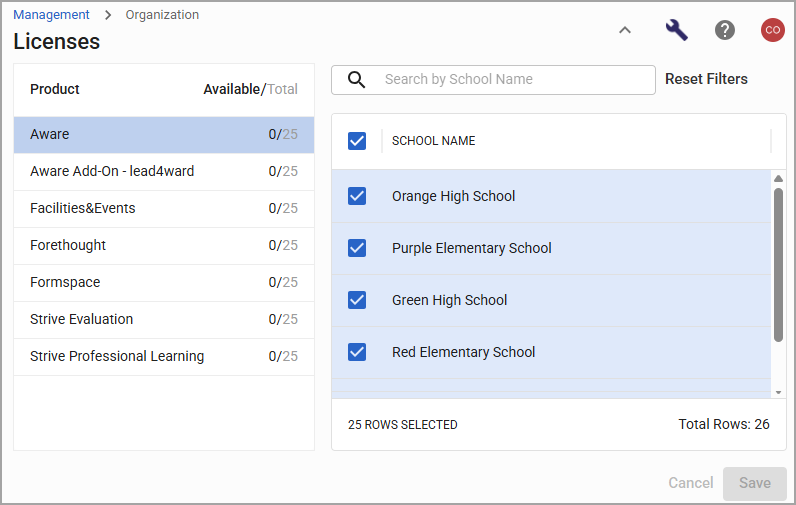
The Licenses screen in Management provides a centralized user interface for managing application access across schools. From this screen, users with the Manage Schools right can view the number of total licenses and available licenses for each application and manage which schools have access to which applications. This allows administrators to closely monitor license usage and control application availability from a single easy-to-access location. By assigning or removing application access for individual schools, administrators can ensure that licenses are allocated appropriately and that each school has access to the applications it needs.
Note: Licenses shown on this screen apply to the entire school. These are not individual user licenses.
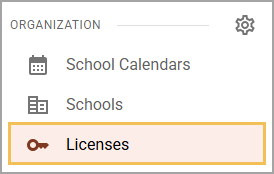
To access Licenses, select Licenses from the Organization section of the main menu.
Viewing the Number of Available Licenses and Total Licenses
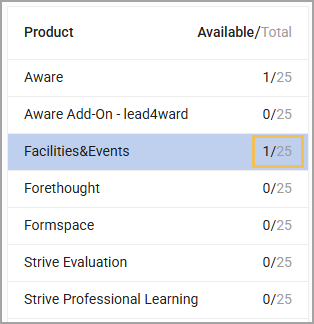
The Product list displays the name of each Eduphoria application for which your district has purchased licenses. Next to the name of each application is the Available/Total column. The first number shows how many licenses are available to be granted to schools. The second number is the total number of purchased licenses.
In the image below, 1 license for Facilities&Events is left to use out of a total of 25.
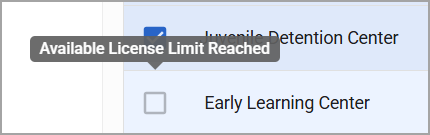
If you use all your available licenses but still have schools without any assigned, the remaining schools’ check boxes turn gray. Hover over the box to see that you have reached your available license limit. You can either purchase more licenses or remove a license from one school and add it to another.
Adding or Removing a School’s License
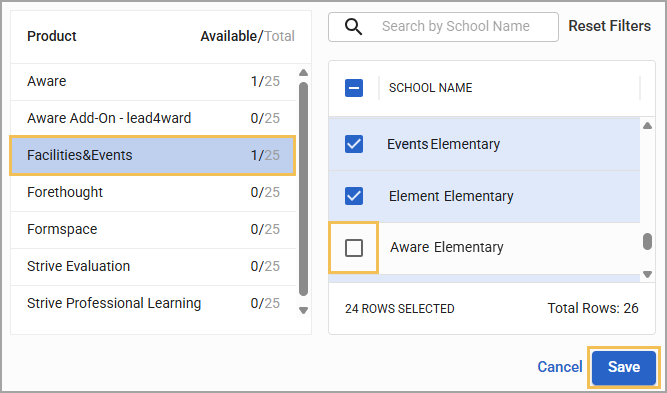
To add a license to a school that does not already have access to the application, select the application from the Product list. Then, select the checkbox(es) next to the school(s) you want to grant access to. Select Save at the bottom of the screen when you are finished applying licenses.
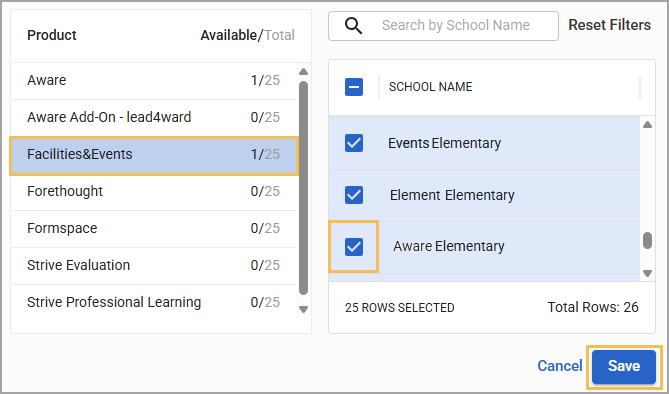
To remove a license, select the application from the Product list. Then, clear the checkbox(es) next to the school(s) you want to remove access from. Select Save at the bottom of the screen when you are finished removing licenses.