To download LockDown Browser for iPad, click here or search the App store for LockDown Browser. Users will need an Apple account to download the App; for more information about Apple accounts, click here.
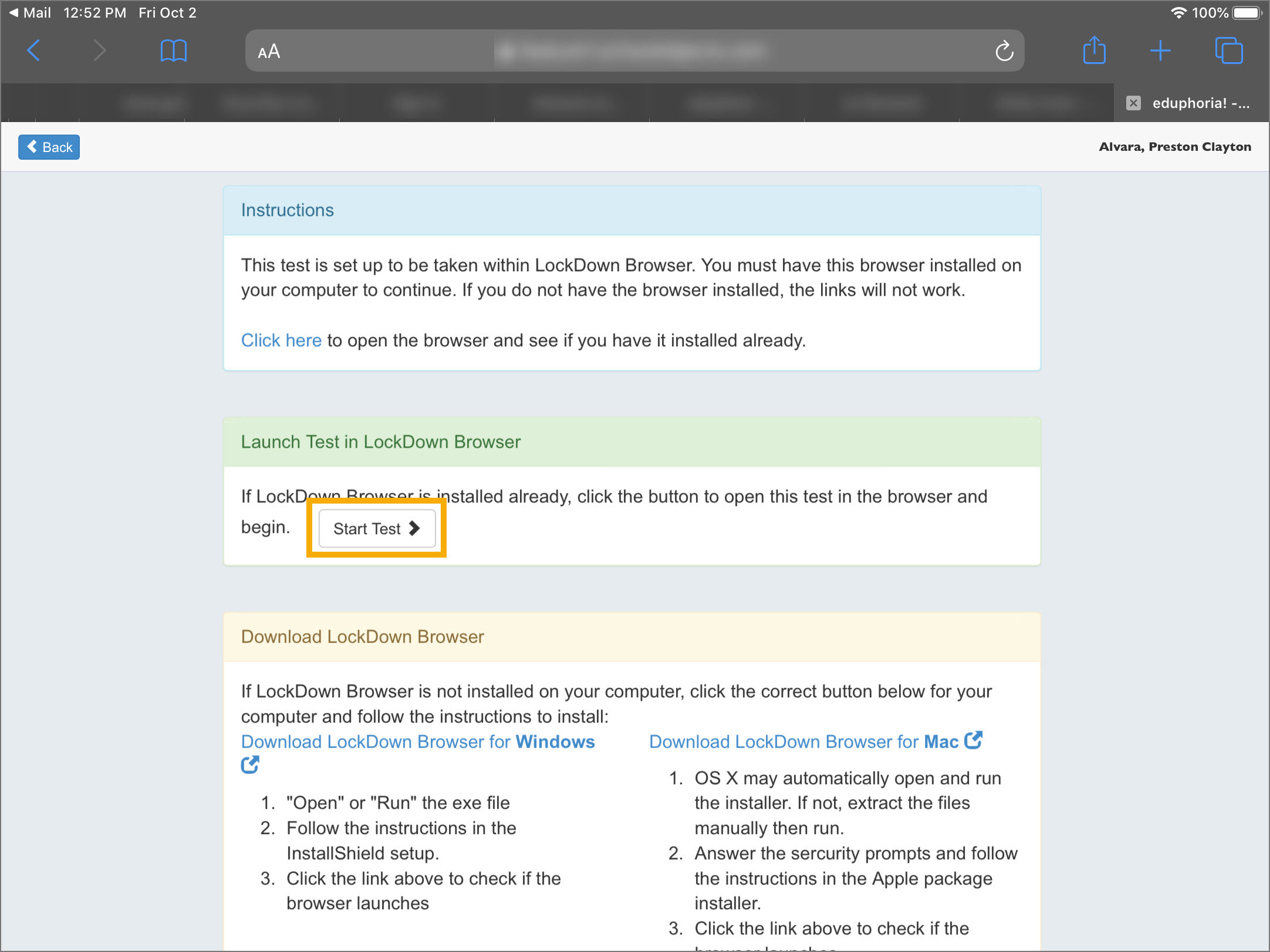
To take an online test on an iPad using LockDown Browser, students should use Safari or Chrome as their browser then navigate to the online testing link provided by their teacher. They will sign in to testing, where they will be prompted to open the LockDown Browser app.
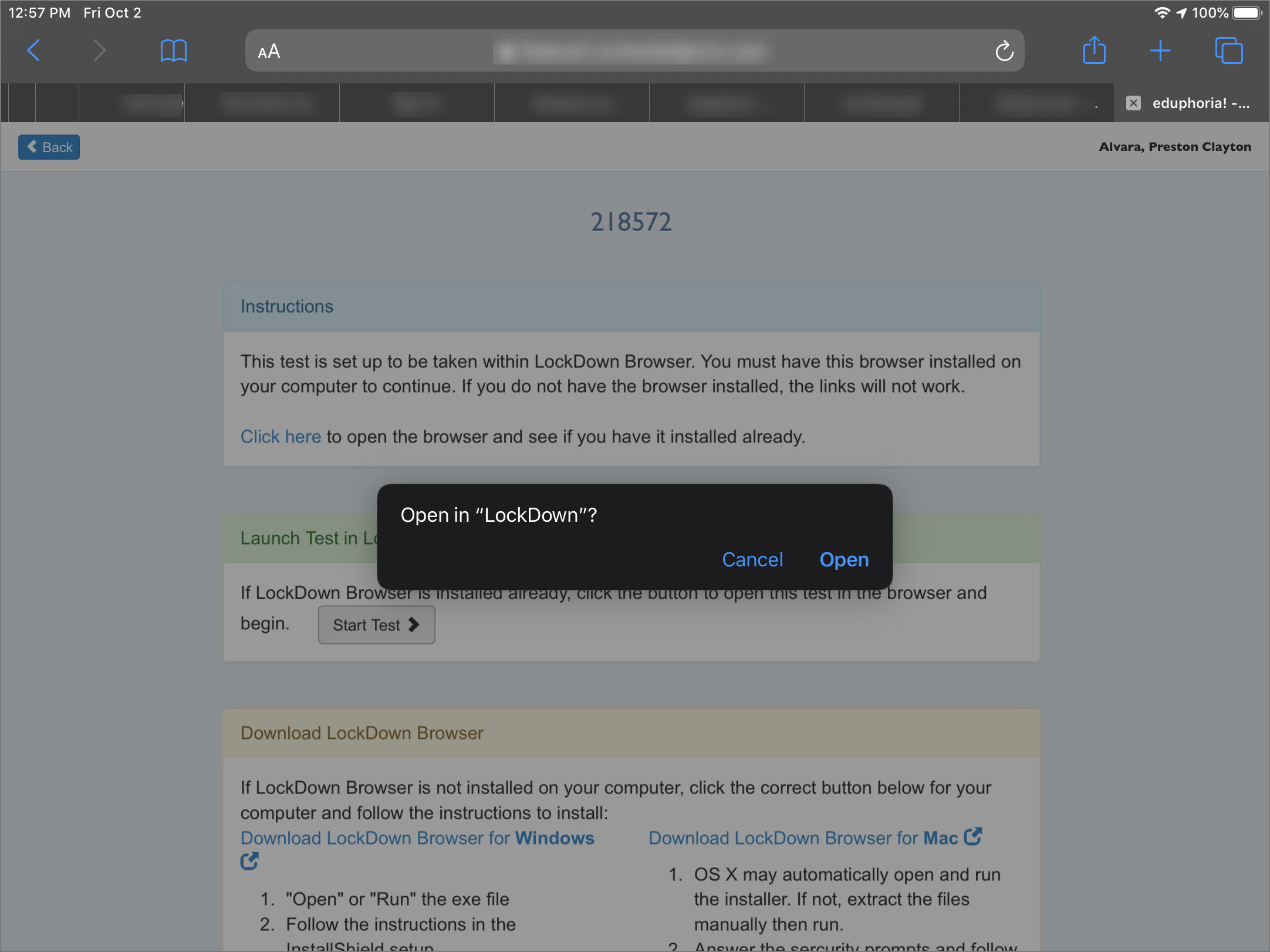
Selecting Start Test will open a pop up, requesting to open in the LockDown Browser App. Students should select Open.
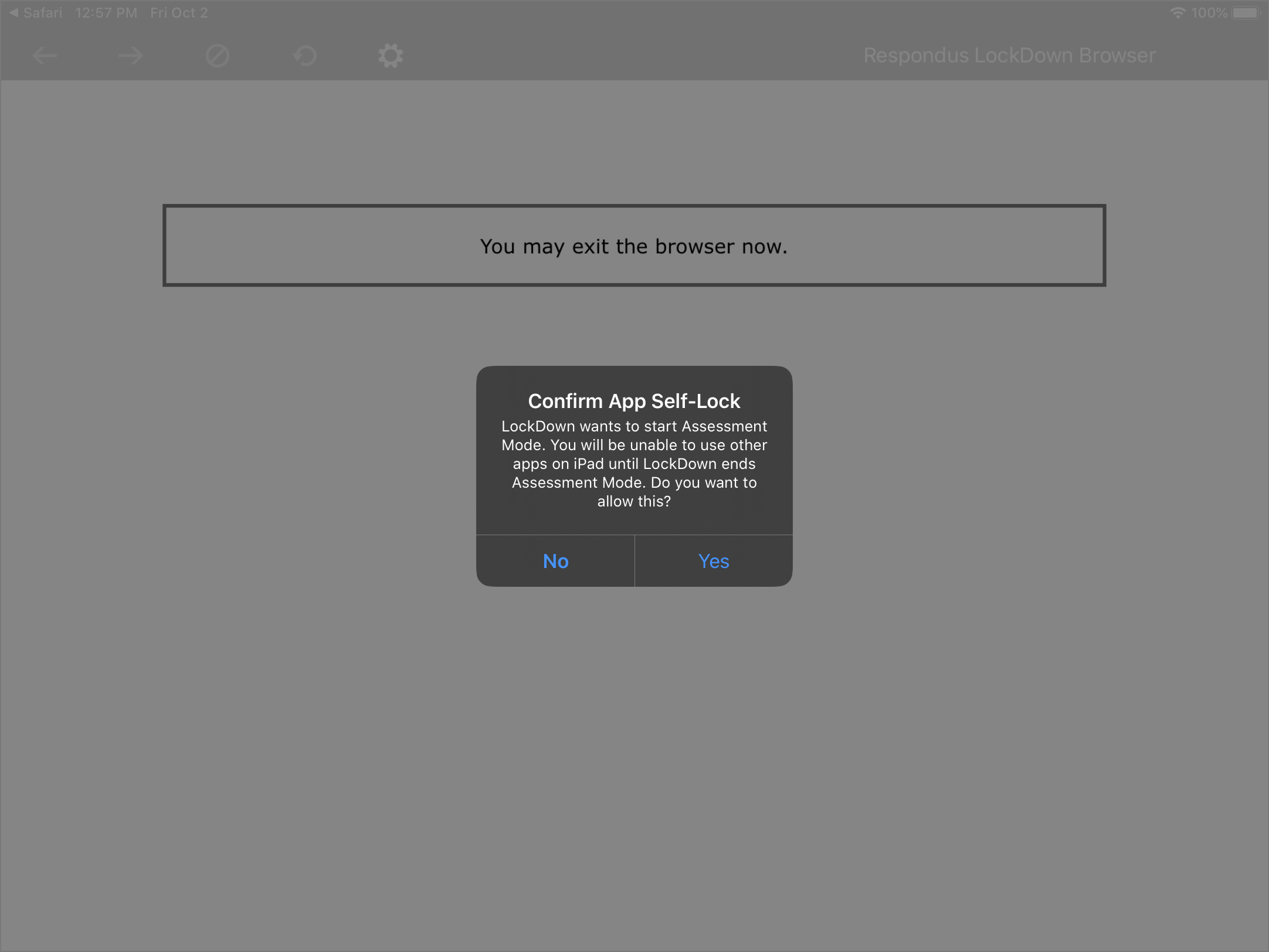
After selecting Open, the LockDown Browser app will confirm that it will be the only accessible app until the test is completed. Students should select Yes.
Student Supports on iPad
Speech-to-Text
Eduphoria's Speech-to-Text support is not supported when using LockDown Browser on iPad. To enable Speech-to-Text for LockDown Browser for iPad, use the iPad’s built-in dictation feature.
To enable dictation, go to Settings.
Select General.
Select Keyboard.
Turn on Enable Dictation.
When dictation is enabled on the device, a microphone icon appears in the on-screen keyboard. Tap the microphone icon to begin recording and converting to text. Additionally, if a Bluetooth keyboard is being used, a shortcut can be set to activate dictation.
Text-to-Speech
The iPad’s built-in Text-to-Speech (TTS) feature cannot be disabled by LockDown Browser. This means that all students can access Text-to-Speech on iPad regardless of whether Eduphoria’s Text-to-Speech support is enabled.