LockDown Browser is a custom browser that locks down the testing environment. When students use the locked browser to access an assessment, they cannot print, copy and paste, go to another URL, or access other applications. Students are locked into an assessment until they either leave the online testing environment or if they submit the assessment for grading. The latter option is a setting teachers can enable.
Eduphoria provides administrators with download links to the latest version of LockDown Browser for macOS 10.15 to 14.0+. To verify the latest versions, visit the LockDown Browser Update release note.
Installing LockDown Browser for Macs
Follow these instructions to download and install the latest version of LockDown Browser for Macs.
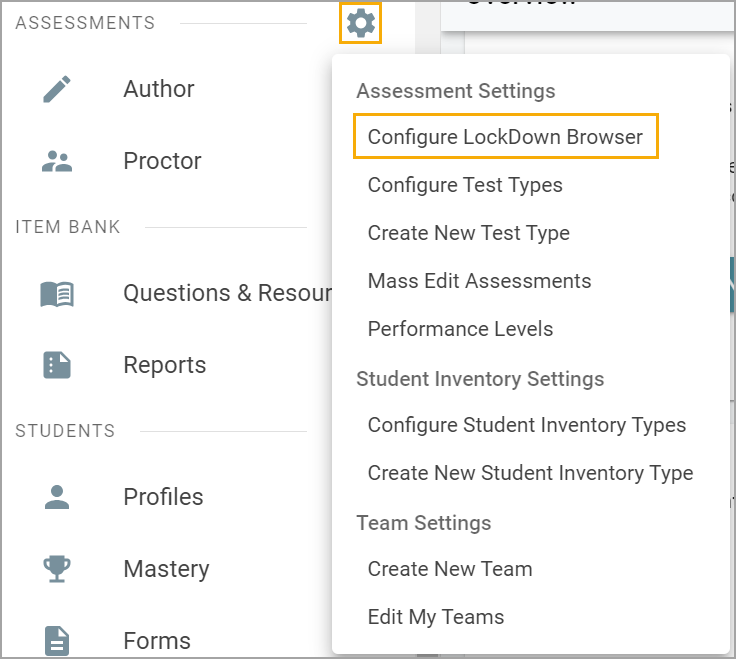
Step 1: Navigate to the Assessments Settings gear in Aware.
Step 2: Select Configure LockDown Browser.
Note: To access Configure LockDown Browser from Assessments Settings, you must have the Create Local Assessment Tests right assigned to you at the district-level, meaning you have access to this right for all campuses. Roles and rights are configured by your Eduphoria system administrator in Management.
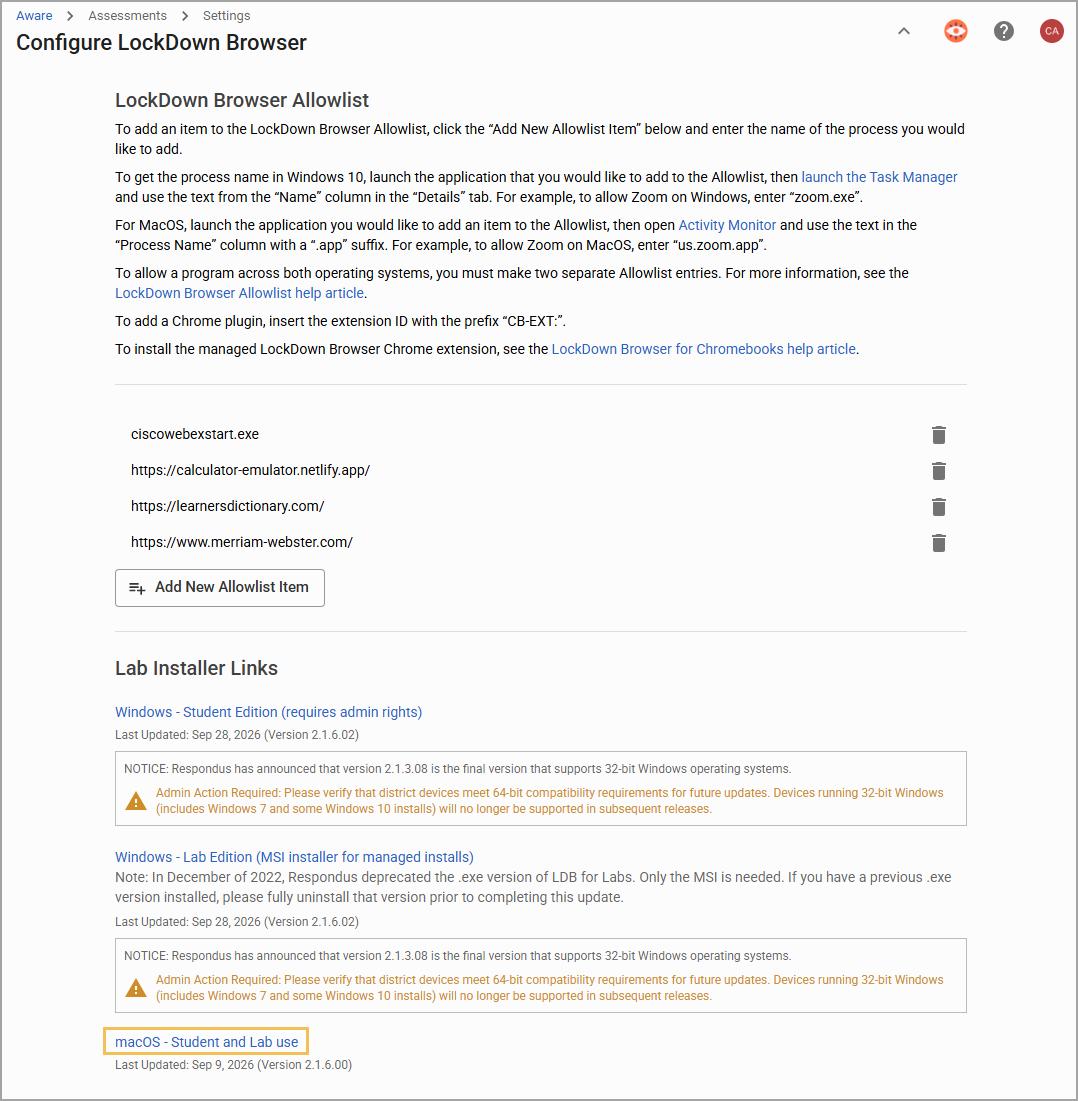
Step 3: Click the link for macOS - Student and Lab Use to download the PKG file. Follow the installer’s instructions.
Student Supports Compatible with LockDown Browser for macOS
The following student supports can be enabled for students when testing in LockDown Browser on a Mac device:
For more information about using student supports with LockDown Browser, see LockDown Browser FAQ and Student Supports FAQ.